
With delivery & pickup on, customers choose how a rental reaches them (Pick up, Delivery or Transport) before they pick dates. Each way has its own time in transit, order cut-off, notice, hand-over days and time slots. The calendar greys out what that way can’t do, the booking blocks the days in transit, and checkout offers only the matching delivery options.
Delivery fees are Shopify’s by default: you set up local delivery and shipping rates in Shopify as usual. If you would rather charge the fee through the app, or limit deliveries to areas and time slots with a limited number of stops, see Delivery areas, slots and the Schedule.
Set it up #
- In Shopify, open Settings › Shipping and delivery. Turn on Local pickup at the locations customers collect from, and set up local delivery zones and shipping rates as usual. A separate “Rentals” shipping profile keeps rental rates apart.
- In the app, open Settings › Delivery & pickup and turn on Customers choose how they get their rental.
- Choose the Ways to get a rental and set each one up (below).
- Click Save. Saving also sets up the rental delivery rule at checkout.
- Optional: give a product its own ways in its Delivery & pickup card, or copy one set of ways to many products with Apply to products.
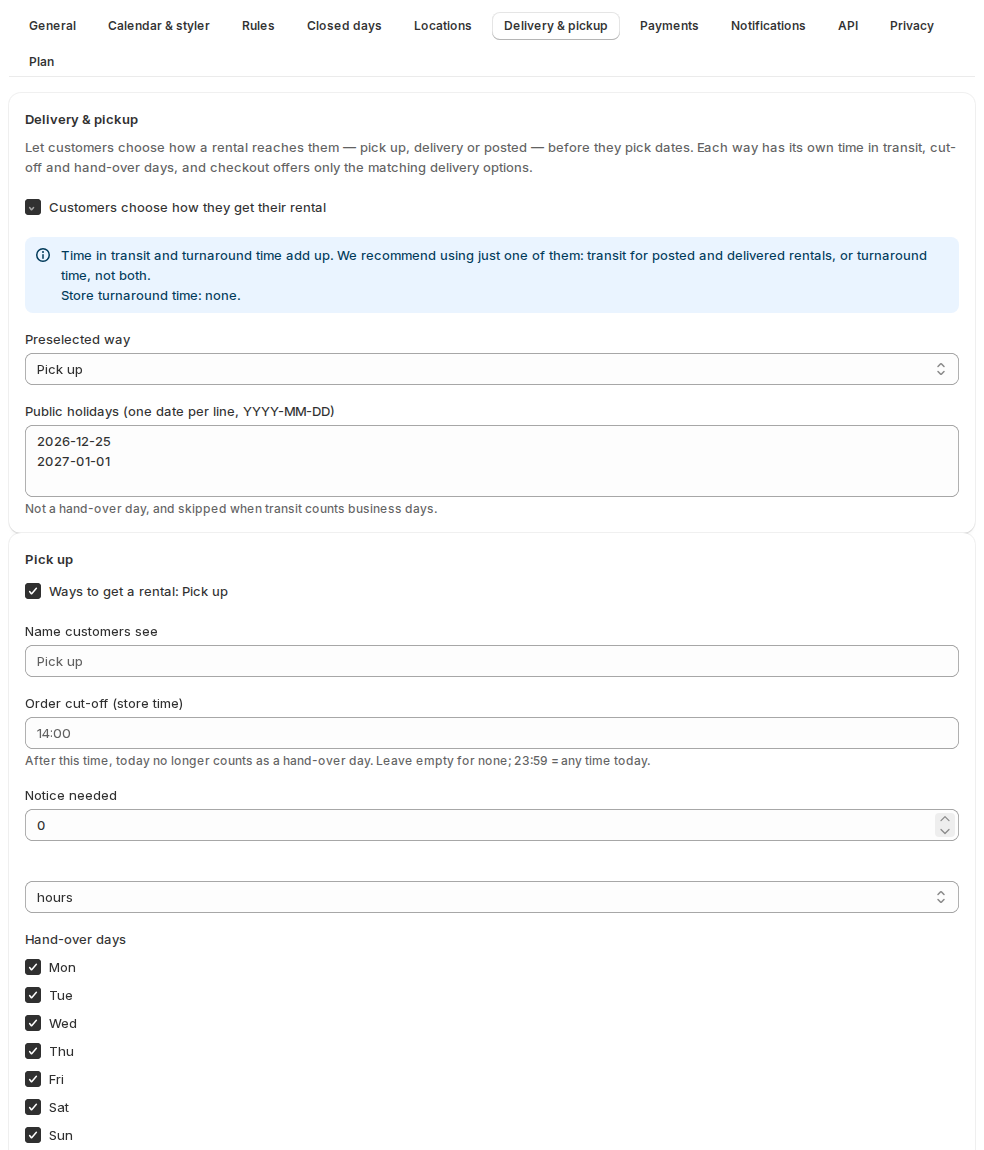
Settings for each way #
| Setting | What it does |
|---|---|
| Name customers see | The way’s name on the product page and in the cart. |
| Order cut-off (store time) | After this time, today no longer counts as a hand-over day. Leave empty for none; 23:59 = any time today. |
| Notice needed | Hours or days added on top of the cut-off. |
| Hand-over days | The days you hand rentals over this way (for transported rentals: the days you dispatch). |
| Time in transit before the start and after the end | For transported rentals: how long transport takes each way. |
| Count transit in | Calendar days or Business days (public holidays skipped). |
| Days returned parcels arrive | The days you receive transported returns. |
| Time slots | None, Opening hours (shown, not chosen), or Customers choose a time slot from your list, one per line, like 08:00-10:00. |
| How it comes back | Return in store, we collect, or transport it back. |
| Late after | When a return counts as late. |
| At checkout | Only offer the booked pick-up location, Allow pickup points, Hide shipping rates whose name contains (comma separated), Add the booked day and time slot to the option name. |
| When checkout can’t offer this way | Stop checkout and explain, or Allow it and flag the order. |
Store-wide: Preselected way (or None (customers must choose)) and Public holidays (one date per line, YYYY-MM-DD), which are never a hand-over day.
The cheapest shipping rate is never hidden. A separate “Rentals” shipping profile is the cleaner way to keep rental rates apart.
What is blocked #
For a rental from Friday to Sunday:
- Pick up: collected on Friday, returned on Sunday.
- Delivery: delivered on Friday, collected on Sunday.
- Transport: sent on the dispatch day, the time in transit before Friday (moved back to a day you dispatch), and due back the time in transit after Sunday (moved forward to a day parcels arrive).
The booking holds its units from the hand-over to the day it is back, plus the product’s turnaround time. Transit and turnaround add up, so we recommend using just one of them. When both apply, the settings show the combined time, for example “Transport: 3 days transit + 2 days turnaround = 5 days blocked before and after each rental”.
Pick up and delivery keep your closed days: a rental can’t start or end on one. Transported rentals may start or end on any day (a Sunday wedding is fine); the closed days, the way’s blackouts and public holidays apply to the dispatch and receiving days instead.
What customers see #
- With two or more ways, the product page asks “How do you want it?” first, with a short note under each, like “Ready from Tue, Oct 6” or “Dispatched 3 days before, due back 3 days after”.
- The calendar only offers dates that way can do.
- The cart line shows the plan: “Pick-up: Fri, Oct 9, 10:00 AM – 12:00 PM”, “Delivery: Tue, Oct 6, 8:00 AM – 10:00 AM”, “Shipping: Dispatched Tue, Oct 6 · arrives by Fri, Oct 9”, “Return: Transport it back Sat, Oct 10 (due Tue, Oct 13)”.
- A cart can’t mix ways, because Shopify fulfils an order one way. The product page offers to switch the new rental to the cart’s way.
- Checkout shows only the delivery options that match the booked way, and refuses a non-matching one: “Your rental is for transport. Choose Shipping to continue.”
Tip: add a clearer “no options” line in Shopify › Settings › Checkout › Checkout language, for example “Your rental is for pick up. Choose Pick up above.”
After the order #
- Orders are tagged
rental-pickup,rental-deliveryorrental-shipping, andrental-out-plus the hand-over date, so you can filter Shopify’s order list by today’s dispatch. - The fulfilment’s “fulfil by” date is the hand-over day.
- If checkout used another delivery method, the booking and the order’s Rental card say so (“Checkout used another delivery method”), the order is tagged
rental-method-mismatch, and your team gets the Delivery method doesn’t match (staff) email. Nothing is cancelled. - The desk sends each rental on its hand-over day and expects it back on its back day. A transported rental’s button reads Mark as dispatched.
Packing slips #
The rental’s lines print on the order confirmation with the snippet in Reminders and emails. To add them to Shopify’s packing slip, open Shopify › Settings › Shipping and delivery › Packing slips › Edit and add this inside the loop over the items being shipped:
{%- for p in line_item.properties -%}
  {%- assign k = p.first | slice: 0 -%}
  {%- unless k == '_' or p.last == blank -%}
    <p class="rental-line">{{ p.first }}: {{ p.last }}</p>
  {%- endunless -%}
{%- endfor -%}
Reminders #
With delivery & pickup on, each reminder row can count from the hand-over day and be limited to one way, and Add the reminders for transported rentals adds three ready-made rows. See Reminders and emails.
Delivery areas, slots, the Schedule and reports #
These are covered on their own page, Delivery areas, slots and the Schedule:
- Delivery areas by postcode or radius, with a postcode check on the product page.
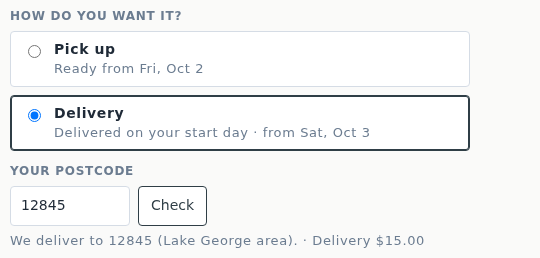
- Slot capacity, so a time slot takes only as many stops as you can drive.
- The Schedule and the day sheet email for the driver.
- Charging the delivery fee through the app, and customers changing their own time slot.
- Utilization › By delivery method.
Transported back to another location #
With several locations and stock at each, Settings › Delivery & pickup › Transport has Rentals transported back go to. Choose the location where parcels arrive, and the unit is based there when it is checked in. See Rental locations.
Good to know #
- Staff bookings made in the app, and draft orders you make, aren’t held to the cut-off.
- Without delivery areas, where you deliver and what delivery costs is decided by Shopify’s own local delivery zones and rates. With areas, keep Shopify’s zones in step with them.
- A rental booked by the night (a stay) has no delivery or pickup method. See Stays by the night.


