
Customers ask for quotes from your storefront. SI Request a Quote gives you a Request a quote button for one product, an Add to quote button that builds a quote list of several products, a Request a quote for this cart button, and a drawer where they review the list and fill in your form.
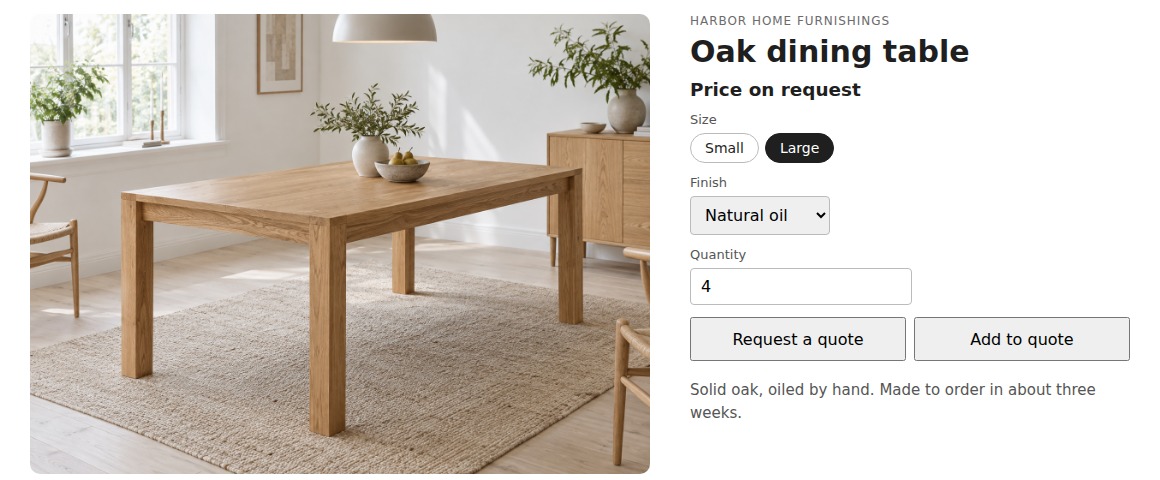
Add the pieces to your theme #
Open Storefront in the app and use Turn on the app embed and Add the quote button (or add them yourself in Shopify › Online Store › Themes › Edit theme):
| Piece | What it does |
|---|---|
| SI Request a Quote (app embed) | Needed for the quote list, hidden prices without flicker, and the checkout of quote-only products. Turn it on once. |
| Quote button (block, product page) | The Request a quote and Add to quote buttons. Settings: Show the buttons (Where a rule turns the button on, or On every product), Buttons (both, Request a quote only or Add to quote only) and Main button style. |
| Price or quote (block) | Use it instead of the theme’s price block: it shows the price, or “Price on request” when a rule hides it. The hidden price is not in the page at all. Show the quote button under the text is optional. |
| Cart quote (block, cart page) | A Request a quote for this cart button. It keeps quantities and product options. |
| Quote list (block) | The full quote list with the request form, for example on a “Quote” page. |
Older themes without app blocks: the embed adds the quote button after the product form (Add the quote button without the app block) and the cart button next to the checkout button (Add the cart quote button without the app block).
Embed settings #
| Setting | What it does |
|---|---|
| Show the quote list button | A floating button with the number of items, bottom right or left (Button position). Shows once the list has an item. |
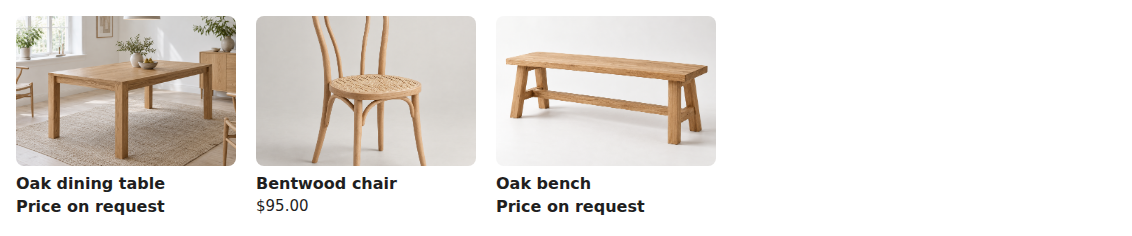
| Show a Quote button on product cards | On collection, search and home page cards of products where a rule shows the quote button. |
| Check product cards loaded later | Hides prices on cards the theme loads after the page (recommendations, home page sections). |
| Custom price selector, Custom product card selector, Custom Add to cart selector | For themes whose prices, cards or buttons the app doesn’t recognise. A CSS selector, like .product-block__price. |
The quote list #
Add to quote adds the product with its variant, quantity and any product options (including options added by other apps) to the list, and opens the drawer. The same product with the same options becomes one line with the quantities added up. Request a quote is a quick request for this product only; the list is left alone.
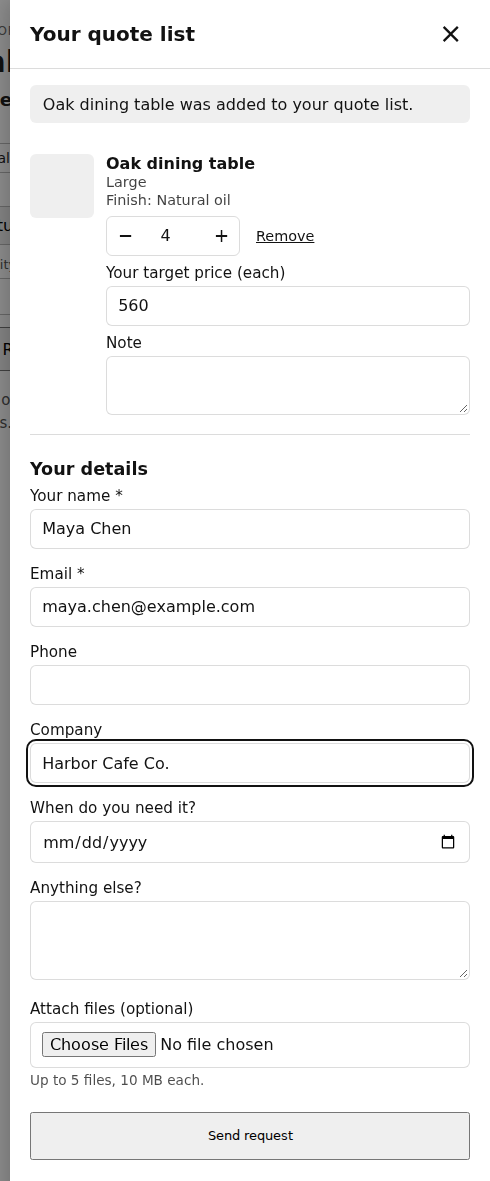
In the drawer, each line has a quantity, Remove, and optionally Your target price (each) and a Note. Below the list is your request form (see The request form), file attachments if you allow them, and Send request. Missing answers are shown next to their field.
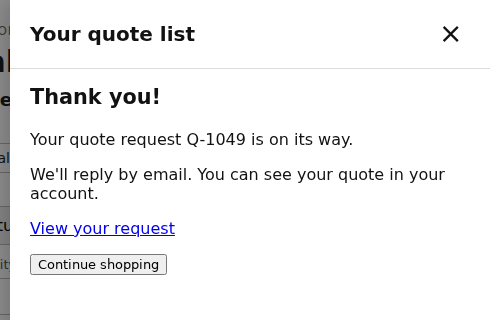
The list is kept in the shopper’s browser, and for signed-in customers also in their account, so it follows them to another device. Another customer’s list is never shown.
Quotes for the whole cart #
With Show “Request a quote for this cart” on the cart page on (Storefront › Quote list), customers can ask for a quote for everything in their cart, with quantities and options. After a cart request decides whether to Keep the cart or Empty the cart.
Texts and options: Storefront #
| Setting | What it does |
|---|---|
| Quote button | The button text. Empty: “Request a quote”. |
| Add to quote list | Empty: “Add to quote”. |
| Hidden price | The text instead of a hidden price. Empty: “Price on request”. A rule can use its own text. |
| After the request is sent | Shown with the quote number. Empty: our standard thank you. |
| Let customers suggest a price | A “Target price” field on each item of the list. |
| Let customers add a note to each item | For sizes, colours or anything you need to know. |
| Spam protection | Requests are rate limited and have a hidden spam trap. Add a Cloudflare Turnstile site key for a check visitors don’t notice. |
On collection pages #
Good to know #
- Guests can ask for quotes with their email address; signed-in customers don’t need to type it.
- The buttons work with the keyboard, and the drawer keeps focus inside until it is closed.
- Prices, titles and images of requested items always come from your store, never from the shopper’s browser.


