
Calendar sync keeps your rentals in step with other calendars. Each rental product has a calendar link you can paste into Airbnb, Booking.com, Vrbo or Google Calendar, so they see when it is booked. The other way round, the app can read those calendars and block the dates booked there, so nobody books the same days twice.
Everything is on the product’s Rental Settings page (Inventory › the settings button), in the Calendar sync card below the form.
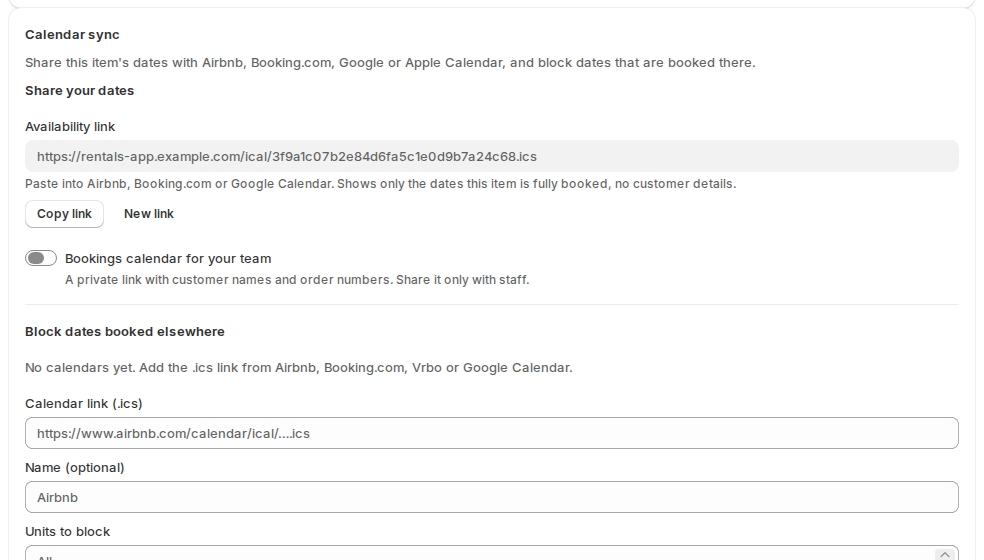
Share your dates #
| Link | What it contains | Use it for |
|---|---|---|
| Availability link | Only the dates this item is fully booked, with no customer details. | Airbnb, Booking.com, Vrbo, Google Calendar. |
| Availability link — (variant) | The same for one rent variant, when the product has several. Only this option’s bookings. | A channel that lists one option. |
| Bookings calendar link | One event per booking, with the order number, customer name, quantity, guests, pick-up, return and status, and a link to the order. | Your team’s calendar. Keep it private: it shows customer names. |
- Click Copy link next to the availability link.
- Paste it into the other site’s calendar import (often called “import calendar” or “sync calendar”).
The bookings calendar is off until you turn on Bookings calendar for your team. Share it only with staff.
New link makes a new address and stops the old one at once: use it if a link was shared with the wrong people.
What the availability link counts as booked:
- A day with nothing free, including turnaround time and closed days. Units held in a checkout that hasn’t finished count too.
- For rentals by the day, whole days. For rentals by the time, the busy hours of a partly booked day, so the free hours stay sellable.
- A product with Allow overbooking on is never full, so its link stays empty.
Other calendars check the link every so often, not instantly. Google Calendar in particular can take hours to refresh.
Block dates booked elsewhere #
Under Block dates booked elsewhere, add the .ics link of each outside calendar:
| Field | What it does |
|---|---|
| Calendar link (.ics) | The export link from Airbnb, Booking.com, Vrbo, Google Calendar or another system. |
| Name (optional) | So you can tell the calendars apart. |
| Variant | Which rent variant it blocks, when the product has several. |
| Units to block | Empty blocks every unit. Airbnb doesn’t know you own five kayaks, so blocking every unit is the safe choice for a single listing. |
Click Add calendar. The app reads it straight away and then every half hour. Each calendar shows its status, when it last synced and how many dates it blocks, with Sync now, Pause / Resume and Remove.
- Each event in the outside calendar becomes blocked dates on the product. They show in the bookings list (source Calendar sync), the calendar and the inventory grid, and the storefront calendar greys them out.
- When an event is removed from the outside calendar, its blocked dates are freed at the next successful sync.
- If a calendar can’t be read (the site is down, the link changed), the dates it already blocked stay blocked until a good read.
- Remove stops the sync and frees the dates it blocked.
Good to know #
- Imported dates never create an order, never send an email and never show at the Send & Return desk.
- An imported calendar can only ever free its own blocked dates. It can’t touch a real booking.
- To export every booking once, as a file, use Reports › Download calendar (.ics). See Dashboard, calendar and reports.


