
The Rental Contracts app asks customers to review and sign your rental agreement in the cart, before they pay. Checkout waits until every rental in the cart is covered by a signature. After the order, you get a signed PDF with a signature certificate and an audit trail, the customer gets a copy by email, and you can view and verify it from the order page.
It works with the Rentals & Bookings app: install that first and set up at least one rental product. The Rental Contracts app never changes a rental’s price or dates.
Set it up #
- Install the Rental Contracts app. Without the Rentals & Bookings app it shows one sentence and an install link.
- Open the app. Setup runs by itself the first time: it prepares your store and turns on the checkout check. The home page says “Checkout is protected: carts with rentals need a signed agreement.” when it is done.
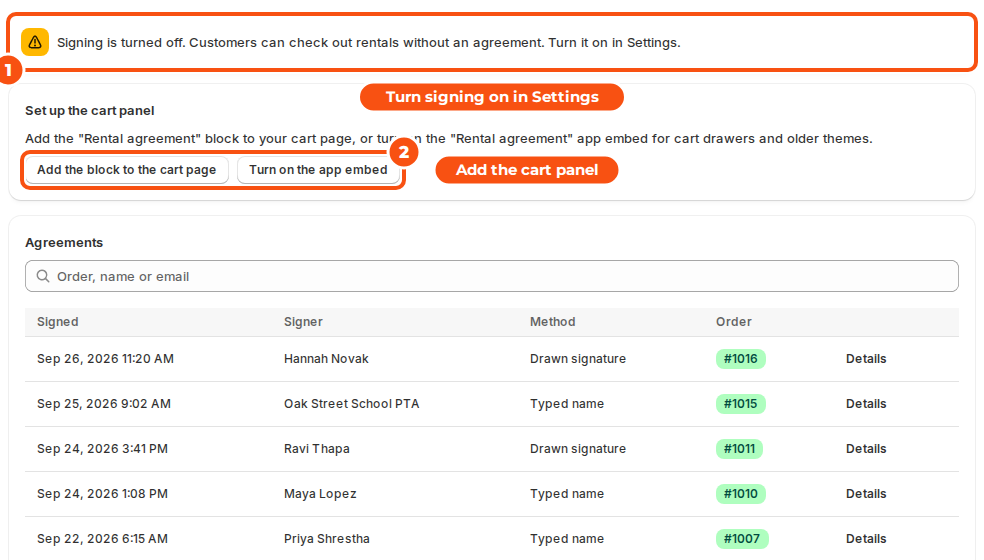
- Under Set up the cart panel, click Add the block to the cart page (for a cart page) and Turn on the app embed (for cart drawers and older themes), then save your theme.
- Open Settings and read the default terms. Replace them with your own, or keep them. See Writing your rental agreement.
- Book a rental on your store, open the cart, sign and check out.
What happens #
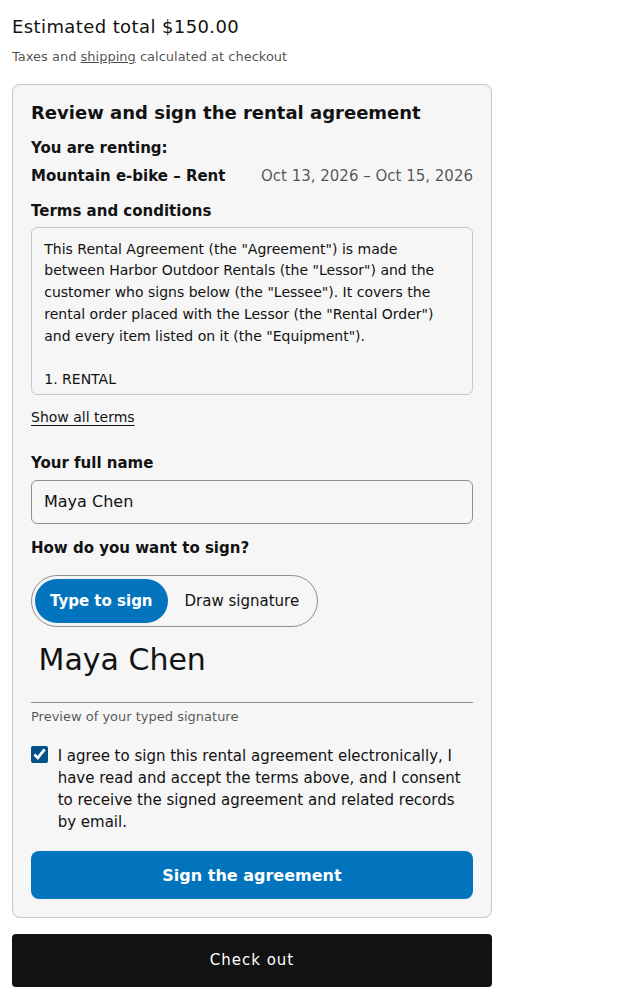
- A customer adds a rental and opens the cart. The panel shows what they are renting, your terms, and the ways to sign you allow.
- They type their name or draw a signature, tick the consent box and click Sign the agreement.
- At checkout, a cart with rentals and no valid signature is stopped: “Please review and sign the rental agreement in your cart.” This also covers Buy it now and express checkout buttons.
- When the order is placed, the app makes the signed PDF, emails it to the customer, and tags the order
rental-agreement. - You view it, and check it hasn’t been changed, from the order page or the app’s Agreements list.
The details of each step are in How customers sign in the cart and Signed agreements, Verify and record keeping.
The app’s pages #
| Page | What it’s for |
|---|---|
| Agreements (home) | Setup status, the cart panel links, and every signed agreement with search. |
| Settings | How customers sign, your terms, the PDF, the panel’s wording and how long records are kept, with a live preview. |
The order page in Shopify also gets a Rental agreement card. Add it once: open an order, click + Block in the Blocks section, choose the card and pin it.
Turn signing off for a while #
Open Settings and turn off Ask customers to sign before checkout. The panel hides, and carts with rentals can check out without an agreement. The home page reminds you that signing is off.
Good to know #
- Only carts with rentals are asked to sign. A cart with ordinary products only checks out as usual.
- A signature covers the rentals that were in the cart when it was signed. If the customer adds another rental, they sign again.
- The panel, the PDF and the email are in the customer’s language when the app has it. Your own terms stay as you wrote them.
- Don’t read the signature as legal advice: the certificate describes it as an electronic signature under the US ESIGN Act and UETA, and an “advanced” (not “qualified”) electronic signature under EU eIDAS. Check what your country requires.


