
Every request and quote lives on the Quotes page. Open one to answer it in the quote editor: set your prices, add discounts, shipping or custom items, see Shopify’s tax, and send it.
The quote list #
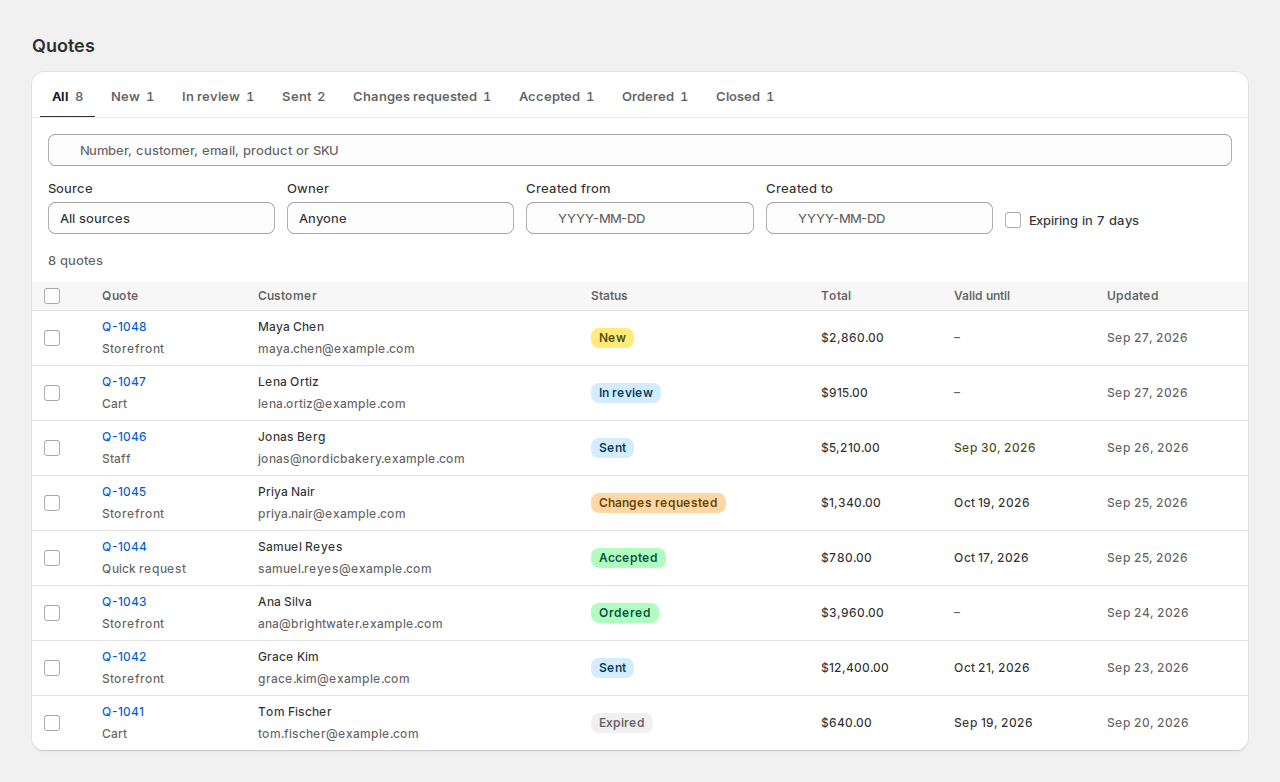
- Tabs: All, New, In review, Sent, Changes requested, Accepted, Ordered and Closed (expired, declined, rejected and cancelled), each with a count.
- Search: number, customer, email, product or SKU.
- Filters: Source (Storefront, Cart, Quick request, Staff, API, Import), Owner (anyone, mine, no owner, a staff member), Created from and Created to, and Expiring in 7 days. The filters stay in the page address, so a shared link shows the same list.
- Columns: the quote and its source, the customer, the status, the total, Valid until (highlighted when it expires within 7 days) and Updated. Up to three answers from your request form can be added as columns, with an Answer to … contains filter (Settings › Quote list).
Select quotes to Cancel quotes, Send reminder, Add tag, Remove tag, Assign an owner or Export selected. Each asks first and says what happened per quote; quotes that don’t qualify are skipped (a reminder only goes to sent quotes that haven’t expired). Export at the top downloads the whole filtered list as a CSV.
New quote starts a quote yourself. Start from an order copies the customer and items of an order or a draft order (like #1001 or #D12) into a new quote.
The quote editor #
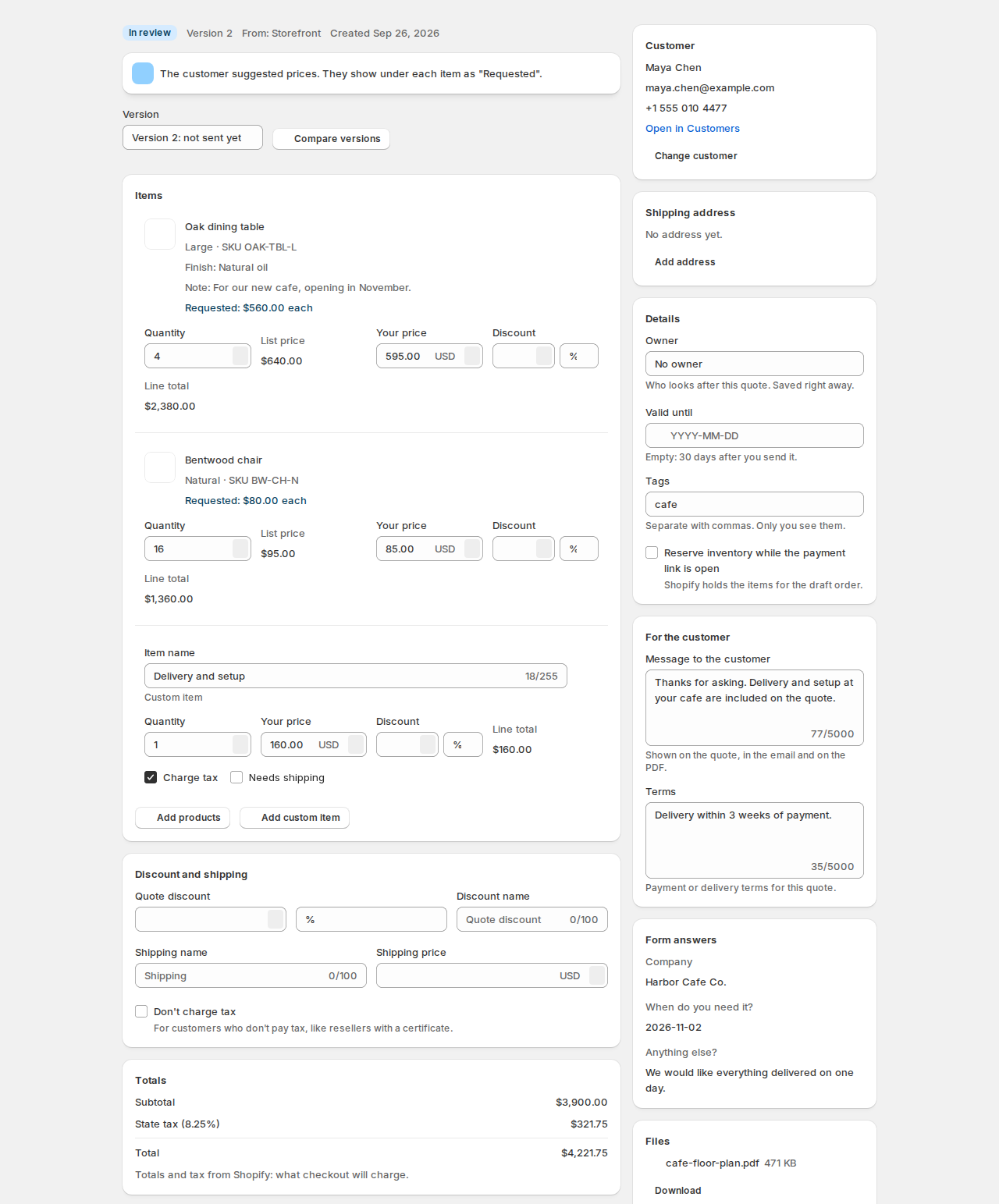
Opening a new request moves it to In review.
Items #
- Add products opens Shopify’s product picker (one line per variant). Add custom item adds a line with its own name, price, and Charge tax and Needs shipping switches, like “Delivery and setup”.
- Each line shows the variant, SKU, the customer’s options and note, the Requested price (from the request), the List price, and takes a Quantity, Your price (empty = the list price) and a Discount (a percent or an amount per unit).
- Discount and shipping: a Quote discount (percent or amount, with a name), Shipping name and Shipping price, and Don’t charge tax for customers who don’t pay tax, like resellers with a certificate.
Totals #
While you type, the totals are an estimate. After each save, the app asks Shopify for the real totals: subtotal, discount, shipping, each tax line and the total. “Totals and tax from Shopify: what checkout will charge.”
The side panel #
- Customer: search your Shopify customers by name, email or phone, or enter someone new.
- Shipping address for the order.
- Details: Owner (saved right away), Valid until (empty: your default validity after you send), Tags (only you see them), and Reserve inventory while the payment link is open.
- For the customer: a Message to the customer and Terms, shown on the quote, in the email and on the PDF.
- Form answers and Files (download the customer’s uploads).
Timeline, messages and notes #
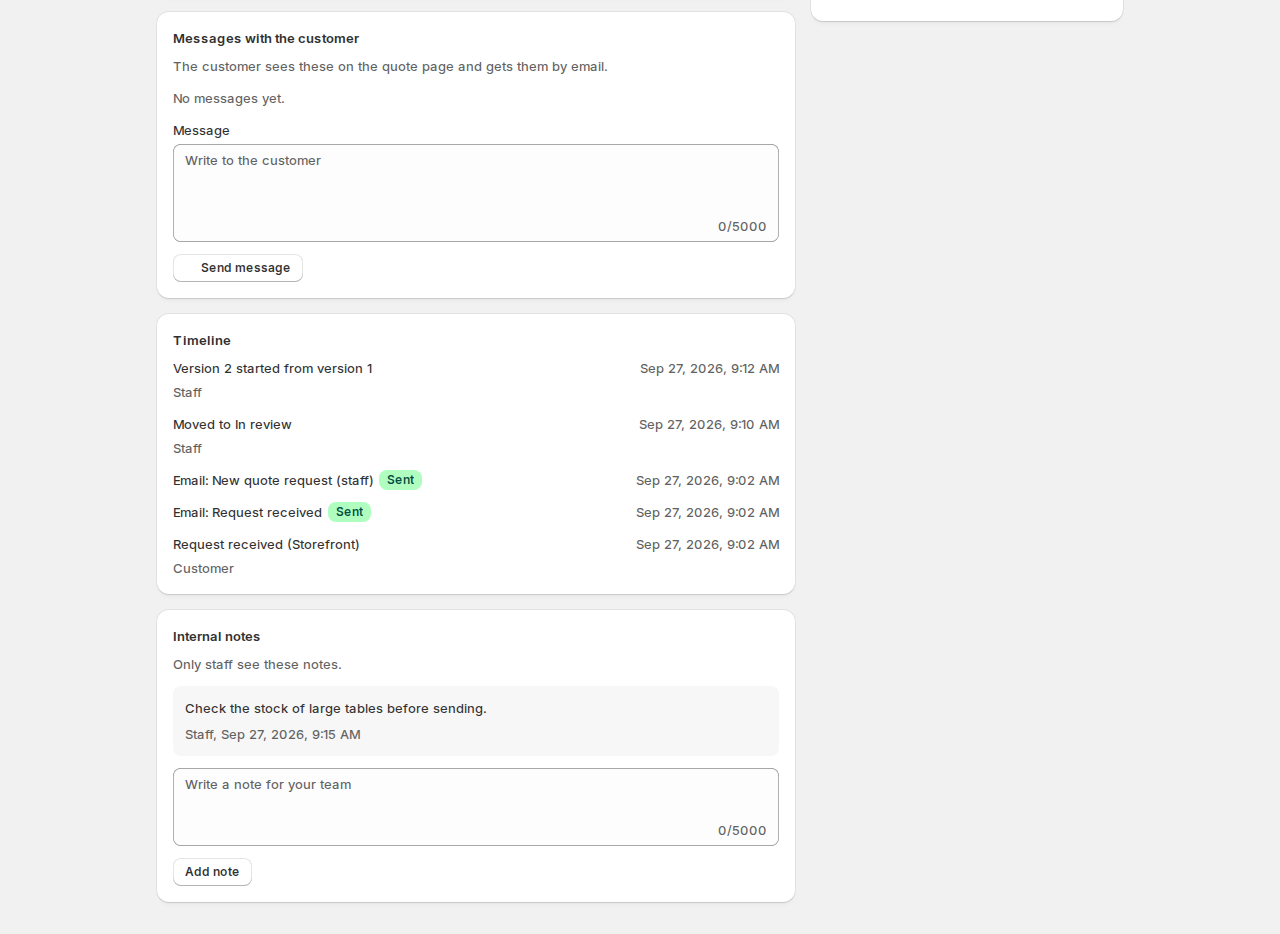
- Timeline: what happened (received, moved to a status, versions sent, seen by the customer, accepted, ordered) and every email with its delivery status.
- Internal notes: only staff see them.
- Messages with the customer: the thread the customer sees on their quote page and gets by email.
Versions #
The customer’s request is version 1 and never changes. Everything you send is a locked version too. Editing a sent quote saves a new version, and the customer keeps seeing the old one until you send the new one (“Version 2 isn’t sent yet. The customer still sees version 1.”). The version picker shows older versions read-only, and Compare versions puts two side by side with the changes marked.
Actions #
The main button follows the quote: Send quote, Send new version, or Convert to order. The other actions are Preview PDF, Mark in review, Duplicate, Reject (when you can’t offer what was asked), Cancel quote and Reopen. Reject and cancel don’t email the customer; you can reopen later. Sending and converting are covered in Sending quotes and turning them into orders.
Good to know #
- Accepted, ordered and closed quotes are read-only; reopen a closed quote to change it.
- From a customer’s page in Shopify, the Quotes card lists their quotes with Create quote. See Automation and integrations.


