
The rental type decides what customers pick on the calendar: two dates, dates and times, a start date and a length, or one of your departures. You choose it per product under Rented by in its Rental Settings.
| Rented by (in the app) | Customers pick | Good for |
|---|---|---|
| By day | A start date and an end date | Equipment, bikes, cameras, dresses, stays by the night |
| By day and time | A start date and time, then an end date and time | Hourly rentals: boats, e-bikes, studios |
| Fixed lengths (days) | A start date and one of your lengths, like 1 day, 3 days or 1 week | Weekend packages, trailers, dumpsters |
| Fixed lengths (hours) | A start date and time and one of your lengths, like 2 hours or a half day | Kayak slots, party rooms |
| Set departures | One of your dates and times, each with its own length and price | Tours, classes, events, boat trips |
In the quick Rental Settings form the same choices read Day, Day and time, Fixed lengths (tick Customers pick a start time too for hours) and Set departures.
By day #
Customers pick a start date, then an end date. Each open day can show the units left and the price for that day. Days before the pick-up, and days past the next booking that would run out of stock, are locked. Closed days show a reason when customers hover or tap them.
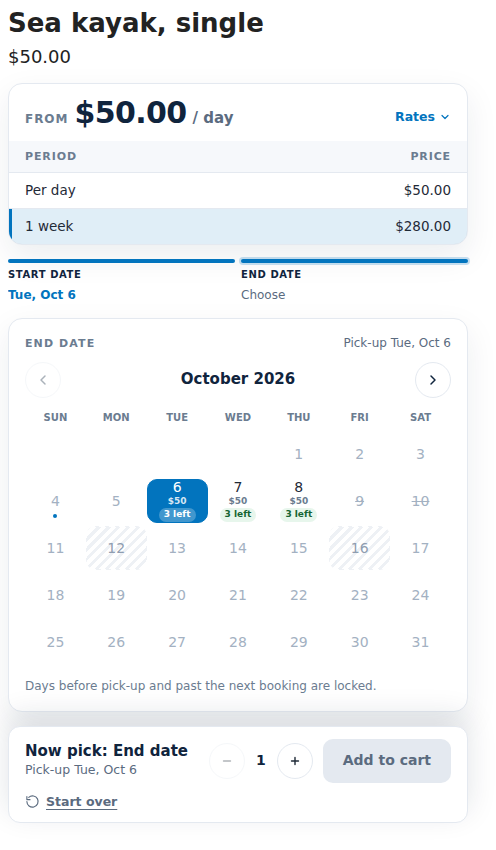
Per day or per night. The word follows Booked by (Settings › Rules › Stays). Nights counts nights, like a hotel: the 1st to the 3rd is 2 nights. Both Days choices say days. Whether the return day is charged is a separate setting, Also charge the return day (Settings › General): with No the 1st to the 3rd is 2 days, because the return day is free. With Yes it is 3 days. See Stays by the night.
By day and time #
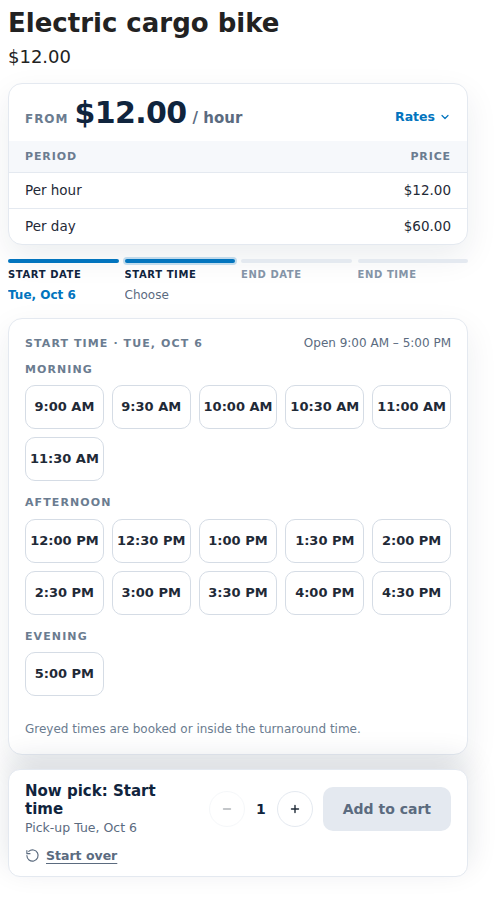
Customers pick a start date, a start time, an end date and an end time. Times come from your opening hours in steps of the Time slot interval (Settings › General, 5 to 240 minutes) and are grouped into morning, afternoon and evening. Times that are booked, or inside the turnaround time, are greyed out.
Fixed lengths #
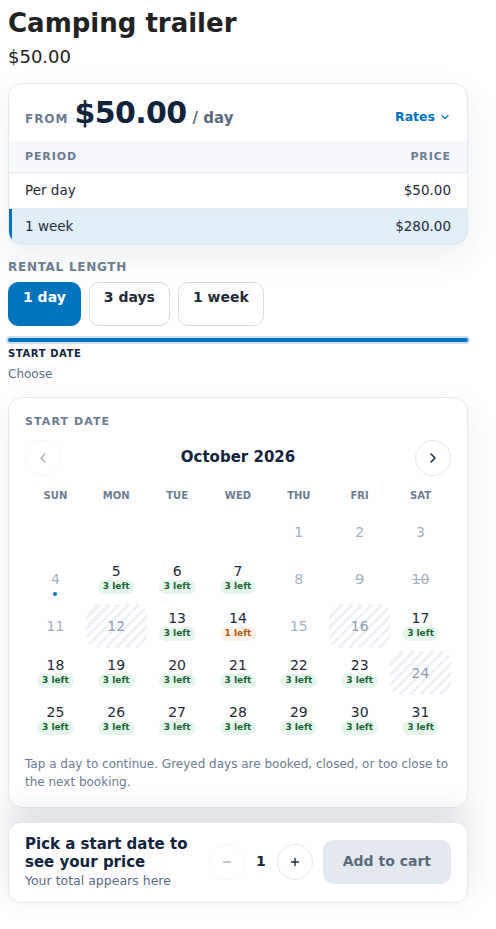
Customers pick a length first, then a start date. The end follows the length. A length that would run into a fully booked day, or end on a closed day, can’t be picked.
Set up the lengths in either place:
- Store default: Settings › Rules › Store defaults for products › Fixed lengths. Each row has a Length and an optional Label, like “Weekend”.
- One product: its Rental Settings › Show advanced settings › Fixed lengths and departures.
Set departures #
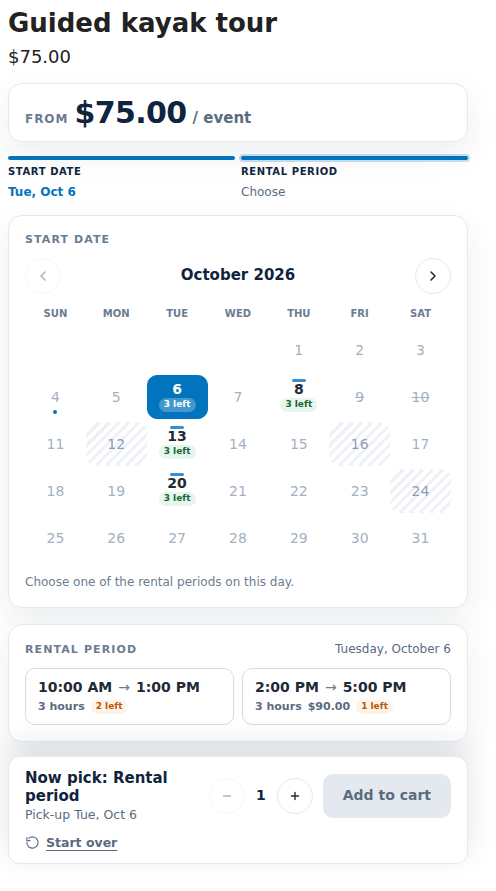
Only your departure days can be picked, and each is marked on the calendar. When customers pick a day, its departures show as cards with the time range, the length, the units left and the price. A day with one departure picks it for them.
Add departures under the product’s Rental Settings › Show advanced settings › Fixed lengths and departures › Departures:
| Field | What it means |
|---|---|
| Date and Time | When the departure starts. |
| Length | A number and a letter: 4h, 3d, 1w. |
| Price | This departure’s price. Leave it blank to use the product’s price. |
| Repeats | Doesn’t repeat, On chosen weekdays (pick them under On these days), Every week, Every month or Every year. |
Click Add departure for each one.
One variant per length #
Some stores sell each length as its own variant, like “1 day”, “3 days” and “1 week”, each with its own Shopify price. For that, open the product’s advanced settings and set How the price reaches checkout to Fixed durations: each variant is one length at its Shopify price. The calendar then shows the variants as length buttons with their prices, and choosing one also picks the matching variant on the product page.
Good to know #
- A rental may run through a closed day. It can’t start or end on one, unless you closed the day for pick-ups only or returns only.
- The same rules run again at checkout: a customer can’t book a length, a date or a time the calendar wouldn’t offer.
- Minimum and maximum lengths, lead time and how far ahead customers can book are covered in Opening hours, closed days and booking rules.


