
Customers book on the product page: a pricing card, a calendar that shows what is free, and a booking bar with the total and its own Add to cart button. It is added to your theme as the Rental calendar app block. The Rentals app embed works beside it on every page.
Add the calendar to your theme #
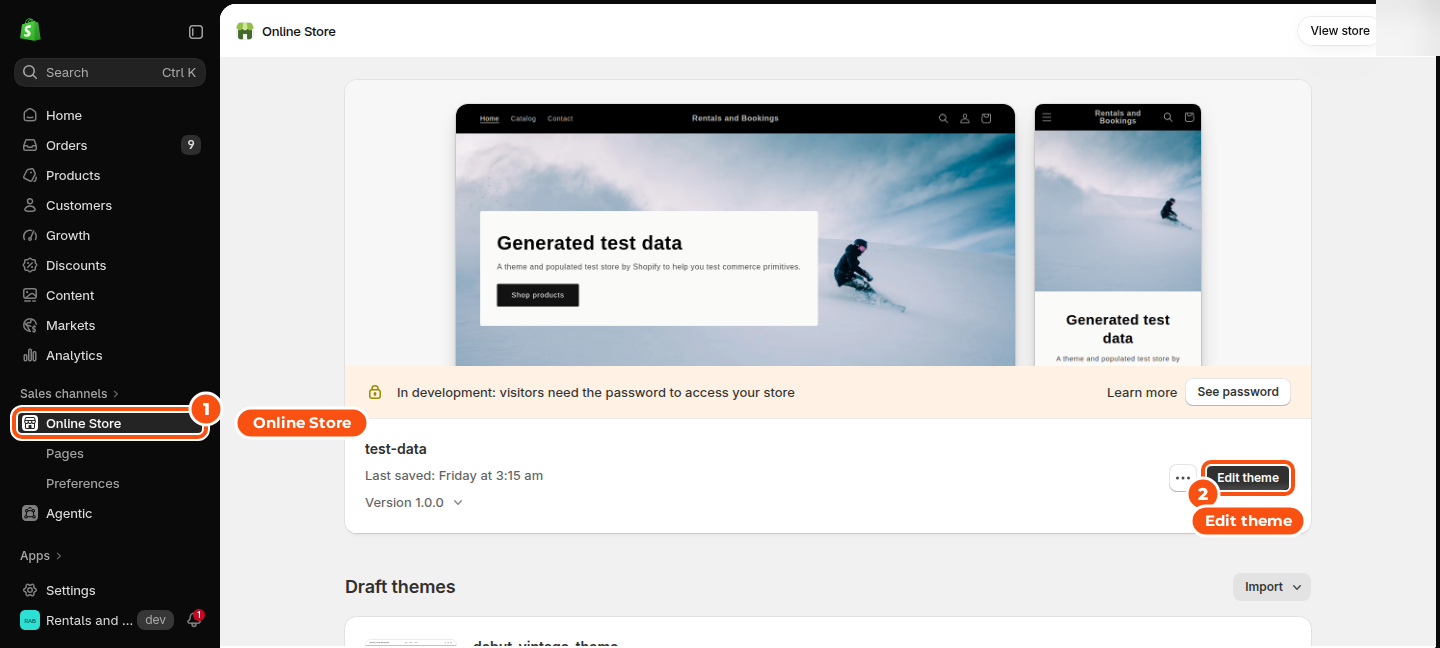
- In the app’s setup guide, click Open theme editor. Or open Shopify › Online Store › Themes, click Edit theme and go to your product template.
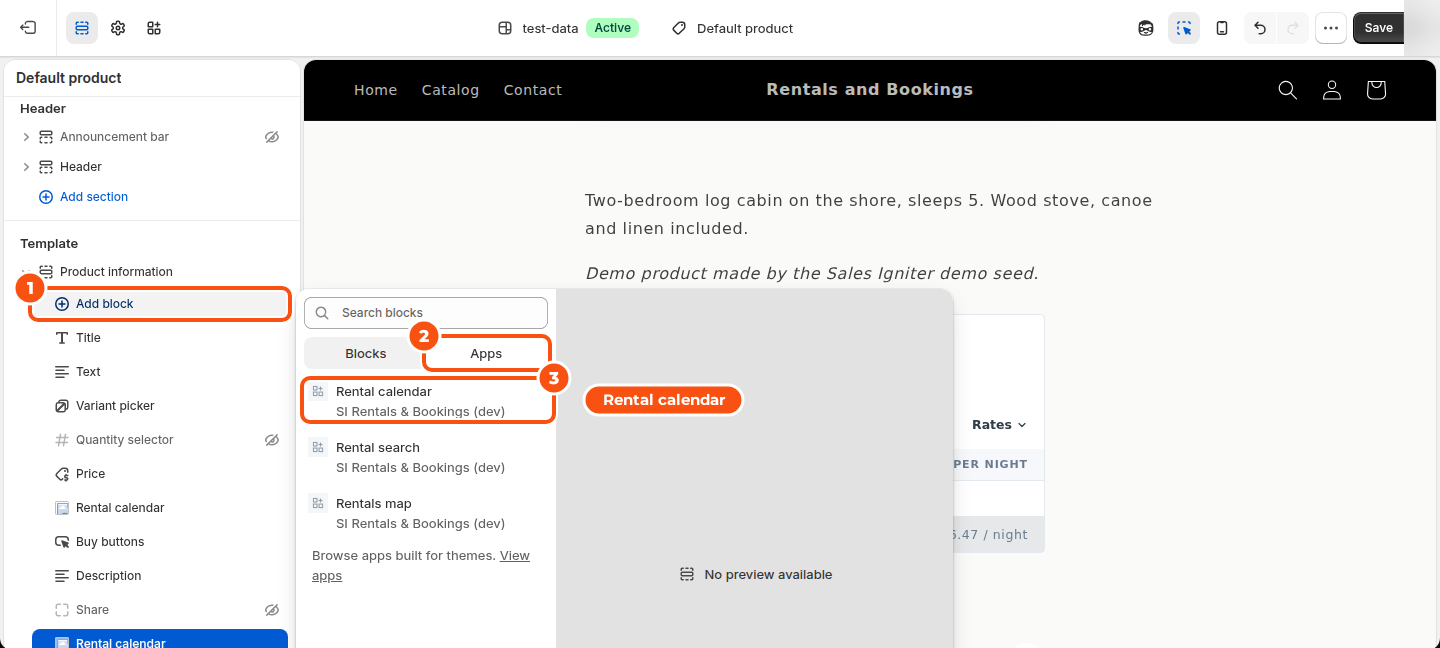
- Under Product information, click Add block, choose the Apps tab and pick Rental calendar. Drag it where you want it, usually next to the product title and price.
- Click Save.
- Open App embeds in the theme editor and turn on Rentals. Save again.
The block shows nothing on products that aren’t rentals, so it is safe on a template shared by every product. In the theme editor it says why it is empty.
Older (vintage) themes can’t add app blocks. Turn on the Rentals embed and its setting Show the calendar without the app block: the calendar goes above Add to cart. It stays off on pages where the block is placed.
What customers see #
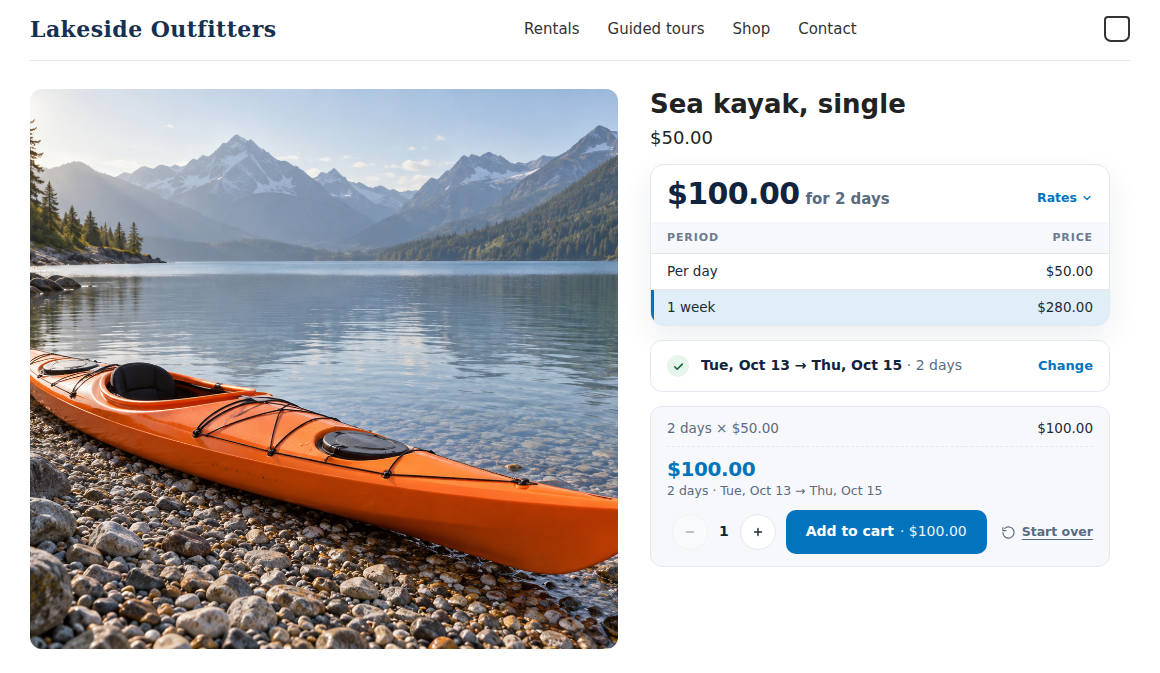
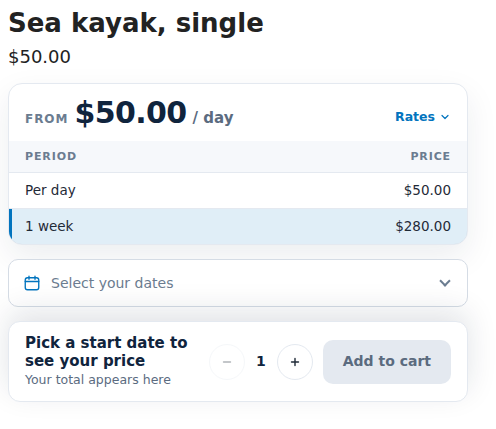
- The pricing card: the “From” price and the rate table. It shows at once, before the calendar loads, and turns into the total once dates are picked.
- The calendar: units left and the price on each day (when you turn them on), closed days hatched with their reason, fully booked days struck through.
- The steps: start date, then end date (plus times, a length or a departure, depending on the rental type). Customers can go back to any finished step, or click Start over.
- The booking bar: “Now pick: End date” until the dates are complete, then the total, the dates, the breakdown lines, a quantity stepper and Add to cart · $100.00. On phones it docks to the bottom of the screen.
While a rent variant is selected, the booking bar’s button is the only add button: the theme’s Add to cart, quantity and Buy it now step aside. A Buy variant (see “Sell it too”) gets them back.
When customers click Add to cart, the units are held for them while they check out, so nobody else can take the same unit meanwhile.
The store-wide look: Settings › Calendar & styler #
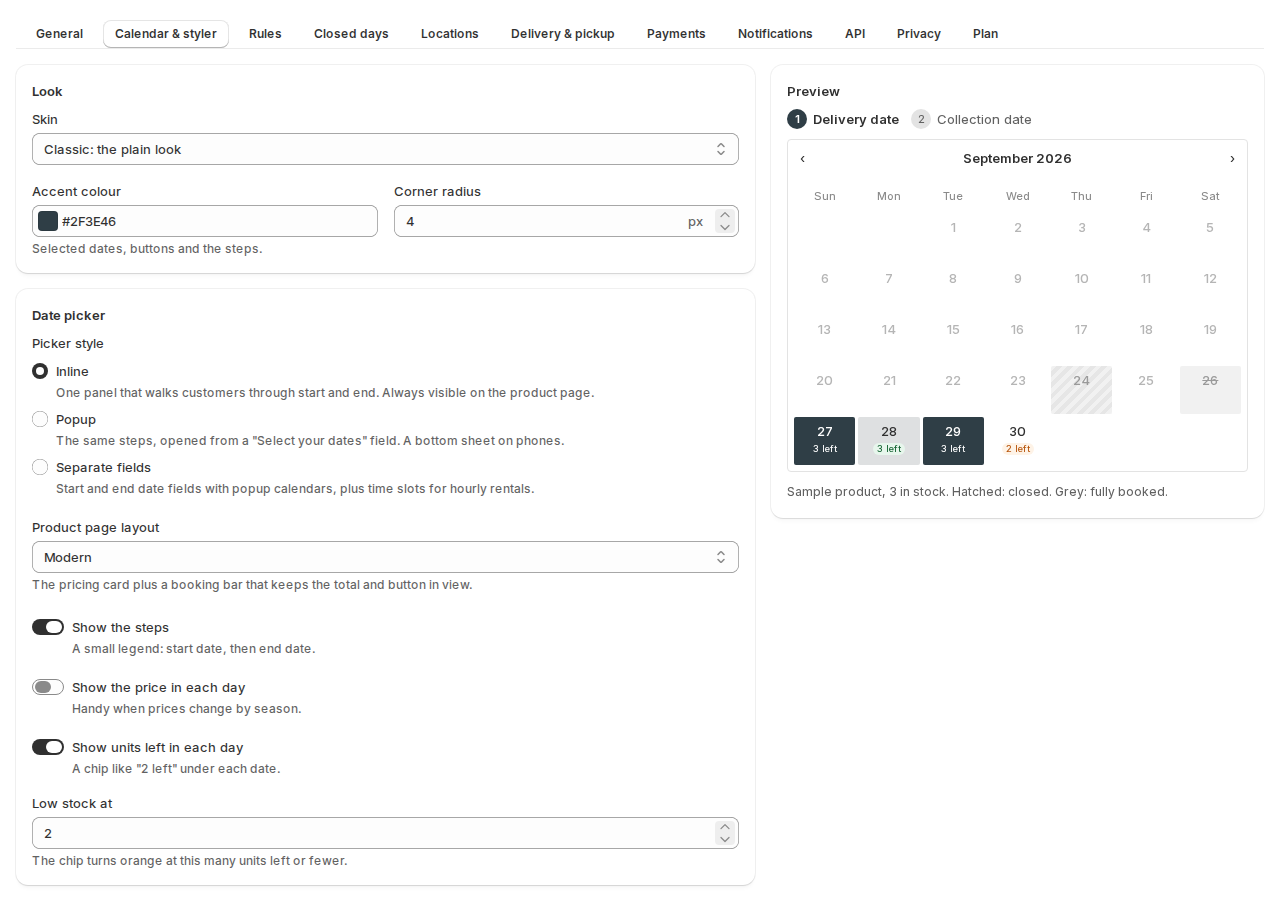
Everything here applies to every rental product. The Preview on the right shows a sample product with your settings as you change them.
| Setting | What it does |
|---|---|
| Skin | Airy (rounded cells on a light card), Card (taller cells, deeper shadow), Bold (dark header, high contrast) or Classic (the plain look). |
| Accent colour and Corner radius | Selected dates, buttons and the steps. The radius is 0 to 24 px. |
| Picker style | Inline: one panel that walks customers through start and end, always visible. Popup: the same steps opened from a “Select your dates” field, a bottom sheet on phones. Separate fields: start and end date fields with popup calendars, plus time slots for hourly rentals. |
| Product page layout | Modern: the pricing card plus a booking bar that keeps the total and button in view. Pricing card: a “From” pricing card with a rate table; the rest of the page stays as it is. Original: price lines under the title, the total and button below the calendar. |
| Show the steps | A small legend: start date, then end date. |
| Show the price in each day | Handy when prices change by season. |
| Show units left in each day | A chip like “2 left” under each date. |
| Low stock at | The chip turns orange at this many units left or fewer. |
| Labels | Your own words for the steps and headings, like “Delivery date” and “Collection date”. Leave blank to keep the default. |
| Stock chip colours | Text and background of the “units left” chip, normal and low stock. |
| Price table | Show add-on prices and Price points in product lists. |
Settings for one template: the block #
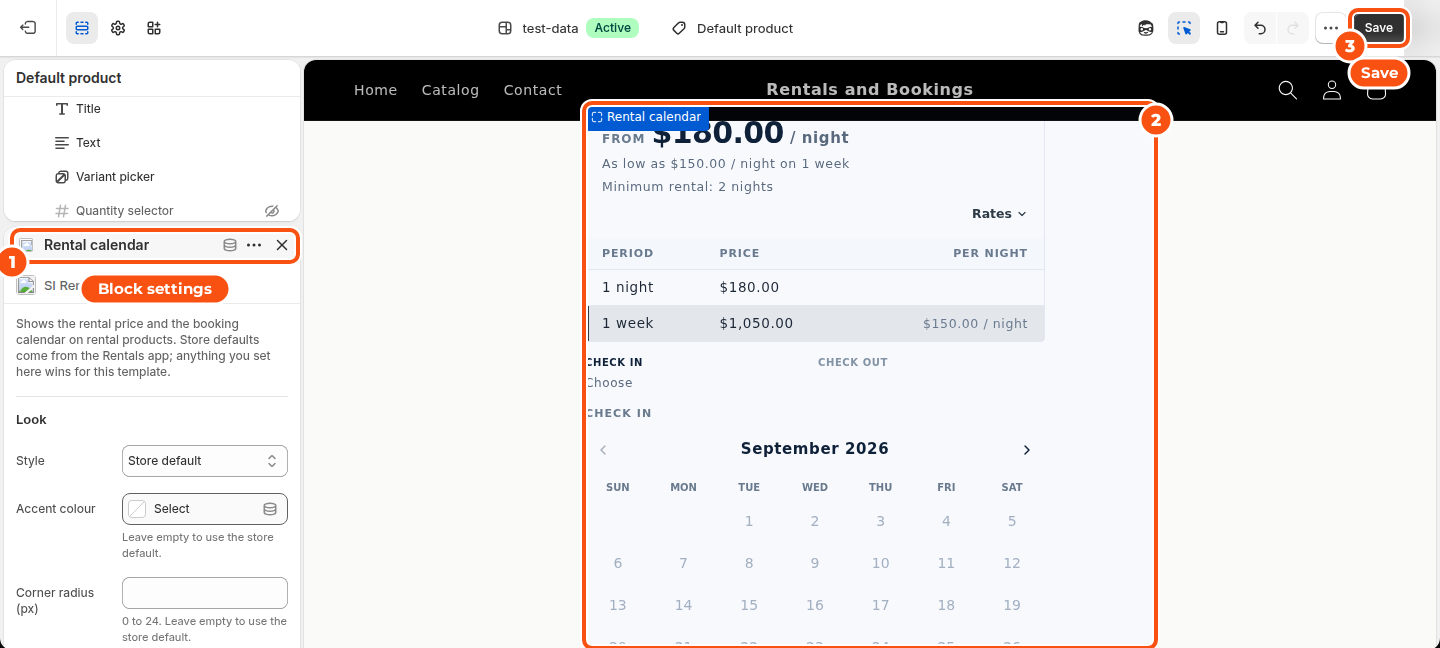
The Rental calendar block has the same settings in the theme editor, so you can style one product template differently and see Shopify’s live preview. Every setting starts at Store default; anything you set in the block wins for that template.
| Block setting | What it does |
|---|---|
| Layout | Booking bar with its own Add to cart button, or Use the theme’s Add to cart button (the theme’s button then books the dates). |
| Show the pricing card | Show or hide the card above the calendar. |
| Button text | The booking bar’s button. Leave it empty for “Add to cart”. The total follows it, as in “Add to cart · $70”. |
| Hide Buy it now on rental products | Buy it now skips the calendar. Checkout still refuses a rental without dates. |
| After adding to the cart | Go to the cart, Open the cart drawer or Stay on the page. |
The Rentals app embed #
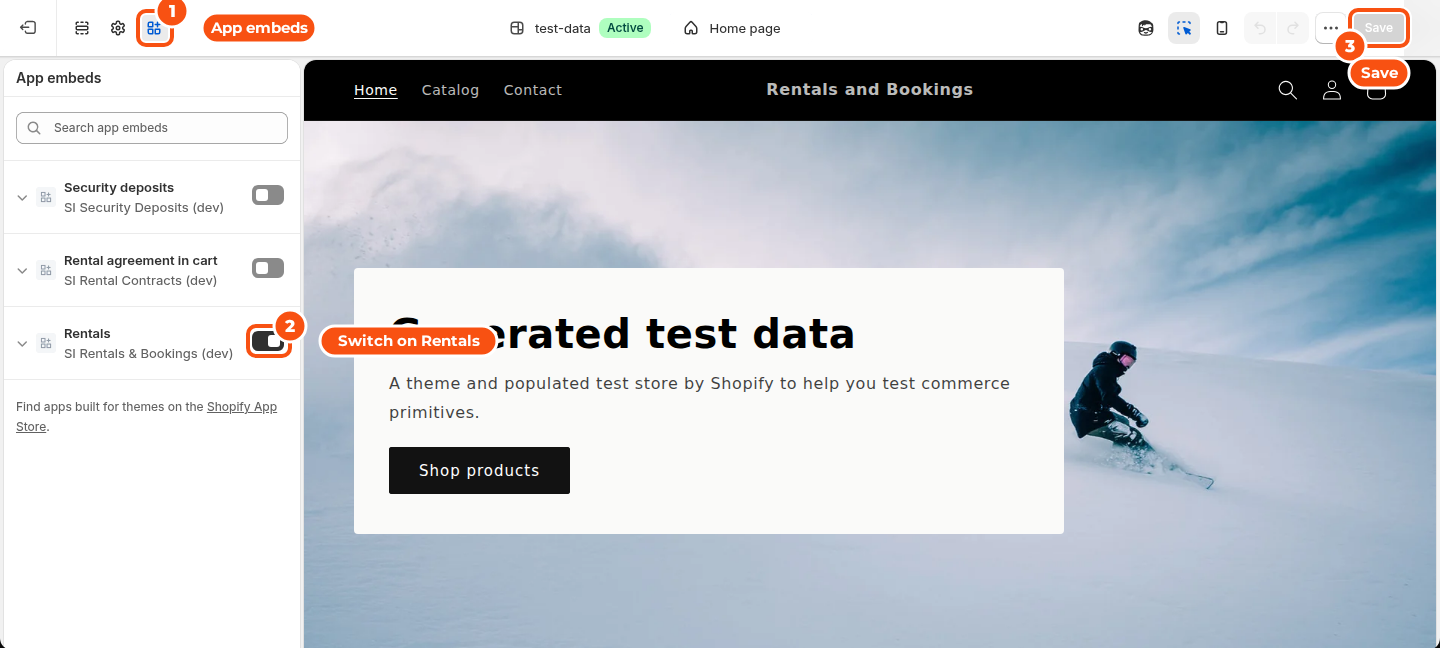
Turn the embed on even when you use the block. Its settings:
| Setting | What it does |
|---|---|
| Show the calendar without the app block | For vintage themes (above). |
| Lock rental lines in the cart | Rental quantities can’t be changed in the cart, and an expired hold asks the customer to choose dates again. |
| Products not free on the searched dates | On collection, search and home pages, once a visitor has searched for dates: Leave them alone, Mark them or Hide them. See Search by date. |
Good to know #
- Checkout checks every rental again: the dates, the quantity and the price. A rental that reaches checkout without valid dates is refused with a message, so a theme button or an app that skips the calendar can’t sell it by mistake.
- The calendar follows the language the customer shops in and uses your store’s date format, set under Settings › General › Date format.
- It works with the keyboard: arrow keys move between days, and unavailable days say why when they get focus.
- Shoppers who searched for dates elsewhere on your store land on the product with those dates already picked, when they are free for that product.


