
Customers fill in your request form when they ask for a quote. You choose the fields on the Request form page. A live preview beside the list shows roughly how the form looks; your theme sets the final look.
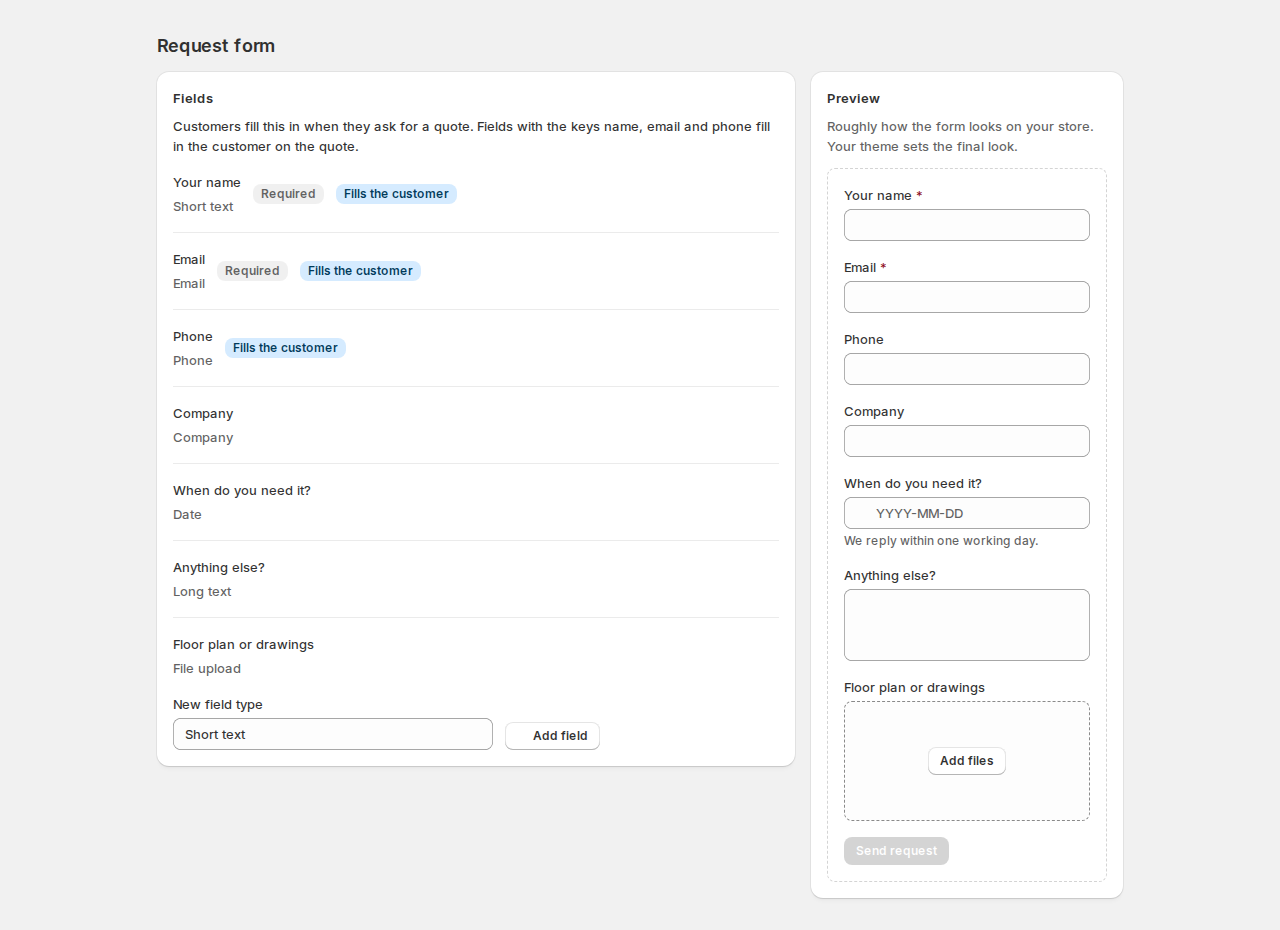
Fields #
Each row shows the field’s label and type, with badges: Required, Fills the customer and Shown sometimes. Move fields up or down, edit them, or remove them (answers already sent stay on their quotes).
To add a field, pick the New field type and click Add field.
| Type | For |
|---|---|
| Short text, Long text | Names, descriptions, anything typed. |
| Email, Phone, Number | Checked as they are typed; numbers can have a lowest and highest value. |
| Drop-down, One choice, Checkbox, Several choices | Choices you list, one per line. |
| Date, Country, Company, VAT number | Common business details. |
| File upload | Drawings, lists, photos. |
| Consent | Something the customer agrees to, like your terms. |
| Heading, Text block | Titles and text between fields. |
| Setting | What it does |
|---|---|
| Label | What customers see. |
| Help text and Placeholder | A hint under or inside the field. |
| Key | Used in exports. name, email and phone fill in the customer on the quote. |
| Required | Customers must answer. |
| Choices | One choice per line. |
| Lowest number and Highest number | For numbers. |
| Consent text | What the customer agrees to. |
Keep an email field with the key email: it is how you reply to guests. The page warns you if there is none. Signed-in customers don’t have to type their email.
Save with the save bar.
Show a field only when… #
Under Show this field only when, add conditions on another field: equal to, not equal to, containing, empty or filled in, and choose whether to Match all of these or any of these. For example, show “Company size” only when “Buying for” is equal to “A business”. A hidden field isn’t required and its answer isn’t sent. The field gets a Shown sometimes badge.
More than one form #
Pick a form at the top, or click Add form. A new form starts with the name and email fields. Give it a Form name and set Where this form is used:
- Products, Collections and Product tags: any of them;
- Markets and Languages: these must also match when you fill them in.
When all are empty, the form replaces the default form everywhere. The default form is used wherever no other form fits. Delete form sends shoppers back to the default form; answers already sent stay on their quotes.
File uploads #
A File upload field lets customers attach files to their request. Limits are under Settings › File uploads: Files per request (0 turns uploads off) and Largest file. Files are private and deleted with the quote; you download them from the quote.
Guests and Shopify customers #
Anyone can ask for a quote with an email address. Under Settings › Checkout › Create the Shopify customer for guests, choose when a guest becomes a customer in Shopify: At checkout (Shopify does it when the guest pays), When the request arrives (the request then shows on the customer’s page in Shopify right away) or When the quote is accepted. A guest whose email already belongs to a customer is linked, never duplicated.
Spam protection #
Requests are rate limited and have a hidden spam trap. For an extra check that visitors don’t notice, add a Cloudflare Turnstile site key under Storefront › Spam protection.
Good to know #
- Customers’ answers show on the quote under Form answers.
- Up to three fields can be shown as columns in the quote list and exported with it (Settings › Quote list). See Quotes in your admin.


