
Open Import and export in the Custom Fields app to copy your questions to another store, keep a backup, edit questions in a spreadsheet, or download what customers answered on their orders.
Export your questions #
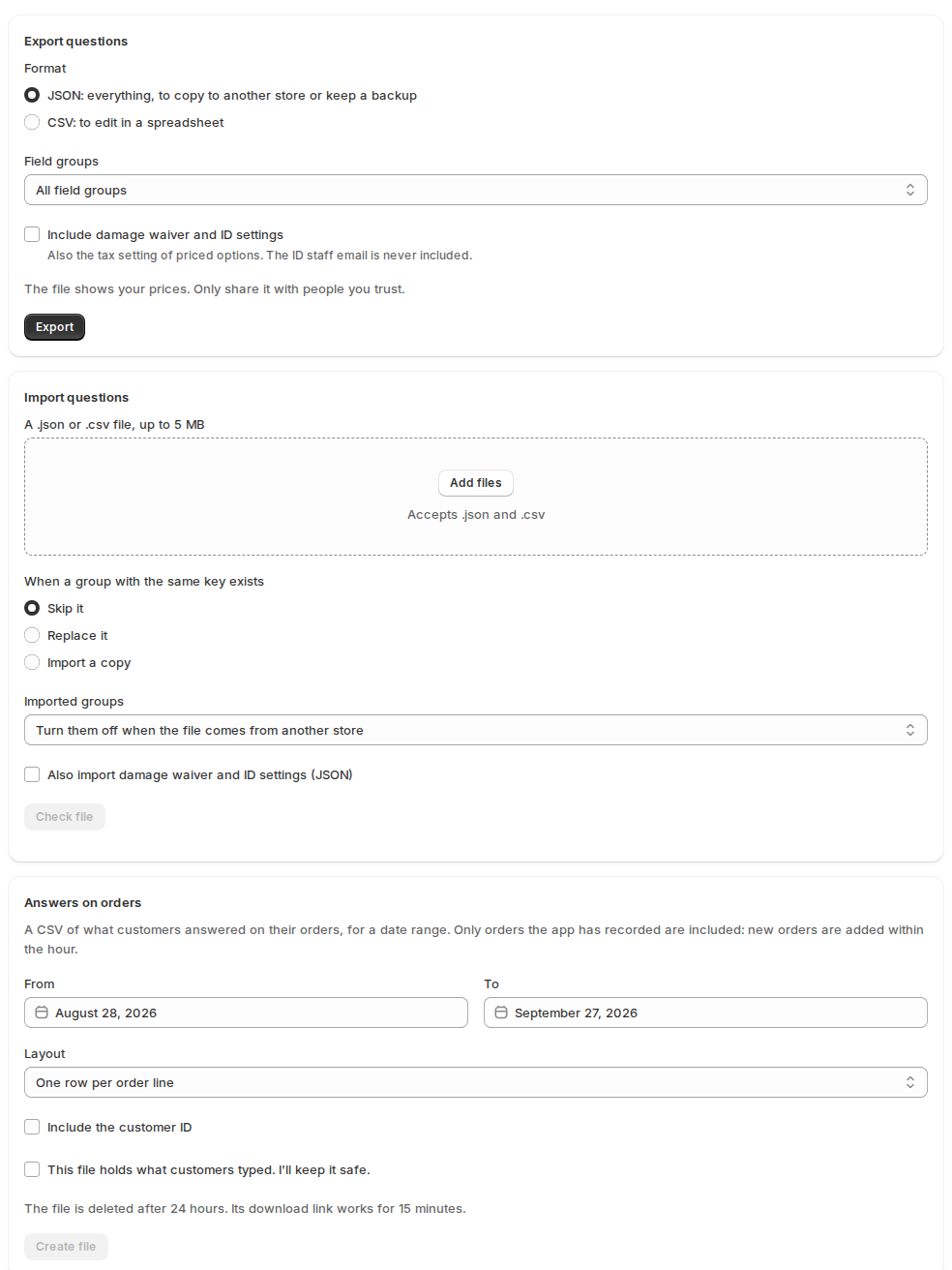
- Under Export questions, choose the Format. JSON keeps everything (every group, question, option, price and rule): use it to copy questions to another store or to keep a backup. CSV opens in a spreadsheet, with one row per option and the group and question repeated on each row.
- Under Field groups, export all field groups or only the ones you pick.
- Tick Include damage waiver and ID settings to add those too, with the tax setting of priced options. The staff email for new IDs is never included.
- Click Export. The file downloads straight away.
A questions file never holds customer data: no answers, no ID documents, no customers. It does show your prices, so share it only with people you trust.
Prices are copied as they are. Importing into a store with another currency keeps the numbers, and the check below warns you.
Import questions #
- Under Import questions, click Add files and choose a .json or .csv file up to 5 MB (a CSV can have up to 20,000 rows).
- Choose what happens When a group with the same key exists. Skip it (the default) keeps your group. Replace it swaps your group and all its questions for the ones in the file. Import a copy adds the file’s group next to yours, with a new key.
- Under Imported groups, choose whether they start turned off. The default, Turn them off when the file comes from another store, means nothing new shows on your store before you have checked it. Tick Also import damage waiver and ID settings (JSON) to bring those over too.
- Click Check file. The app reads the file and shows what the import will do, group by group: new, replaced, skipped or copied, the number of questions and options, and anything that needs fixing, with the row and column for a CSV.
- If the check looks right, apply the import.
Products and collections are matched by ID in the same store and by handle in another store. A group whose products or collections can’t be found arrives turned off, so you can pick them again.
If someone edits your questions between the check and the import, the page asks you to check the file again.
A spreadsheet tip: the CSV reads commas or semicolons, TRUE / FALSE or yes / no, and a decimal comma when the file uses semicolons. Lists inside a cell are separated with |.
Download the answers on orders #
Under Answers on orders:
- Pick the dates of the orders, From and To (up to a year).
- Choose the Layout: One row per order line, with a column for each question, or One row per answer.
- Tick Include the customer ID if you need it.
- Tick This file holds what customers typed. I’ll keep it safe. and click Create file. The file is made in the background and listed under Recent imports and exports when it’s ready.
Only orders the app has recorded are included; new orders are added within the hour. The download link works for 15 minutes, and the file is deleted after 24 hours. Uploaded files show their file name, never a link, and ID documents are never included.
Good to know #
- Only one import runs at a time.
- Customers never see question keys. Keep keys the same if you compare answer files over time.
- The same import and export work through the API, with an API key from API access.


