
Once delivery is on, you can tell the app where you deliver, how many stops a time slot can take, and give your driver one sheet for the day. This page covers delivery areas, slot capacity, the Schedule, the day sheet email, charging the delivery fee, and letting customers change their slot. Set up the delivery way first: see Delivery and pickup.
Delivery areas #
An area is a part of the map you deliver to. Open Settings › Delivery & pickup, find Delivery areas and click Add an area. Each area has:
- A name, and the name customers see.
- What it covers: postcodes, one per line, or a radius around a point. A postcode can be exact (
2000), a prefix (20*) or a range (2000-2099). - The location it is delivered from. Choose several if more than one can deliver there.
- The fee and minimum order to show.
- Optionally the area’s own delivery days, time slots and “deliver days before, collect days after”.
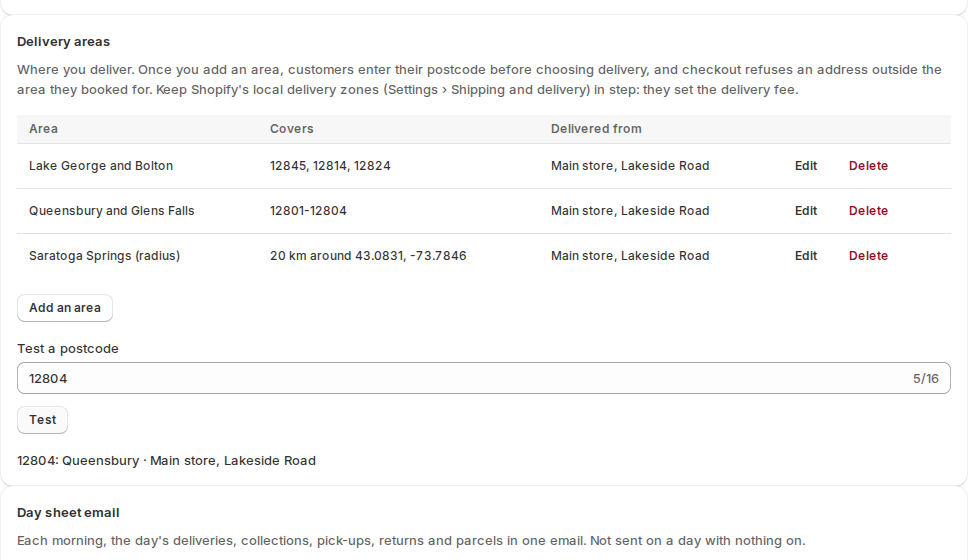
To check your work, type a postcode into Test a postcode and click Test. It tells you which area, if any, the postcode falls in.
Shopify’s local delivery zones still charge the delivery fee at checkout, so keep them in step with your areas, unless you charge the fee through the app (below).
What customers see #
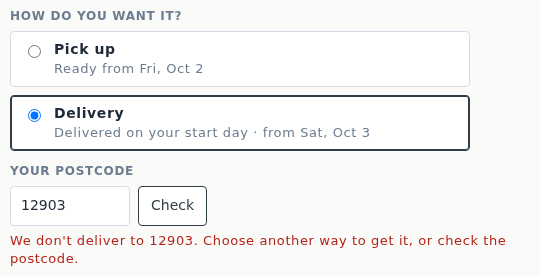
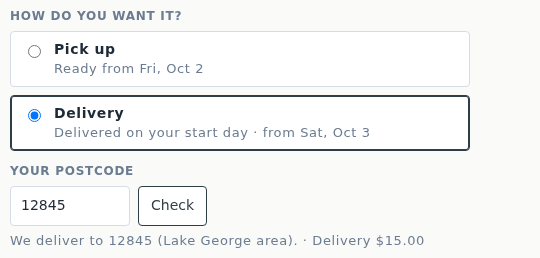
Once you have an area, choosing delivery on the product page asks for Your postcode.
- Outside every area they see “We don’t deliver to 2150…”.
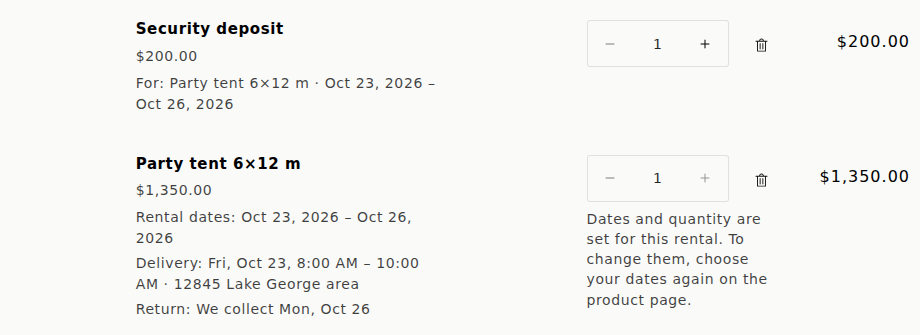
- Inside an area, the calendar offers that area’s days and time slots, the delivery is made from its location, and the cart line reads like
Delivery: Tue, Oct 6, 8:00 AM – 10:00 AM · 2000 Sydney. - At checkout, an address outside the booked area is refused on the postcode field. Orders you make yourself as drafts are not checked.
- If an order gets through anyway, the booking says it “isn’t in the delivery area this rental was booked for”.
Time slots and how many stops they take #
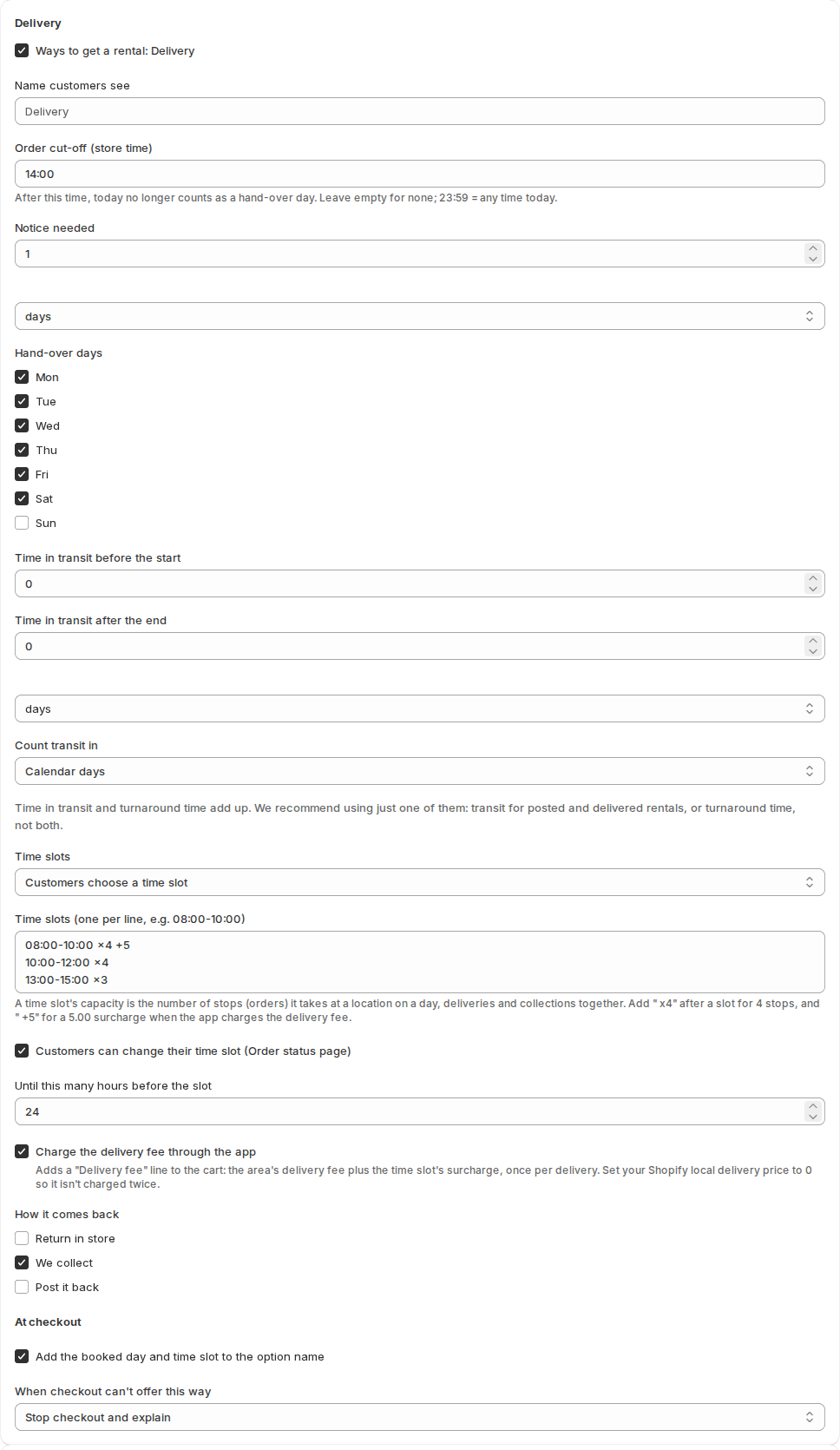
In Settings › Delivery & pickup, a way with Customers choose a time slot has a list of slots, one per line. Add a capacity and a surcharge to a slot:
| Write | It means |
|---|---|
08:00-10:00 | A slot with no limit. |
08:00-10:00 x4 | At most 4 stops in this slot, at a location, on a day. |
08:00-10:00 +5 | A 5.00 surcharge for this slot. |
08:00-10:00 x4 +5 | Both. |
One order is one stop. Deliveries and collections share the delivery slots; pick-ups and returns in store share the pick-up slots. A full slot is greyed out on the product page, and a change you make as staff is refused too. The same notation works on the slots of a location and of an area.
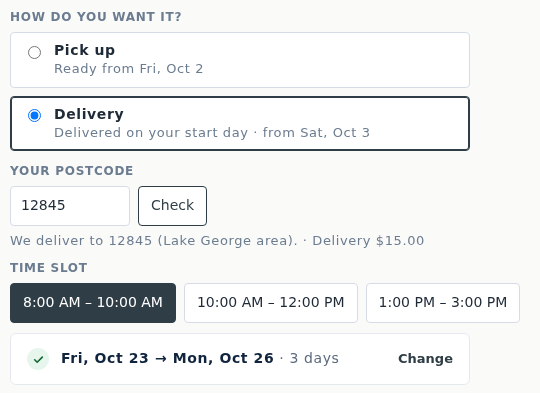
In the cart, the line shows the whole plan:
Charge the delivery fee through the app #
Tick Charge the delivery fee through the app under the Delivery way. A Delivery fee line then joins the cart with the first rental of each delivery (day, slot and area): the area’s fee plus the slot’s surcharge.
- Click Save. The app creates a hidden Delivery fee product.
- In Shopify, open Products › Delivery fee › Sales channels and make it available on your Online Store. Settings shows a reminder until you do.
- Set Shopify’s local delivery price to 0, so the fee isn’t charged twice.
Checkout refuses a delivery without its fee line, and a fee line without its delivery.
The fee line is only added while the Delivery fee product can be sold on your Online Store. Until you make it available there (step 2), the cart shows the rental without a fee line.
Customers change their time slot #
Tick Customers can change their time slot for pick up or delivery, and set Until this many hours before the slot. The customer sees Change time slot on the Order status page and in My rentals. It works on the same day only, and a full slot can’t be chosen.
The Schedule #
Open Send & Return and click Schedule. It shows one day:
- Deliveries and collections, in route order. Move a stop up or down, click Save the order, and Open in Google Maps follows that order. Map opens a single stop.
- Pick-ups and Returns in store.
- To transport today and Due back by transport. Late ones show on today.
You can print the Schedule, with a signature line for each stop, or download it as a CSV.
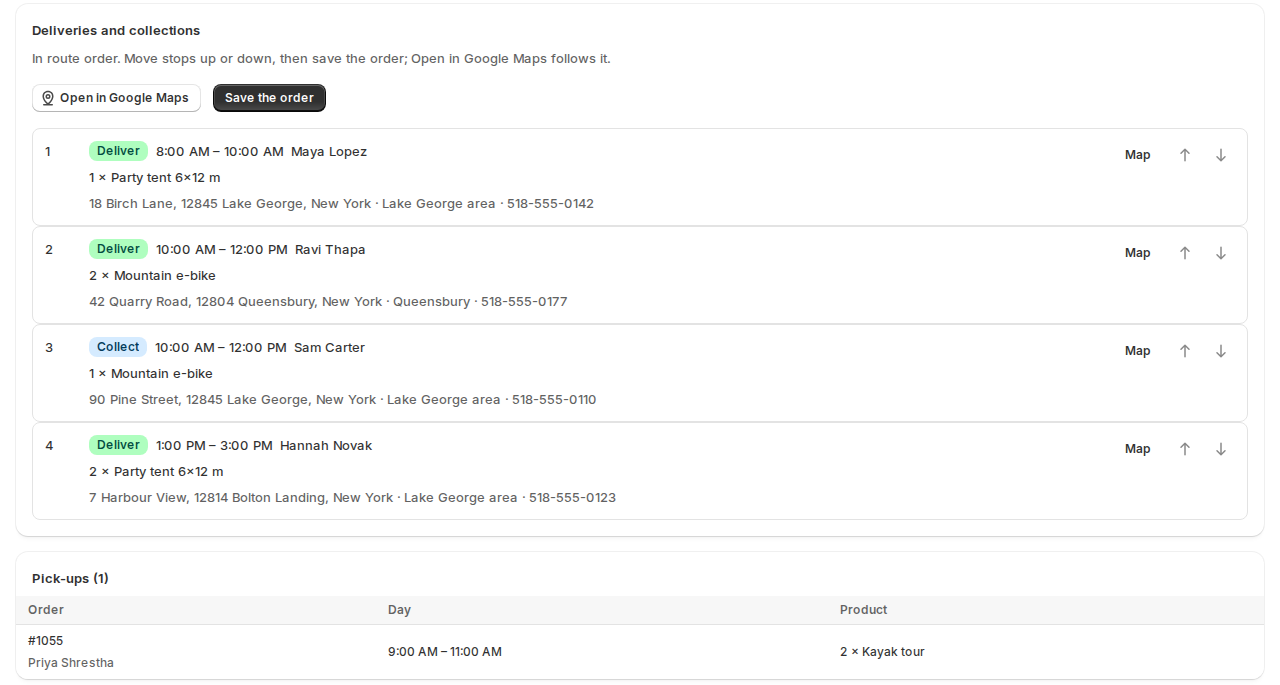
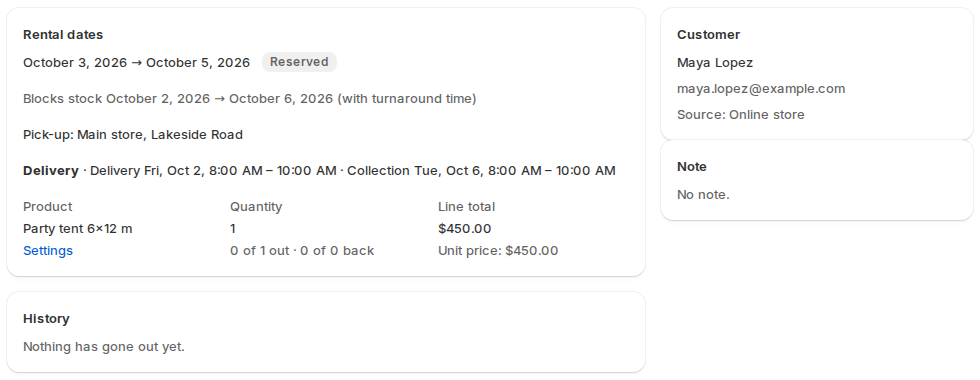
Each stop is a booking. Open it to see the plan:
The day sheet email #
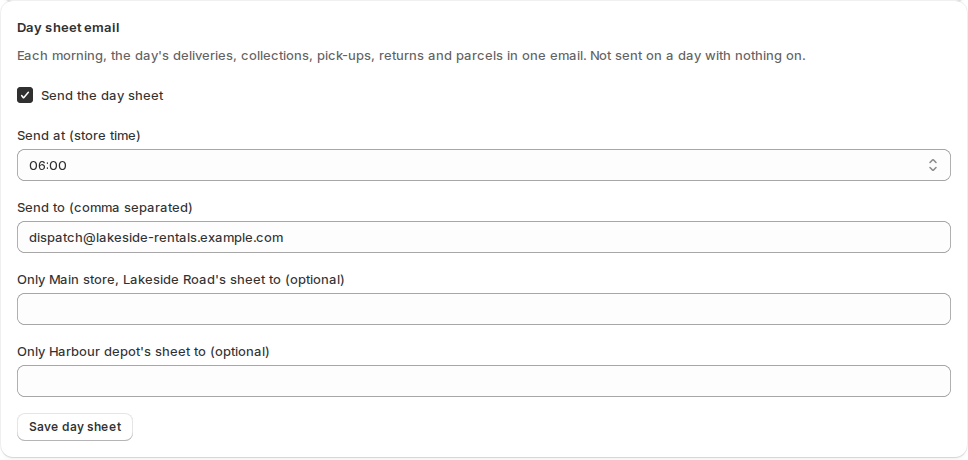
In Settings › Delivery & pickup, Day sheet email sends the day’s Schedule each morning to the addresses you list. With several locations you can also send each location’s list to its own addresses. Nothing is sent on a day with nothing on.
Reports #
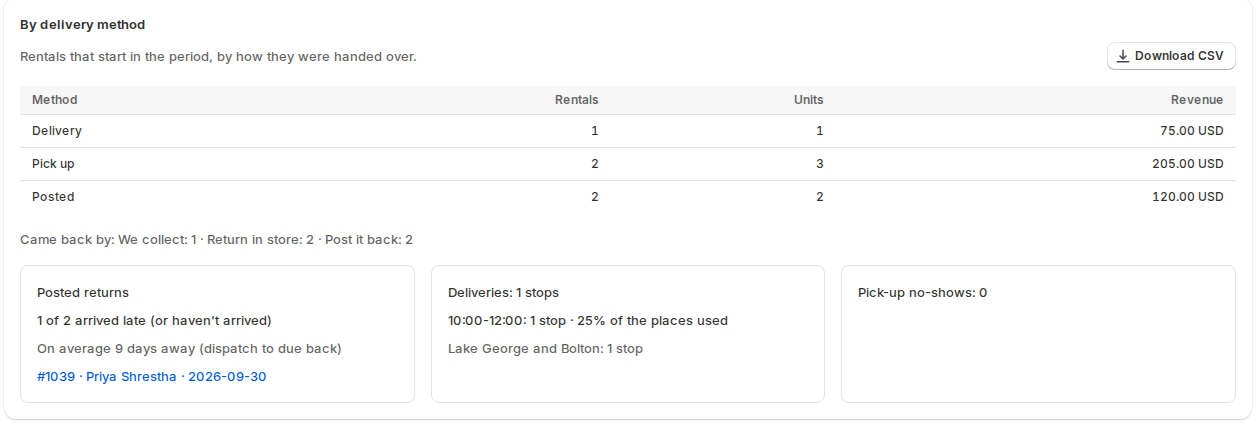
On Utilization, By delivery method shows rentals, units and revenue by delivery method and by the way they came back. It also shows:
- how many transported returns arrived late and how long parcels were away;
- delivery stops per slot, with the share of places used, and per area;
- pick-up no-shows.
You can download it as a CSV. The dashboard’s Going out and Due back tiles split by method too.
Shopify Plus #
Shopify Plus stores can add the Rental hand-over at checkout block in the checkout editor, under the delivery options. It repeats the booked hand-over for the customer.
Good to know #
- Draft orders you make yourself are not checked at checkout. Staff bookings are not held to the order cut-off, but a full slot is full for staff too.
- The Schedule and day sheet are only as good as the addresses on the orders. For delivery and transported rentals the shipping address is kept (encrypted) for the desk.


