
This page is for staff. It follows a request from the quote editor to a sent offer, and covers owners, automatic approval and margin. Finding quotes and the reports are in The quotes list, new quotes and reports.
The quote editor #
Click a quote in WooCommerce › Quotes to open it. The main column holds Customer, Items and prices, The offer and Totals. The side column holds Status, the Change request panel when the customer asked for changes, and Request details. Timeline and Versions are below.
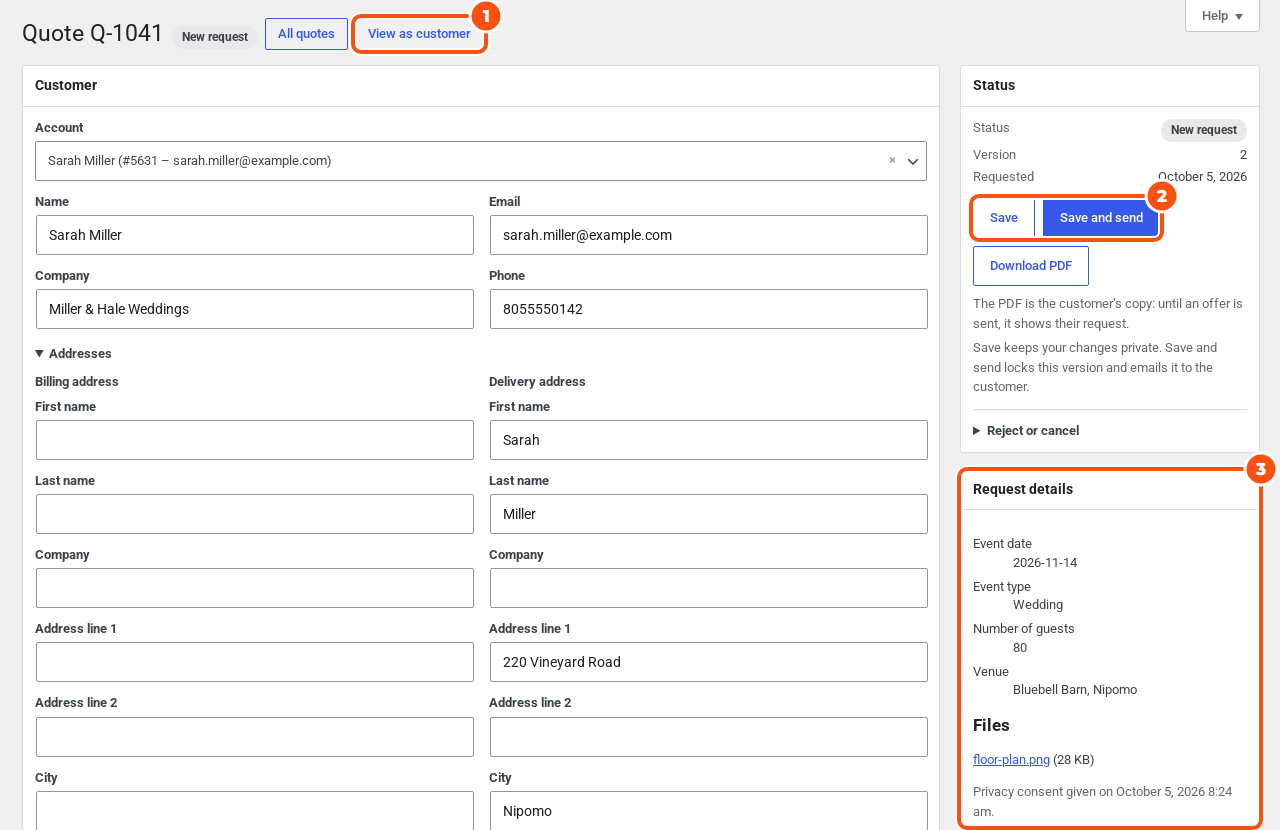
Your edits stay private until you click Save and send. When you revise an offer you already sent, a banner reminds you, for example: “You are editing version 3. The customer still sees version 2 until you save and send.”
- Customer: name, contact details, addresses and the linked account. Tax is worked out for the address set here.
- Request details (side column): the customer’s answers to your custom fields, their privacy consent and their files.
- View as customer opens the quote page as the customer sees it. The Status box shows when the customer last Viewed it.
Items and prices #
For each item choose how to set Your price:
- List price: the catalog price.
- Fixed price: a price you type.
- Percent off: a percentage taken off the list price.
When a customer suggested a price for an item, a Customer asked column shows it (customers can only suggest prices when Suggested prices is on in Quotes › General; it is off by default). Under each item, Note on this item (the customer sees it) and Staff note (never shown to the customer) hold your notes. Tick Remove to take an item off.
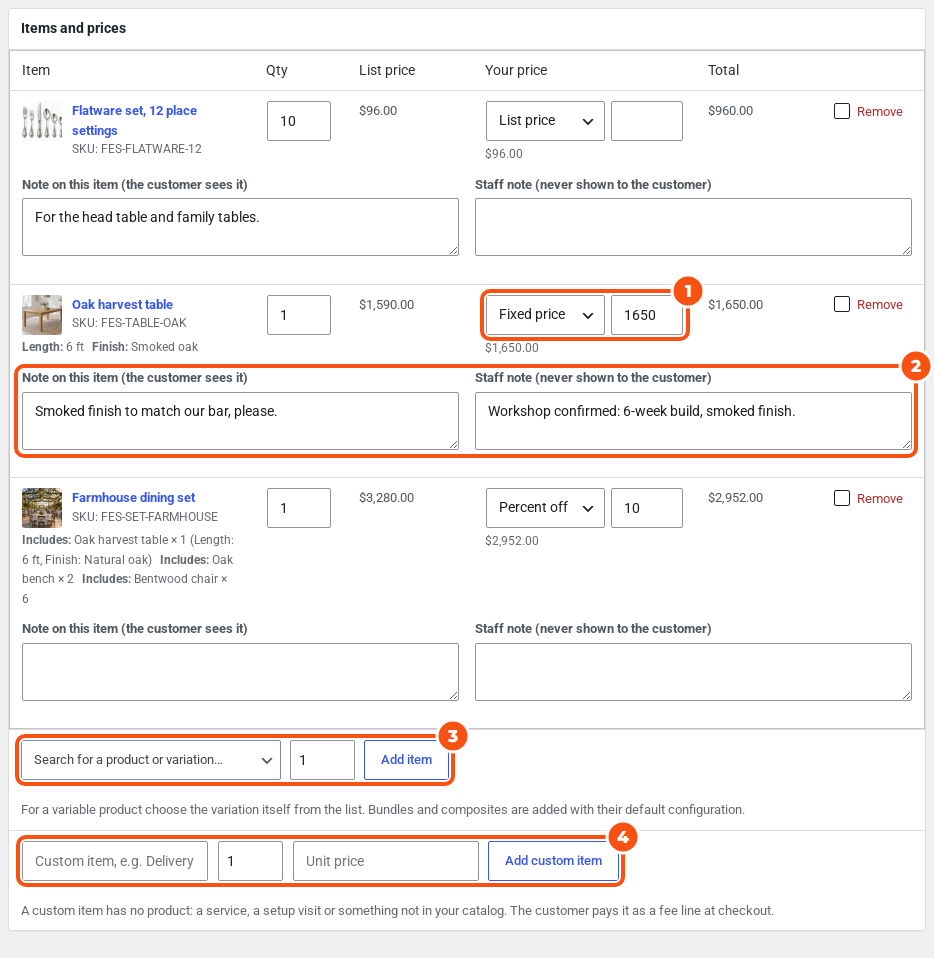
- To add a product, search in Search for a product or variation…, set the quantity and click Add item. For a variable product choose the variation itself. Bundles and composites are added with their default configuration.
- For something that is not in your catalog, such as delivery, a setup visit or a one-off item, use the row below: a title, a quantity and a Unit price, then Add custom item. Taxable is ticked by default where your store charges tax. You can change a custom item’s title and price in its row later. The customer pays it as a fee line at checkout.
- An item marked No catalog price needs a price from you before you can send.
The offer #
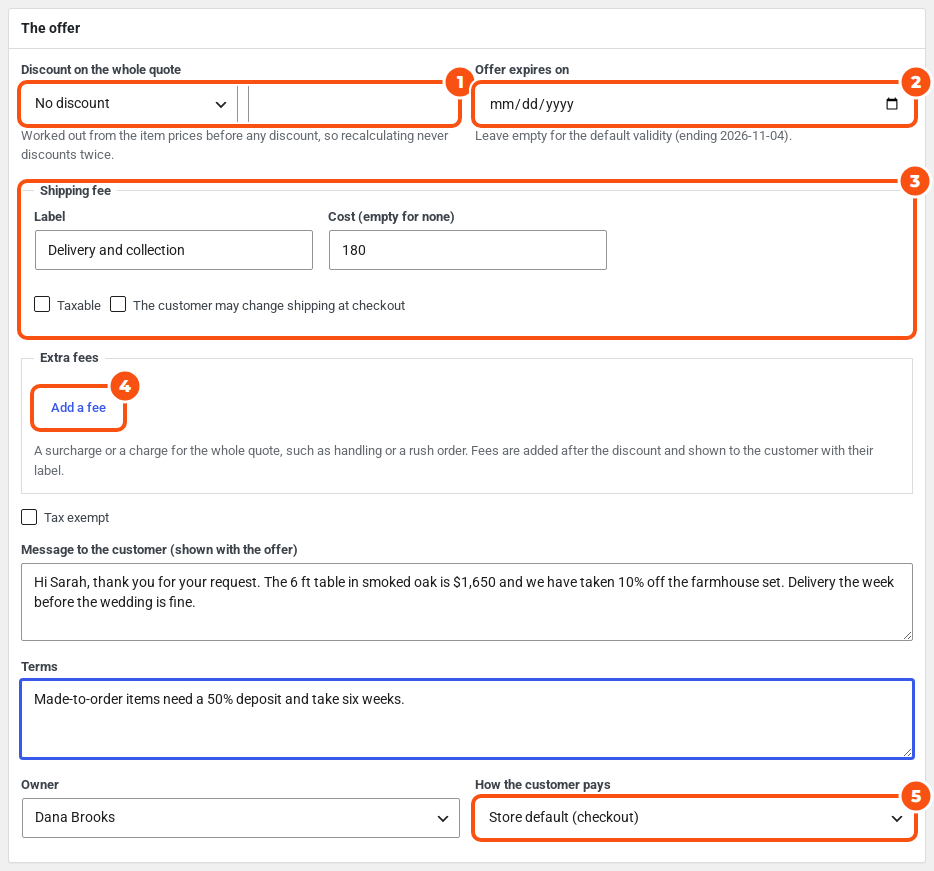
- Discount on the whole quote: No discount, Percent off, Amount off or Target total. It is worked out from the item prices before any discount, so recalculating never discounts twice.
- Offer expires on: leave it empty for the default validity. Once the offer is sent, change its date with Extend expiry in the Status box.
- Shipping fee: a Label, a Cost (empty for none), Taxable and The customer may change shipping at checkout. Leave the cost empty to keep your normal shipping rates at checkout. With the box unticked (the default), checkout charges your quoted shipping and nothing else. Tick it to let the customer pick one of your store’s shipping methods instead; your quoted shipping is then offered first.
- Extra fees: click Add a fee for a surcharge or a charge on the whole quote, such as handling or a rush order. Each fee has a label, an amount and Taxable. Fees are added after the discount, and the customer sees each one with its label.
- Tax exempt, Message to the customer (shown with the offer) and Terms.
- Owner, and How the customer pays (the store default, checkout, or a payment link: see From accepted quote to order).
Totals #
Totals update as you type. Recalculate refreshes them by hand. Nothing is saved until you click Save or Save and send. Staff always see prices here, also for products whose price is hidden from shoppers.
Sending the offer #
Click Save and send. This locks the version and emails the customer the “Quote ready” email, with the PDF attached when that is on. Save only keeps your changes private. If an item has no price, you are asked to set one first.
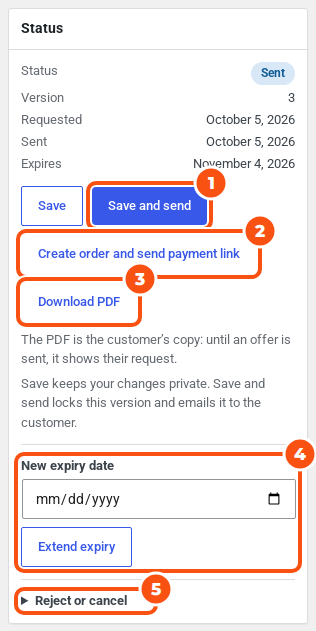
The Status box also has:
- Create order and send payment link on sent and accepted quotes (see From accepted quote to order).
- Mark as ordered on an accepted quote in quote-only mode, when you took the order outside the store: the quote closes as Ordered without a WooCommerce order. It is not offered when the quote already has an order or has rental items (create the order for those, so the rentals are booked).
- Download PDF: the customer’s copy. Until an offer is sent it shows their request.
- Extend expiry on sent quotes (New expiry date) and accepted quotes (New payment deadline). A new expiry also brings back the reminder email.
- Reject or cancel. Reject is for new requests and change requests and needs a Reason (needed to reject). Cancel quote works on drafts, new requests, sent, changes requested and accepted quotes. Email the customer is ticked by default.
Accepted, ordered and closed quotes are read only. Reopen puts an accepted quote back to Sent (with a new expiry if the old one has passed) and a closed one back to New request. An ordered quote cannot be reopened.
Versions #
The Versions box lists the request (“The request”), the offer the customer has now (“Sent to the customer”), earlier offers (“Sent earlier”), customer edits (“The customer’s changes”), and your unsent edits (“Working copy (not sent)”), with who made each one, the date and the total. Click Compare with v2 (and so on) to see what changed from the version before: items Added, Removed or Changed, with quantities, asked prices, prices, rental dates and notes, and the total.
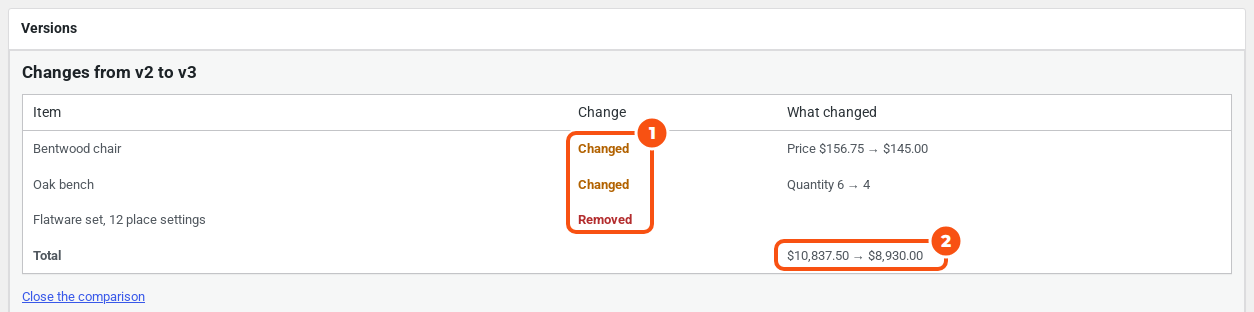
When the customer asks for changes #
When a customer uses Request changes on an offer, the quote becomes Changes requested and the editor shows a Change request panel with their message and what they asked for on each item: a new quantity, removal, a target price or a note.
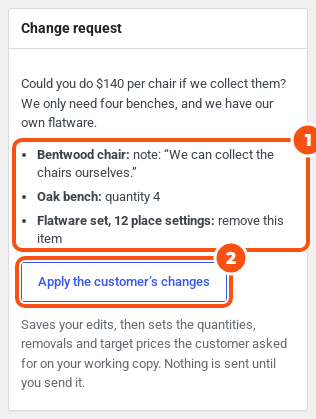
Apply the customer’s changes saves your edits, then sets the quantities, removals and target prices (as a fixed price; customers give target prices only when Suggested prices is on) on your working copy. Notes are shown but not copied. Nothing is sent until you click Save and send.
The timeline #
Add an Internal note (staff only), the default, or a Message to the customer, which emails them a “New message” email. The timeline also lists status changes, the customer’s messages and every email sent or failed.
Offers, reminders and owners #
These settings are in WooCommerce › Settings › Quotes › Offers and expiry.
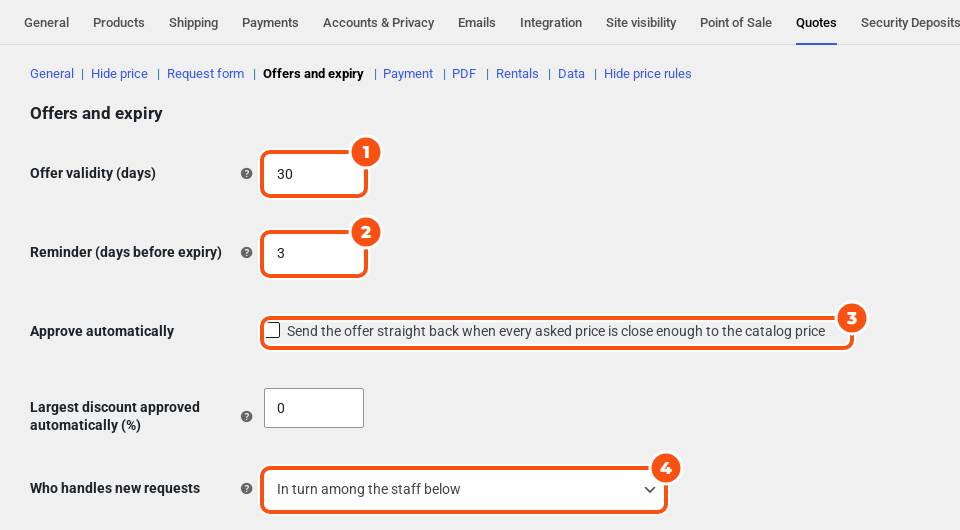
- Offer validity (days): 30 by default.
- Reminder (days before expiry): 3 by default. One reminder per offer; 0 sends none. An offer past its date expires and the customer is emailed.
- Who handles new requests: Nobody until someone takes it (the default), By the customer’s role or In turn among the staff below. For roles, choose a staff member for each customer role (or guests) in Owner by customer role; a customer with several roles goes to the first role that has an owner. For turns, list the people in Staff taking turns. Only users who can view quotes are used.
The owner gets a copy of the staff emails. Staff who cannot see all quotes see only their own and unassigned ones.
Approve automatically #
Tick Approve automatically to send the offer straight back without staff review. It applies only to a new request where every item is a catalog product with a price, every item is available, and each item and the whole request are within Largest discount approved automatically (%) of the catalog price. The default 0 approves only requests at the catalog price. Requests with a custom item, an item without a price or an unavailable item always wait for staff.
The offer goes out at the asked prices. Items without an asked price go at the catalog price, and an asked price above the catalog price is lowered to it.
Cost and margin #
Enter a product meta key in Cost meta key, for example one written by a cost-of-goods plugin. The editor then shows each item’s Cost / margin to staff only, worked out from the last saved price. Leave it empty to hide it.


