
Every repair, service and inspection is a ticket with its own number (MT-1042). This page explains the board, the ticket page, the statuses and what a ticket does to your stock.
The board #
Go to Maintenance › Tickets. At the top, four cards sum up the day: Units down now (units out of stock for maintenance), Back today (expected back today), Overdue (open past the expected date) and Waiting (for parts or at a vendor), followed by Services due, Downtime this month and Cost this month.
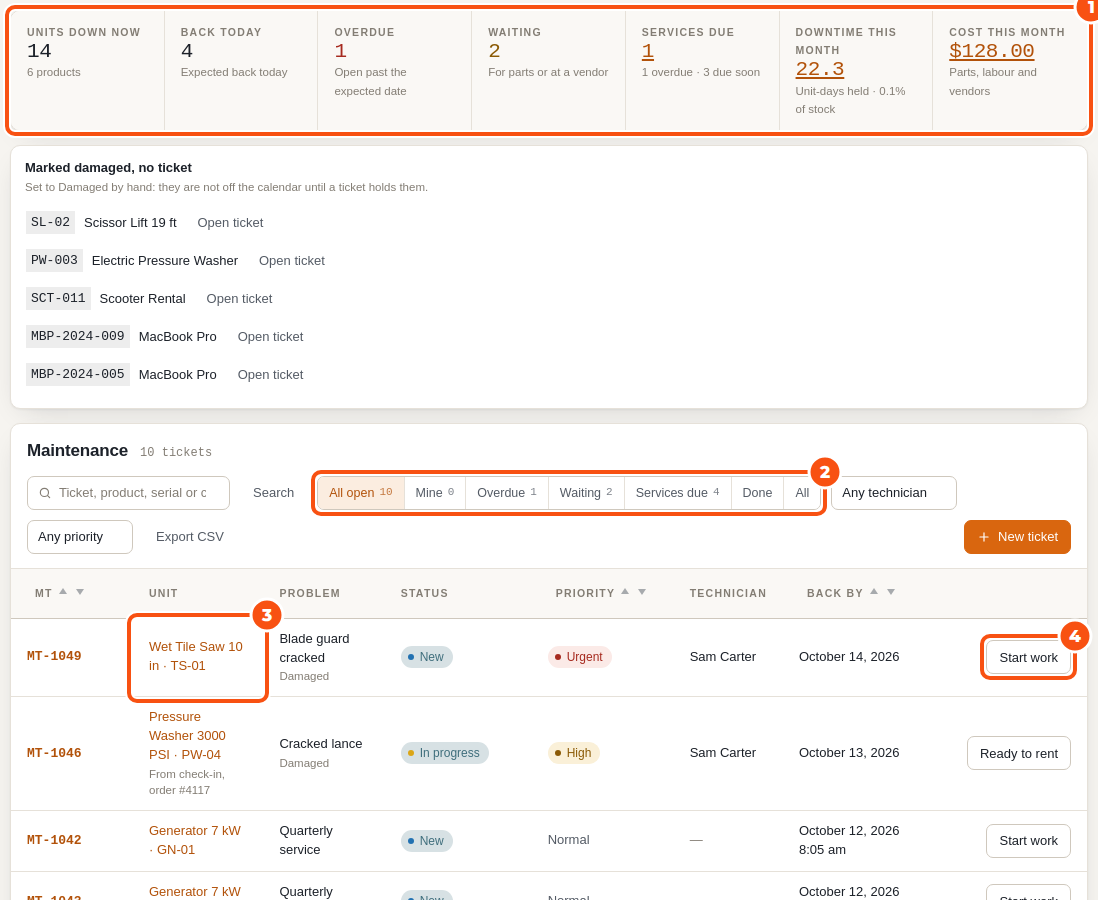
The tabs are All open, Mine (tickets assigned to you), Overdue, Waiting, Services due, Done and All. The search finds a ticket by number, product, serial or customer, and the filters narrow the list by technician and priority. Export CSV downloads the tickets in view, one row per unit.
Each row shows the ticket number, the unit, the problem, the status, Back by and one button for the next step, named after it: Confirm (a customer report), Start work, Ready to rent, Resume (after waiting for parts) or Back from vendor. A ticket from a check-in reads “From check-in, order #…”; a ticket that does not keep stock out reads “Not blocking stock”.
Opening a ticket by hand #
Click New ticket on the board.
- Choose the Product, then tick the units that need service (or enter how many, for a product without serial numbers). The screen checks the stock as you go and lists the open tickets the product already has.
- Enter the Problem and a Note, pick the Priority (Low, Normal, High, Urgent) and the Kind (Repair, Service or Inspection).
- Choose Keep out of stock until fixed or Don’t block (log only).
- Optional: Expected back (empty means blocked until the ticket is done) and Blocking from (empty means now; a later time plans the block, for a service booked for next Monday).
- Pick a Technician or click Assign to me, add photos, then click Open ticket.
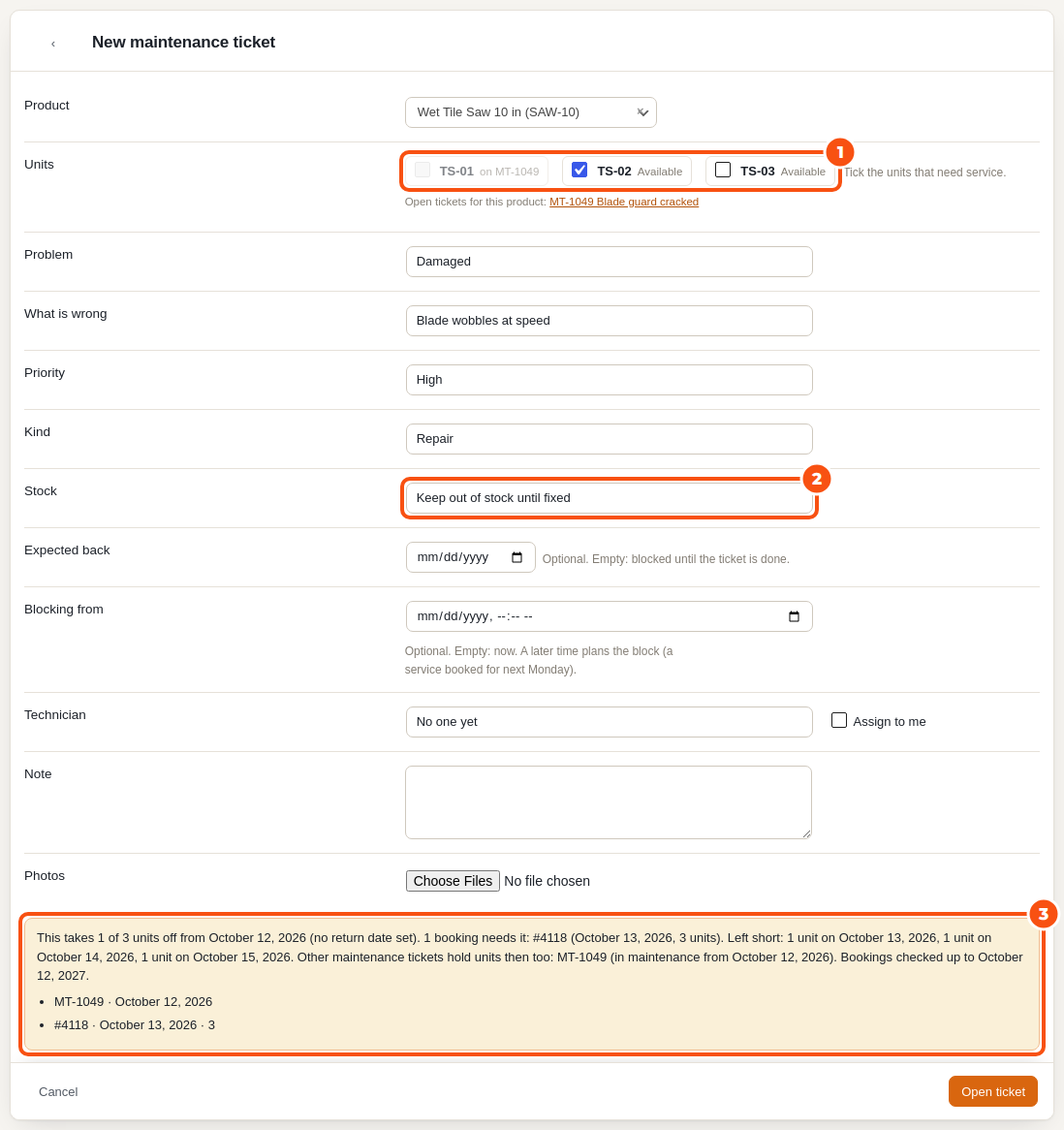
If the units you take out leave future bookings short, the screen lists those bookings before you save. A ticket never cancels a booking. Swap the unit on those bookings, change the expected date, or keep the block and contact the customers.
The ticket page #
Click a ticket on the board to open it.
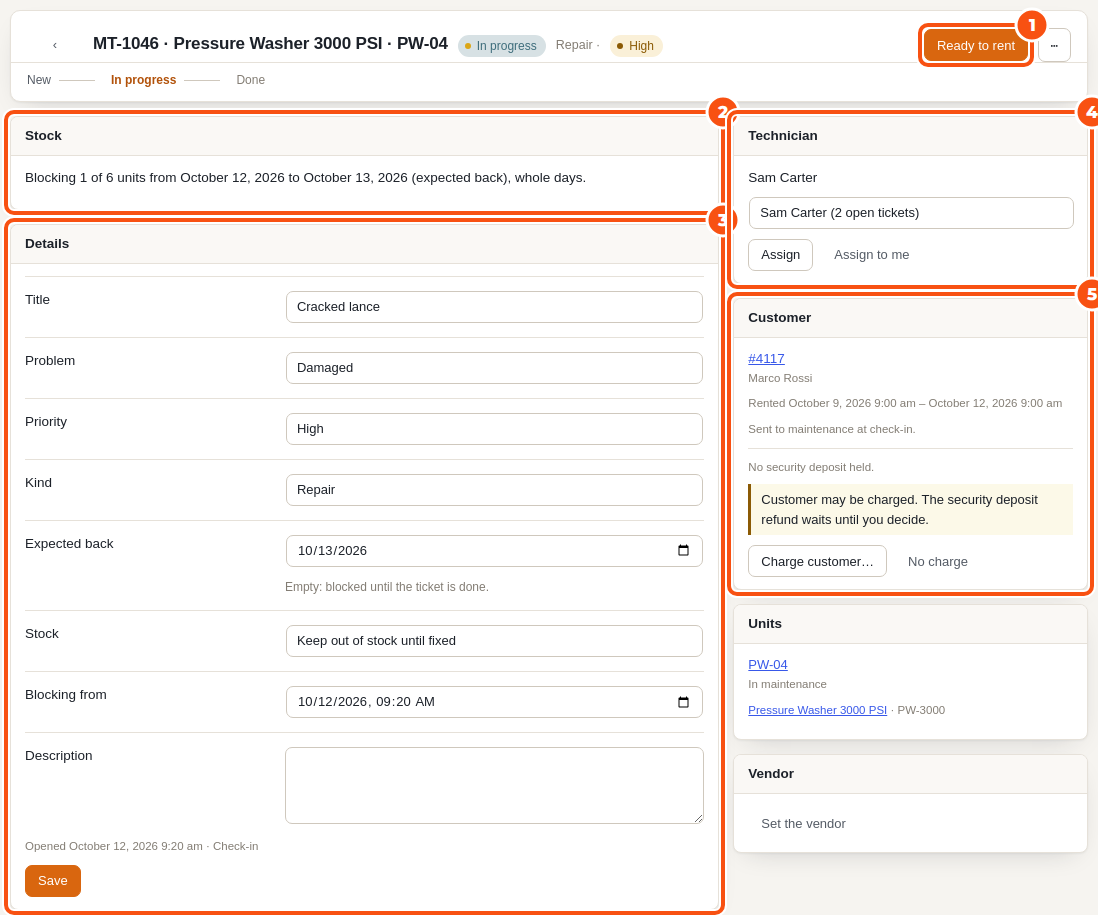
- Stock says what the ticket does: “Blocking 1 of 6 units from … until … (expected back)”, “Will block 1 of 3 units from …” (a planned start), or “Not blocking stock”. It lists the bookings the block leaves short.
- Details holds the problem, priority, kind, expected back, the blocking choice and the description. Change them and click Save.
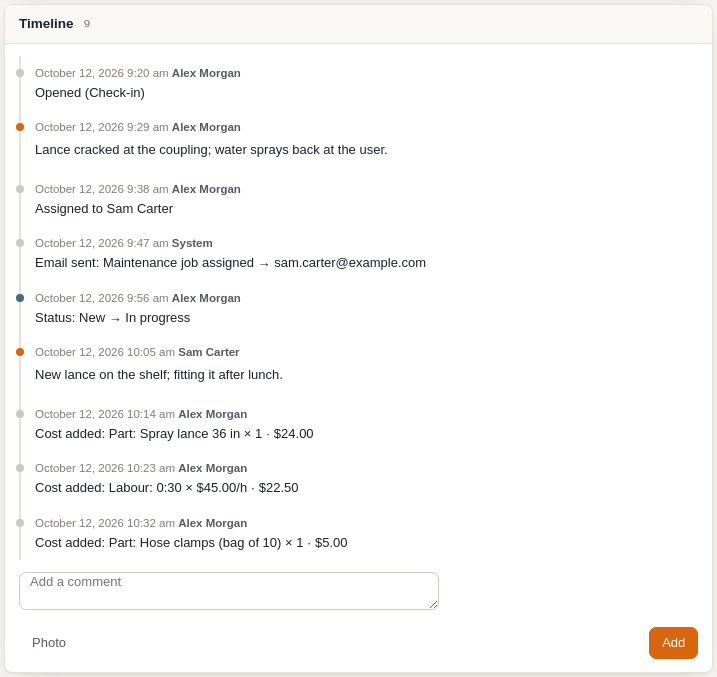
- Timeline records everything that happened to the ticket: the check-in, status changes, comments, photos, costs and charges. Add a comment or a photo at the bottom.
- Technician shows who works on it. Pick someone and click Assign, or click Assign to me. The technician gets the email “Maintenance job assigned” (not when they assign it to themselves).
- Customer appears on a ticket from a rental: the customer, the rental dates, and the damage charge if there is one.
- Units lists the units on the ticket.
- Photos, Checklist, Costs and Vendor are described in their own pages.
Statuses #
| Status | Category | Keeps stock out |
|---|---|---|
| Reported | Open | No, until someone confirms it |
| New | Open | Yes |
| In progress | Open | Yes |
| Waiting for parts | Waiting | Yes |
| At vendor | Waiting | Yes |
| Ready to rent | Closed | No: the units are rentable again |
| Written off | Closed | No: the unit is retired |
| Cancelled | Closed | No |
You can rename the statuses, change their colours, choose which ones keep stock out and add your own under Maintenance › Settings › Statuses. Built-in statuses keep their category and cannot be deleted; a closed status never keeps stock out.
When a ticket reaches Ready to rent, its units go back to Available, a running labour timer is stopped and, for a service ticket, the service is recorded so the counters start again.
Expected back and overdue tickets #
Expected back ends the block on that date. Usual repair time in the settings pre-fills it on new tickets. If the ticket is still open after its expected date, the block rolls forward a day at a time and the ticket shows Overdue until it is closed. If you prefer the stock to come back at the expected date anyway, tick Release stock at the expected date even if the ticket is not done in the settings.
A ticket without an expected date blocks as far ahead as Open-ended blocks reach (365 days by default), renewed every day.
Writing a unit off #
When a unit cannot be repaired, open More actions › Write off… on the ticket. Enter the Reason, the Write-off value and a Note, and leave Reduce stock by 1 ticked to lower the product’s stock. The unit is retired: it stays in history and reports and is never offered again. This closes the ticket.
Export #
Export CSV on the board downloads the tickets in view with one row per unit: ticket, status, kind, priority, title, problem, product, SKU, serial, quantity, whether it keeps stock out, hold from, expected back, overdue, opened, closed, outcome, technician, source, order, booking, customer and location.


