
Checklists make your staff check the same things every time a unit goes out or comes back, and open a ticket when a check fails. The check-out guard stops a unit that is overdue for its service from going out on a rental. Photos taken at check-out and check-in are shown side by side on the ticket.
Checklists #
A checklist is a set of serial custom fields from the Regular edition (made in Rentals › Settings › Serials and added to products). Maintenance & Inspections turns a set into a checklist: its answers are asked at check-out and check-in on the Send and Return screens, recorded as an inspection for each unit, and a failed answer can open a ticket.
Go to Maintenance › Settings › Checklists. The list shows each serial custom field set, how many of its items can fail, and how many failures it had in the last 30 days. Below it, Latest inspections lists the last checklists filled, with the unit, the result and the ticket.
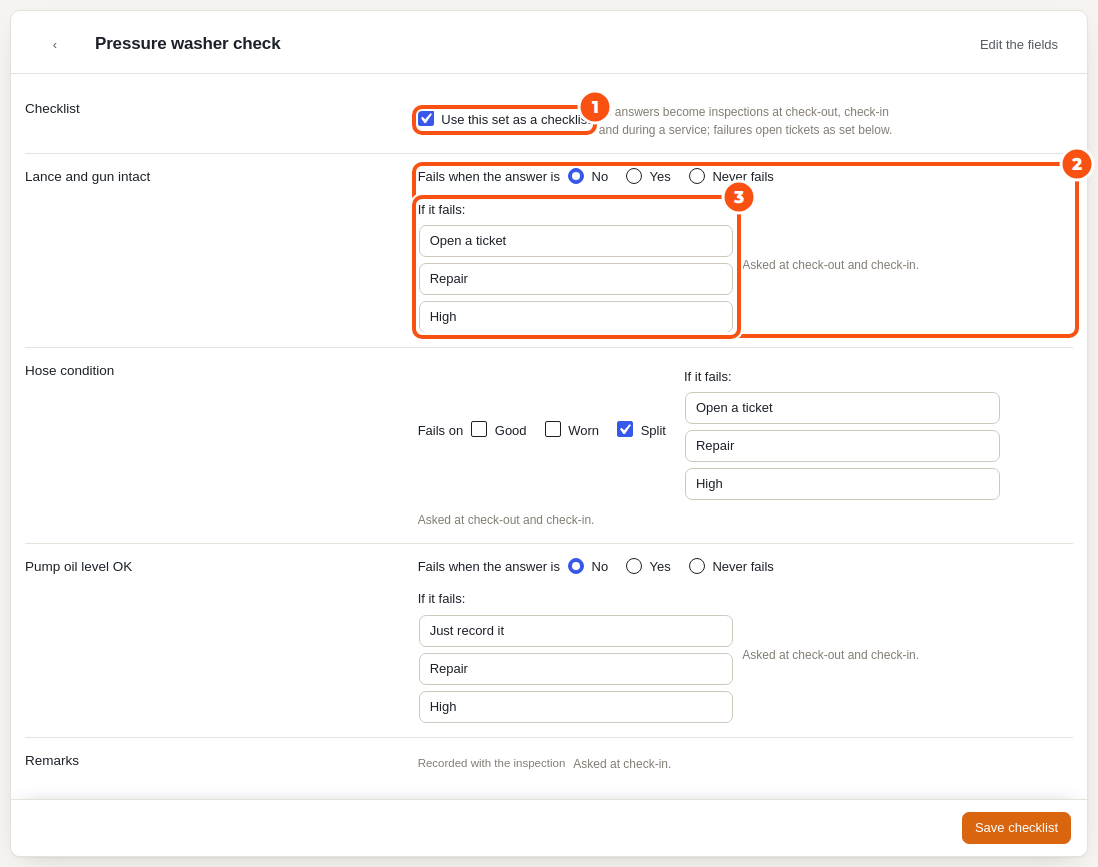
Click a set to edit it:
- Tick Use this set as a checklist.
- For each item, choose when it fails. A Yes/No answer fails on No (or on Yes); a choice fails on the options you tick; other fields are Recorded with the inspection and never fail.
- If it fails: Open a ticket (with its kind and priority) or Just record it.
- Click Save checklist.
What happens on a failure:
- At check-in, the ticket blocks the unit from the return.
- At check-out, the unit still goes out; the ticket holds it from the end of the rental, and the managers get the email “Inspection failed at check-out”.
- A unit already on an open ticket gets the failure on that ticket instead of a second one.
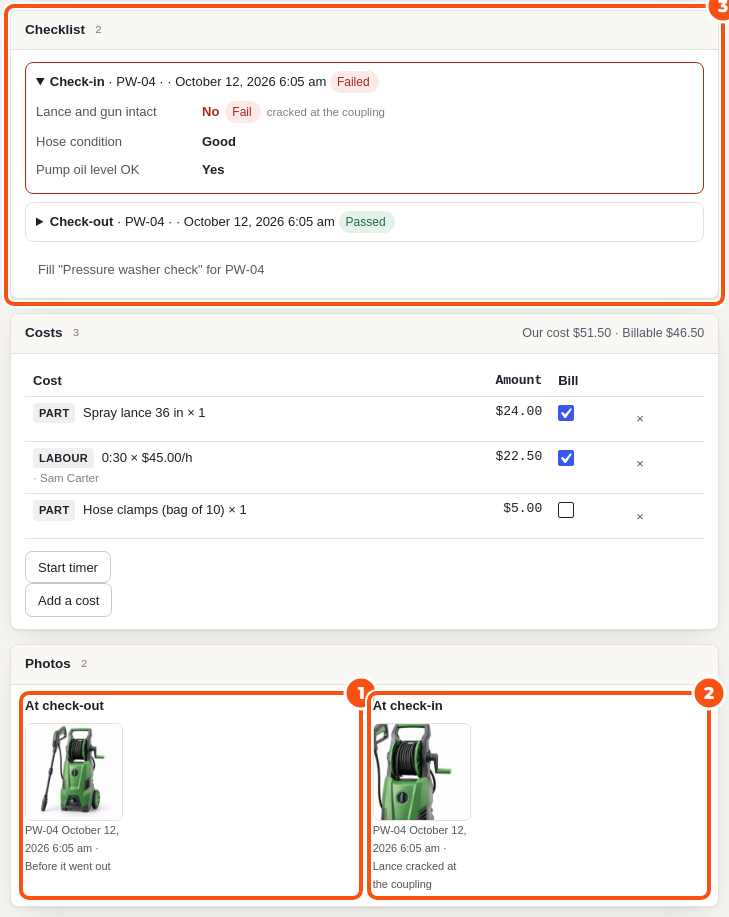
The ticket page shows the unit’s latest checklists in the Checklist card. During a service, click Fill “…” to fill the checklist on the ticket, then Record checklist.
The check-out guard #
When a unit’s service is due, the Send screen shows a note on its line before it goes out (“Service due: …”) and after it went out (“Sent out with a service due: …”). The REST send answers with maintenance_warnings.

Under Maintenance › Settings (General tab), Check-out guard choose:
- Warn (the default): the note is shown, and the unit can go out.
- Block when overdue: an overdue unit cannot be sent out on the Send screen, the REST send or a scan until it is serviced or snoozed on the Services screen. Send another unit, or service it first.
Check-out and check-in photos #
A ticket from a rental shows its units’ photos taken at check-out and at check-in side by side in the Photos card: the photos from the Send and Return dialogs, checklist photo fields and Add photo on the Needs service line. It is the quickest way to see whether the damage was already there when the unit went out.
Photos taken for a check-in that never opened a ticket are deleted after two days.


