
When a customer damaged what they rented, you can charge them for it from the ticket: from the security deposit you hold, from the card saved at checkout, with a pay link or at the counter. Nothing is ever charged without a member of staff reviewing it first.
Before you start #
- Damage charges are on by default. You find them under Maintenance › Settings (General tab), Damage charges, with the Tax of a charge (Standard rate or Not taxed) and Hold the security deposit refund while a “Customer may be charged” ticket is undecided.
- The ticket must come from a rental (a check-in, an order’s Send to maintenance, or a customer report) and have Customer may be charged ticked.
- To charge the saved card, the customer must have saved a card at checkout. The Regular edition’s late-fee consent above Place order then also says that damage found when a rental comes back may be charged to it after you review it.
- To take it from the deposit you need Refundable Security Deposits, with a deposit still held on the order.
While it is undecided #
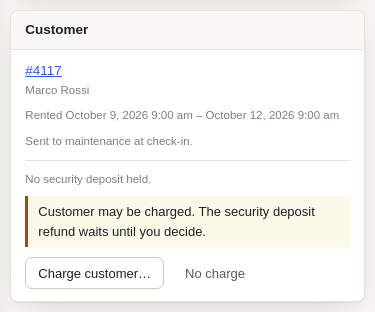
A ticket with Customer may be charged shows the Customer card: the customer, the rental, the security deposit held, and whether they bought a damage waiver. While you have not decided, the held security deposit is not refunded automatically. No charge decides it the other way: the deposit refund goes now.
Charging the customer #
Click Charge customer… on the Customer card.
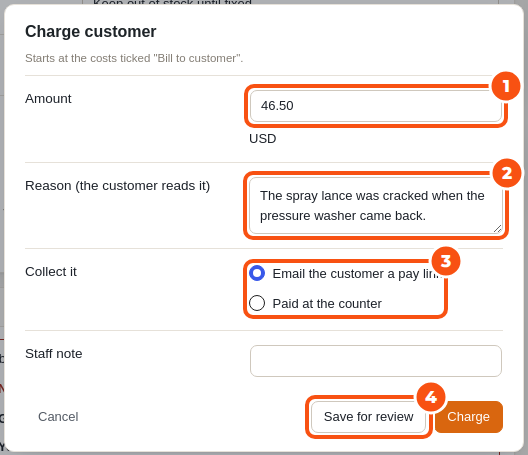
- Check the Amount. It starts at the costs ticked Bill to customer. If the customer bought a damage waiver through Custom Fields, Damage Waiver & ID Verification, it starts at 0 with a note (or at the waiver’s excess, when the waiver has one).
- Write the Reason. The customer reads it in the email and on the charge’s order.
- Choose how to collect it:
- Take it from the security deposit: used only when what is left of the deposit covers the whole amount; the rest of the deposit is refunded as usual.
- Charge the saved card.
- Email the customer a pay link.
- Paid at the counter: record a payment you took yourself.
- Add a Staff note if you like, then click Charge, or Save for review to decide later.
Each charge is its own WooCommerce order, numbered after the rental (DC-1234-1), so it shows in your orders, reports and accounts as a damage charge, not as a change to the rental. The customer gets “Damage charge: please pay” (with the pay link) or “Damage charge: receipt” when it is paid.
When a card is declined #
A declined card is tried again after 1 day and after 3 days, and the customer gets the pay link at once. A hard decline, an expired card or a bank that asks for 3-D Secure goes straight to the pay link. The Customer card shows each attempt; Retry charge tries again now and Send pay link again resends the email.
Waive and refund #
- Waive… cancels an open charge, with a reason.
- Refund… gives back part or all of a paid charge: to the security deposit if it came from there, through the payment gateway for a card or pay link, or recorded only for money you give back yourself.
A charge on an order that was cancelled or refunded is cancelled with it.
Reports #
Billable costs and charges show in Reports › Cost per item (“Billable”). Each damage charge order also appears in WooCommerce’s own order list and reports.


