
Live Chat & AI Agent puts a live chat on your WordPress site. Your team answers it from WordPress, and an AI agent answers from your own help docs and pages around the clock, then hands the chat to a person when it should. Human + AI chat that answers 24/7 and turns visitors into bookings: a Crisp alternative that runs inside WordPress, with no per-seat fees.
Everything is stored in your own WordPress database: conversations, people, email replies and the AI’s knowledge index. It runs on any WordPress site. WooCommerce, Easy Digital Downloads and BetterDocs are optional: when they are active, the chat shows what a customer bought and the AI reads your docs and products.
What you need #
| Item | Requirement |
|---|---|
| WordPress | 6.6 or newer |
| PHP | 8.1 or newer, with libsodium (standard in PHP 8) |
| Optional | WooCommerce or Easy Digital Downloads (with Software Licensing), to see a customer’s orders and licences next to the chat. BetterDocs, so the AI reads your help docs. |
| AI agent | An API key from OpenRouter (or Anthropic, OpenAI, Google, or any OpenAI-compatible URL). You pay the provider directly for what the AI uses. Without a key, chats go to people and email. |
Install and activate #
- Go to Plugins › Add Plugin › Upload Plugin, choose the Live Chat & AI Agent zip file, then click Install Now and Activate Plugin.
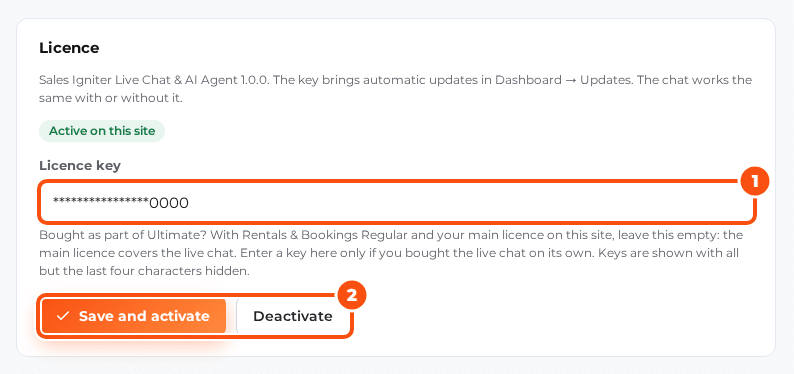
- Open Live chat › Settings › Licence (or click Licence under the plugin’s name on the Plugins screen) and enter your licence key. Updates then arrive in Dashboard › Updates.
Bought as part of the Ultimate package? With Rentals & Bookings Regular and your main licence on the site, leave the field empty: the main licence covers the live chat. Enter a key only if you bought Live Chat & AI Agent on its own. The chat works the same with or without a key; the key brings updates.
On activation the plugin:
- creates its own database tables, so chats are not stored as posts or comments;
- adds the Chat operator role and gives administrators every chat capability (see the table below);
- schedules two WordPress cron jobs:
silc_tickevery minute andsilc_dailyonce a day; - adds Live chat to the admin menu.
The chat bubble shows on your site straight away. Until the AI agent has a key, chats go to the people who are online, and to email when nobody is.
Run WordPress cron from a real cron line #
WordPress cron only runs when someone visits the site. The chat’s email replies, reminders, snoozes, mailbox checks and the AI’s queued answers need the minute job, so on a quiet site add a real cron line on the server that runs WordPress cron every minute:
* * * * * cd /path/to/wordpress && wp cron event run --due-now >/dev/null 2>&1and add define('DISABLE_WP_CRON', true); to wp-config.php. To run only the chat’s minute job from the server, use the line that Settings › Email shows for your site under the mailboxes (wp silc tick --quiet).
Who can do what #
| Capability | What it allows | Given to |
|---|---|---|
silc_answer_chats | Answer chats: the inbox, live visitors, contacts, saved replies, notes, take over | Administrator, Chat operator |
silc_view_purchases | See purchases and licence status in the side pane | Administrator, Chat operator |
silc_manage_chats | See all chats, reassign, delete conversations, merge and block people | Administrator |
silc_manage_settings | Change the AI agent, routing, the widget, mailboxes and the settings | Administrator |
silc_reveal_licence_keys | Reveal a customer’s licence key (each reveal is logged) | Administrator |
silc_export_contacts | Export and delete people | Administrator |
Give team members the Chat operator role under Users, or add the capabilities to a role you already use. Administrators always have every capability.
The screens #
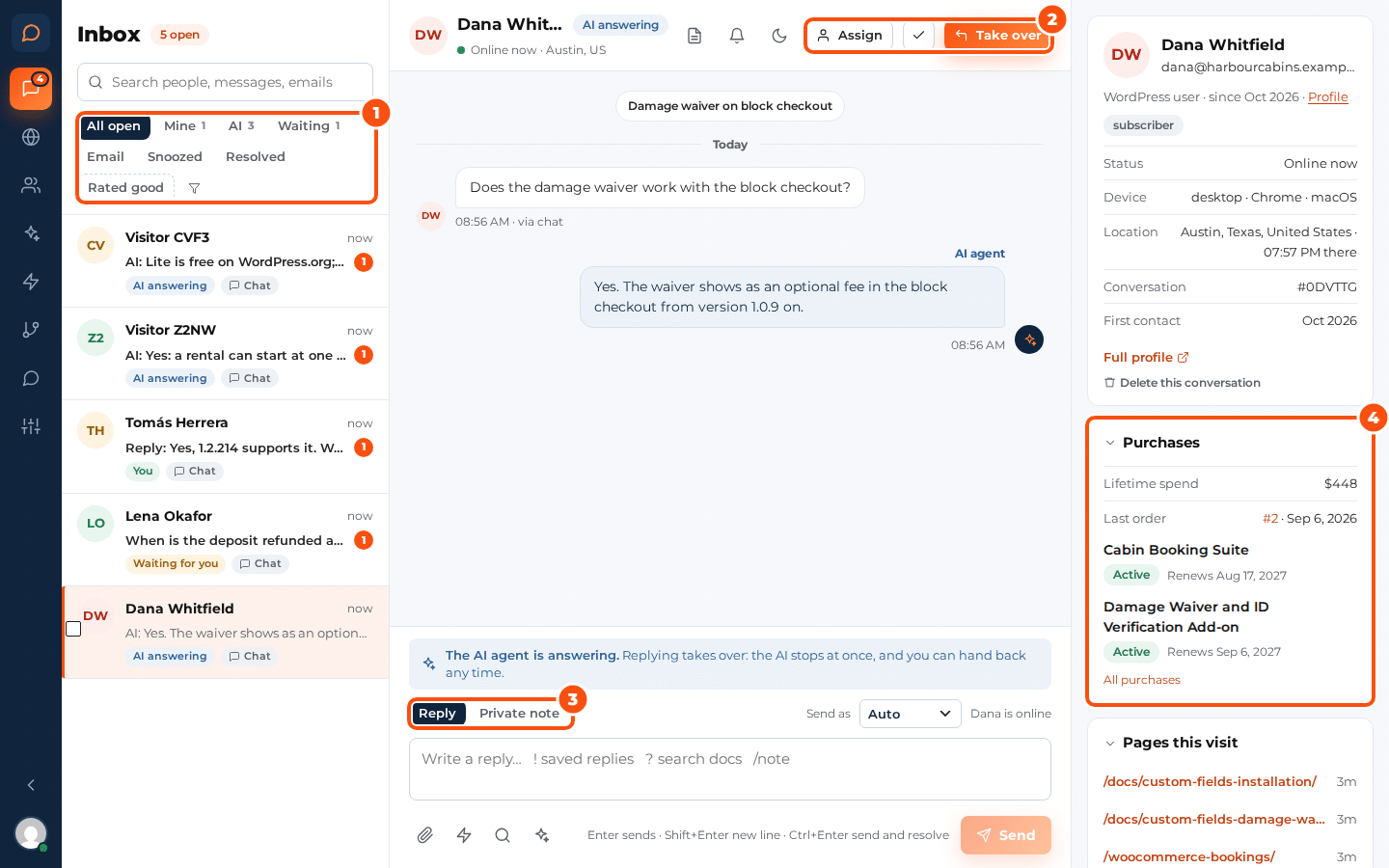
Live chat in the admin menu (or the admin bar) opens the inbox, a full-screen app in its own browser tab. The rail on the left holds:
| Screen | What it is for |
|---|---|
| Inbox | Every conversation, with views, search, bulk actions and the reply box |
| Live visitors | Who is on the site now, on a list and a map (only with the visitor’s consent) |
| Contacts | Everyone you know: named, with an email, or who chatted |
| AI agent | The agent’s status and spend, Try it, the model and key, the budget, and Knowledge (what the AI may read) |
| Saved replies | Answers you type often, inserted with ! in the reply box |
| Routing and hours | Routing rules, who answers first, office hours and the questions before a chat |
| Widget | The look and texts of the chat bubble, and proactive messages |
| Settings | Email, Operators, Notifications, Privacy, Realtime and Licence, plus export and import of the settings |
Each operator also has Notifications and devices under their picture at the bottom of the rail.
First steps #
- Open Widget and set the colours, the greeting and the reply time line (see The chat widget).
- Open Routing and hours and set your office hours and holidays, and who answers first (see Routing, office hours and ratings).
- To let the AI answer, open AI agent, switch the agent on and add your OpenRouter key, then click Re-index now on Knowledge and ask a few questions with Try it (see The AI agent).
- Open Settings › Email so replies to unread messages go out by email and the visitor’s email replies come back into the chat (see Email replies).
- Ask each operator to turn on notifications under their picture (see Notifications).
- Under Settings › Privacy, check the consent mode and copy the suggested text into your privacy policy (see Privacy, consent and GDPR).
Compared with a hosted chat service #
| Crisp | Live Chat & AI Agent | |
|---|---|---|
| Where chats are stored | Crisp’s servers | Your WordPress database |
| AI answers | AI credits in the plan: the Mini plan lists $5 of credits for around 90 automated conversations, about $0.06 each (crisp.chat/en/pricing, October 12, 2026) | Your own AI key, at the provider’s token price: about $0.0055 for a typical chat with three AI replies on the default answer model ($0.30 per million tokens in, $1.20 out) |
| WooCommerce and EDD purchases next to the chat | No | Yes |
| Live visitors on a map | Yes | Yes, on a map shipped with the plugin (no map service, nothing leaves your site) |
Realtime: polling or a WebSocket #
Out of the box the widget and the inbox ask for news every few seconds (polling), which works on any host. For messages that arrive at once, connect any Pusher-protocol WebSocket server (Soketi, Laravel Reverb or Pusher) under Settings › Realtime and click Test the socket server. If the socket server goes away, both sides fall back to polling by themselves.


