
A membership is a product that, instead of renting out a specific item, gives the customer a benefit for as long as they are a member. Sales Igniter Subscriptions offers two kinds of benefit: store credit to spend on rentals, and a rental queue allowance that lets the customer keep a number of items checked out at a time. Memberships are usually sold as subscriptions so the benefit renews with each payment.
Membership types #
| Type | What the customer gets | Typical use |
|---|---|---|
| Store Credit | A fixed amount of store credit every billing cycle, which they can apply at checkout against rentals. | “$500 of rentals per month for $30/month” style plans. |
| Rental Queue | The right to have up to N products checked out at the same time, chosen from a queue they build themselves. Items are sent and returned by you from the admin. | Netflix-style rotation of equipment, games, toys, tools, etc. |
Creating a membership product #
- Create a normal WooCommerce product (a simple product is fine – it does not need booking dates) and give it the price of the membership.
- In the Subscriptions & Memberships box open the Subscription tab, tick Enable Subscriptions? and set the billing length (for example
1mfor a monthly membership). This is what makes the membership renew and bill automatically. See Setting up Subscriptions for the other options such as sign-up fee and free trial. - Open the Membership tab, tick Enable Membership? and choose the membership type.
A membership product can also be sold without enabling subscriptions. It is then a one-time purchase: the customer gets the benefit once (a single grant of store credit, or a permanent queue allowance) and it never renews.
Store credit membership #
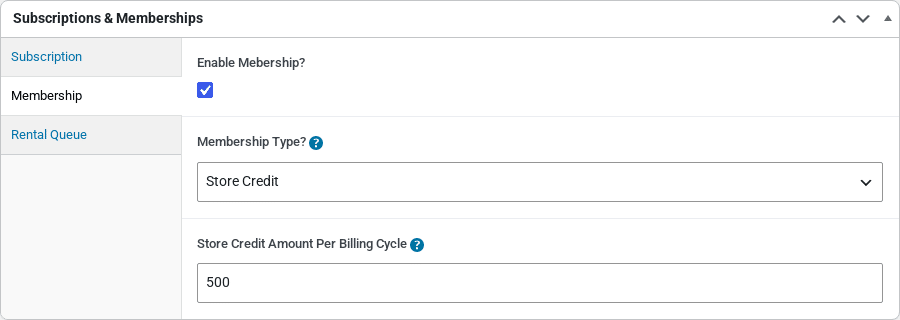
- Membership Type? – Store Credit.
- Store Credit Amount Per Billing Cycle – how much credit the customer receives each billing period. With a
1mbilling length and500here, the customer gets $500 to spend every month.
How the credit behaves:
- The credit is granted when the membership order is placed and resets to the full amount after every successful renewal payment. Unused credit does not carry over.
- At checkout, a customer with credit left sees an apply store credit checkbox above the payment methods. The credit is applied as a discount up to the total of the rental items in the cart. It can never be used to pay for membership or subscription products themselves.
- Whether credit also covers shipping is controlled by Allow membership store credit to be applied to shipping charges under Subscriptions > Settings.
- If the subscription is paused, cancelled or a renewal fails, the credit stops being available until the subscription is active again.
Rental queue membership #
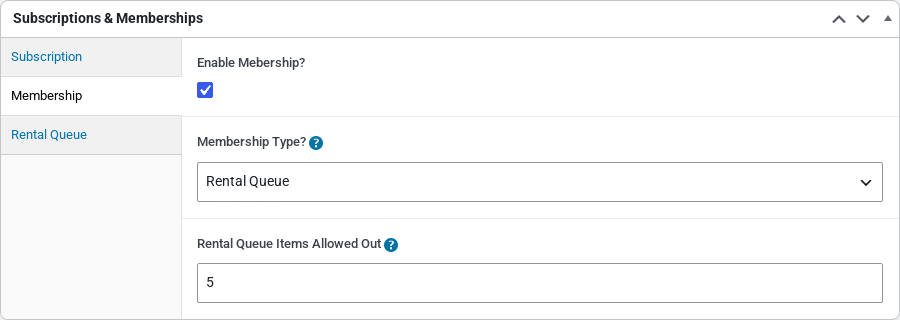
- Membership Type? – Rental Queue.
- Rental Queue Items Allowed Out – how many products the member may have checked out at the same time. When they return one, the next item in their queue can be sent.
A rental queue membership does nothing on its own – you also need products that members can queue. See the next section, and Managing Rental Queues for the day-to-day send and return process.
Making products queueable #
On each rental product that members should be able to queue, open the Rental Queue tab of the Subscriptions & Memberships box and tick Rental Queue Type Product.

On the storefront, the product page then shows an Add to Queue button (above the booking calendar) to customers who hold an active rental queue membership. Once added, the button reads In Queue.
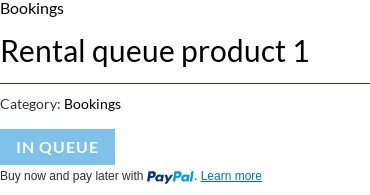
Queue products still use Rentals & Bookings inventory: a unit that is checked out to a member is an open-ended booking, so it is unavailable to regular rentals until it is returned, and units with a regular booking cannot be sent to a member.
What the customer sees #
The membership product page is a normal product page with Add to Cart – there is nothing to configure, because the start date is always “today”:
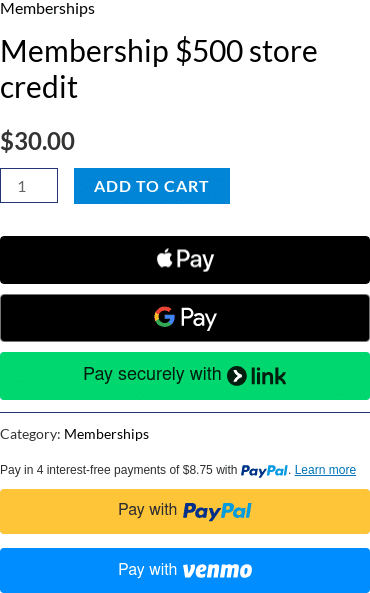
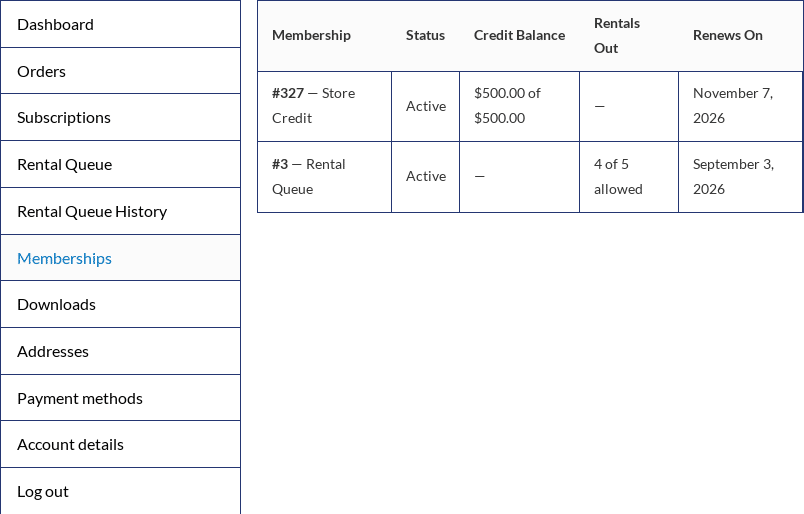
After purchase the customer can see all their memberships, credit balance for the current period, rentals out against their allowance and the renewal date under My Account > Memberships:
Because a membership with subscriptions enabled is also a subscription, it appears under My Account > Subscriptions too, where the customer can pause, cancel or change the payment method.


