
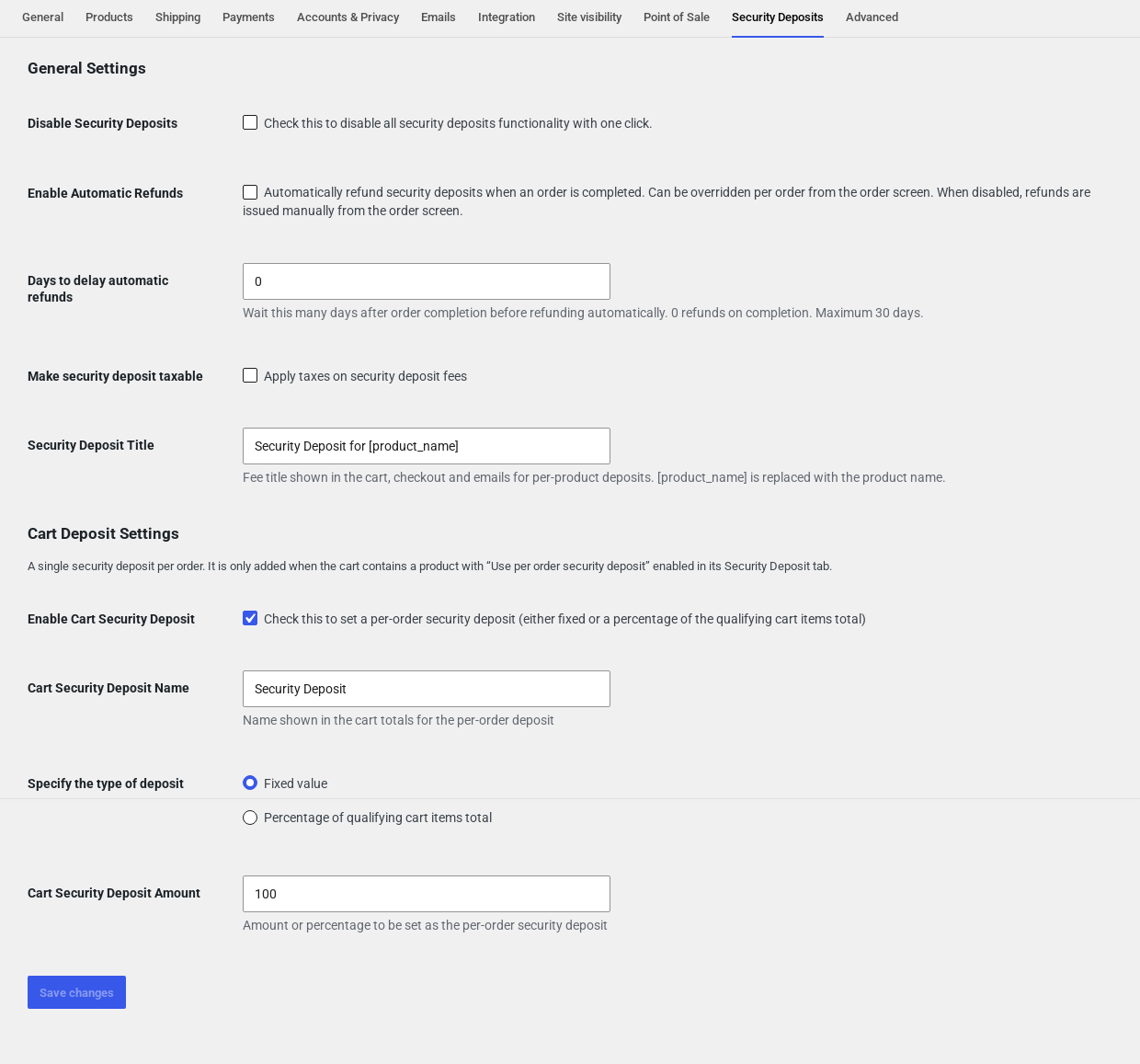
All global options live under WooCommerce > Settings > Security Deposits. They are split into General Settings, which apply to every deposit, and Cart Deposit Settings, which configure the optional single per-order deposit.
General Settings #
| Setting | What it does |
|---|---|
| Disable Security Deposits | Switches off every deposit on the storefront in one click – no notices on product pages, no deposit fees in the cart, no automatic refunds. Product settings are kept, so you can turn deposits back on later. Useful for a promotion or while troubleshooting. Deposits already on existing orders can still be refunded from the order screen. |
| Enable Automatic Refunds | When ticked, all deposits on an order are refunded automatically the moment the order’s status changes to Completed (or after the delay below). Each order can override this with its own Enable Automatic Refunds checkbox in the Security Deposits Summary box. When unticked, deposits are only refunded when you click the refund buttons. |
| Days to delay automatic refunds | 0 refunds as soon as the order is completed. Any other number (up to 30) waits that many days after completion before refunding – for example to allow time to inspect a returned item. Delayed refunds are processed by a twice-daily background task. |
| Make security deposit taxable | When ticked, the deposit fee is taxed using the standard tax class, and the tax is refunded together with the deposit. Leave unticked if deposits are not taxable in your jurisdiction (the usual case, since the money is returned). |
| Security Deposit Title | The name of the per-product deposit fee line in the cart, at checkout, on the order and in emails. [product_name] is replaced with the product’s name, so the default Security Deposit for [product_name] becomes Security Deposit for Canon EOS R6 Camera Rental. Leave it empty to use the default. |
Cart Deposit Settings (per-order deposit) #
Instead of – or as well as – a deposit on each product, you can charge a single deposit for the whole order. The cart deposit is only added when the cart contains at least one product that has Use per order security deposit ticked in its Security Deposit tab (see Product Settings). Products with their own per-product deposit do not trigger it, and it is charged once per order no matter how many qualifying products are in the cart.
| Setting | What it does |
|---|---|
| Enable Cart Security Deposit | Turns the per-order deposit on. While it is off, products set to Use per order security deposit collect no deposit at all. |
| Cart Security Deposit Name | The name of the fee line in the cart totals, on the order and in emails. Default: Security Deposit. |
| Specify the type of deposit | Fixed value – the amount below is charged as-is. Percentage of qualifying cart items total – the amount below is a percentage of the subtotal of the products that opted into the per-order deposit (other products in the cart are not counted). |
| Cart Security Deposit Amount | The fixed amount, or the percentage, depending on the type. |
How deposits appear to customers #
Deposits are added to the cart as fees, one line per product deposit plus one for the cart deposit, so they are shown in the cart totals and at checkout and are paid together with the order:
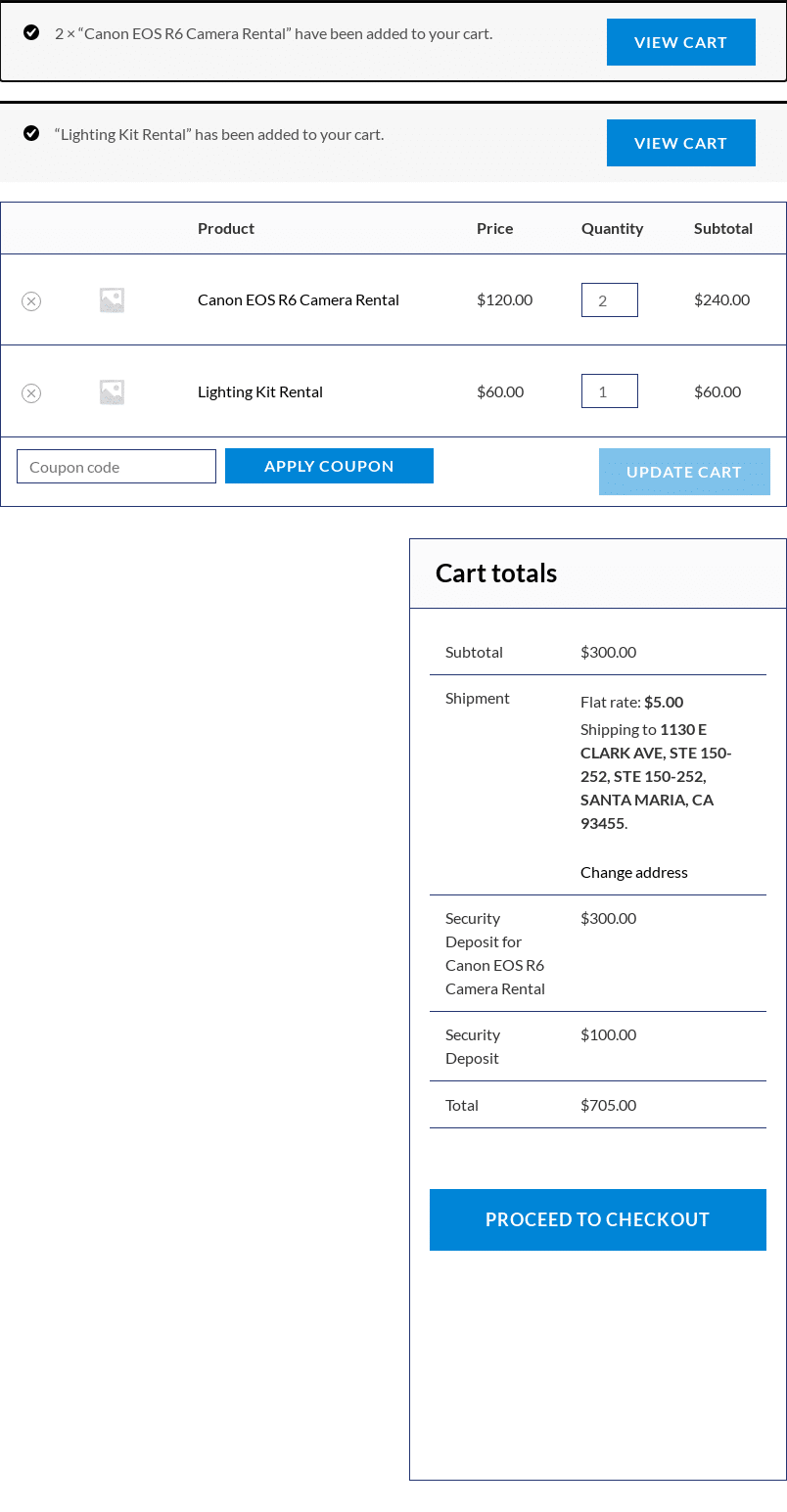
The same lines appear in the order review at checkout, in the order emails and in My Account > Orders. Once a deposit has been refunded, the customer’s order view also lists the refund:
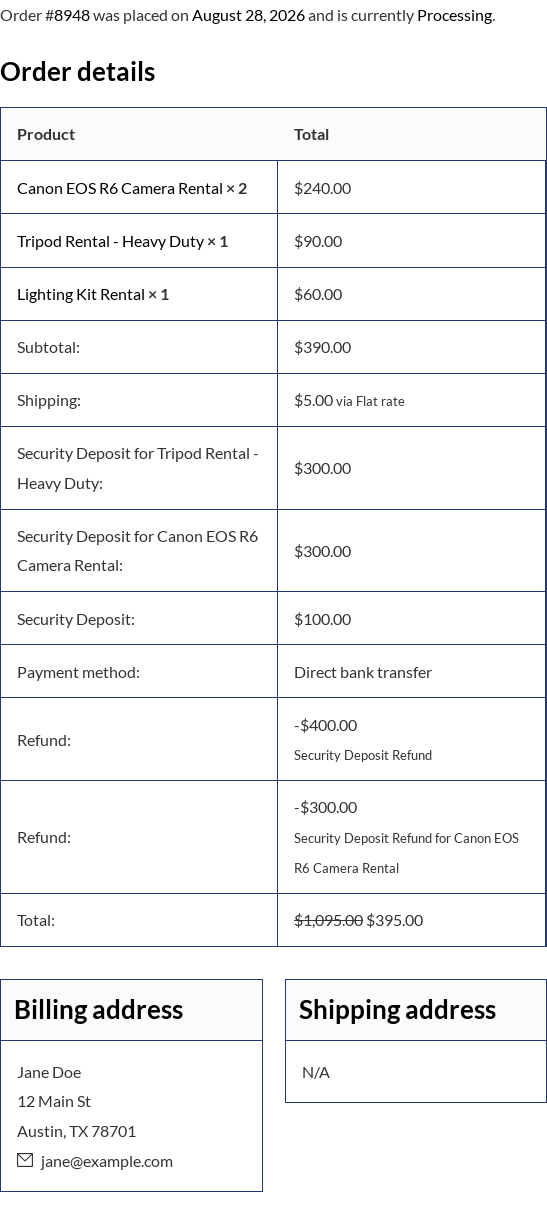
Emails #
Two emails are sent whenever a deposit refund is issued (manually or automatically): Security Deposit Refunded to the customer and Security Deposit Refunded – Admin copy to the shop. Both are listed under WooCommerce > Settings > Emails, where you can disable them or change the subject, heading, recipient and additional content. WooCommerce’s own Refunded order email is not sent for deposit refunds, so the customer is not emailed twice.


