
Deposits are configured on each product. Edit the product, and in the Product data box open the Security Deposit tab.
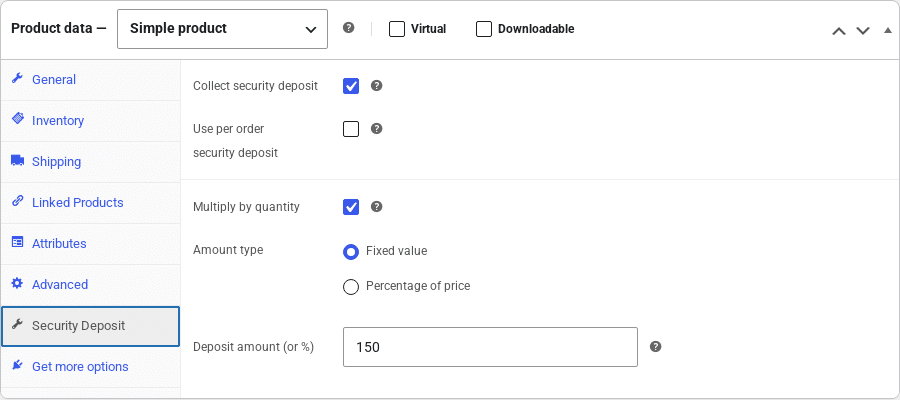
The fields #
| Field | What it does |
|---|---|
| Collect security deposit | Turns the deposit on for this product. Nothing else on the tab has any effect until this is ticked. |
| Use per order security deposit | Instead of a deposit for this product, the order gets the single per-order deposit configured under Cart Deposit Settings (see Settings). When this is ticked the remaining fields are hidden – the amount comes from the global setting. Several products with this option in one cart still only add one deposit. |
| Multiply by quantity | Charge the deposit for every unit ordered. With a $150 deposit and a quantity of 2, the deposit is $300. Unticked, one deposit is charged per line regardless of quantity. |
| Amount type | Fixed value – the deposit is the amount entered. Percentage of price – the deposit is that percentage of the product’s price (for a rental product, the price of the rental the customer configured). |
| Deposit amount (or %) | The fixed amount or the percentage. If it is empty or 0 the deposit is switched off when the product is saved, since there would be nothing to collect (unless Use per order security deposit is ticked, which needs no amount). |
Using the per-order deposit #
To have a product participate in the single per-order deposit rather than carry its own, tick Collect security deposit and Use per order security deposit:
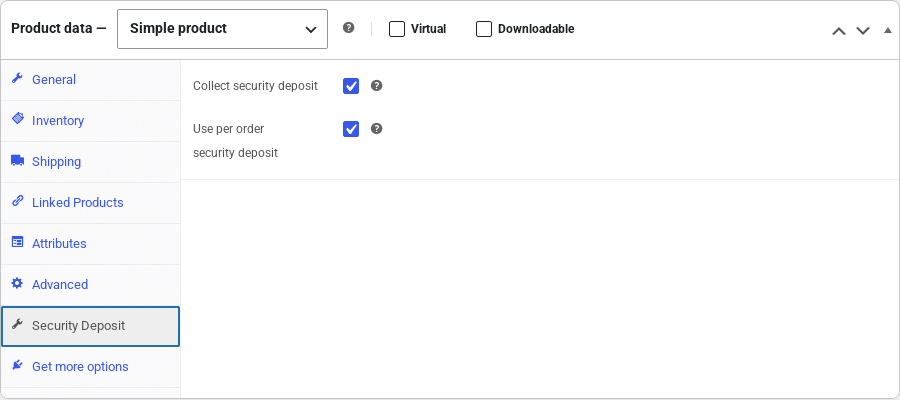
Remember that the per-order deposit itself must be enabled under WooCommerce > Settings > Security Deposits > Cart Deposit Settings, or these products will collect nothing.
Variable products #
For a variable product, the settings on the Security Deposit tab apply to every variation. A Percentage of price deposit is worked out from each variation’s own price, so it already scales with the variation.
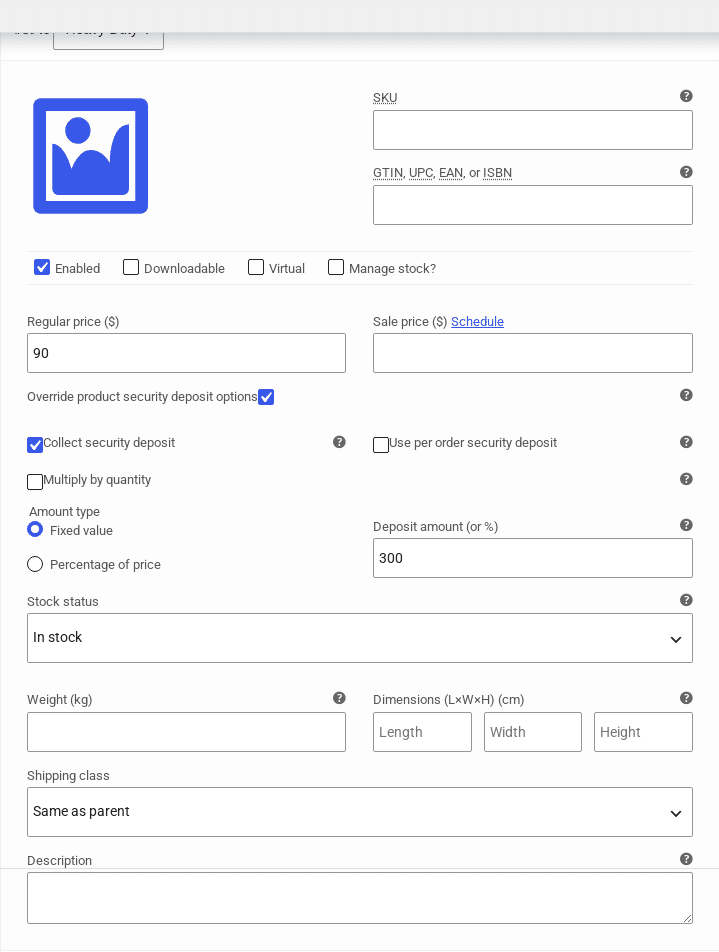
When one variation needs different rules, open it under the Variations tab and tick Override product security deposit options. The same set of fields then appears for that variation only, and replaces the parent product’s settings for it – including switching the deposit off for just that variation.
What the customer sees #
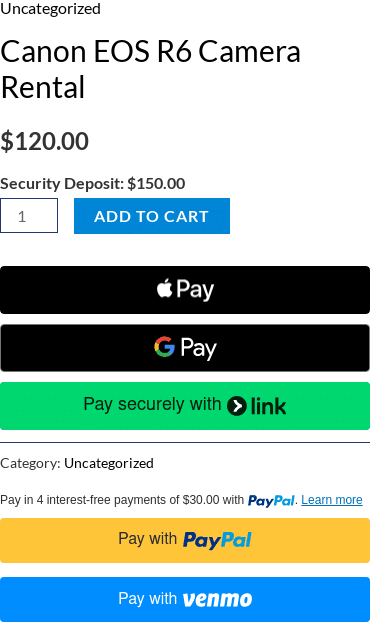
The product page shows the deposit above the Add to Cart button. For a fixed deposit it is the amount entered; for a percentage it is calculated from the product’s current price:
On a variable product the notice updates as the customer picks a variation, showing that variation’s deposit (here the overridden Heavy Duty variation):
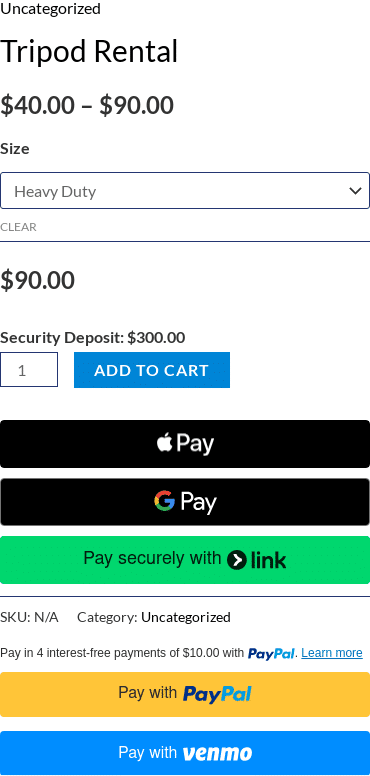
Products using the per-order deposit show A security deposit is collected on this order instead of an amount. Products whose deposit is disabled show nothing. In the cart the deposit becomes a fee line named after the product (see Settings for the title format).
Bundles and admin-created orders #
- Product bundles – a bundle whose bundled products collect a deposit shows the deposit notice on the bundle’s page.
- Orders created in the admin – when you add a product with a deposit to an order from the WooCommerce order screen, its deposit fee is added to the order automatically, and can be refunded like any other.
Examples #
| Goal | Settings |
|---|---|
| $150 deposit on each camera rented | Collect security deposit; Multiply by quantity; Fixed value; 150 |
| Deposit of 50% of the rental price | Collect security deposit; Percentage of price; 50 |
| Same deposit per line no matter how many units | Untick Multiply by quantity |
| One $100 deposit per order for all small accessories | On each accessory: Collect security deposit + Use per order security deposit. In Settings: enable the Cart Security Deposit, Fixed value, 100 |
| Heavy-duty variation needs a bigger deposit | On that variation: Override product security deposit options, then set its own amount |


