
Rentals & Bookings lets you change the words your customers see: on the product page and the booking calendar, at the cart and checkout, in the emails and in My Account. You don’t need a translation plugin or any code, and you can still use your own words if your store is in English only. For example, you can write “hire” instead of “rent”, or “Collection time” instead of “Return time”.
The Text screen came in Rentals & Bookings Lite 1.0.21, which is also inside Regular 1.0.85 and the higher packages. The wording of our add-ons is on the same screen.
Where to find it #
Go to Rentals › Settings and open Text under Storefront.
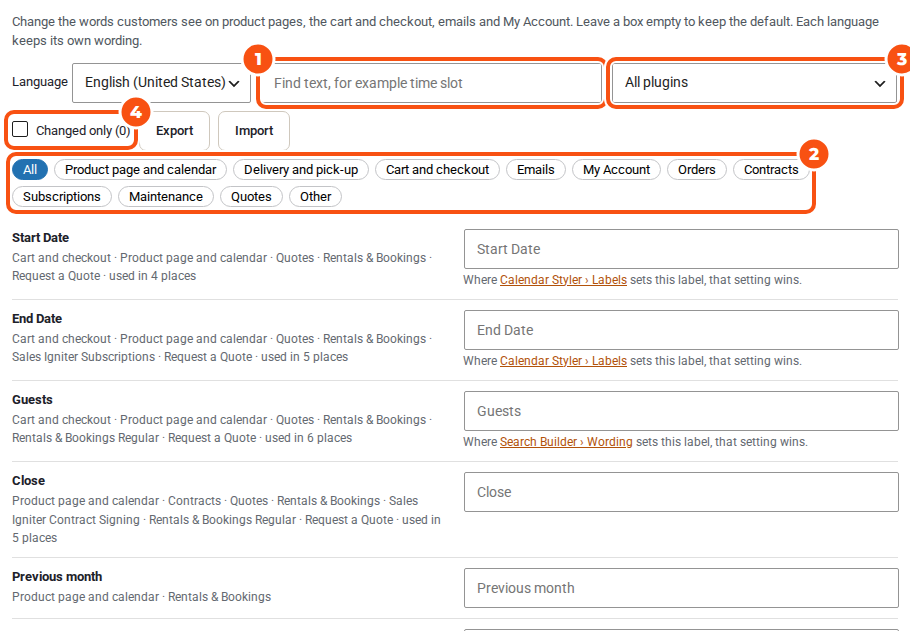
The list holds the text of Rentals & Bookings and of every add-on you have installed, for example Contract Signing, Subscriptions, Request a Quote, Custom Fields, Security Deposits, Multi Location Inventory, Maintenance & Inspections, Bundles & Composites, Smart Routing and Delivery by Distance.
Some of our add-ons also work without Rentals & Bookings: Custom Fields, Security Deposits, Request a Quote, Bundles & Composites, Smart Routing and Delivery by Distance. On a store that has one of them but not Rentals & Bookings, the same screen is at WooCommerce › Text, and the add-on’s settings page has a Text link to it.
Find the words you want to change #
- Search. Type a few words as you see them on your site, for example “select your dates” or “time slot”. The search looks at the default wording and at your own.
- Areas. The buttons under the search narrow the list to where the text shows: Product page and calendar, Delivery and pick-up, Cart and checkout, Emails and My Account, plus areas of the add-ons such as Contracts, Subscriptions and Quotes.
- Plugin. “All plugins” can be narrowed to one plugin.
- Changed only. Shows only the text you have changed, with how many there are.
Each row shows the default wording in bold, and under it where the text shows and which plugin it comes from. Text that is used in several places says so (“used in 3 places”): one change covers them all.
Most text that only your staff see in wp-admin isn’t listed. If the same words also show on an admin screen, your wording shows there too.
Change the wording #
- Type your wording in the box next to the text. The box shows the current wording in grey until you type.
- Change as many rows as you like. The bar at the bottom counts them (“2 unsaved”).
- Click Save changes.
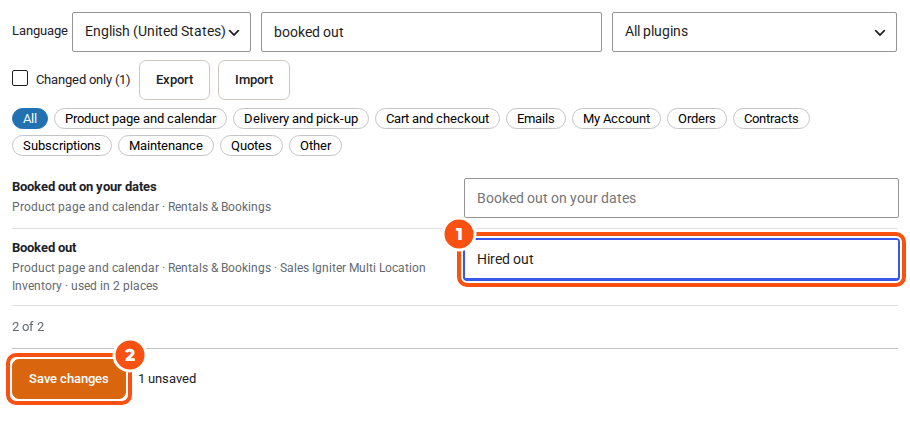
After saving, the screen clears the page cache of the common caching plugins and says which (WP Rocket, LiteSpeed Cache, W3 Total Cache, WP Super Cache, SiteGround Optimizer, WP Fastest Cache, Breeze, Hummingbird). With another cache, or a cache at your host or Cloudflare, clear it yourself to see the change. The mini cart keeps its old words until the cart changes.
Values that fill themselves in #
Some text holds a value that is filled in when the page is shown, for example %s for a date or a product name, or %d for a number. Your wording must keep the same values:
- If you leave one out, or add one that the default doesn’t have, the row says which and isn’t saved until you fix it.
- Where there are several (
%1$s,%2$s), you can move them around. - To write a percent sign in such text, type
%%. - Email merge tags such as
{order_number}get a warning only: you may leave one out on purpose. - Text with links or bold keeps those tags. Other HTML is taken out.
Text that changes with a number #
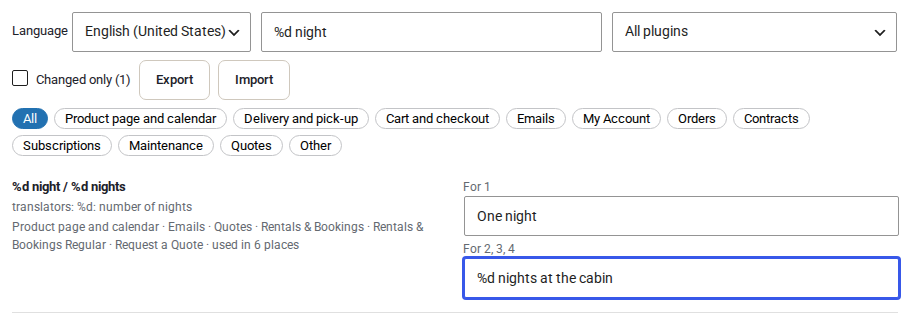
Some text has a form for one and a form for more, for example “%d day” and “%d days”. Its row has a box for each form: For 1 and For 2, 3, 4. Fill in both. Languages with more forms (Polish, Arabic, Russian) show a box for each of them. The form for one may leave the number out, for example “One night”.
Each language keeps its own wording #
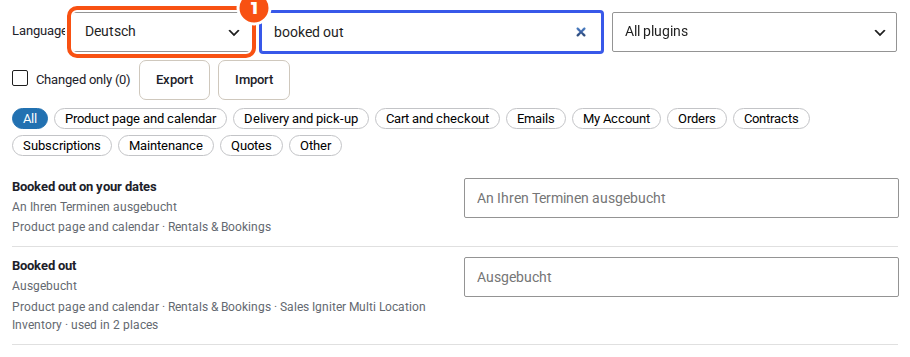
When your site has more than one language, the screen starts with a Language menu. It lists your site language, the languages of WPML or Polylang, and the languages installed on the site.
- Pick the language, then change the text as above. The boxes show that language’s current wording.
- Your English wording doesn’t change the German one, and the other way round.
- Where you leave a box empty, the translation shows, as before.
- Emails go out in the customer’s language, with your wording for that language.
Words that have a setting of their own #
A few labels already have their own setting. For example, the Calendar Styler labels, the Delivery & pickup labels, the Search Builder wording, the unavailable label, the security deposit name and the Delivery by Distance method title. You change those in their setting, so each wording has one place:
- A label that only that setting controls shows a link instead of a box, for example Set in Delivery & pickup › Pick up › Time slot label →.
- A word that a setting controls in one place but that also shows elsewhere (“Pick-up”, “Return”, “Start Date”) has a box and a note: “Where Search Builder sets this label, that setting wins.”
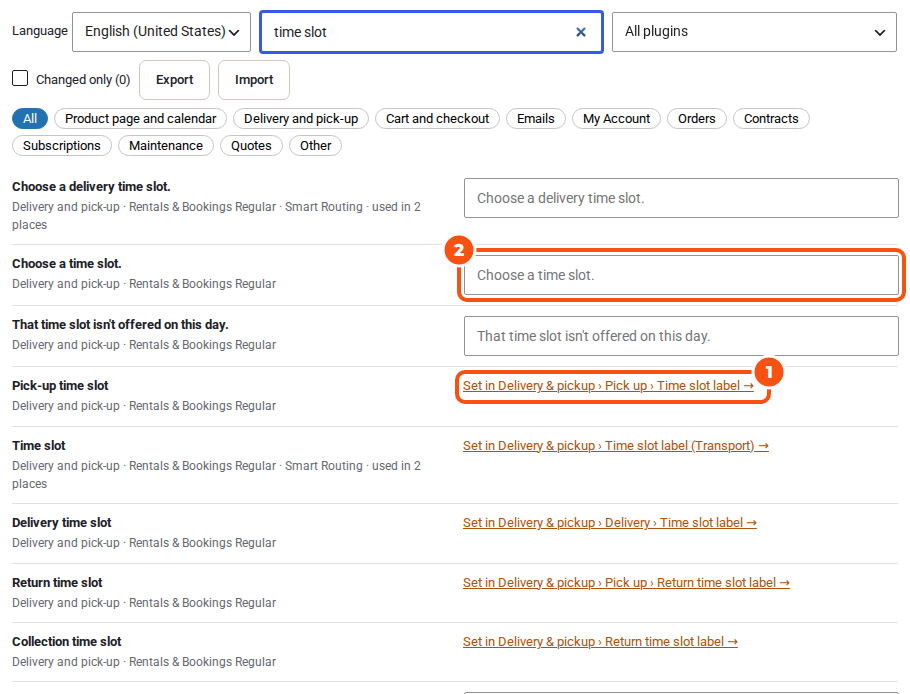
Under the Delivery & pickup labels, More delivery text… opens the Text screen already searched for delivery text. Under the Search Builder, More search text… does the same for the search.
Which wording wins #
When the same text can be set in more than one place, the most specific one wins:
- A setting on the product, for example “What guests are called”.
- A store-wide setting for that label, for example the Calendar Styler labels or the Delivery & pickup labels.
- The Text screen, for the language in use.
- Translation files: WordPress.org language packs, Loco Translate or WPML String Translation.
- The default English wording.
So if you change a word on the Text screen and nothing happens, look for a setting of its own first (the screen links to it), then for a per-product setting.
Copy your wording to another site #
- Export downloads your wording as a file. With more than one language, the screen asks whether to export all languages: OK exports them all, Cancel only the one you are on.
- Import reads such a file and shows what it would do before it changes anything:
- New: text you haven’t changed yet.
- Changed: text you changed differently.
- Unchanged: the same as now.
- Not used now: text the plugins on this site don’t have (for example, from a newer version). It is kept for later.
- Refused: wording that fails the check on values (see above).
- Then choose:
- Merge adds the file’s wording and keeps the rest of yours.
- Replace makes the wording of the file’s languages exactly the file’s: your other changes in those languages go.
- Cancel leaves everything as it is.
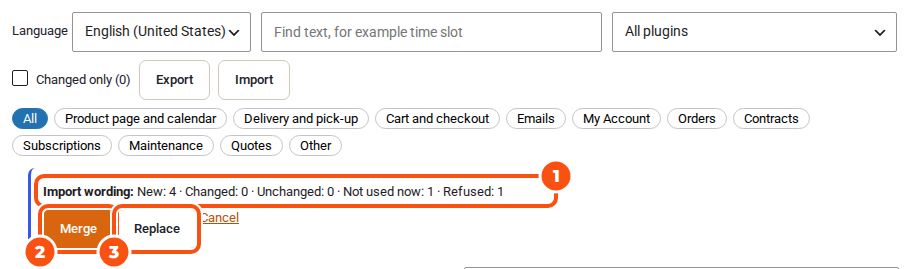
Export your wording before a big change: importing the file again with Replace puts it all back.
Undo a change #
- One row: click Reset under the box, or empty the box, then Save changes. The default wording (or its translation) shows again.
- Everything: tick Changed only, reset each row, and save. Or import an earlier export with Replace.
Your wording stays when you update or deactivate the plugins. It is deleted only when you delete Rentals & Bookings with data removal confirmed, and only if no other of our plugins with a Text screen is installed.
What isn’t on the Text screen #
Text that comes from WooCommerce or your theme, such as “Add to cart” on an ordinary product or the theme’s footer. To change it, see quick overrides without a translation plugin in Translating Rentals & Bookings. To put the whole store in another language, use the translation methods on that page.


