
Most customers sign the rental contract at the checkout. Some orders reach you another way: you made the order in wp-admin, took it by phone, turned a quote into an order, or the customer checked out before you switched contracts on. From Contract Signing 1.1.8, you can ask for the contract on any rental order that has none signed, whether it is paid or not.
Where to find it #
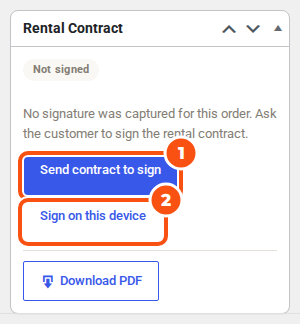
Open the order (WooCommerce > Orders). When the order has no signed contract, the Rental Contract box on the right says “No signature was captured for this order. Ask the customer to sign the rental contract.” and offers:
- Send contract to sign: emails the customer a link to read and sign the contract.
- Send to sign and pay (unpaid orders only): one email; signing takes the customer straight on to payment. See Sign and pay a staff order.
- Sign on this device: the customer signs right now, on your tablet or computer.
Send contract to sign #
- Check the order’s billing email address.
- Click Send contract to sign and confirm.
- The customer receives “Please sign your rental contract (order #1234)” with a Read and sign the contract button. The contract on the page is the contract for the order as it is when they open it.
- They sign (typed or drawn, as “Signature required for checkout” in your Contracts settings says) and confirm that they agree to sign electronically.
- The signed PDF is emailed to them and added to the order, with its audit trail. The order notes say who signed and how.
While you wait, the box says Waiting for signature, when the link was sent and to which address, and shows the Signing link to copy into a text message if you prefer. You can:
- Email the link again to the same address;
- Withdraw the request: its link stops working.
If the order changes after you sent the link, the box says “The order changed since the link was sent” with Send again (the old link stops working). A customer who opens the old link anyway is shown the contract for the order as it is now, and the order notes say so.
If the order has no billing email address, the send buttons are greyed out: add an address to the order, or use Sign on this device.
Sign on this device (in person) #
For a customer at the counter or at the hand-over:
- Click Sign on this device in the Rental Contract box (or on Rentals > Send and Rentals > Return, beside “Not signed”, with Rentals & Bookings Regular 1.0.85).
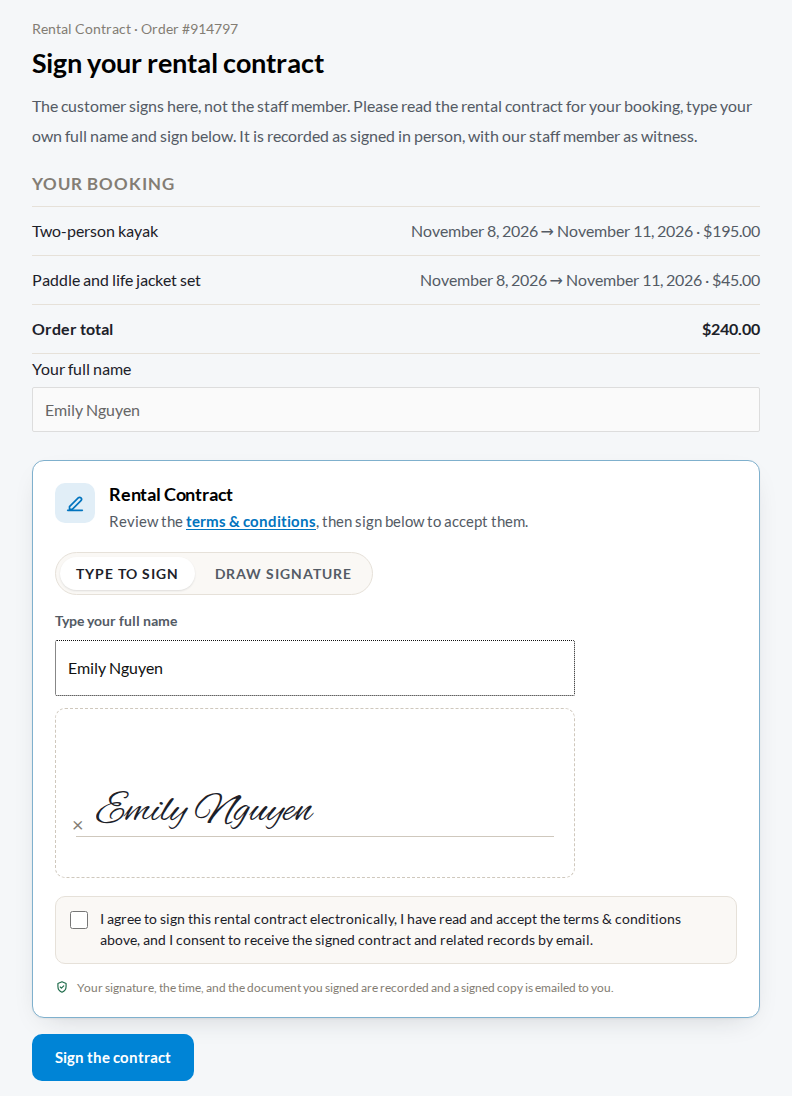
- Hand the device to the customer. The page tells them: “The customer signs here, not the staff member.” They read the contract, type their own full name and sign.
- Once signed, the page says “Please hand the device back to our staff member.” with Back to the order (back to the Send or Return screen when you started there). The signed copy is emailed to the customer as for any signed contract (when the order has an email address).
The audit trail and the signed PDF record it as signed in person, witnessed by the staff member who was logged in. Customer signatures from the link are recorded as from the signing link.
Which orders can be signed #
Any order with rentals and no signed contract, paid or unpaid. The box says why there is nothing to sign for:
- an order that already has a signed contract (use the amendments there: “Send the changes to sign”);
- a payment for another order (a balance, an extension, a late fee or damage charge): the original order carries the contract;
- a cancelled, refunded or failed order. When a failed payment is paid again from its payment page, the page asks the customer to sign first;
- an order with no rentals, while “Show the signature only if the order contains rentals” is on in the Contracts settings.
Related #
- Sign and pay a staff order
- Settings: Rentals > Settings > Contracts > Sign before paying


