
- What it is for
- Turn it on
- At checkout
- The amount
- When the balance is due
- How the balance is collected
- Payment methods
- Tax and shipping
- Reminders
- When the balance is not paid
- Handing over with a balance unpaid
- Refunds on cancellation
- Security deposit and extensions
- Per product
- What the customer sees
- Rentals > Balances
- Changing an order after it is paid
- Emails
- Good to know
Booking deposits are part of Rentals & Bookings Regular and Pro. They are not in the free Lite edition.
A booking deposit lets customers pay part of the rental price when they book and the rest before the rental starts. The rest is called the balance. It is a separate order, linked to the booking, so you can see, chase and refund it on its own.
This is not the refundable security deposit. A security deposit is money you hold against damage and give back. A booking deposit is a real part payment of the rental price. If you use both, see Security deposit settings.
What it is for #
Use it when you want money up front to hold a booking, but you do not want to ask for the whole price months ahead. Typical cases: a holiday let that takes 25% now and the rest a week before arrival, or a boat hire that takes the first day now.
Good to know:
- Subscription rentals are always paid in full.
- A rental that starts sooner than the balance due date is paid in full at checkout.
- A booking deposit is never taken with a payment method you have not allowed (see Payment methods).
Turn it on #
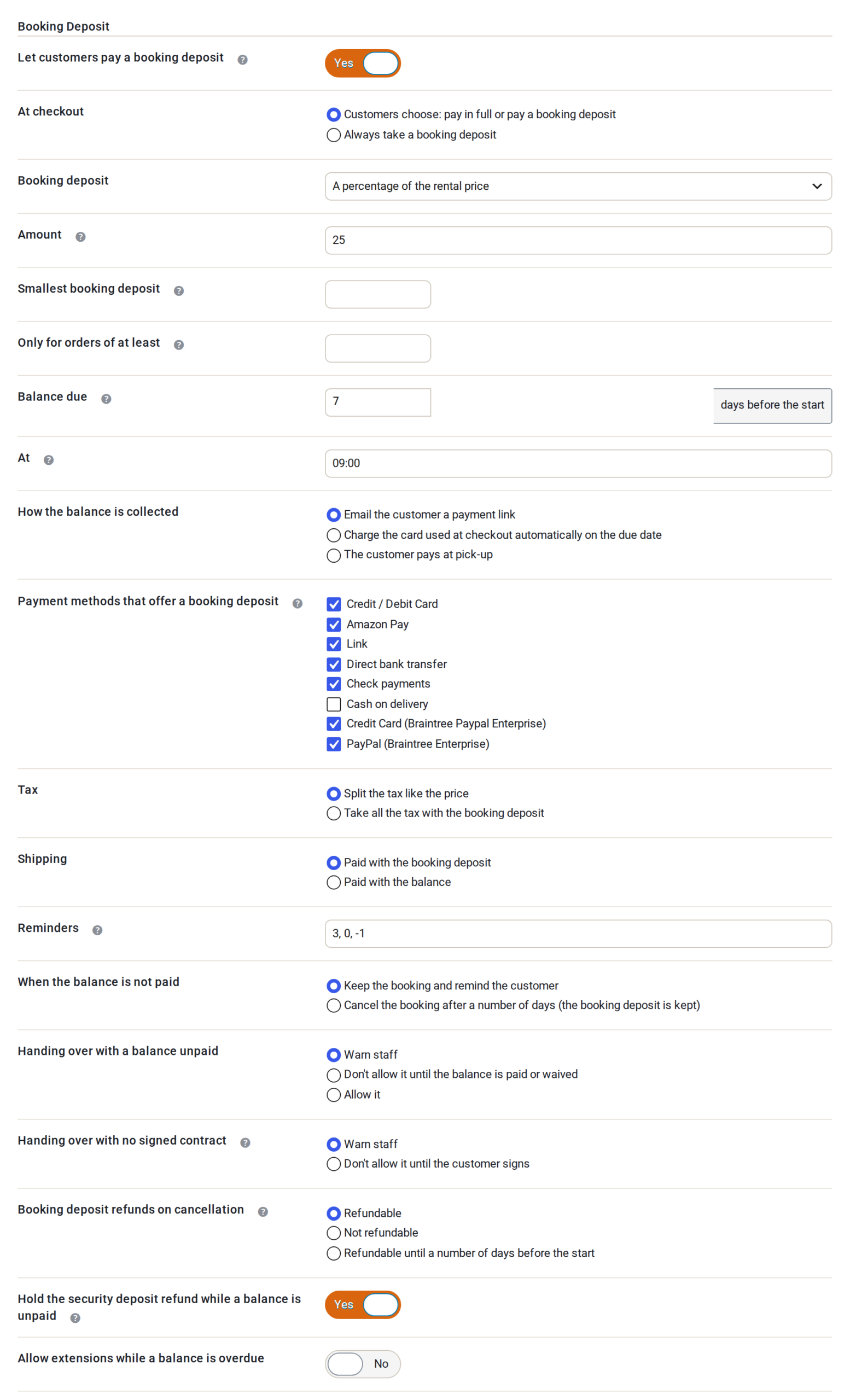
Go to Rentals > Settings > Booking Deposit and switch on Let customers pay a booking deposit. It is off by default, so nothing changes in a store that does not use it. When it is off, the other settings on the tab are hidden.
Click Update at the bottom of the settings page to save.
At checkout #
Setting: At checkout. Two choices:
- Customers choose: pay in full or pay a booking deposit (the default). The checkout asks “How would you like to pay?” and pays in full unless the customer picks the deposit.
- Always take a booking deposit. There is no choice. A customer who pays with a method that cannot take a deposit pays in full instead.
The amount #
Four settings work together.
| Setting | What it does | Default |
|---|---|---|
| Booking deposit | How the deposit is worked out: a percentage of the rental price, a fixed amount per item, a fixed amount per order, or the price of the first days. | A percentage |
| Amount | A percentage between 0 and 100 (it must be above 0 and below 100), or an amount in your store currency. Hidden when you choose “the price of the first days”. | 25 |
| Number of first days | Only for “the price of the first days”. The deposit is the rental price for that many days. 1 to 365. | 1 |
| Smallest booking deposit | Optional. The amount paid today is never less than this. | Empty |
| Only for orders of at least | Optional. A smaller rental is paid in full. | Empty |
A product can use its own amount instead. See Per product.
When the balance is due #
- Balance due: how many days before the rental starts. 0 to 365. A rental that starts sooner than this is paid in full. Default 7.
- At: the time of day, in store time, on the 24-hour clock (for example 09:00). Automatic charges and reminders go out then. Default 09:00.
How the balance is collected #
Setting: How the balance is collected. Three choices:
- Email the customer a payment link (the default). The customer pays from the link in the email, or from My Account.
- Charge the card used at checkout automatically on the due date. The card is saved at checkout and charged on the due date. The customer is told the date at checkout and again before it.
- The customer pays at pick-up. Staff record the payment at the counter.
Two more settings appear when you choose the automatic charge.
Automatic charges with lists the payment methods that can charge a saved card: Stripe, WooPayments, Braintree, Authorize.Net and PayPal Payments. The card is saved at checkout only for the methods you tick. With any other method, the customer gets a payment link instead. If none of your enabled payment methods can charge a saved card, the box says so and balances are paid from a link.
Customers without an account says what happens when someone checks out as a guest:
- Pay the balance from a payment link (the default).
- Must create an account so the card can be charged.
Payment methods #
Setting: Payment methods that offer a booking deposit. Only the payment methods you tick can take a deposit. With any other method the rental is paid in full. Every enabled method is ticked for you, except Cash on delivery, which you tick yourself if you want it.
A payment method that cannot charge a saved card can still take a deposit. Its balance is paid from a link or at the counter.
Tax and shipping #
- Tax: Split the tax like the price (the default) takes a share of the tax with the deposit and the rest with the balance. Take all the tax with the booking deposit puts all of it on the first payment.
- Shipping: Paid with the booking deposit (the default) or Paid with the balance.
Reminders #
Setting: Reminders. The days before the due date when the customer is reminded, separated by commas. 0 is the due date itself and -1 is the day after. Default: 3, 0, -1.
When the balance is not paid #
Setting: When the balance is not paid.
- Keep the booking and remind the customer (the default).
- Cancel the booking after a number of days (the booking deposit is kept). Then set Cancel after: the number of days past the due date. 0 to 365. Default 7.
Handing over with a balance unpaid #
Setting: Handing over with a balance unpaid. It applies on the Send screen.
- Warn staff (the default). The booking shows a “Balance” pill and the screen asks “This order still owes … Hand over anyway?”. The order gets a note when staff go ahead.
- Don’t allow it until the balance is paid or waived.
- Allow it. The pill still shows.
Returns are never held back.
Handing over with no signed contract appears only while the Rental Contract Signing add-on is active, and it shows whether booking deposits are on or not. It is a separate rule: Warn staff or Don’t allow it until the customer signs. On the Send and Return screens an unsigned booking shows “Not signed”, with “Sign on this device” so the customer can sign there and then.
Refunds on cancellation #
Setting: Booking deposit refunds on cancellation. It sets what the refund helper suggests when a booking is cancelled. Staff can always change the amount.
- Refundable (the default).
- Not refundable.
- Refundable until a number of days before the start. Then set Refundable until: 0 to 365 days. Default 14.
Security deposit and extensions #
- Hold the security deposit refund while a balance is unpaid (on by default). Works with the Security Deposits plugin: its automatic refund waits until the booking has no unpaid balance.
- Allow extensions while a balance is overdue (off by default). While it is off, a customer whose balance is past due sees “Pay your balance first” when they try to extend a rental from My Account. An extension is always paid in full and never changes the balance.
Per product #
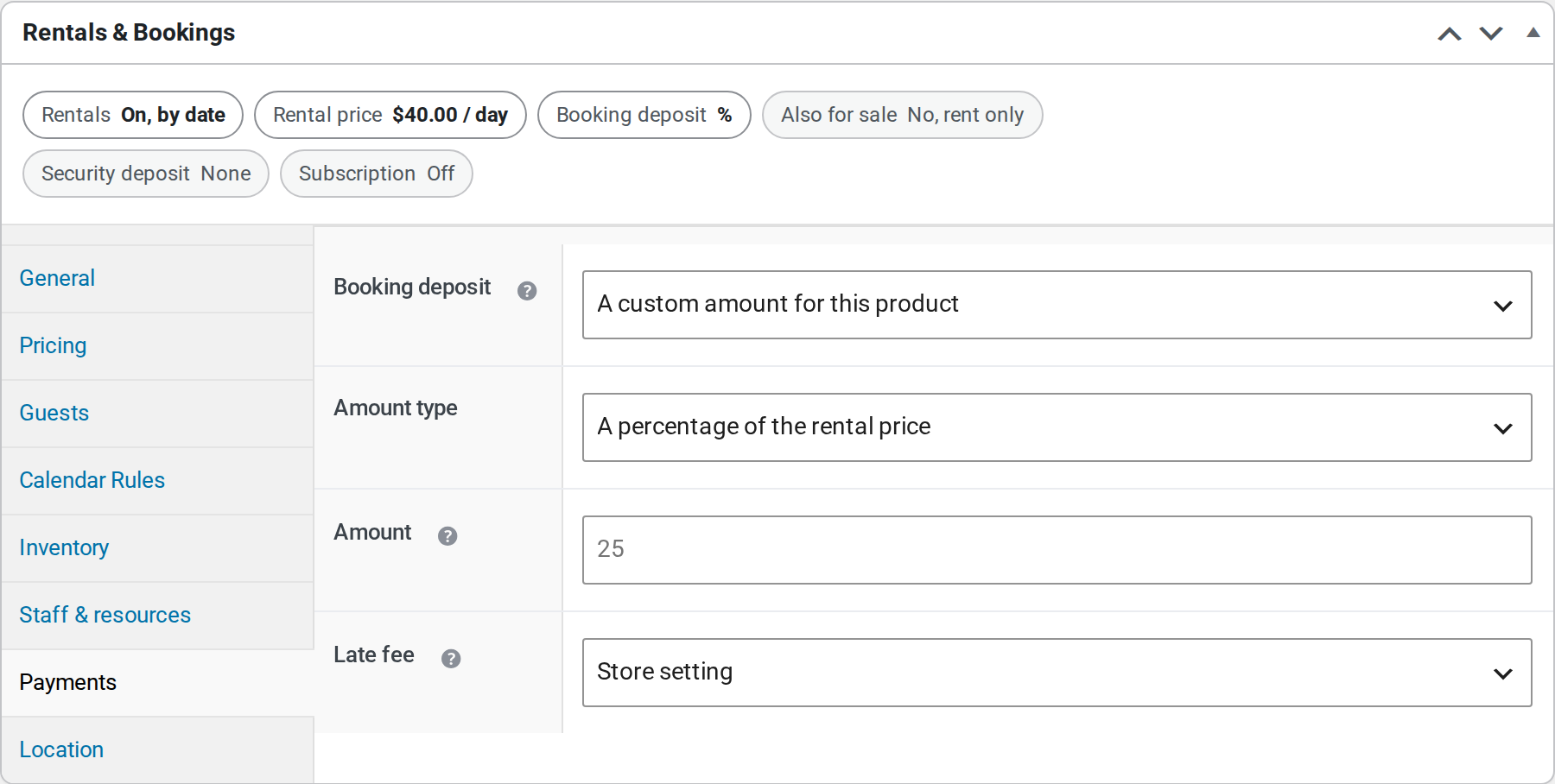
Each product has a Payments tab in its Rentals & Bookings box.
- Store setting: the product follows this tab.
- A custom amount for this product: set the amount type (a percentage, a fixed amount per item, a fixed amount per booking of this product, or the price of the first days), the amount, and the number of first days. A percentage of 100 means paid in full.
- No booking deposit: always paid in full.
The switch on this tab still decides whether deposits are offered at all. Variations follow their parent product.
What the customer sees #
- At checkout, “How would you like to pay?” with two choices, for example “Pay in full” and “Pay 25% now: $75.00 today, $225.00 by Sun 25 Oct (we’ll email you a payment link)”. The wording after the amounts follows how you collect the balance.
- The order total is what is due today. A “Due later” line shows the rest and its date.
- A short note when a deposit is not available: “A booking deposit is not available with this payment method, so the rental is paid in full.” or “Your rental starts soon, so it’s paid in full.”
- The order emails, the order page in My Account and PDF invoices carry a Payment schedule.
- In My Account, Pay balance appears on the booking order, so the customer can pay early.
Rentals > Balances #
Rentals > Money > Balances lists every balance: due this week, overdue, failed, waiting for the customer, scheduled and paid. You can record a payment, send or copy the payment link, charge the saved card now, change the due date, or waive the balance. A CSV export is on the page. The orders list also gets a Payment column and a “Balance due” view, and the Rentals dashboard shows the balances due this week.
Until booking deposits are switched on, the page explains what it is for and has a button that takes you to the switch.
On an order, the Rental payment box shows the amounts and lets staff record the deposit paid at the counter, or choose “Pay in full instead”. For an order made by staff, Take a booking deposit adds the deposit and its balance.
Changing an order after it is paid #
Editing a paid booking order keeps it at what was paid. If the new total is more, the extra goes to the open balance, or to a new balance order if the balance was already paid. If it is less, the balance shrinks, and below that the order shows “Overpaid by”. It is never refunded by itself. Refund booking refunds across the deposit and balance orders, with the tax in proportion. New rental dates move the balance’s due date.
Emails #
Five emails belong to booking deposits. You can edit them in WooCommerce > Settings > Emails:
- Booking deposit: balance reminder.
- Balance received. It replaces “Order complete” for a balance order, so the customer gets one receipt.
- Balance payment failed. It includes a “Confirm your payment” step when the bank asks for one.
- Balance problem. This one goes to the store.
- Card expires before your balance is due. It goes out a week before an automatic charge.
Good to know #
- Booking deposits work with the classic checkout and the Checkout block, with orders made by staff, and with fixed-length and fixed-date rentals.
- Subscription rentals are paid in full.
- Security deposits and late fees are not split. Only the rental price is.


