
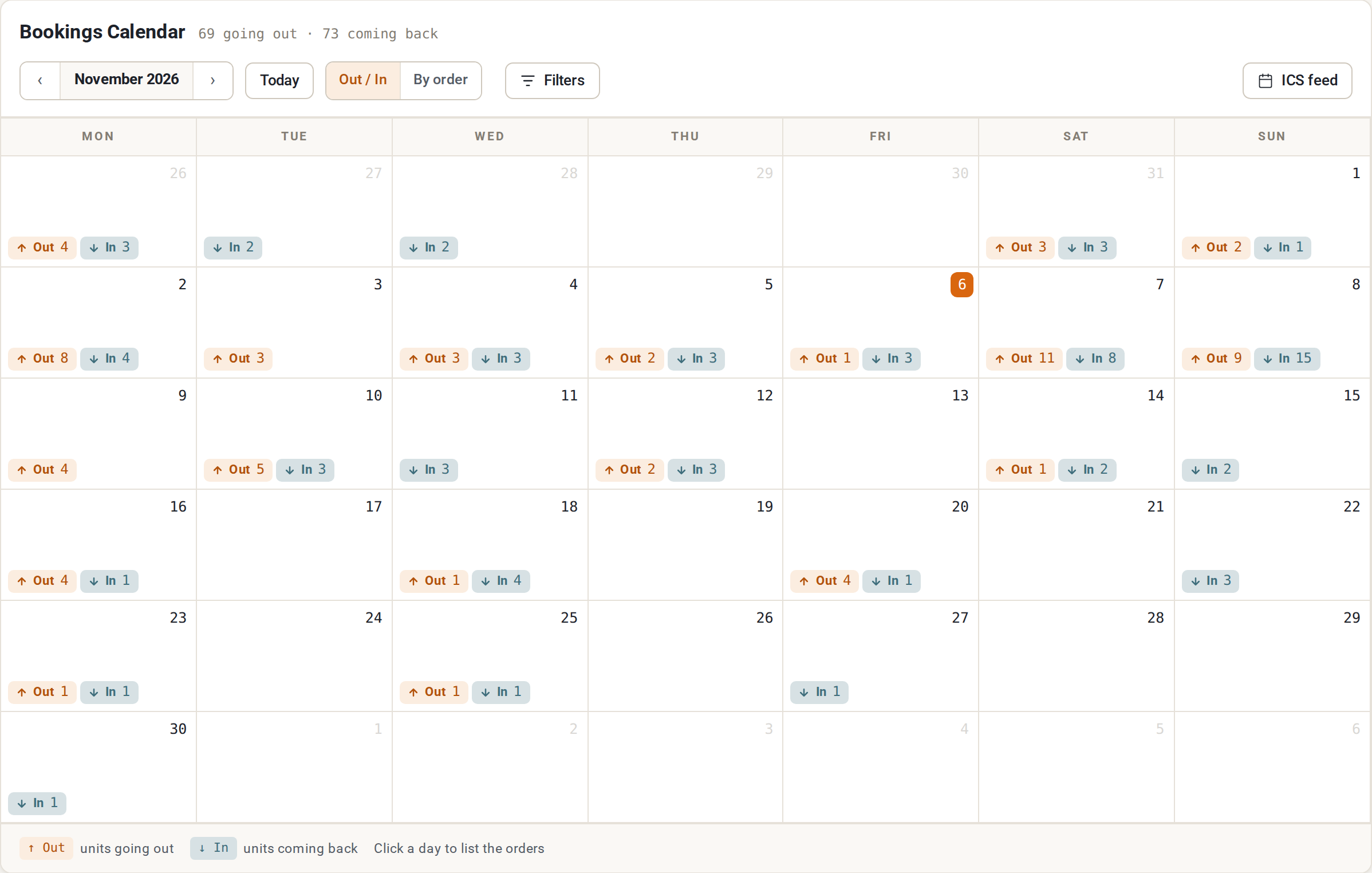
Rentals > Calendar shows your bookings month by month. Use it to see what goes out and comes back each day.
Move around #
- The arrows beside the month name go to the previous and next month. Today jumps back to the current month.
- Filters opens the filter row: Product and Category. Click Apply filters to use them and Clear to remove them.
Two views #
Choose one with the buttons beside Today.
- Out / In (the default). Each day shows the units going out (up arrow, “Out”) and the units coming back (down arrow, “In”). Numbers are for that day.
- By order. The classic view: one bar for each booking.
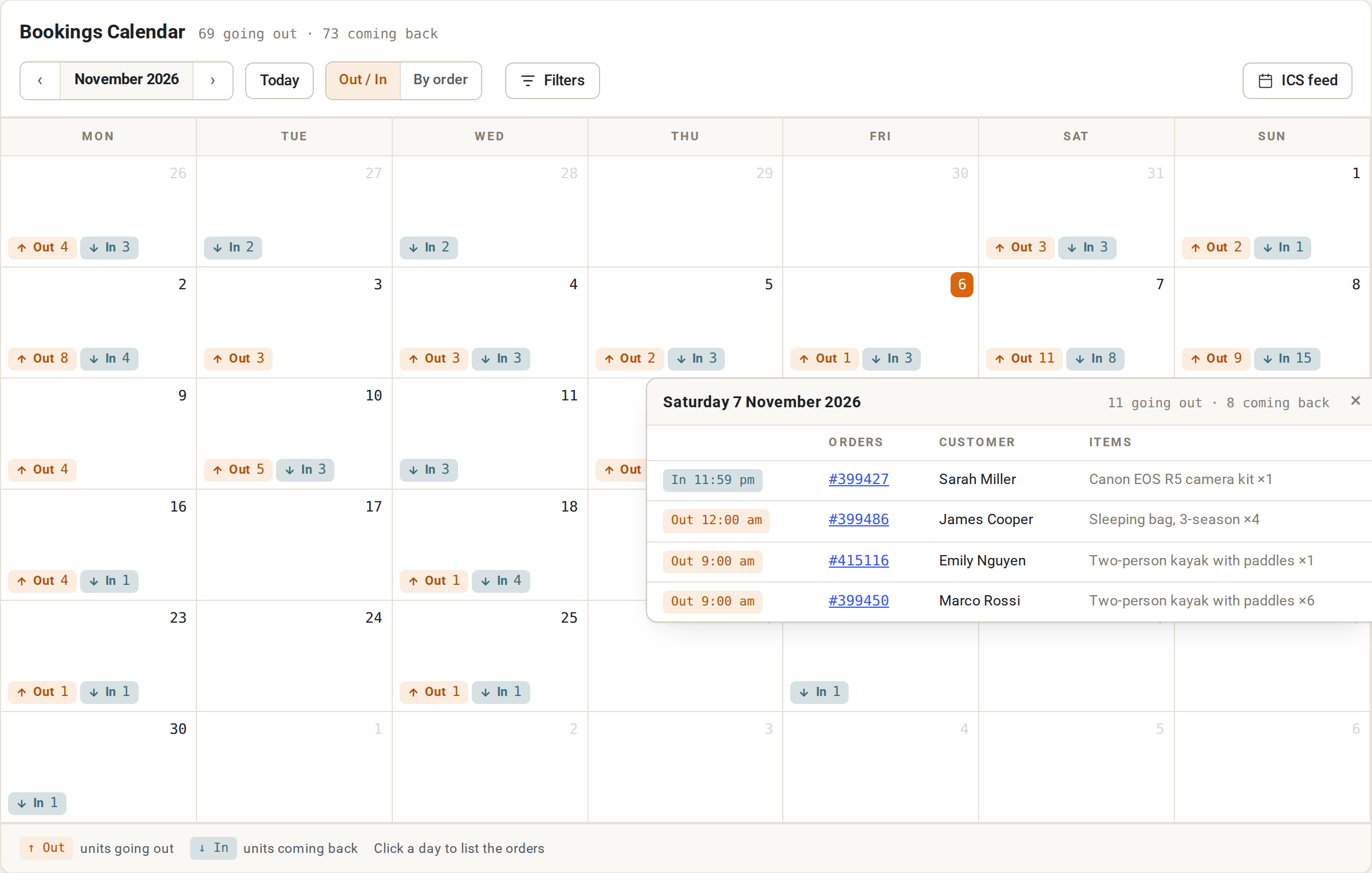
Click a day to list the orders that move on it. The list shows the order, the customer and the items. A day with nothing says “Nothing moves on this day”.
Filters #
| Filter | What it does |
|---|---|
| Product | Show one product’s bookings only. |
| Category | Show bookings for products in one category. |
The ICS feed #
Click ICS feed. A window gives you a link that lists all of your bookings. Subscribe to it in Google Calendar, Outlook or Apple Calendar to see your bookings there.
- Copy copies the link.
- Reset link makes a new link. The old one stops working at once, so calendars that use it stop updating until you give them the new link. The page asks you to confirm and, afterwards, says “The ICS feed has a new link.”
- Anyone who has the link can read your bookings. Keep it private.
How to subscribe, as the window says it:
- Google Calendar: Other calendars, +, From URL, then paste the link.
- Outlook: Add calendar, Subscribe from web, then paste the link.
- Apple Calendar: File, New Calendar Subscription, then paste the link.
Calendars fetch the feed on their own schedule, so a new booking can take a few hours to show there.
The link is created for you the first time, and its key is kept in Rentals > Settings > Advanced under ICS export security keys. See Advanced.
To share one product’s availability with Airbnb, Booking.com or another site, use the per-product feeds. See Calendar sync (iCal).


