
Rentals > Bookings lists every booking, newest first. A booking is one product, for some dates, in some quantity. Bookings are made when a customer checks out. You can also add one yourself, for a phone or walk-in booking, and change or delete one.
The list #
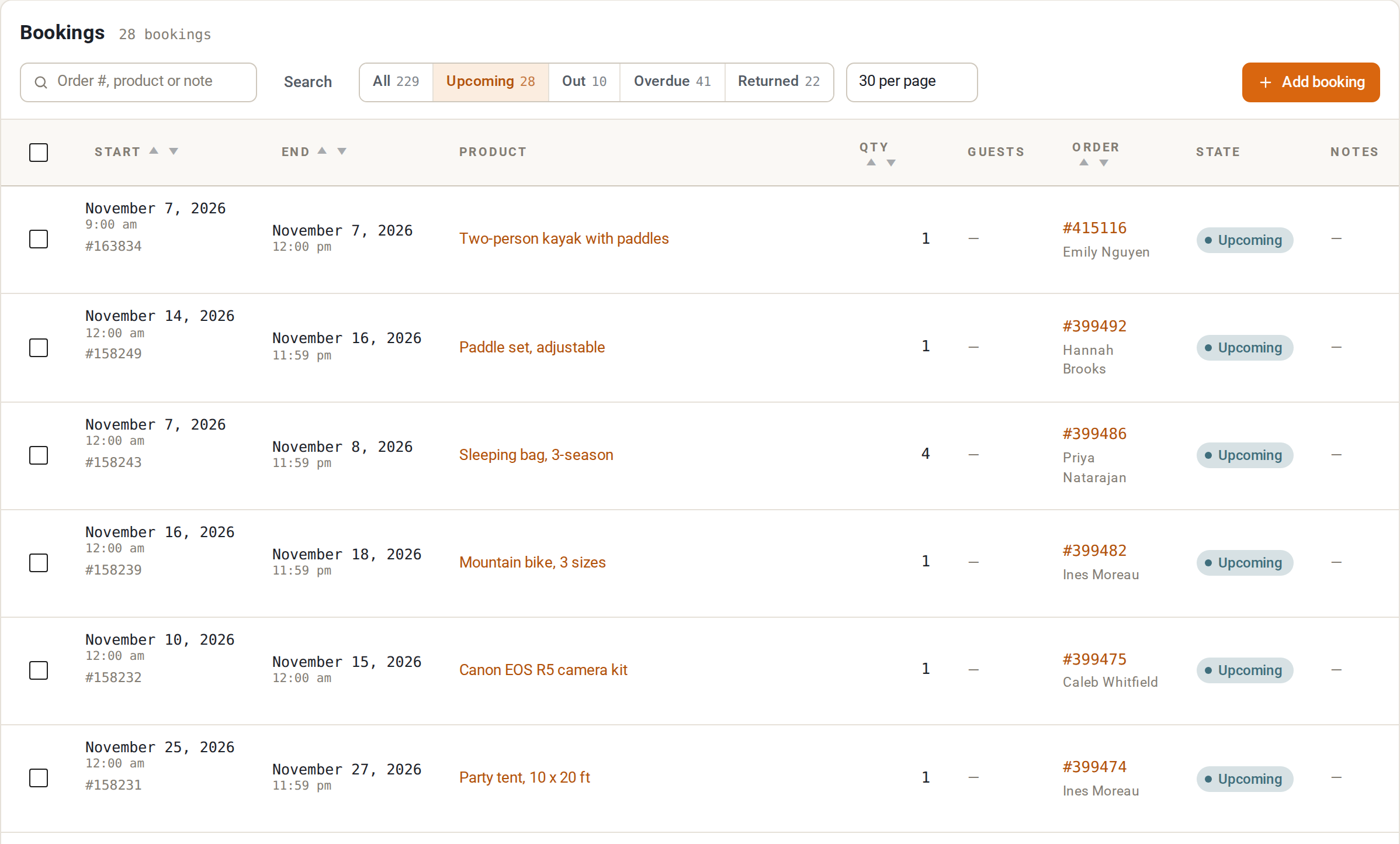
- Search finds a booking by order number, product or note.
- State tabs across the top, each with its count: All, Upcoming and Out. With Send & Return (Rentals & Bookings Regular and Pro) there are also Overdue and Returned. A booking’s state comes from its dates and, with Send & Return, from what has been sent and returned:
- Upcoming: it starts in the future and nothing is out.
- Out (the row says “In progress” when nothing has been handed over yet): it has started and not yet ended, or units are out.
- Overdue: units are out and past their due-back date.
- Returned: every unit that was sent is back.
- Past: it has ended. It shows in the State column, and under All.
- Rows per page: 30, 100 or 200.
- Columns: Start, End, Product, Qty, Order, State, Notes. A Guests column appears once at least one product counts guests. Click Start, End, Qty or Order to sort.
- Each row has Edit and Delete links under the start date. The small
#number under the date is the booking’s own number. - On a phone the list shows each booking as a short line: state, product, quantity and the end date.
Add a booking #
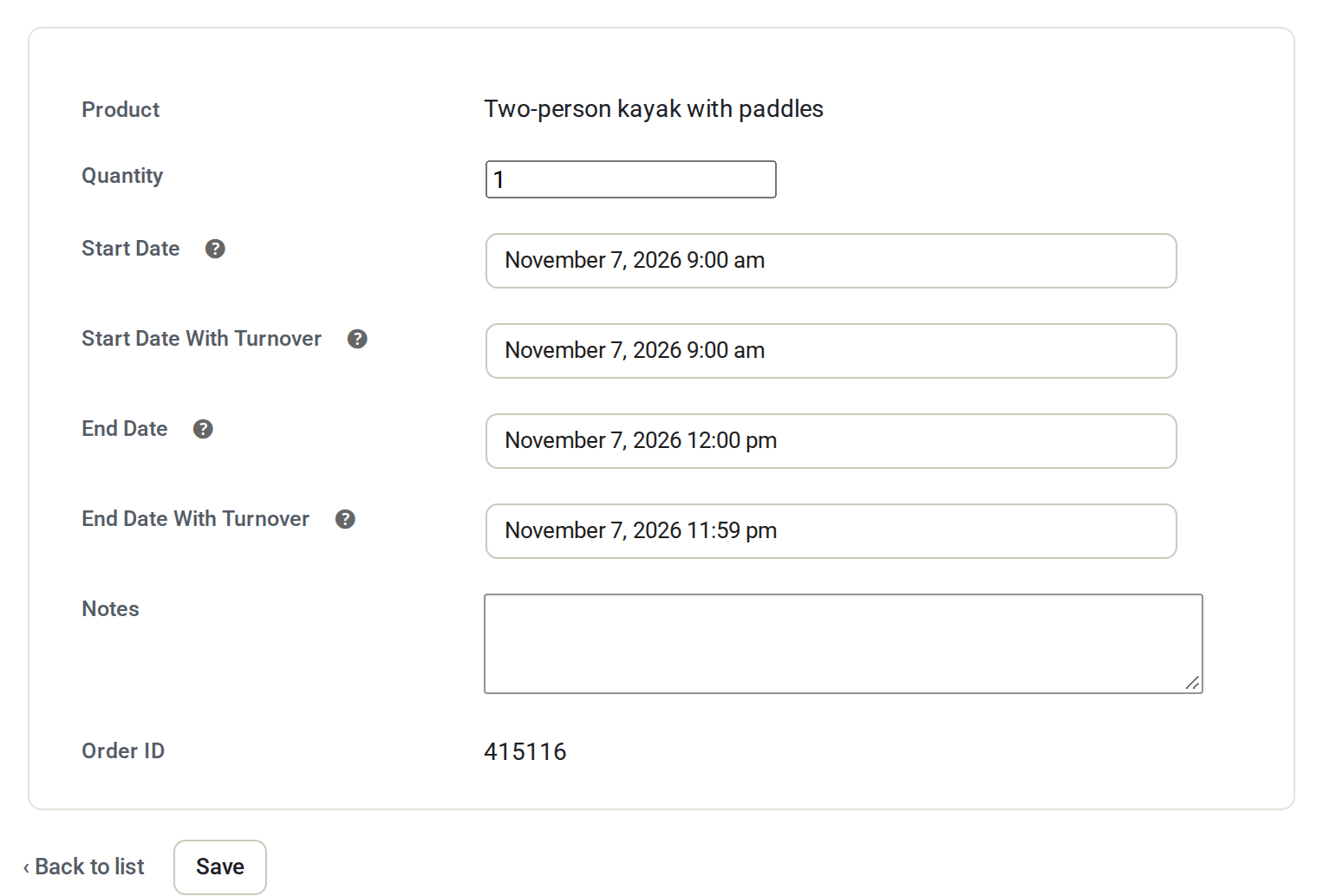
Click Add booking. Choose the product and fill in the form below. Save, then check the booking in the list.
A booking you add here is not tied to an order unless you give it an Order ID.
Edit a booking #
Click Edit on a row.
| Field | What it is |
|---|---|
| Product | The rental. Search by name. When the booking belongs to an order line, the product is shown as text and Swap item opens the order so you can move the booking to another item for the same dates. |
| Quantity | How many units. |
| Guests | The party, from the order line. Shown for information. To change the party, change it on the order, where the price follows it. |
| Start Date | The start the customer chose. |
| Start Date With Turnover | The start actually reserved, with your buffer time before the booking added. |
| End Date | The end the customer chose. |
| End Date With Turnover | The end actually reserved, with your buffer time after the booking added. |
| Notes | Your own note. It shows in the list. |
| Order ID | The WooCommerce order this booking belongs to, if any. |
Click Save. A new booking says “New booking has been saved”; an existing one says “Booking has been updated”. Back to list leaves without saving.
Turnover is the buffer time from Rentals > Settings > Calendar: see Buffer time.
When the stock cannot cover it #
If the product is not free for the dates and quantity you chose, the page says “Not available: saving this will overbook” and nothing is saved yet. You can change the dates or the quantity, or tick Overbook: save anyway. The booking is then overbooked on purpose, and it is reported with the double bookings.
Who may overbook is set in Rentals > Settings > Calendar, in Who can overbook: Administrators only, Administrators and Shop Managers (the default), or Nobody. Everyone else can still book, change dates and swap whenever the stock covers it.
Delete a booking #
Click Delete under the start date, or tick rows and choose Delete from the bulk actions. The page says “1 booking has been deleted.” (or the number). Deleting removes the booking record and frees those dates again. It does not change the WooCommerce order.


