
- How it works
- The Maps tab
- Map provider
- Google Maps API key
- Server key for address lookups (optional)
- Remove the saved Google keys
- Zoom for a single location
- Look up coordinates from the address
- How precisely locations are shown
- Size of the approximate area
- Daily prices per day or per night (a note)
- Which services are contacted (a note)
- The product's Location tab
- The [sibooking_map] shortcode
- What the customer sees
- Good to know
Maps are part of Rentals & Bookings Regular and Pro. They are not in the free Lite edition.
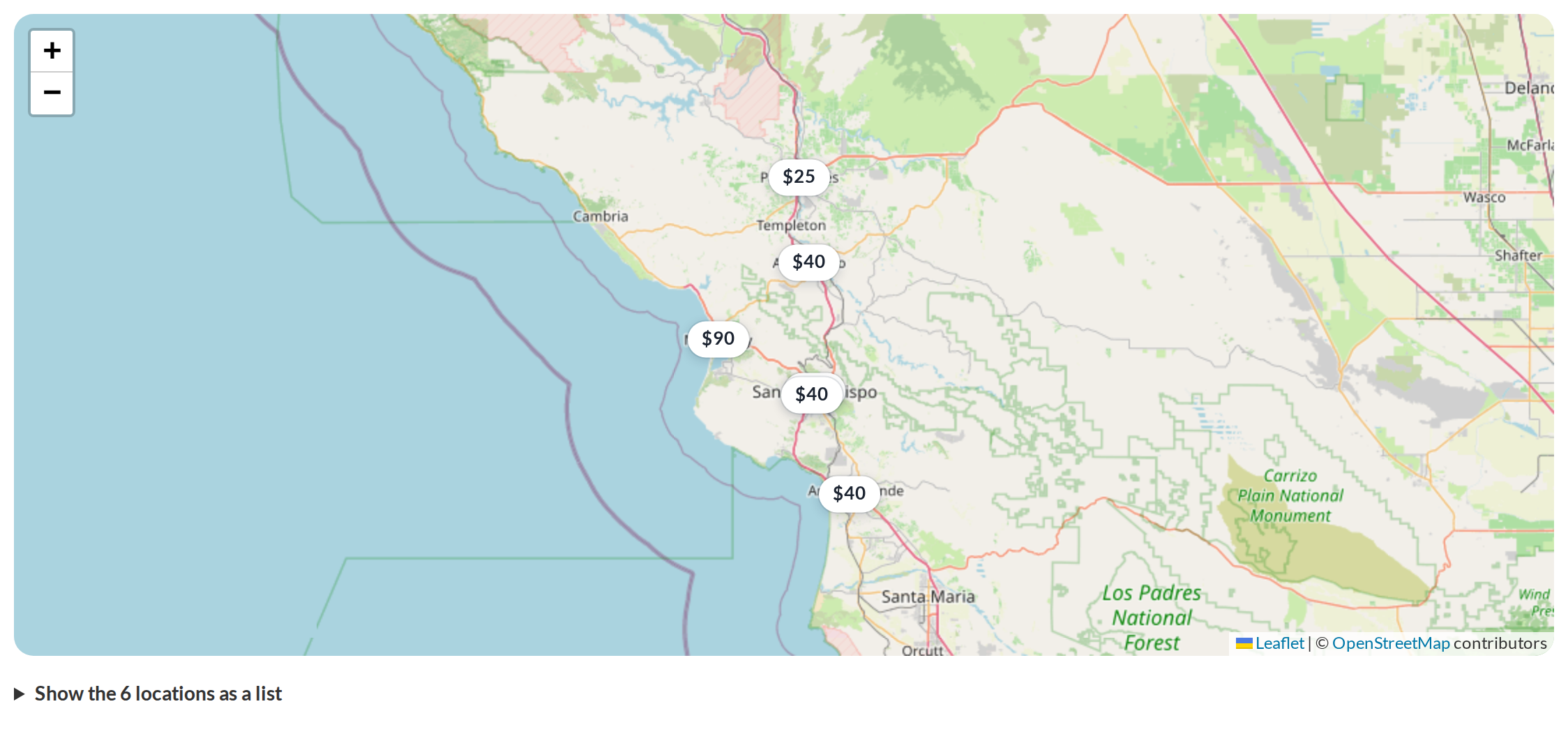
Maps put your rentals on a map: one product on its own page, or several rentals together on a page you build. Customers can see where a rental is, and pins can show the price for the dates they searched.
How it works #
- Give each product an address on its Location tab (and tick Show a map on the product page if you want a map under its summary).
- Rentals > Settings > Maps decides which map service draws the maps, and how addresses become map positions.
- Add
[sibooking_map]to any page to show many rentals on one map.
A map is only loaded on a page that has one. A shop page, a product with no map and a map with nothing to show make no request to a map service.
The Maps tab #
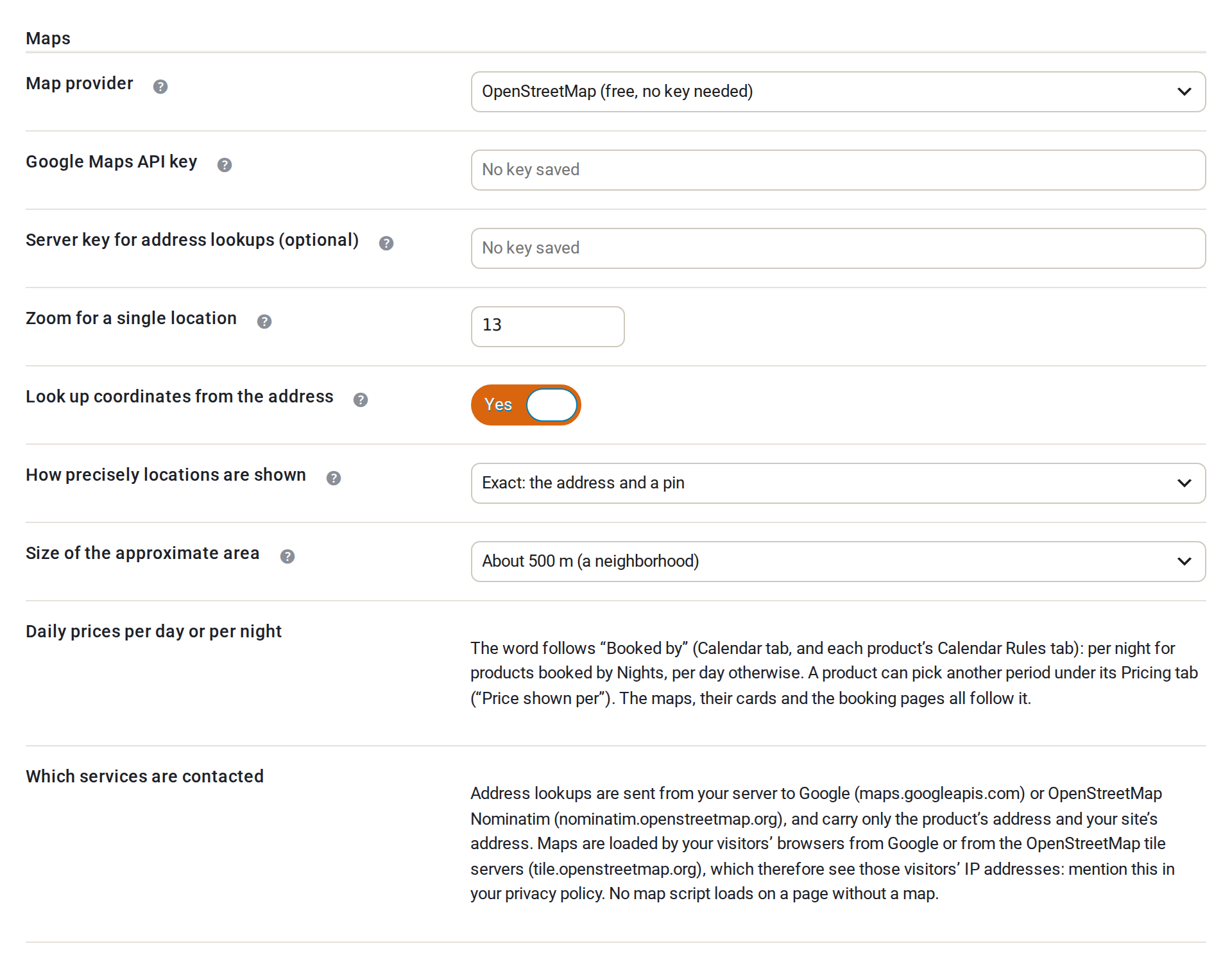
Rentals > Settings > Maps.
Map provider #
Which service draws the maps. It draws the [sibooking_map] maps and the map on product pages.
- OpenStreetMap (free, no key needed). The default.
- Google Maps (needs an API key). If you choose Google but no key is saved, the map falls back to OpenStreetMap, so a map never goes blank.
Google Maps API key #
A Google Maps Platform key with the Maps JavaScript API and the Geocoding API switched on. Visitors’ browsers load Google’s maps with this key, so in the Google Cloud console restrict it to your website’s address. The key is also used to look up coordinates from addresses, even when the map provider is OpenStreetMap.
The box always shows empty. A saved key appears only as its last four characters, for example ••••••••abcd. Leave the box empty to keep the saved key.
Server key for address lookups (optional) #
Google refuses address lookups from your server when the key is restricted to your website’s address. If yours is, add a second key here, restricted to your server’s IP address, with only the Geocoding API switched on. Leave it empty to keep the saved key.
Remove the saved Google keys #
Shows only when a key is saved. Switch it on and save to delete both keys. Maps then use OpenStreetMap, and addresses are looked up with OpenStreetMap Nominatim. A key you type in the same save counts as the new key and is not deleted.
Only an administrator can set or remove a key.
Zoom for a single location #
From 1 (the whole world) to 20 (a single building). 13 shows a neighbourhood. A map with several locations zooms to fit them all.
Look up coordinates from the address #
On by default. When you save a product whose address changed, its latitude and longitude are looked up for you. It uses Google when a key is saved, otherwise OpenStreetMap Nominatim (at most one lookup a second, and each address only once). Coordinates you type yourself are kept until the address changes. Lookups only run in wp-admin or in the background, never while a customer is browsing.
If you switch it off, type the latitude and longitude on each product’s Location tab, or the rental will not appear on a map.
How precisely locations are shown #
For products that do not choose for themselves on their Location tab.
- Exact: the address and a pin. The default.
- Approximate: the area and a circle, the address after booking. Suits holiday homes. Maps show a circle around a nearby point instead of the door, the street and postcode are left off, and the full address appears on the customer’s order confirmation and order emails once they have booked.
Size of the approximate area #
The radius of the circle for an approximate location: about 250 m (a few streets), 500 m (a neighbourhood), 1 km or 2 km. The real place is always inside the circle, never at its centre, and the centre stays the same every time the page loads.
Daily prices per day or per night (a note) #
Not a setting. The word follows Booked by in Rentals > Settings > Calendar, and on each product’s Calendar Rules tab: per night for products booked by Nights, per day otherwise. A product can pick another period under its Pricing tab (“Price shown per”). Maps, their cards and the booking pages follow it.
Which services are contacted (a note) #
Not a setting. Address lookups go from your server to Google (maps.googleapis.com) or to OpenStreetMap Nominatim (nominatim.openstreetmap.org). They carry only the product’s address and your site’s address. Maps are loaded by your visitors’ browsers from Google or from the OpenStreetMap tile servers (tile.openstreetmap.org), so those services see your visitors’ IP addresses. Mention this in your privacy policy. WordPress’s Privacy Policy Guide gets suggested wording from this plugin: Settings > Privacy > Policy Guide.
The product’s Location tab #
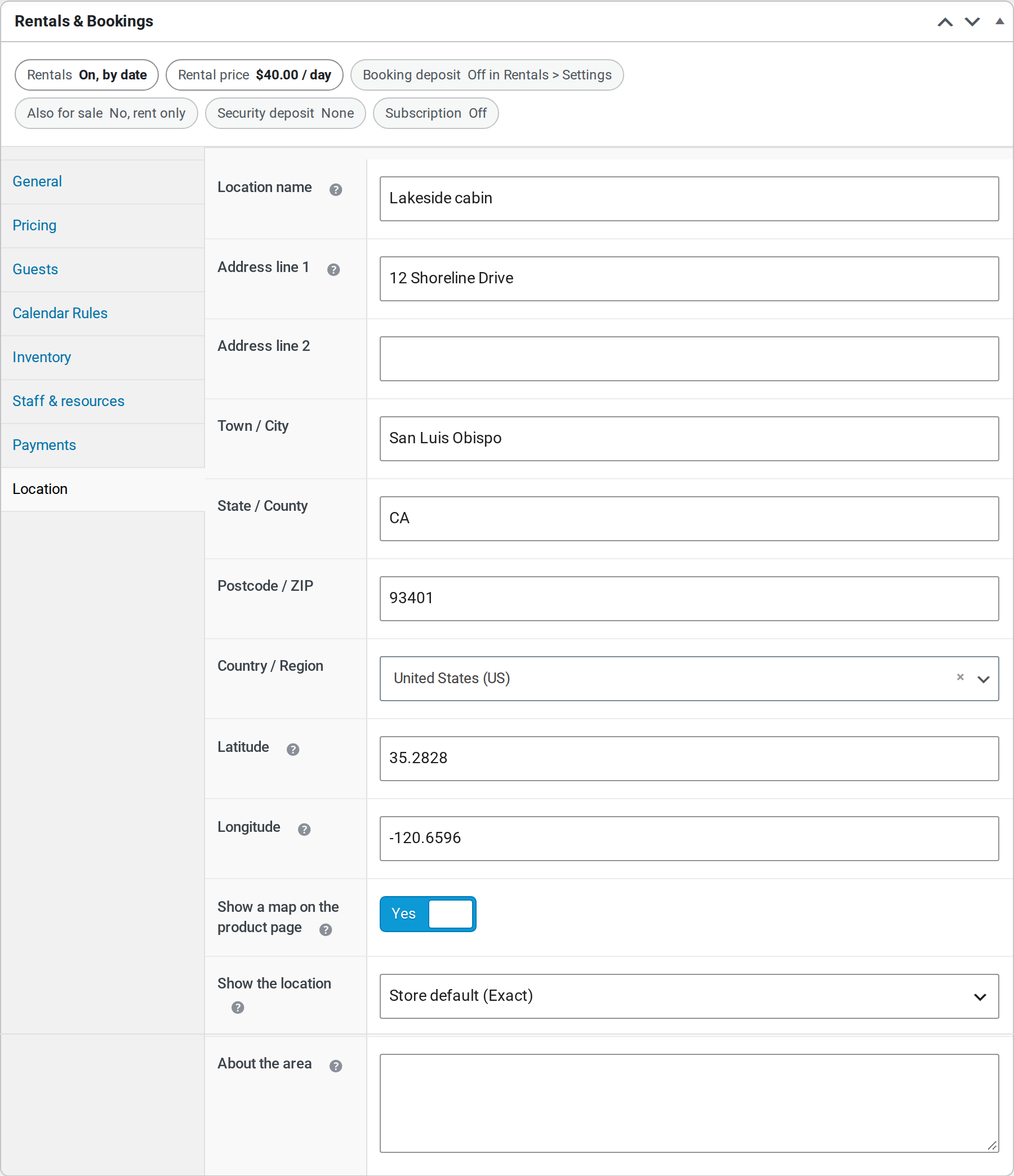
Each product has a Location tab in its Rentals & Bookings box:
- Location name: optional, for example “Lakeside cabin”.
- Address line 1 and 2, Town / City, State / County, Postcode / ZIP, Country / Region: where the rental is collected, or where the property is. Leave the address empty if the rental has no fixed place.
- Latitude and Longitude: optional. Filled in from the address when you save, if lookups are on.
- Show a map on the product page: shows the address and a map below the product summary. The product appears on
[sibooking_map]maps whenever it has coordinates, whether or not this is ticked. - Show the location: Store default, Exact, or Approximate for this product.
- About the area: a few lines about the neighbourhood, shown under the map: what is nearby, how to get there, parking.
The [sibooking_map] shortcode #
Add it to a page or post: [sibooking_map category="cabins,lofts" height="480px"]. All attributes are optional.
| Attribute | What it does | Default |
|---|---|---|
category | Product category slugs, separated by commas. Subcategories are included. | All |
ids | Product ids, separated by commas. | All |
limit | The most rentals to show. | No limit |
height | The map’s height: 480, 480px, 60vh, 30rem. | 480px |
zoom | Zoom for a single pin (or when fit="false"). | The Zoom setting on this tab |
fit | Zoom and move the map so every pin is in view. | true |
search | Judge the pins by the visitor’s dates (the Search widget’s dates) and mark rentals that are not free. If the shop hides unavailable products, they are left off the map too. The search’s Where (a place and a distance) keeps only what is within it, nearest first. | true |
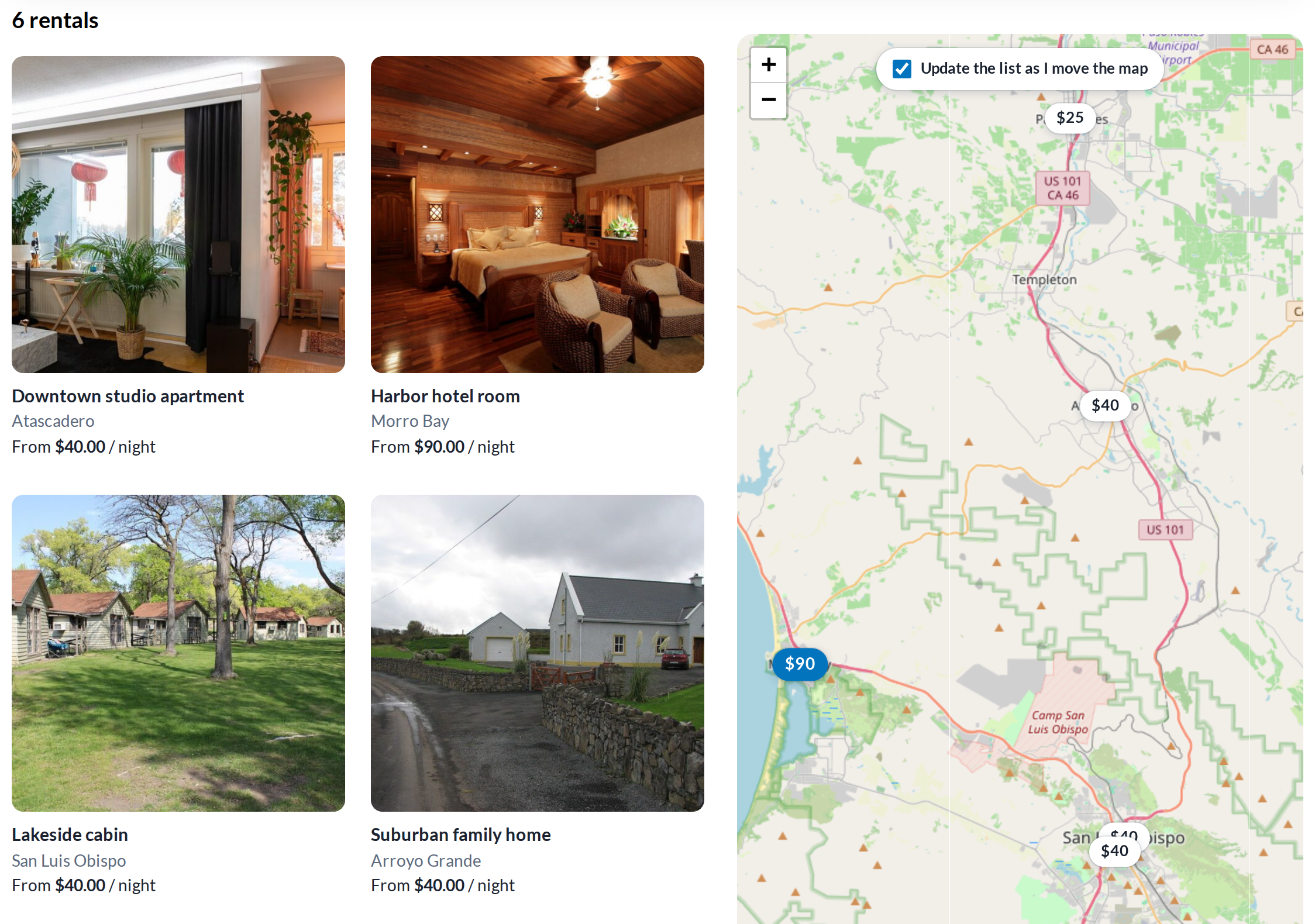
layout | map: the map with a list of links under it. split: result cards beside a map that stays in view. Hovering a card lights its pin. On a phone you get the list with a Map / List switch. | map |
pins | price: each rental is a pill with its price (the total for the visitor’s dates, or the lowest rate with no dates). marker: a plain marker. | price |
move_search | Split layout only. true offers “Update the list as I move the map”. false shows a “Search this area” button instead. | false |
period | day or night: how daily rates are worded. | The store’s “Booked by” rule |
What the customer sees #
- A map with pins. Each pin carries the rental’s name and price. Pins for rentals that are not free on the chosen dates are marked “not available”.
- Under the map (or in the cards) the same rentals as plain links. Visitors without JavaScript get this list.
- Approximate locations show a circle and no street; the full address comes with the order confirmation.
- Keyboard users can reach every pin, and each map is a labelled region for screen readers.
Good to know #
- A theme can draw its own map with the plugin’s script,
window.SibookingMap.render(). CallMaps::enqueue()first. - By default the product page’s map sits under the summary. A developer can move it to a tab of its own with the
sibooking_product_map_placementfilter. - Maps need no extra plugin. OpenStreetMap maps use a bundled copy of Leaflet 1.9.4.


