Add products to a bundle and set each item’s quantity, price, shipping and visibility.
A bundle is a product of type Bundle. Its items are cards on the Bundle items tab.
Add an item #
- Edit the bundle and open the Bundle items tab.
- Click Add a product. Search by name or SKU and pick the product.
- Repeat for each product. Drag a card to change the order.
You can add simple, variable and subscription products. Grouped and external products cannot be items.
If the product is already an item, the editor warns you. Add it again only if the second card needs different settings.
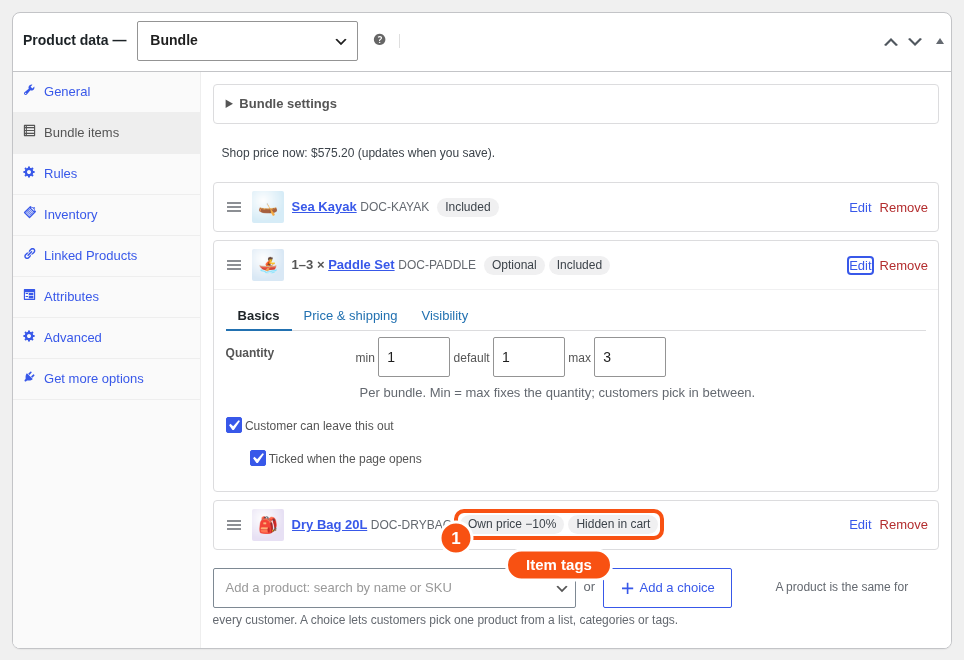
A collapsed card shows one line: picture, quantity, name and short tags such as Optional, Own price, Ships on its own, Hidden in cart.
Basics #
Click Edit on a card. It has three small tabs. The first is Basics.
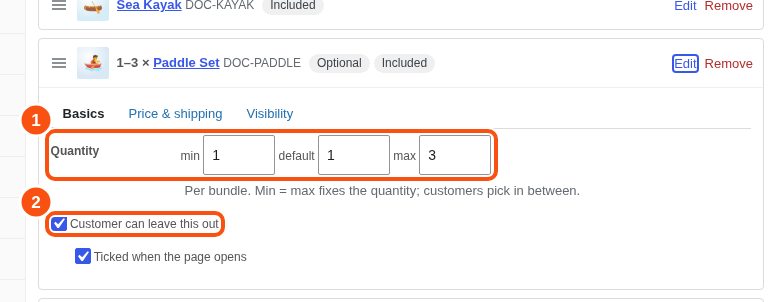
- Quantity: min, default and max, per bundle. Set min and max to the same number to fix the quantity. Otherwise customers pick a number in between.
- Customer can leave this out: makes the item optional. Tick “Ticked when the page opens” to add it by default.
- Variations: leave “Every variation”, or pick the ones customers may choose.
- Pre-selected: the variation chosen when the page opens.
Price & shipping #
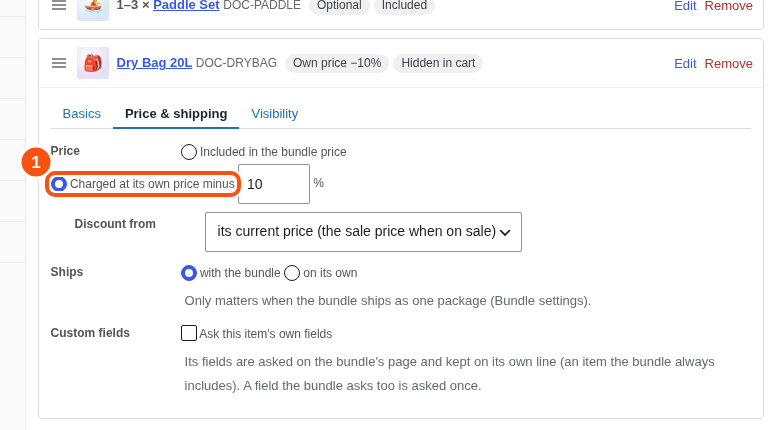
- Price: “Included in the bundle price”, or “Charged at its own price minus [ ]%”. With a discount you choose what it comes off: the item’s current price (the sale price when on sale) or its regular price.
- Ships: “with the bundle” or “on its own”. This matters when the bundle ships as one package.
Visibility #
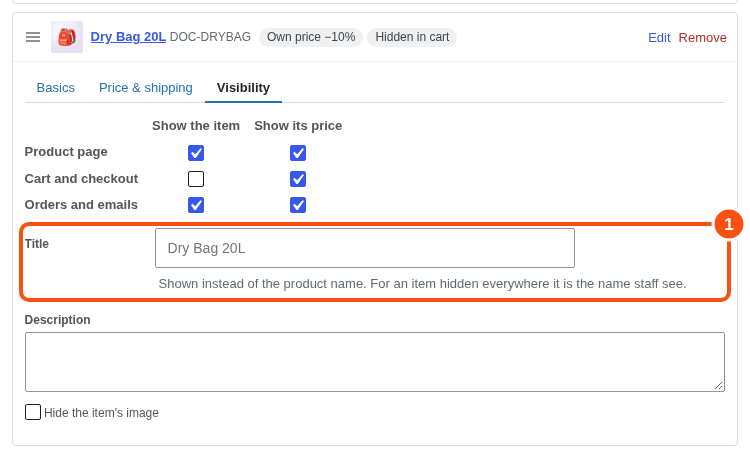
You can show or hide the item, and show or hide its price, in three places: the product page, the cart and checkout, and orders and emails. You can also replace the item’s title and description, and hide its picture.
The card tag says what is hidden: “Hidden on the product page”, “Hidden in cart”, “Hidden in orders” or “Hidden everywhere”. A hidden item is never named to the customer.
Bundle settings #
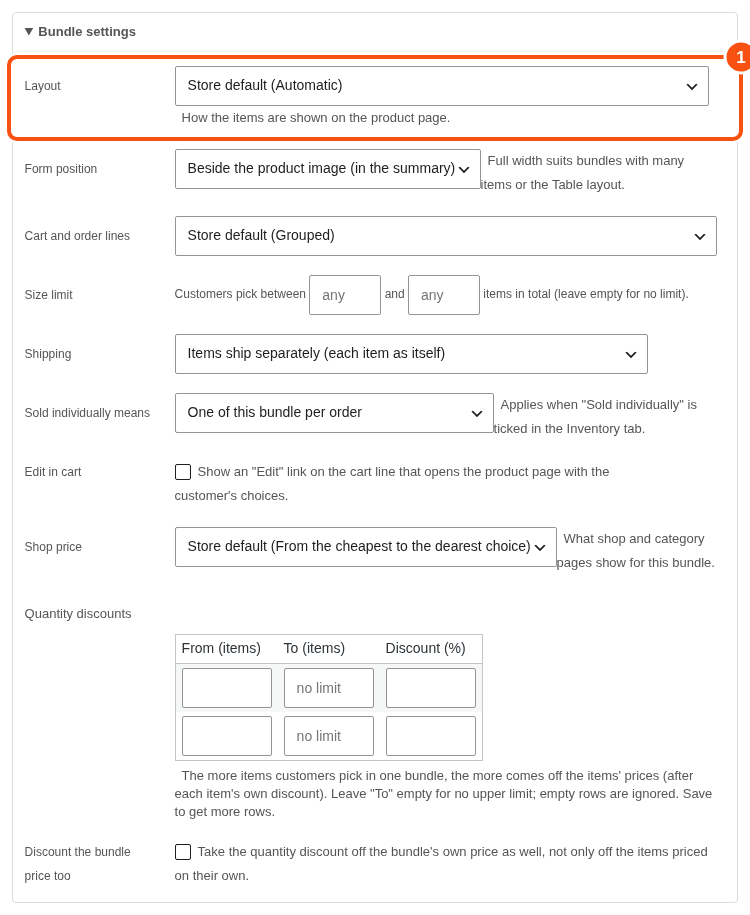
The Bundle settings block at the top of the tab holds the rest. Most stores never open it.
| Setting | What it does |
|---|---|
| Layout | List, Table or Grid for fixed items. Automatic picks for you. |
| Form position | Beside the product image, or full width under the image and summary. |
| Cart and order lines | Grouped (the bundle with its items under it), Flat (each item its own line) or Items only (no bundle line). |
| Size limit | Customers pick between N and M items in total. |
| Shipping | Items ship separately, ship as one package, or no shipping. |
| Package weight | For one package: the bundle’s own weight, or the bundle plus its items. |
| Sold individually means | One bundle per order, or one of each different set of choices. |
| Edit in cart | Adds an Edit link on the cart line. |
| Shop price | What shop pages show. See “Pricing”. |
| Quantity discounts | More items in one bundle, bigger discount. See “Pricing”. |
Shipping #
- Items ship separately: each item ships as itself. This is the default.
- Ship as one package: the bundle is one parcel. Items set to ship “with the bundle” are packed inside. Items set to ship “on its own” get their own package.
- No shipping: nothing in the bundle ships.
Cart and order lines #
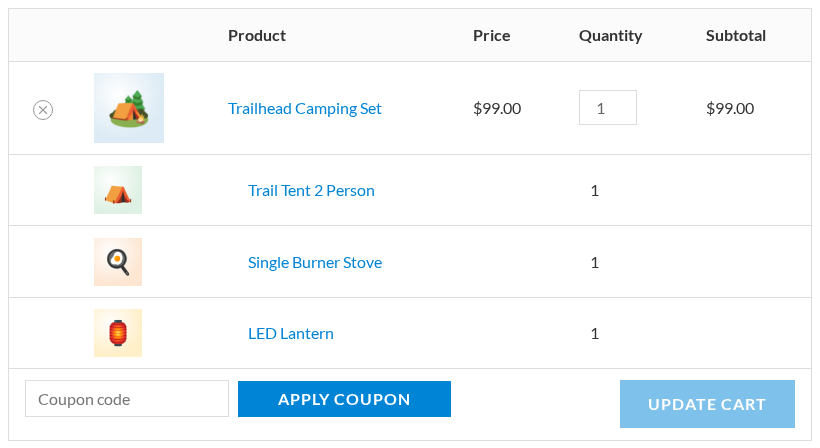
Items follow the bundle quantity. Removing the bundle removes its items, and Undo brings them back. An optional item can be removed alone.
Guard rails #
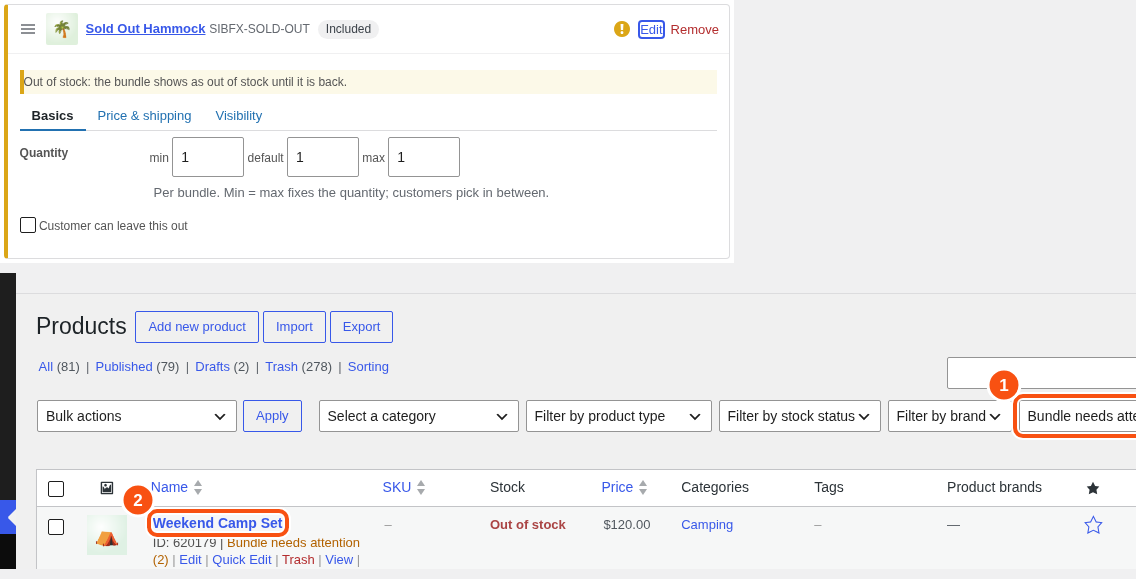
The editor does not refuse to save. It shows a yellow note on the card instead, and the product list gets a Bundle needs attention filter. A bundle with no items is saved as a draft until it has some, so it never goes live empty. Notes cover an item whose product is gone, unpublished, out of stock or without a price, and a size limit that cannot be met.
Bundle-sells #
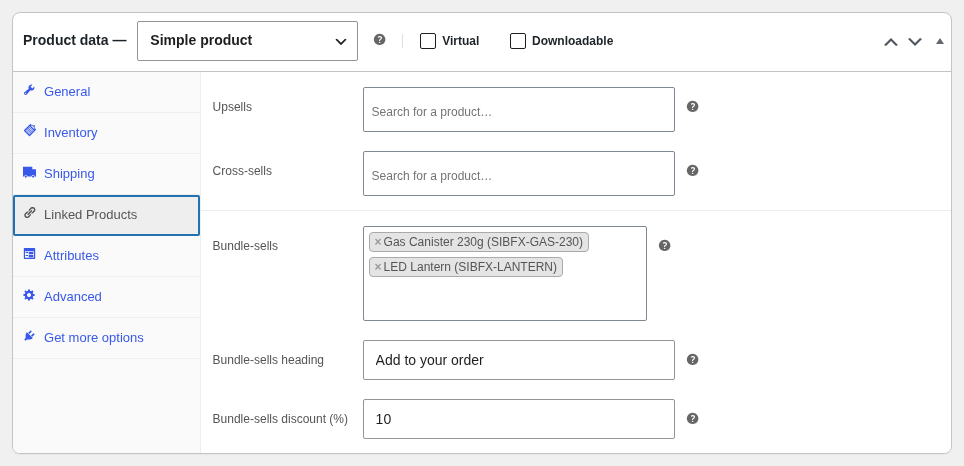
Offer extra products with any other product. Edit the product, open Linked Products and fill in the extras, a heading (default “Add to your order”) and a discount. Customers tick an extra on the product page and it goes into the cart on its own line at the discount.
Orders #
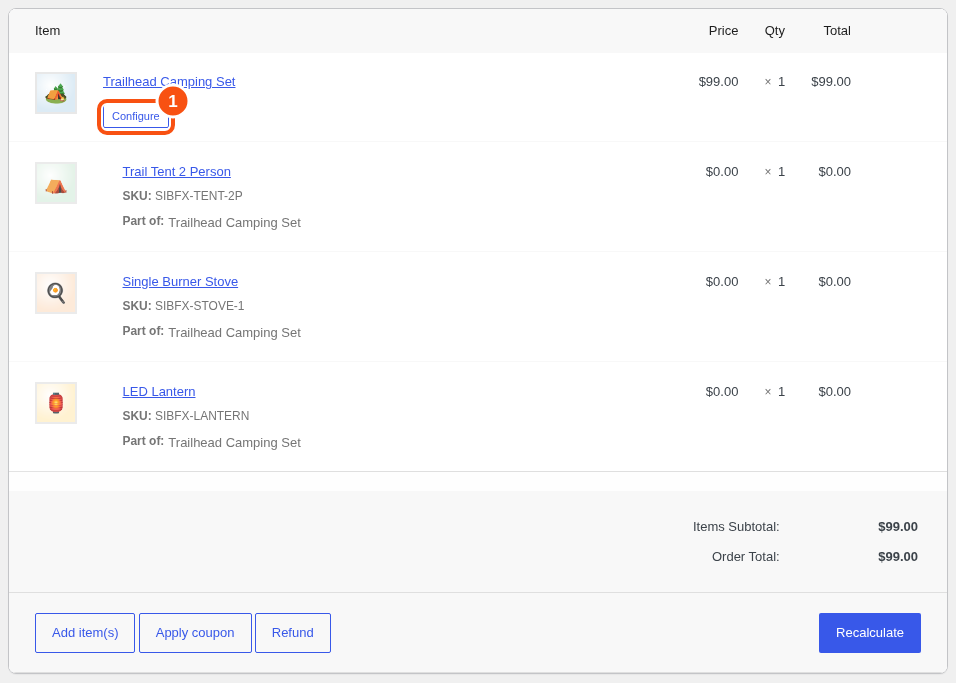
Orders show the bundle line with its items under it. Hidden items are left out for the customer. Visible items carry a “Part of” row.
On the order screen, Add item(s) adds a bundle’s items with the default configuration. Configure on the bundle line changes the picks within the bundle’s rules.