
Use fixed items when every customer gets the same set. Use choices when customers pick the parts.
There is one product type, Bundle. A bundle holds a list of items. Each item is one of two kinds.
| Fixed item | Choice | |
|---|---|---|
| What it is | One product | A list of products the customer picks from |
| Same for every customer | Yes | No |
| Example | The tent in a camping set | The stove: gas or wood |
| Added with | Add a product | Add a choice |
You can mix both in one bundle: a fixed tent, then a choice of stove.
Pick Fixed bundle as the starting point for a set, and Build your own for a product customers configure. Both make the same kind of product.
Add a choice #
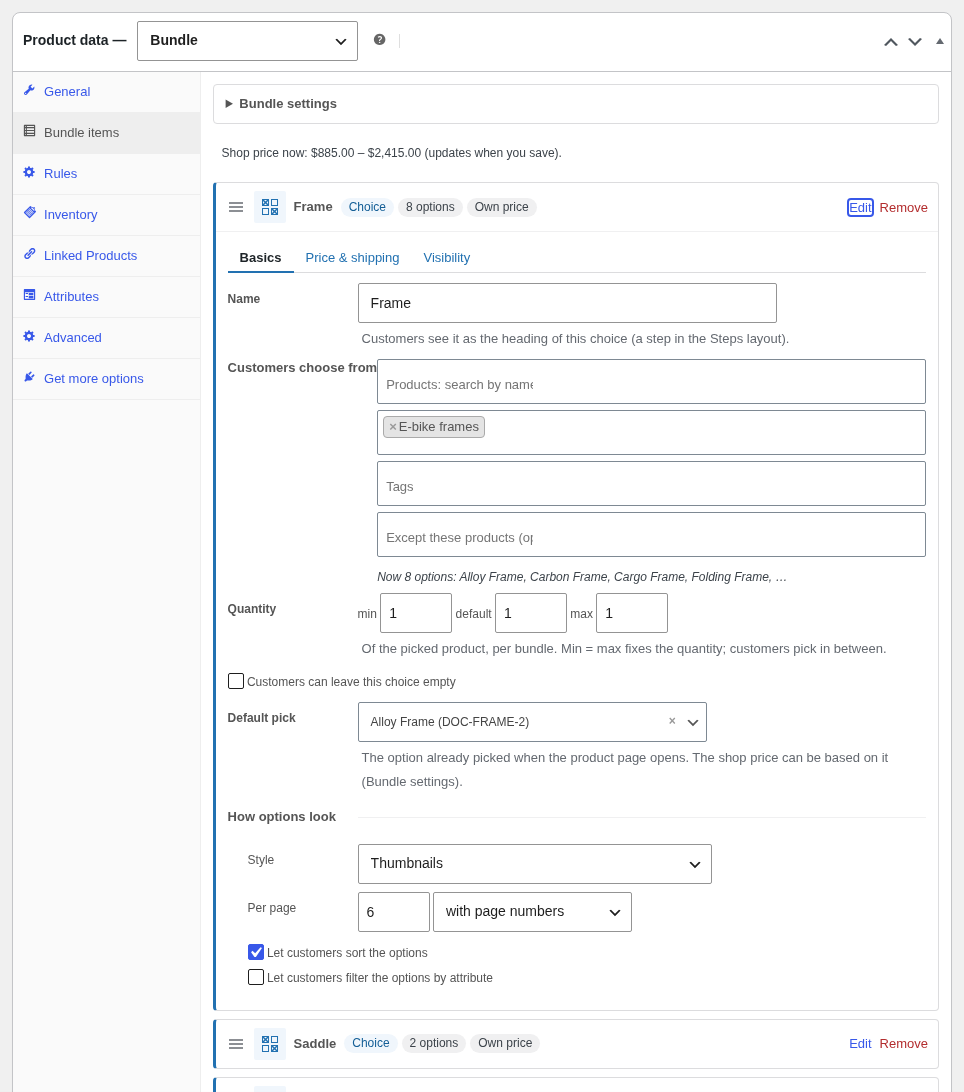
- On the Bundle items tab, click Add a choice.
- Name: the heading customers see. In the Steps layout it is the step name.
- Customers choose from: Products (search by name or SKU), Categories (with their sub-categories) or Tags. Use Except these products to leave some out.
- Default pick: the option picked when the page opens. Leave “Nothing picked when the page opens” to make customers choose.
- Tick “Customers can leave this choice empty” to add a “None” option.
- Set quantity, price & shipping and visibility as for a fixed item.
How options look #
| Setting | Values |
|---|---|
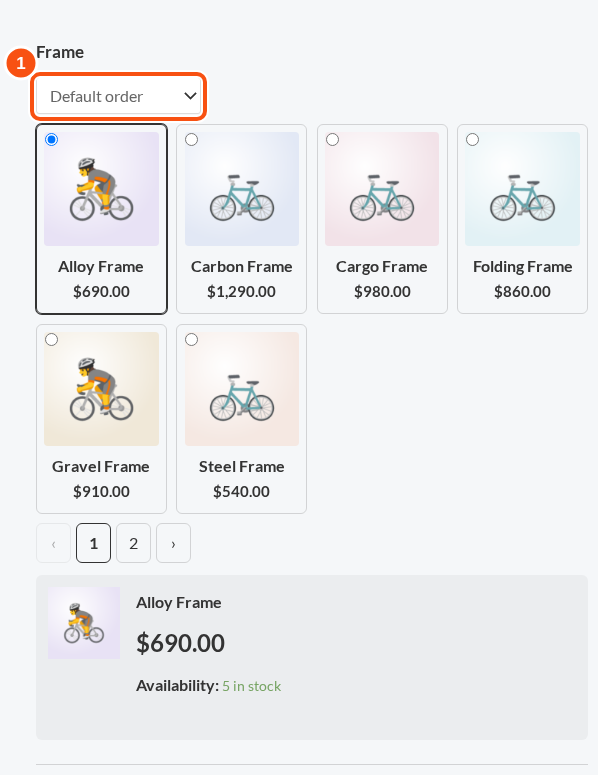
| Style | Thumbnails (default), Cards, Radio buttons, Dropdown |
| Per page | How many options per page |
| Paging | Page numbers, or a “Load more” button |
| Sort | Lets customers sort: default order, popularity, rating, newest, price, name |
| Filter | Lets customers filter by attribute |
| After a pick | Stay and show the pick, or go to the next step |
| Option prices | Full price, difference from the default pick, or hidden |
A dropdown lists up to 1,000 options. With more, a search box above it finds the rest by name or SKU, and the item card suggests thumbnails or cards, which show a page at a time.
Layouts #
| Layout | What customers see |
|---|---|
| Stacked | Every choice on one page |
| Accordion | One choice open at a time |
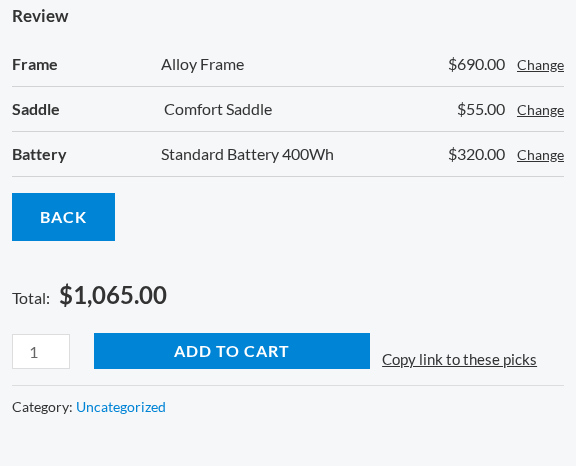
| Steps | One choice per step, then a Review |
| Summary first | A summary opens first; each choice is edited from it |
Automatic shows List for a bundle without choices, Stacked for one or two choices and Steps for three or more.
Rules #
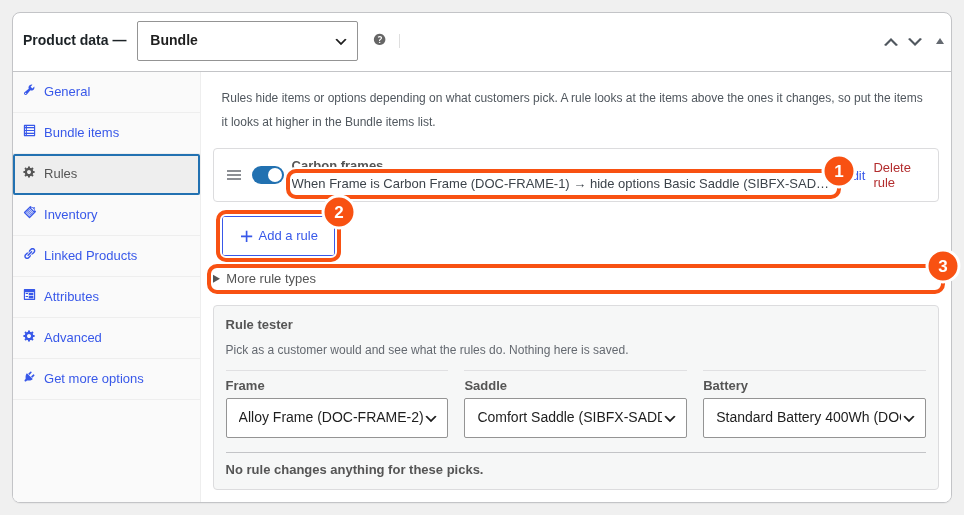
Rules hide items or options depending on what the customer picked. They appear on the Rules tab, which shows once a bundle has a choice or an optional item.
A rule reads as a sentence:
When Frame is Carbon, hide options Basic saddle of Saddle.
- Click Add a rule.
- Under When, pick an item, then is or is not, then the options. Click Add a condition to add more. All must be true.
- Under then, choose hide (whole items), hide options, or show only options.
- Save the product.
A rule looks at the items above the ones it changes. Put the items a rule reads higher in the list. If the order is wrong, the rule card says “Needs attention”.
Only allow these combinations #
Under More rule types, add a rule that lists the combinations customers may pick. Anything else cannot be picked. Use it for a short list of known-good sets.
Rule tester #
The Rule tester lets you pick as a customer would and see which rules fire. Nothing is saved.
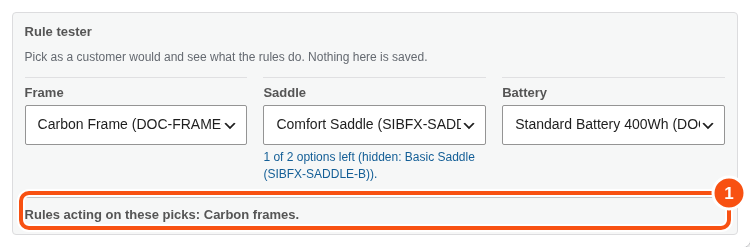
Rules are checked in the browser and again on the server when the customer adds to cart. A pick that an earlier choice made unavailable is refused with “Your pick for [item] does not go with your other choices: choose again.”
Summary and share link #
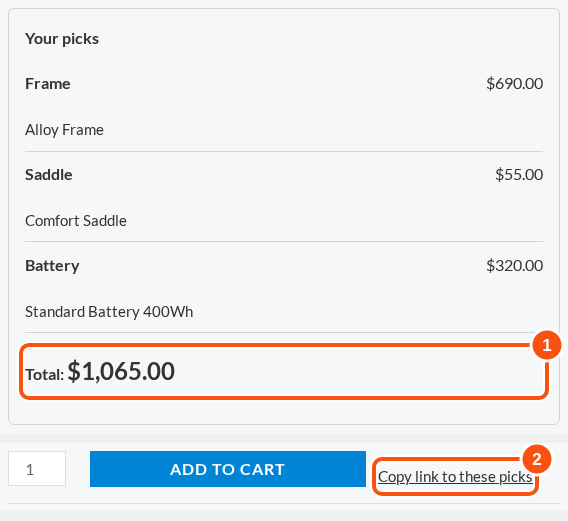
- The Bundle summary block and the shortcode
[sibundles_summary]show what the customer picked, with the total. - Copy link to these picks gives a link that opens the same picks.
A bundle as an option #
A bundle that needs no setting up (fixed items, fixed quantities, no variable item) can be an option in a choice. One level only.


