With Sales Igniter Rentals & Bookings Lite 1.0.17 or later, a bundle can rent as one kit on one set of dates.
Without the rental plugin, none of this appears.
Set up #
There is no special starting point. The rental settings appear when you add the first product that rents.
- Make a bundle as usual.
- Add a product that rents as an item. The box “This bundle rents on one set of dates.” appears on the Bundle items tab.
- Save the bundle. Saving turns the bundle’s booking on.
- Open the Rentals & Bookings box on the product page (its Pricing tab). The rates, calendar and rules there are the bundle’s own. The kit’s rental settings are in the box on the Bundle items tab, described next.
Rental price #
Choose one:
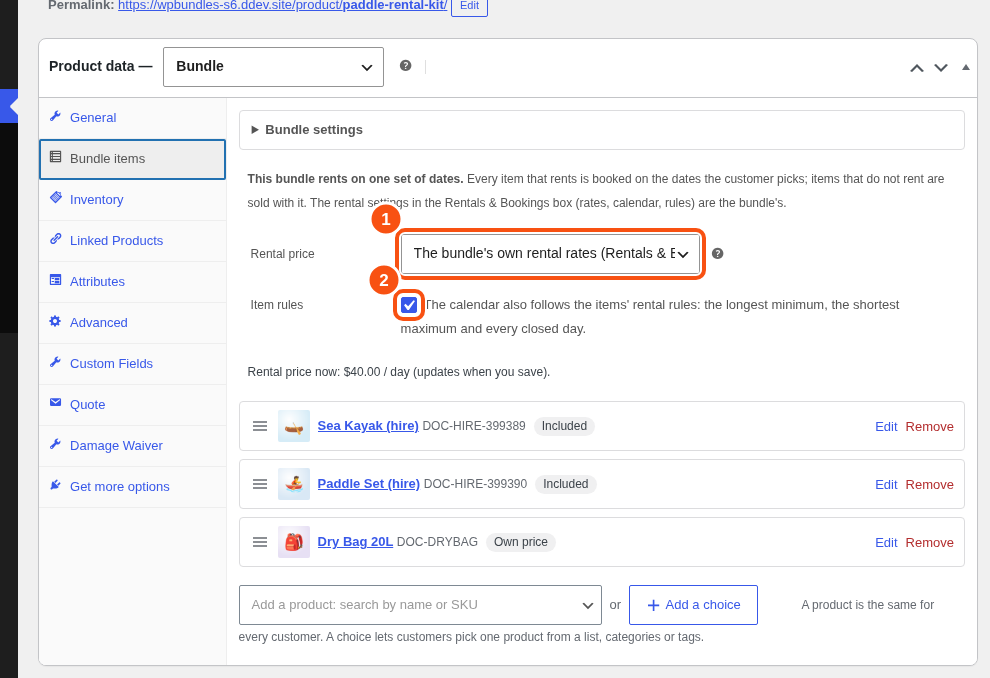
- The bundle’s own rental rates (Rentals & Bookings box): the default. Set them in the Rentals & Bookings box, on its Pricing tab. Until a rate is set, the Bundle items tab says so in place of a price. An item that rents is included at no charge, unless it is charged on its own. Then it costs its own rental price for the dates, less its discount.
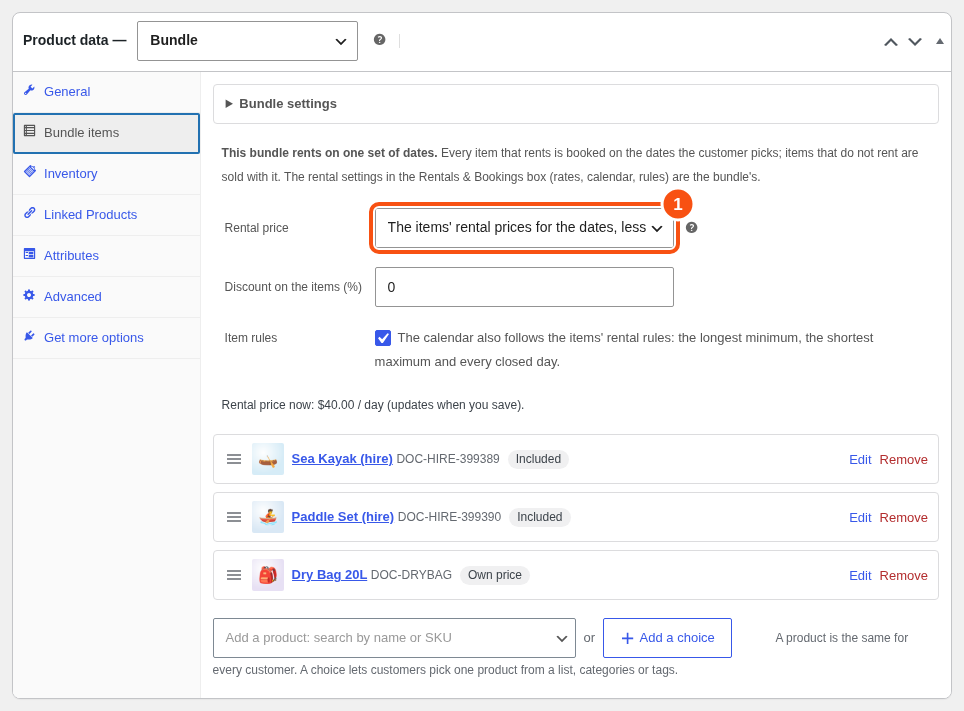
- The items’ rental prices for the dates, less a discount: the bundle line is the sum of its rented items’ prices for the dates, less Discount on the items (%). The items show at 0.
The same arithmetic runs on the product page, in the cart, at checkout and in the order screen’s date editor.
Item rules #
Item rules is on by default. The calendar then follows the longest minimum, the shortest maximum and every closed day of the items, so it never offers dates the checkout would refuse. Untick it to use only the bundle’s own rules.
Turnover and availability #
Each item keeps its own turnover time. Availability is the lowest across the items: a date is offered only when every item is free. With choices, the calendar follows the combination picked.
The product page #
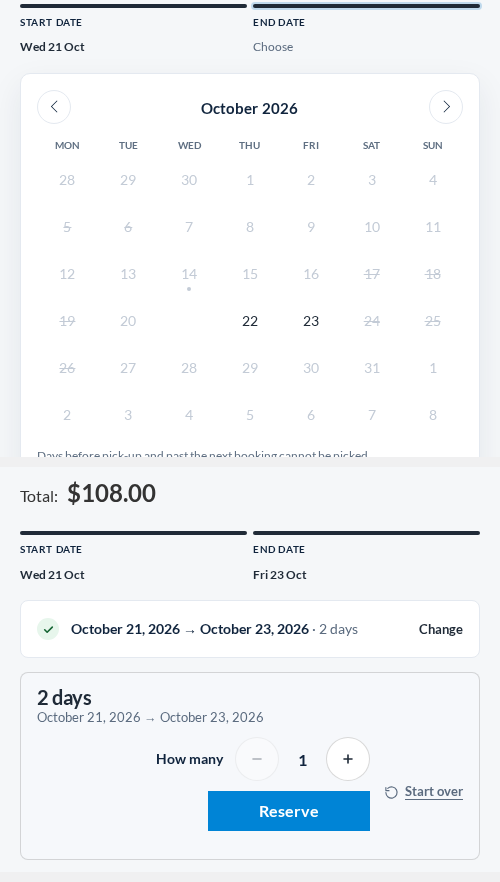
The calendar shows when every item is free. The live total appears once the dates are picked. Add to cart refuses an item the stock cannot cover and names it.
Items that do not rent are sold with the bundle and carry no dates.
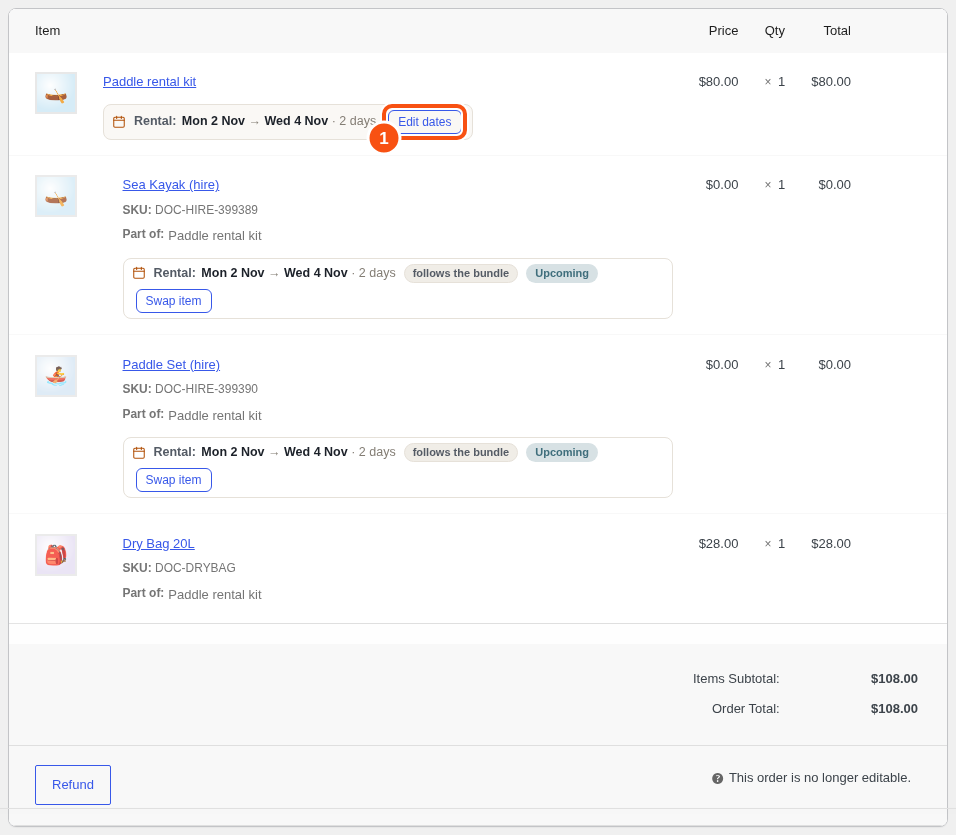
The cart, checkout, order confirmation, My Account and emails show the dates once, on the bundle line. An item moved to other dates shows its own. The order screen shows every line’s dates.
The order screen #
The bundle behaves as one kit.
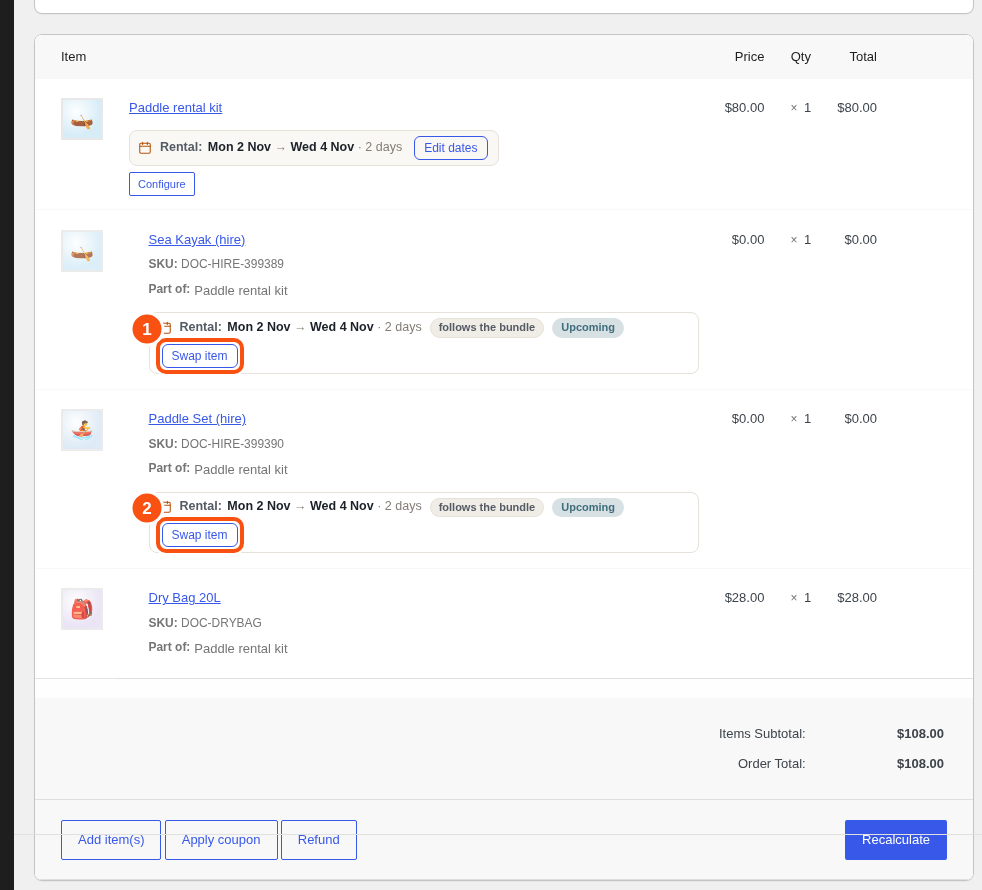
- Dates: the date editor sits on the bundle line. Items follow it. Moving the kit moves every line and booking in place.
- Stock checks: each rented item is checked against its own stock times the kit quantity. The warning names the bookings in the way. Staff with permission can save anyway with Overbook and one confirm.
- Add item(s): adding a rental bundle with dates books it as one kit when every item fits. If an item is short, nothing is dated; the dates stay as a proposal.
- Swap item: there is none on the bundle line. Each rented item has one. Suggestions: free items first, then the other options of the same choice, then the same category.
- Reopened orders: an order brought back from Cancelled, Failed, Refunded or the trash is checked against each item’s stock.
Extending a rental bundle #
With the full rental plugin, a customer extends a rental bundle as one rental from My Account (Extend rental). The extra days are checked against the stock of every item in it, and charged as the cart charges the bundle. Once paid, every item moves to the new return date. A bundle can be extended until all its items are back; when the shop extends only rentals already sent, one item sent is enough.
In the order screen’s date editor, moving the bundle’s return date later with Update the line total ticked adds the same price for the extra days.
Late fees #
With late fees switched on in the full rental plugin (1.0.80 or later), a rental bundle is one rental when it comes back late. The extra time costs the same as extending the bundle by that time:
- The bundle’s own rental rates: the bundle’s rate. A kit at $50 a day, one day late, costs $50, not the rate of the item inside it.
- The items’ rental prices, less a discount: each item that rents at its own rate for the extra time, less the bundle’s discount. Items sold with the bundle add nothing.
- An item charged on its own adds its own rental price for the extra time, less its discount.
The store’s late-fee settings apply as for any rental: the grace period, counting by the hour or the day, the cap and the fixed late-return fee. The bundle’s own Late fee setting (Rentals & Bookings box, Payments tab) is the one used for the whole kit, not the items’ settings.
The late fee lists each rented item on its own line, with its share of the bundle’s price. When every item comes back at the same time, the lines add up to the bundle’s price for the late time. An item that comes back later than the others pays only its share for its extra time.
Serial numbers #
Serials are assigned per item line when the order is sent, as for any rental.
Same stock, several listings #
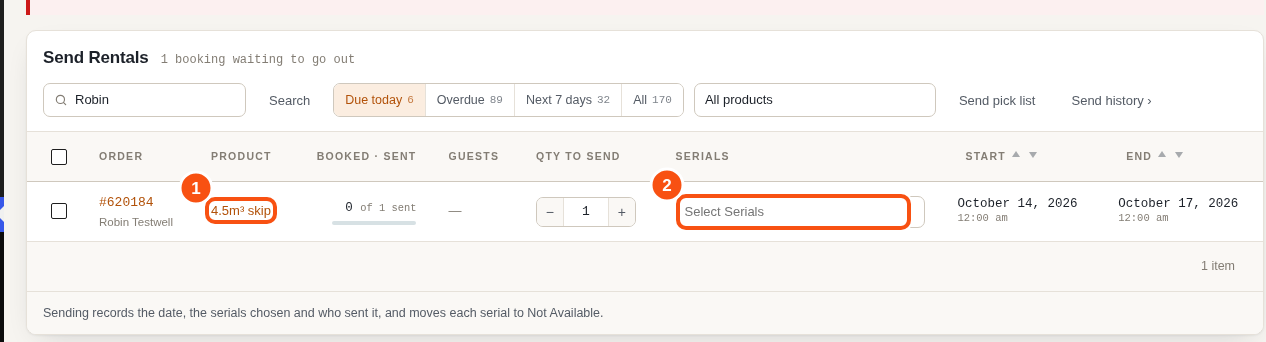
The single-item recipe in “Stock and availability” works with rentals: the calendar, turnover, serials and deposits live on the real product. On Rentals > Send, the skip is listed with its own product name and a Select Serials field.