
Move the composite products you made with the Composite Products plugin to Sales Igniter Bundles & Composites. Components become choices. Scenarios become rules. Same products, same URLs.
Product Bundles and Composite Products are trademarks of their owner. This plugin is not affiliated with, endorsed by or sponsored by them; the names are used only to say which data the importer reads.
If you also have Product Bundles bundles, read “Switching from Product Bundles” too. The steps are the same, and one run can move both.
What stays the same #
- The product ID, URL, slug, SKU, pictures, reviews, categories and stock do not move.
- The old plugin’s data is never changed, so you can roll back.
- Past orders are never rewritten. They read as before, with the component names in front of the picks.
- Customers’ saved shopping carts that hold a composite lose it, with a notice (see “Carts in progress”).
How a composite maps #
| Composite Products | This plugin |
|---|---|
| Component | A choice card |
| Component options: products | “Customers choose from” Products |
| Component options: categories | “Customers choose from” Categories (with their sub-categories) |
| Default option | Default pick |
| Optional component | “Customers can leave this choice empty” |
| Quantity min and max | Quantity min and max |
| Priced individually, shipped individually, discount | Price & shipping on the card |
| Option prices: absolute, relative, hidden | Option prices: Full price of each option, Difference from the default pick, Hidden |
| Dropdowns, thumbnails, radio buttons | Dropdown, Thumbnails, Radio buttons |
| Classic pagination, load more | Numbered pages, “Load more” button |
| Sorting and attribute filters | Let customers sort the options, Let customers filter the options by attribute |
| Selection details (title, description, picture, price) | Same four switches |
| Layout Stacked, Progressive, Stepped, Componentized | Stacked, Accordion, Steps, Summary first |
| Catalog price: use defaults, min and max, hidden | Shop price: The price of the default selection, From the cheapest to the dearest choice, Hidden |
| Scenario: conditions | A rule: “When … is / is not …” |
| Scenario action: hide components | “hide” items |
| Scenario action: hide component options | “hide options” or “show only options” |
| Old-style states (allowed combinations) | One rule “Only allow these combinations” |
| A Product Bundles bundle offered as an option | A bundle offered as an option, imported first |
A custom layout added by other code becomes Stacked or Steps, with a note in the dry run.
Step 1. Look at what the store holds #
- Install and activate Sales Igniter Bundles & Composites.
- Go to WooCommerce > Bundles > Import.
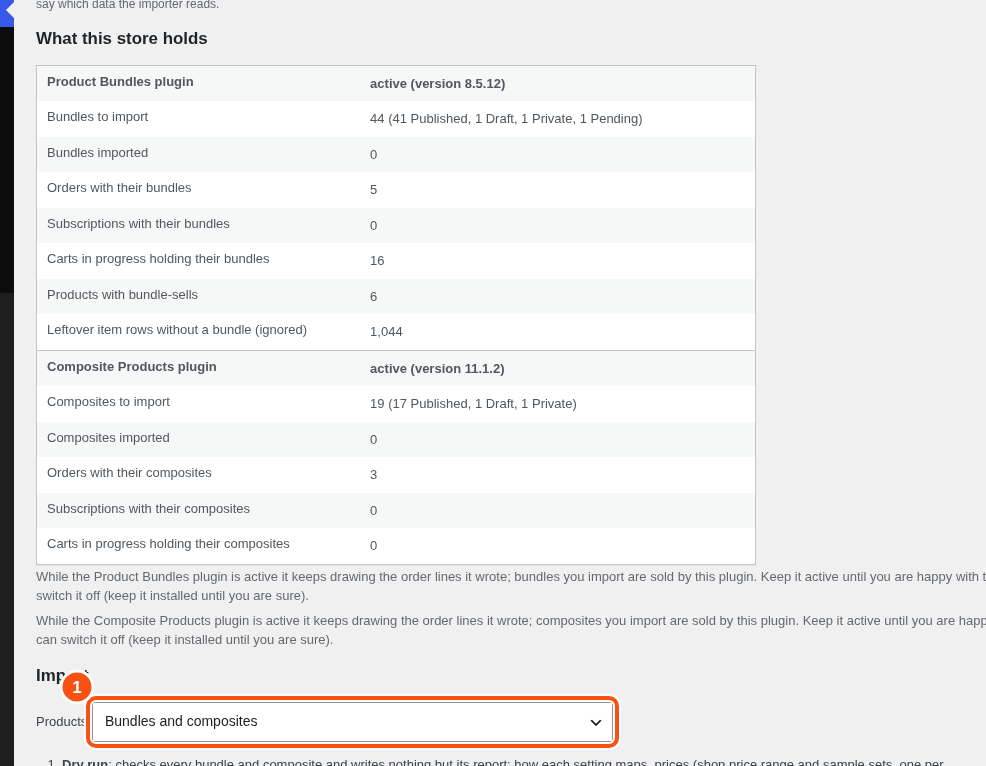
- The “Composite Products plugin” box counts: composites to import, composites imported, orders with their composites, subscriptions with their composites, carts in progress holding their composites. When the store holds both kinds, a Products menu picks Bundles and composites, only the Product Bundles plugin’s, or only the Composite Products plugin’s.
WP-CLI: wp sibundles migrate --detect.
Step 2. Run a dry run #
- Click Run a dry run. Nothing is written except the report.
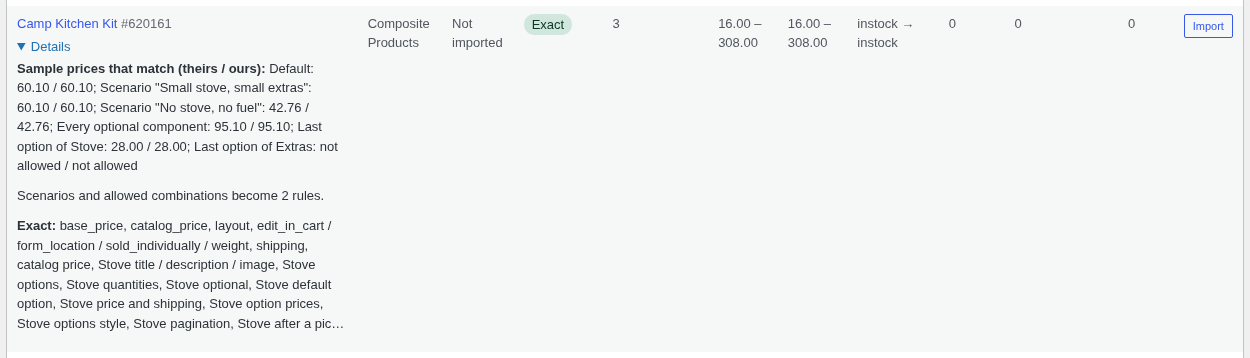
- Read the table. Each composite is marked Exact, Changed or Check, as for bundles.
- Open Details on a composite.
- Sample prices: one sample set per scenario, priced by their rule and by ours. Any that differ are listed.
- Rules: how many scenarios and allowed combinations became rules (“Scenarios and allowed combinations become N rules”).
- Validity: whether a set of picks is allowed by their rules and by ours.
- Not imported: anything that cannot be mapped, with the reason.
- The table “Theme files and code that change their bundles or composites” lists template overrides and code on the old plugin’s hooks, with file and line. They stop acting after the import. Redo what you still need.
Typical Changed notes:
- a component option whose product was deleted is dropped from the choice;
- a default pick that is no longer an option is cleared;
- a scenario without any action is noted and left out;
- a disabled scenario is skipped;
- a custom layout becomes Stacked or Steps.
Typical Check notes: a component whose every option is gone (the composite cannot be bought until you fix the choice).
Download the full report with Download CSV or Download JSON.
WP-CLI:
wp sibundles migrate --dry-run --all --source=cp
wp sibundles migrate --dry-run --product=123 --format=json
Step 3. Import #
- Fix what the dry run flagged.
- Click Import on one composite to try it, or Import everything. Confirm the box about carts.
- Bundles that a composite offers as an option are imported first, so the choice finds them.
- The run goes on in the background in batches of 25. Cancel the run stops it.
- Tick Add orders placed before the import to Analytics to fill Analytics > Bundles with your history.
WP-CLI:
wp sibundles migrate --all --source=cp
wp sibundles migrate --product=123
wp sibundles migrate --all --source=cp --reimport
What the importer does with rules #
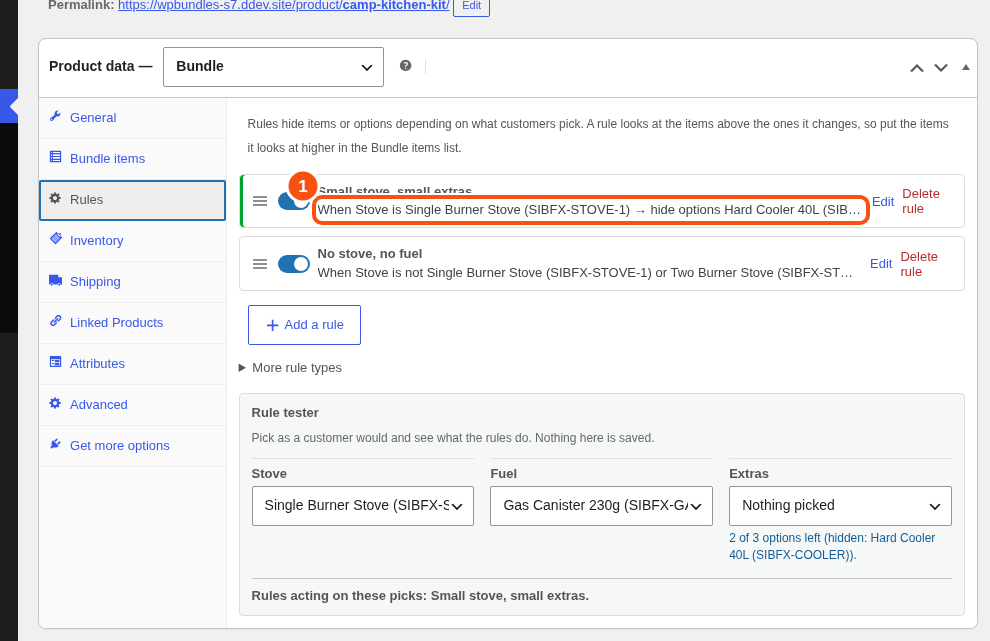
- Each scenario becomes a rule. Its conditions (“is one of”, “is not one of”, “any”, “none chosen”) become “When … is / is not …”. Hide actions become “hide” or “hide options”.
- Old-style states become one rule, Only allow these combinations, with one combination per state.
- A rule looks at the choices above the one it changes. The old plugin works the same way, so imported rules behave as before. If a rule looks at a choice below the one it acts on, the rule card shows “Needs attention: move [item] below [item] in Bundle items”.
Options in a component #
- A choice shows the product types a bundle can hold: simple, variable and subscription products. Others are left out.
- Products hidden from the catalog can still be options.
- The order of options: the products named on the card first, in the order listed, then category and tag matches by menu order and name.
Step 4. Check the result #
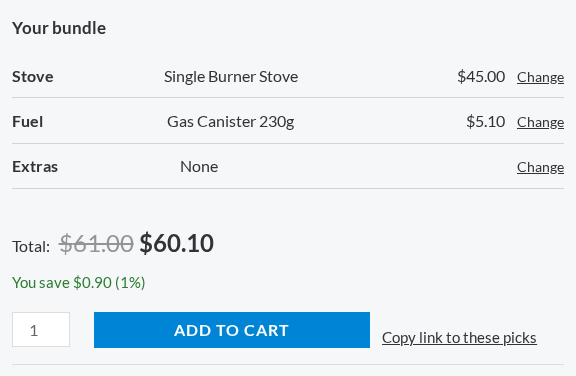
- Open each imported composite on the product page. Pick through the options. Check that hidden options and items match what the old composite did.
- Use the rule tester on the Rules tab: pick as a customer would, and see which rules fire.
- Compare prices for a few sets with the old page on staging.
- Place a test order with classic and block checkout.
- Open an old order. The components read as before.
Side by side #
While the Composite Products plugin is active it keeps drawing the order lines it wrote. Keep it active until you are happy with the import: a rollback needs it. Then you can switch it off; this plugin then draws those lines. Keep it installed until a month has passed.
Roll back #
Switch the Composite Products plugin (and Product Bundles, for the bundles a composite offers) back on first: while it is off the Roll back buttons are disabled, because a product rolled back without it would be sold as an empty product. Then click Roll back on a row, or Roll back everything imported. Products go back to their old type, as they were at the import. Their data was never touched, so the old plugin behaves as before. Changes made in Bundles since the import (items, discounts, base price, settings) are not kept. Item rows are kept by default so a new import is instant.
WP-CLI:
wp sibundles rollback --all --source=cp
wp sibundles rollback --product=123 --delete-rows
Orders placed while the composite was ours keep this plugin’s lines. Rolling back composites runs before bundles, so nesting stays whole.
Going live #
- Staging copy: install this plugin, dry run, fix, redo any theme override.
- Import on staging. Pick through the composites. Test orders on both checkouts.
- Live: install, dry run, import at a quiet hour. Keep the old plugin active for a week.
- Switch the old plugin off.
- Delete it only after a month with no rollback.
Carts in progress #
Carts that hold a composite lose it when it is imported, with a notice asking the customer to add it again. Import at a quiet hour. The dry run shows how many carts are affected.
What is not migrated #
- Theme template overrides and code on the old plugin’s hooks.
- The old plugin’s CSV columns. The product CSV import for composites is planned for later.
- Changing the configuration inside an existing subscription.
- Orders placed by very old versions of the old plugin (before it wrote a cart key) were not tested.
- Third-party plugins that read the old plugin’s order meta. Turn on Previous REST field names in WooCommerce > Bundles > Settings if an integration reads the old REST fields. It is on automatically after an import. Composite scenarios show there as
composite_scenarios, close to the old shape but not guaranteed to round-trip.


