
Smart Routing is an add-on that plans the day’s deliveries and collections over your vans. It shares the stops between the vans and orders each van’s stops inside the customers’ time slots, within each van’s load and shift. Nothing changes until you accept the plan; the routes then show on Rentals › Schedule, the run sheets and the CSV as usual.
This page sets it up: your vans and the planner settings. Planning a day is on the next page: Smart Routing: plan the day, accept and send. The figures are on Smart Routing: reports.
What you need #
- Rentals & Bookings Regular 1.0.80 or newer, with Delivery & pickup switched on (the Routes page shows only then).
- Your vans as resources (below).
- Your store address under WooCommerce › Settings › General: the vans start and end there (with Multi Location Inventory, at each location’s address).
- Optional: Delivery by Distance with a map service, for road travel times.
Add your vans #
Each van is a resource of type Vehicle:
- Go to Rentals › Staff & resources › Resources and add a resource.
- Name it (“Box truck 1”, “Sprinter van”) and choose the type Vehicle.
- Repeat for each van.
They appear on Rentals › Routes under Vans:
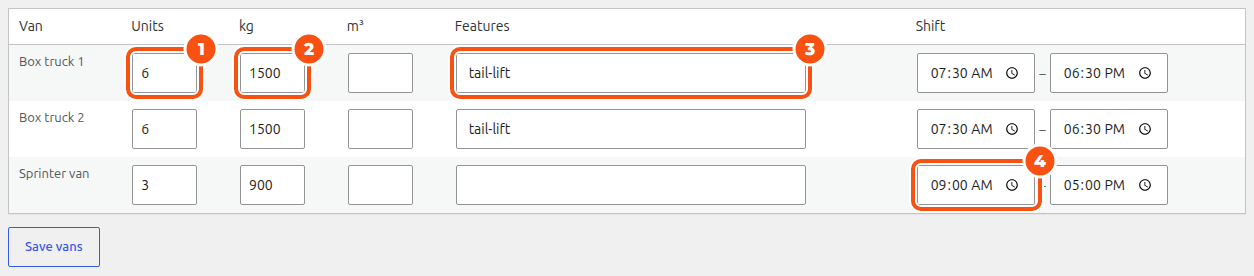
- Units, kg and m³: the van’s load. Leave a load empty for no limit. A stop’s units are its items.
- Features: words a stop can ask for (tail-lift, refrigerated), comma separated. A stop that needs a feature only goes on a van that has it.
- Shift: when the van may leave the depot and must be back. An empty shift uses the default below.
Click Save vans.
Planner settings #
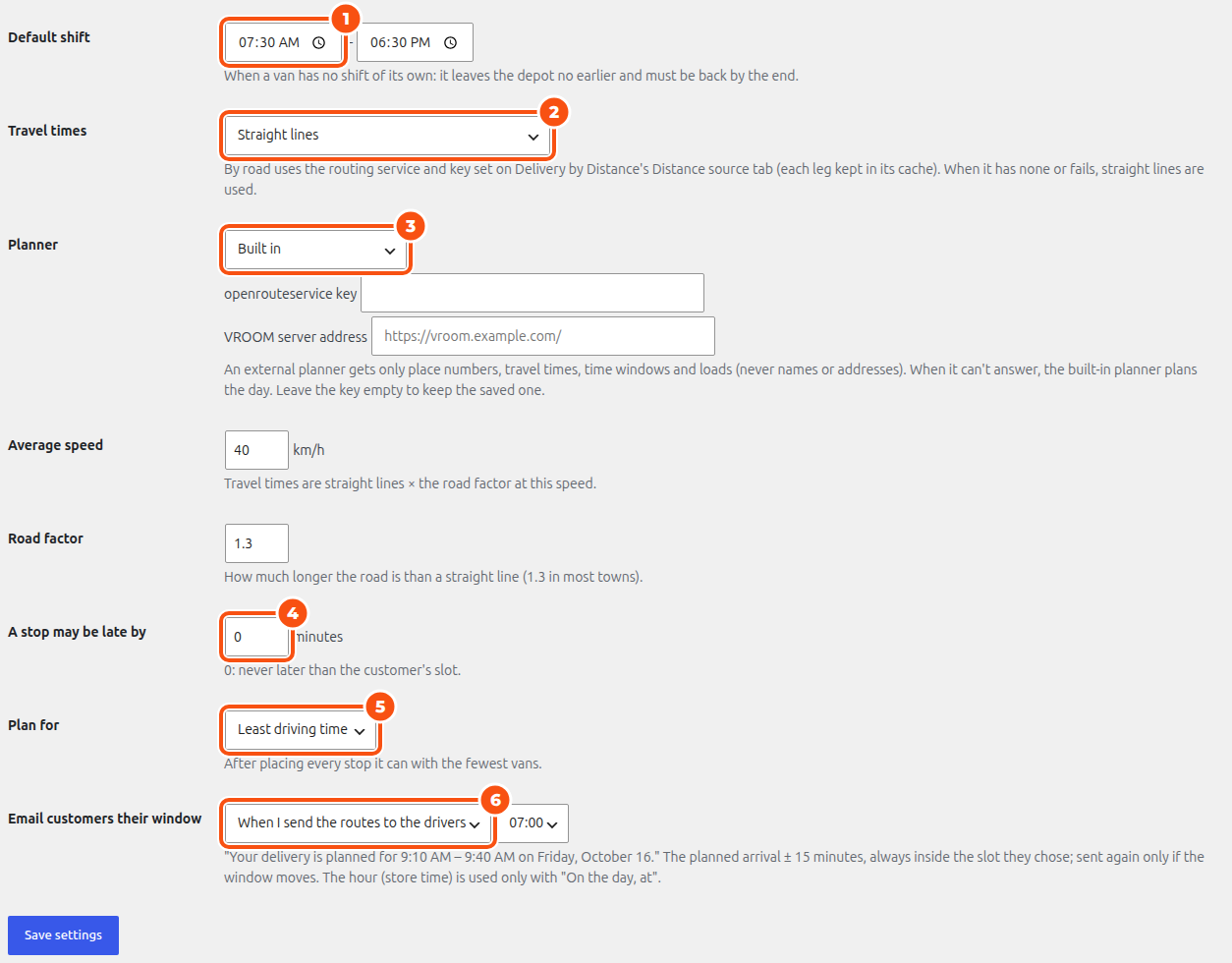
- Default shift: when a van has no shift of its own, it leaves the depot no earlier and must be back by the end.
- Travel times: By road uses the routing service and key set on Delivery by Distance’s Distance source tab (each leg kept in its cache); when it has none or fails, straight lines are used. Straight lines use the Average speed (km/h) and the Road factor (how much longer the road is than a straight line; 1.3 in most towns).
- Planner: Built in (the default), openrouteservice (with your openrouteservice key) or My own VROOM server (its VROOM server address). An external planner gets only place numbers, travel times, time windows and loads, never names or addresses. When it can’t answer, the built-in planner plans the day and the board says so. Leave the key empty to keep the saved one.
- A stop may be late by: minutes past the customer’s slot the planner may accept. 0 = never later than the slot.
- Plan for: Least driving time or Fewest kilometres, after placing every stop it can with the fewest vans.
- Email customers their window: off, When I send the routes to the drivers, or On the day, at an hour (store time). Each customer on the routes gets the half-hour window: “Your delivery is planned for 9:10 AM – 9:40 AM on Friday, October 16.” It is the planned arrival ± 15 minutes, always inside the slot they chose, and sent again only if the window moves.
Click Save settings.
Setup time at a stop #
How long a van stays at a stop comes from each product’s Setup time at a stop (on its Delivery & pickup tab) or the store’s. A stop with a bounce house and a popcorn machine adds both.
For developers #
- Vans’ routing details live in the resource’s
meta.routing. - The filter
siroutes_road_matrixanswers the travel times first;siroutes_problemchanges the day before planning (add stop features, kg or m³). - Actions
siroutes_plan_saved(after Accept plan) andsiroutes_routes_sent(after Send to drivers). - REST
siroutes/v1:GET /day,GET /changes,POST /plan,POST /time,POST /save,POST /send. Reading needs the Schedule’s view permission; changing needs dispatch ormanage_woocommerce.


