
Rentals › Schedule shows every delivery, collection, pick-up, return and parcel by day, with your routes: one column per van run. Plan the routes here by hand, or let Smart Routing plan them; either way the run sheets, the CSV and the day sheet email show the same routes.
The Schedule comes with Smart Routing (the Sales Igniter Smart Routing add-on, on Rentals & Bookings Regular 1.0.80 or newer) and appears once Delivery & pickup is switched on. Without Smart Routing, Regular still takes each booking with its way and slot and shows them on the order.
The board #
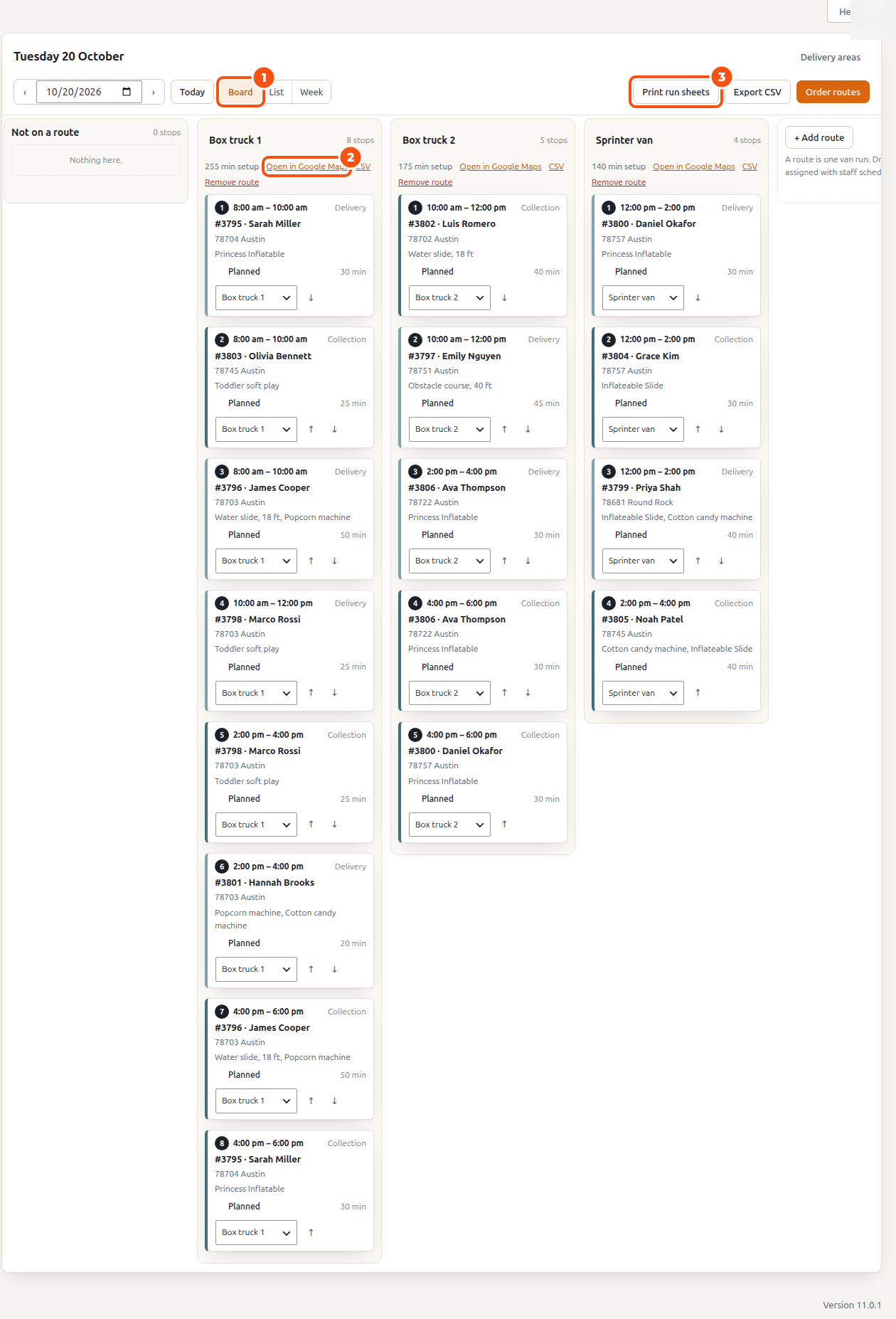
- Choose the day with the arrows, the date box or Today; with several locations choose the Location.
- Board, List or Week.
- Not on a route holds the stops nobody has planned yet. + Add route adds a column (a route is one van run).
- Each card shows the slot (or the planned window once a route is timed), the order and customer, the postcode, the items, the status and the setup minutes. Drag a card to a route, or use its route menu (Move to) and the arrows (Earlier in the route, Later in the route).
- Each route shows its stops and setup minutes, Open in Google Maps (the route as a Google Maps link), its CSV and Remove route (its stops go back to “Not on a route”).
- Order routes orders the stops of every route by the shortest straight-line drive and says what it saved (“1 route ordered: 48.2 km before, 31.6 km now”). Undo puts the routes back in the order they had.
- A full slot shows “full” or how many are left; moving a stop into a full slot asks first.
A stop #
Click a card to open the stop: the Order, Phone, Email, Address, Items, Notes and Slot, Change slot, the Other stops of this order, its History (moved to another route, slot changed) and Open in Google Maps.
The list and the week #
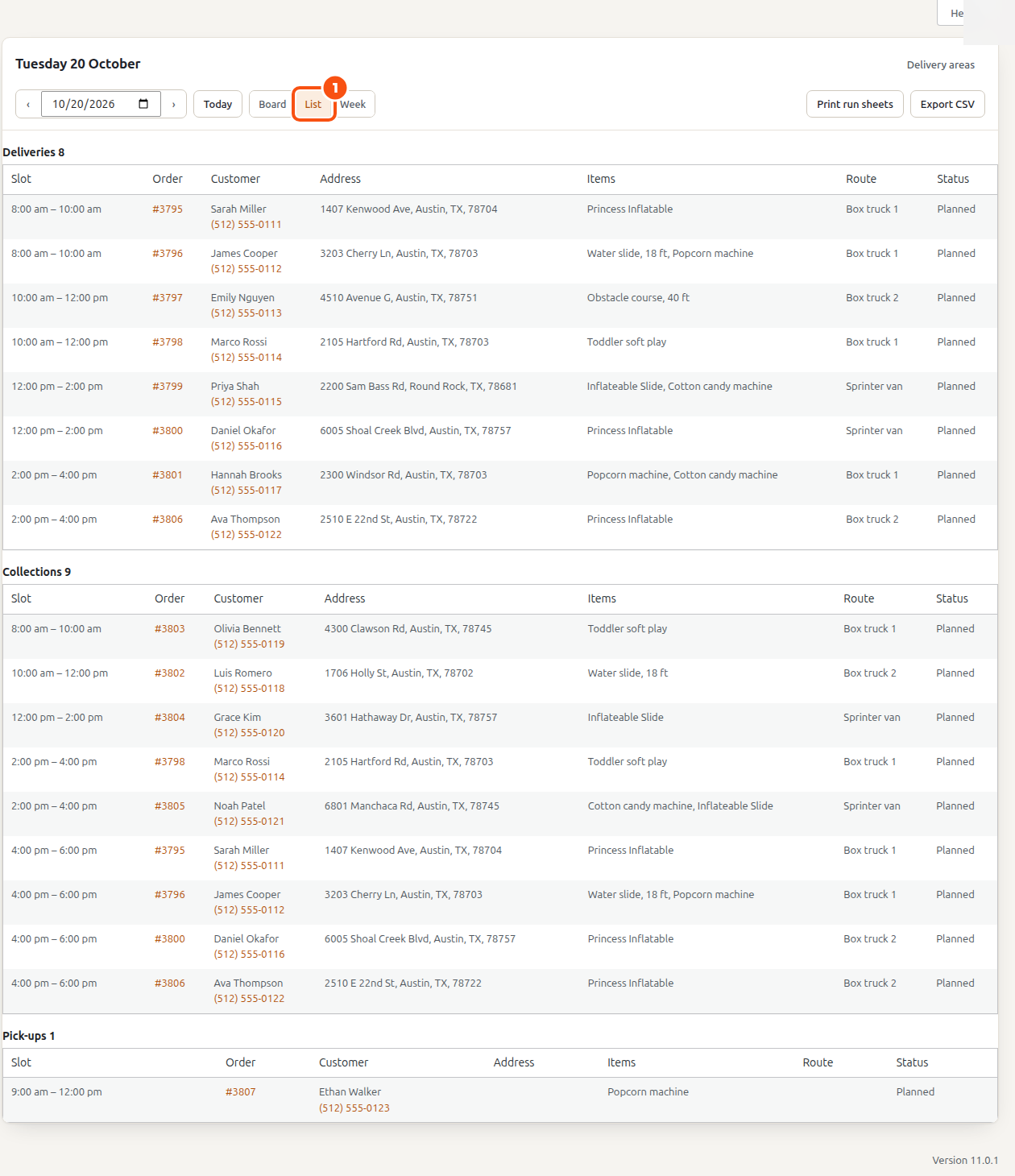
The List groups the day into Deliveries, Collections, Pick-ups, Returns in store, To transport and Due back by transport. The Week shows seven days side by side (Previous week, Next week).
Run sheets #
Click Print run sheets for one sheet per route, ready to print.
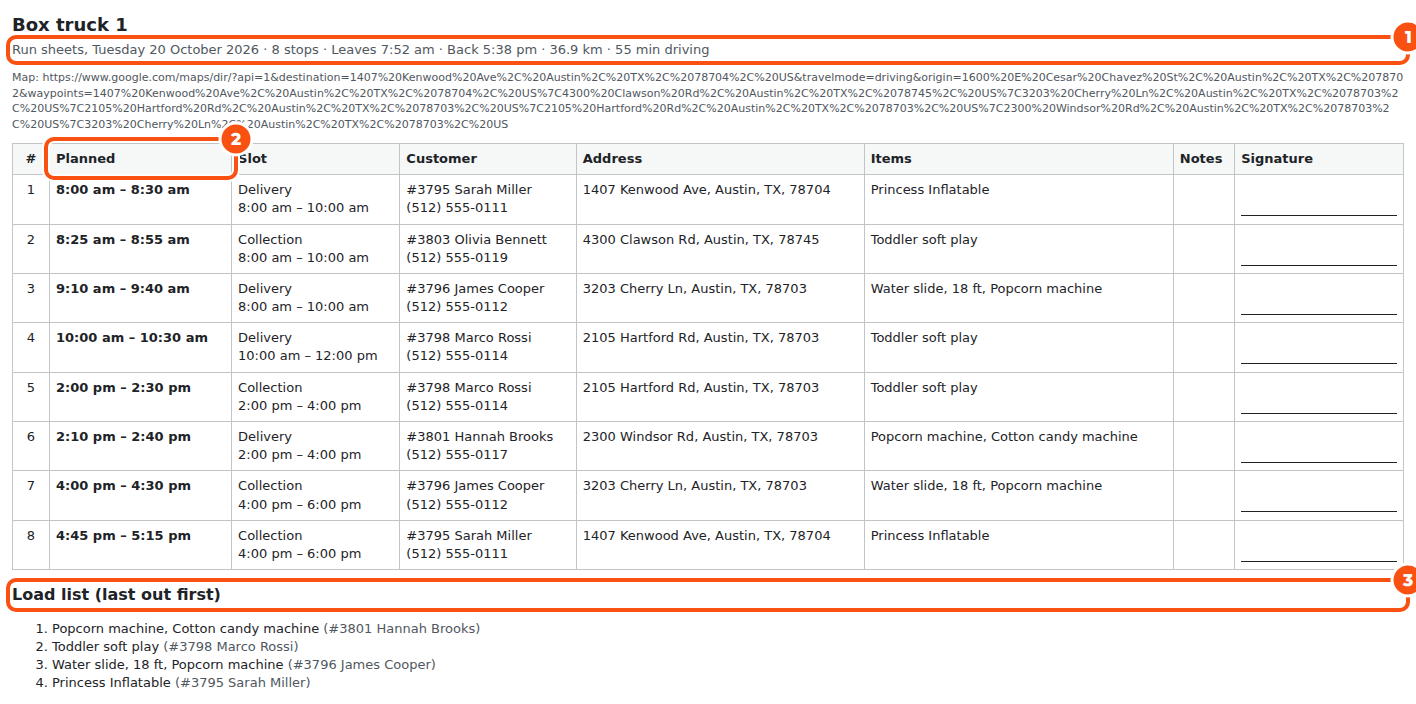
Each sheet has the route’s map link, then per stop the Planned window, the Slot, the customer and phone, the address, the items, the notes and a Signature line, and a Load list (last out first) so the van is loaded in the right order. With Smart Routing the route line also says when the van Leaves and is Back, the kilometers and the driving time.
CSV #
Export CSV downloads the day’s stops; each route’s CSV link downloads one route. The files open in Routific and OptimoRoute as well as any spreadsheet.
The day sheet email #
Under Rentals › Settings › Delivery & pickup › Day sheet, the day’s Schedule can be emailed every morning at a set hour: the routes and stops in order, the counter’s pick-ups and returns, and the parcels to transport.
Drivers and vans #
A route is one van run. Your vans are Staff & resources › Resources of type Vehicle; Smart Routing plans with them. Each route’s Driver list gives the run to a driver in the driver app.
For developers #
REST: /schedule, /stops, /routes (see REST API: delivery, routes and the driver app). The filter sibooking_run_sheet_route_meta adds to a route’s summary line.


