
On Rentals › Routes, Plan the day shares the day’s deliveries and collections between your vans and orders each van’s stops inside the customers’ slots. You check the plan on the board and the map, move or lock what you want, then Accept plan and Send to drivers. Set up your vans and the planner first: Smart Routing: vans and planner settings.
Plan the day #
- Go to Rentals › Routes (tab Plan the day).
- Choose the day with the arrows or Today, and the Depot if you have several locations.
- Click Plan the day.
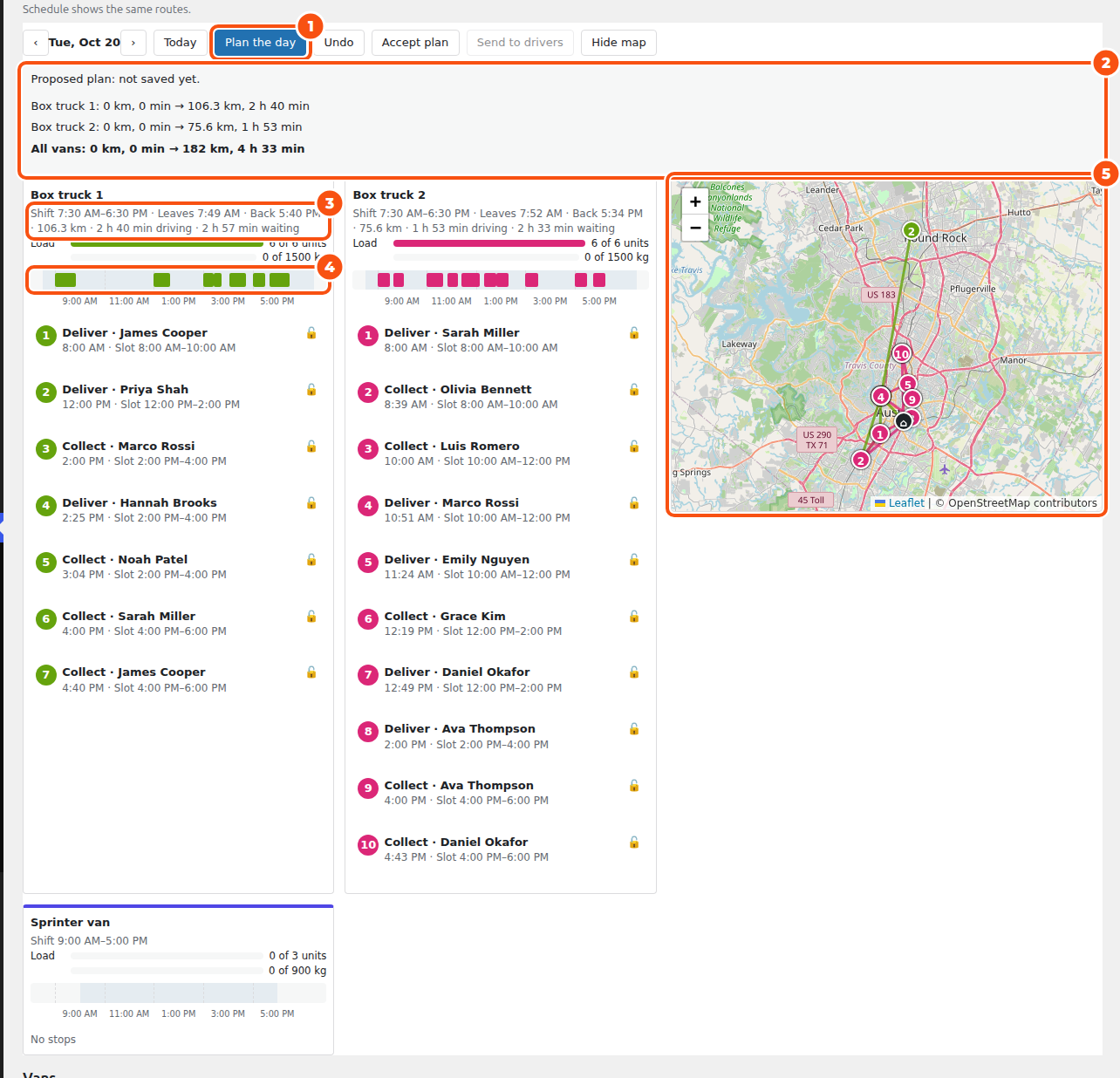
The board has a column per van:
- the van’s Shift, when it Leaves the depot and is Back, its kilometers, driving and waiting time;
- Load bars (units, and kg or m³ when set);
- a timeline of the day with each stop;
- its stops in order: Deliver or Collect, the customer, the planned arrival and the Slot the customer chose. A stop that would be late says Late by 12 min; one with little room says Tight: 5 min to spare.
Above the vans, Proposed plan: not saved yet lists each van’s kilometers and minutes before and after. Stops that couldn’t be placed are listed with the reason: no van has what the stop needs, no room left on any van in its slot, no coordinates for the address, or it is locked to a van that can’t take it.
The map (Hide map to close it) draws each van’s route from the depot in the van’s color.
Nothing is saved until Accept plan. Undo steps back through your changes.
Change the plan #
Click a stop to open it: the customer, phone, address, items and notes, Open order, and:
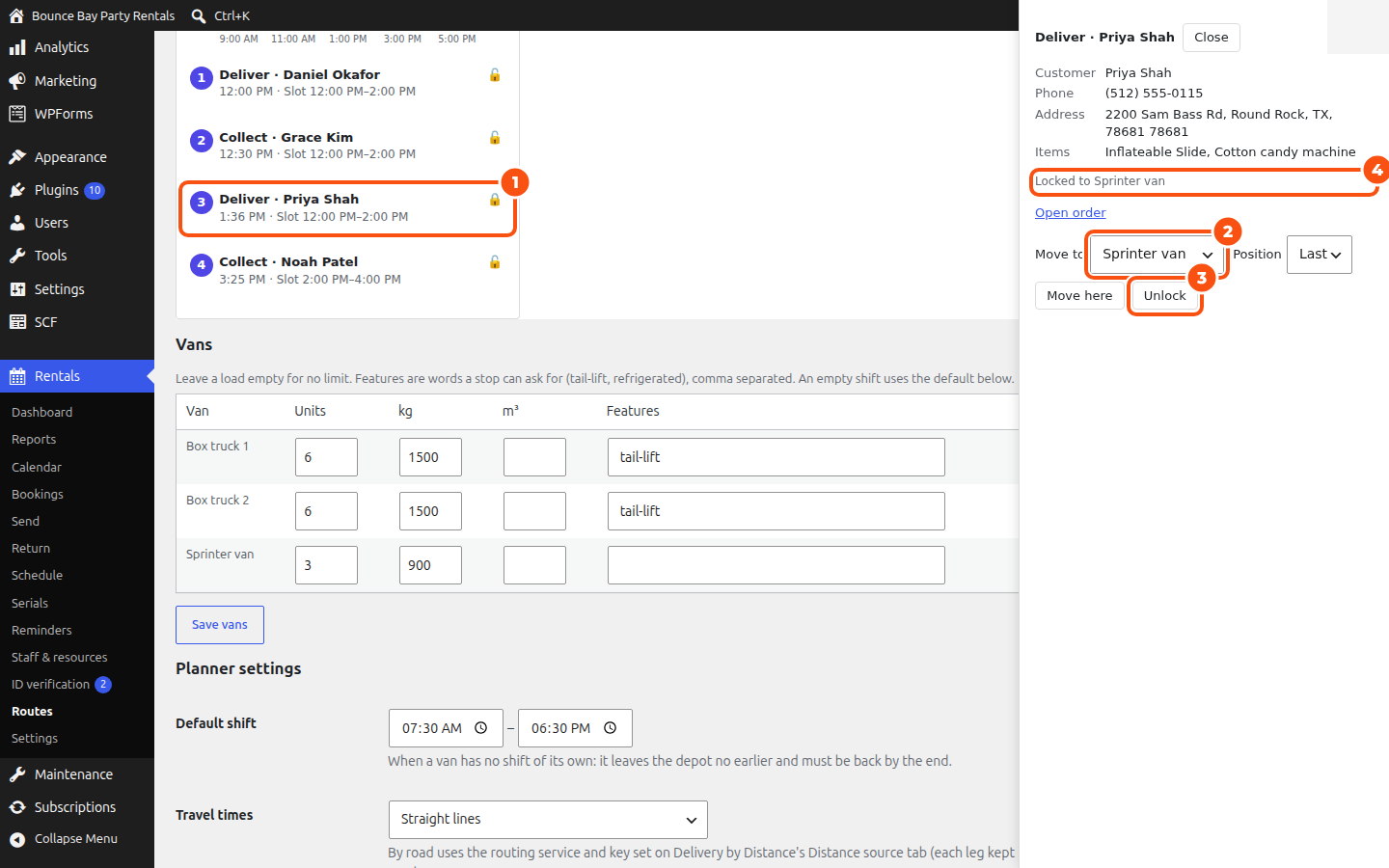
- Move to a van and a Position (first or last), then Move here. You can also drag a stop to another van or position, or use the keyboard (arrow keys move the focus, Escape closes the panel).
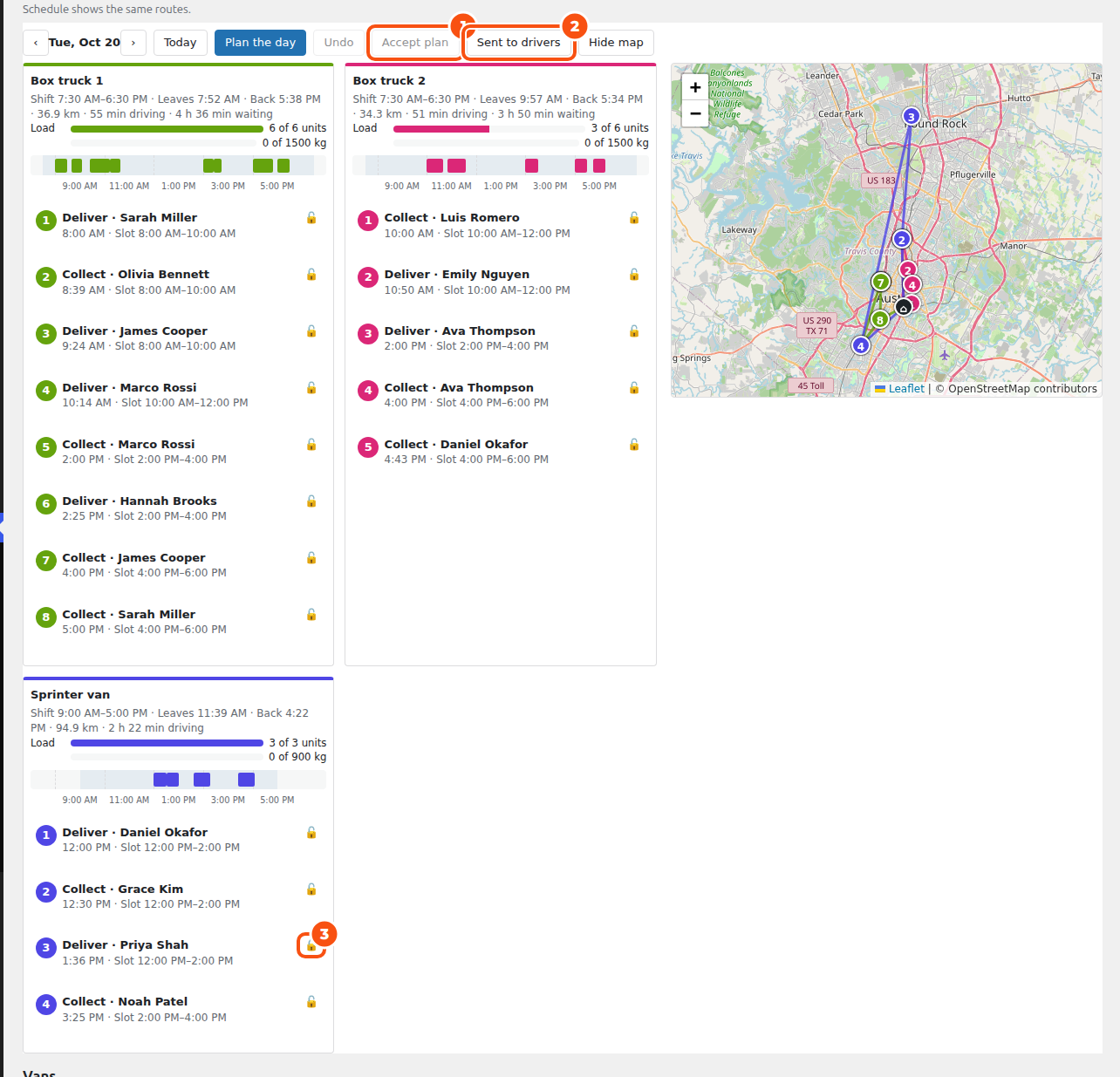
- Lock keeps the stop on its van (and at its time) when you click Plan the day again; the planner plans everything else around it. Unlock frees it.
Each change is timed again at once: the van’s times, kilometers and load update, and a stop that would now be late says so.
Accept the plan #
Click Accept plan. The routes are saved into the Schedule, one route per van, each stop in order with the window the customer is told (the planned arrival ± 15 minutes, inside their slot). The order is timed again on the server. The Schedule board, the run sheets and the CSV now show the same routes.
If someone else changes the day while you have it open, the board says “Changed by … just now” and loads the new version.
Send to drivers #
Click Send to drivers. The button then reads Sent to drivers. Accepting a new plan later means sending it again.
The customer’s window email #
With Email customers their window on (planner settings), each customer on the routes gets their window when you send the routes to the drivers, or on the day at the hour you chose. They get it once per stop and window; if the window moves, they get the new one. Each email adds an order note (“Told the customer the delivery window: 10:35 am – 11:05 am on Tuesday, October 20.”).
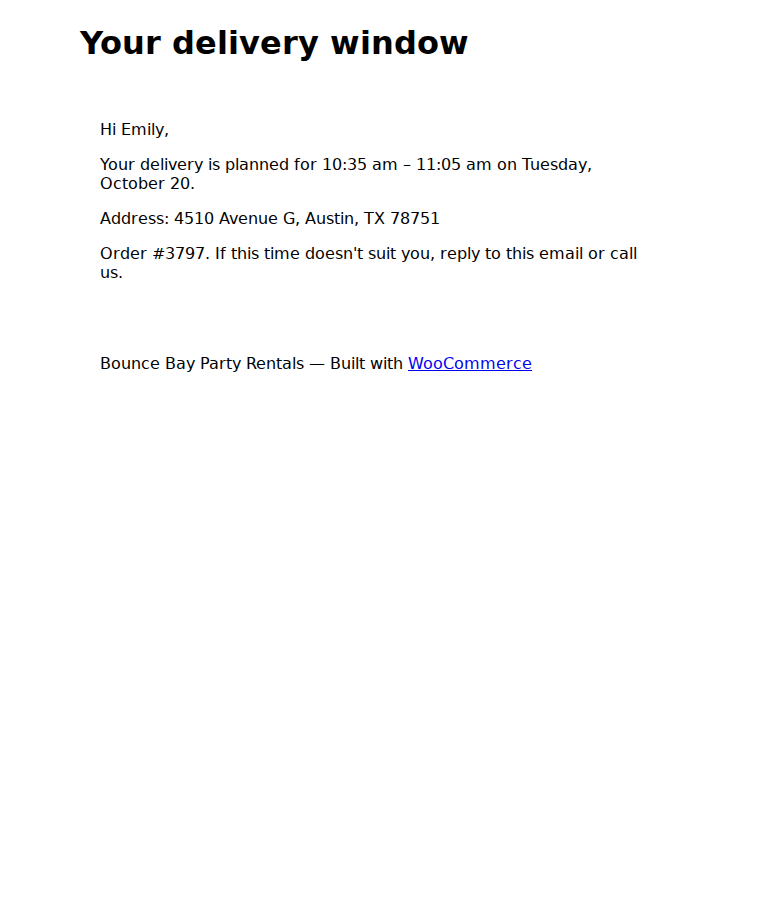
A collection gets “We plan to collect your rental between … and …”. The filter siroutes_window_email changes the email or stops it.
Print the run sheets #
On Rentals › Schedule, Print run sheets prints one sheet per van with each stop’s planned window and a route line: “Leaves 7:52 am · Back 5:38 pm · 36.9 km · 55 min driving”. See The Schedule.
Travel times and the external planners #
The planner uses road travel times when Delivery by Distance has a routing service, else straight lines × the road factor at the average speed. With openrouteservice or your own VROOM server as the planner, only place numbers, travel times, windows and loads are sent; if the planner can’t answer, the built-in planner plans the day and the board says so.


