
The Reports tab of Rentals › Routes shows how your vans did, day by day: stops, done and failed, kilometers, driving, hours on the road, stops per hour and how many stops the plan had inside their slot. It reads the routes you accepted with Plan the day (or planned by hand on the Schedule).
Open the report #
- Go to Rentals › Routes and click the Reports tab.
- Choose the days (From, To; at most 62 days at a time) and, with several locations, the Location.
- Click Show.
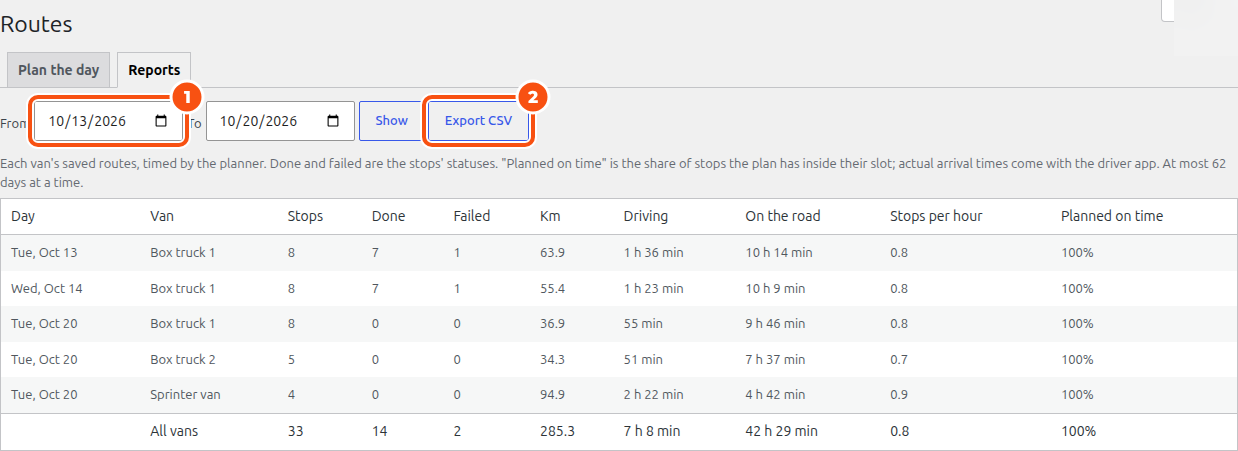
One row per day and van:
| Column | What it means |
|---|---|
| Stops | The stops on the van’s saved route |
| Done | Stops marked done |
| Failed | Stops marked failed (nobody home, say) |
| Km | Kilometers driven on the planned route |
| Driving | Driving time on the planned route |
| On the road | From leaving the depot to being back |
| Stops per hour | Stops ÷ hours on the road |
| Planned on time | The share of stops the plan has inside their slot |
The last row, All vans, adds them up.
Done and failed are the stops’ statuses. Until the driver app records real arrival times, “Planned on time” is the plan’s, and the kilometers and times are the planned route’s, timed with your current settings.
Export #
Export CSV downloads the same rows (Day, Van, Stops, Done, Failed, Km, Driving (min), On the road (min), Stops per hour, Planned on time (%)), ready for a spreadsheet. Cells are guarded so a spreadsheet never runs them as formulas.
On the run sheets #
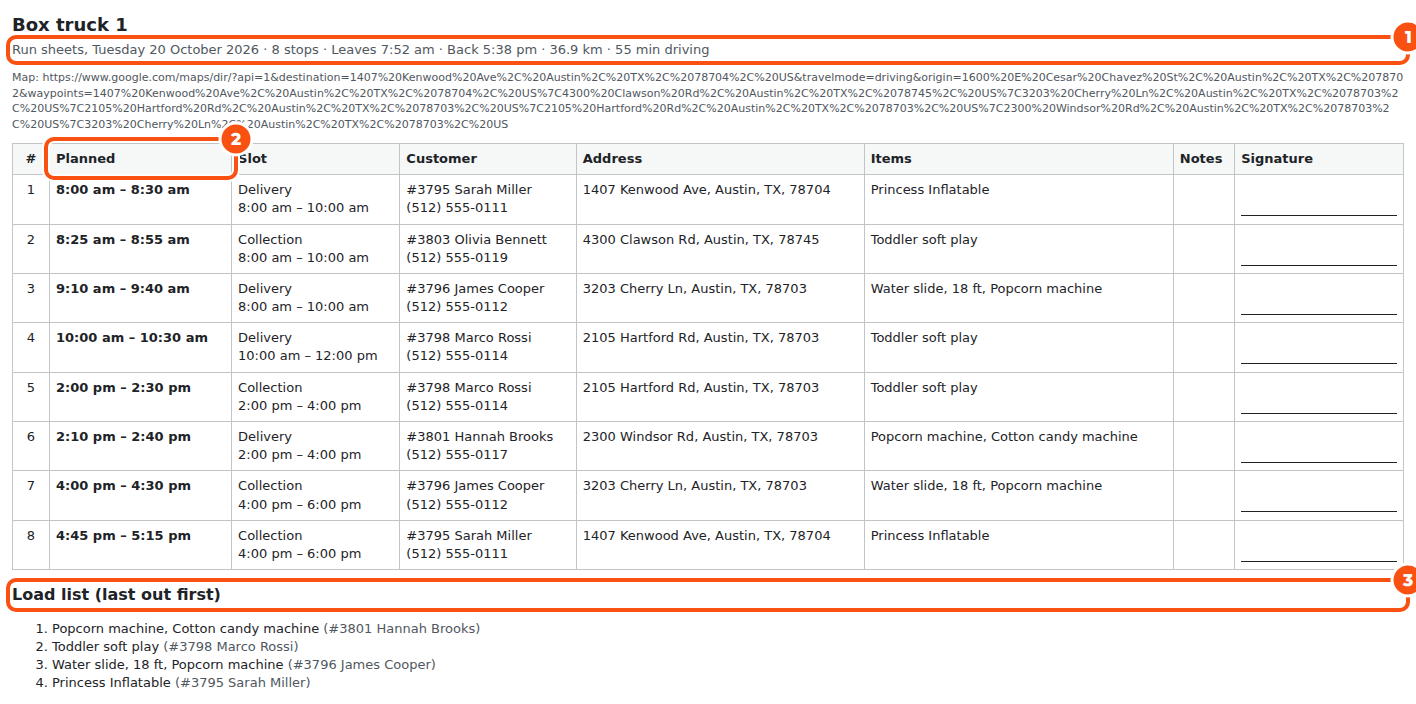
The same figures head each van’s run sheet on Rentals › Schedule › Print run sheets: when it leaves, when it is back, the kilometers and the driving time.
See also The Schedule: stops, routes and run sheets and Smart Routing: vans and planner settings.


