
The driver app puts each driver’s run on their phone: the stops in order with the planned times, one tap to navigate or call, and Delivered with a signature or Couldn’t deliver with the reason. It comes with Smart Routing. There is no app store: drivers open a page on your own shop and add it to their home screen. It keeps working without signal.
Set it up #
- Give each driver a WordPress account with the Driver role (shop managers and administrators can drive too). Staff who already have a staff profile can use the Rental staff role; they see Today’s route at the top of My schedule.
- On Rentals › Schedule, pick the driver for each route in the route’s Driver list, including the routes Smart Routing planned.
- Send the driver the address of the driver page: your shop’s address followed by /driver/ (for example
yourstore.com/driver/). They sign in once. - To install it, the driver opens the page in the phone’s browser and chooses Add to Home Screen (Safari: Share › Add to Home Screen; Chrome: the menu › Install app).
The driver’s day #
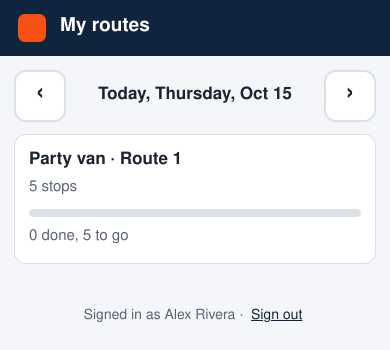
My routes lists the driver’s routes for the day (the arrows move a day). A driver sees only the routes you gave them; managers see every route.
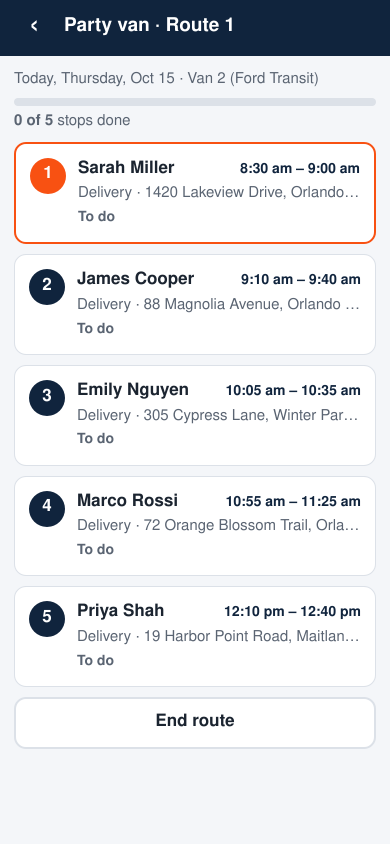
The run shows the stops in the planned order, each with the customer, the address, the planned window and its state (To do, done or couldn’t deliver). Tap a stop to open it.
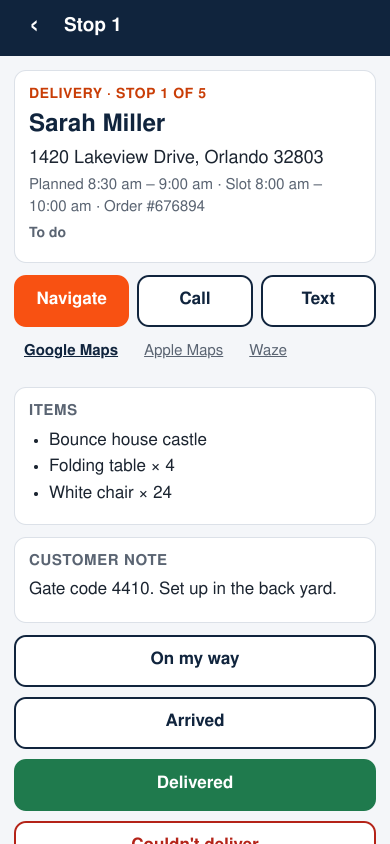
- Navigate opens the address in Google Maps, Apple Maps or Waze (the driver picks one once).
- Call and Text use the customer’s number. Drivers only see the numbers of their own stops.
- On my way and Arrived record the time on the stop.
- Delivered and Couldn’t deliver finish the stop.
Delivered #
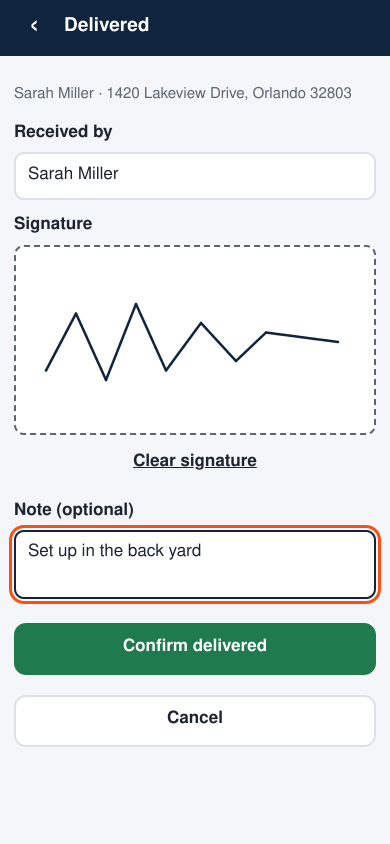
Enter who received it, let them sign on the screen, add a note if needed, and tap Confirm delivered. The order gets a note (“Delivered to Sarah Miller at 9:24 AM by Alex Rivera (driver)”) and the rental is marked sent, as if you had sent it on Rentals › Send. Units already sent at loading are not sent twice.
Couldn’t deliver #
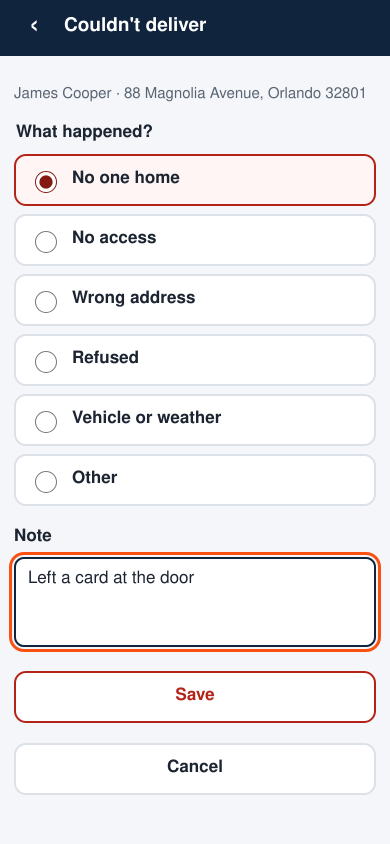
Pick what happened (No one home, No access, Wrong address, Refused, Vehicle or weather or Other), add a note and tap Save. Nothing is sent; the stop shows the reason on the Schedule so you can book a new time.
Collections #
On a collection, Delivered means collected. The items are marked returned when the driver taps End route back at the depot, not at the customer’s door, so stock comes back when the van does.
No signal #
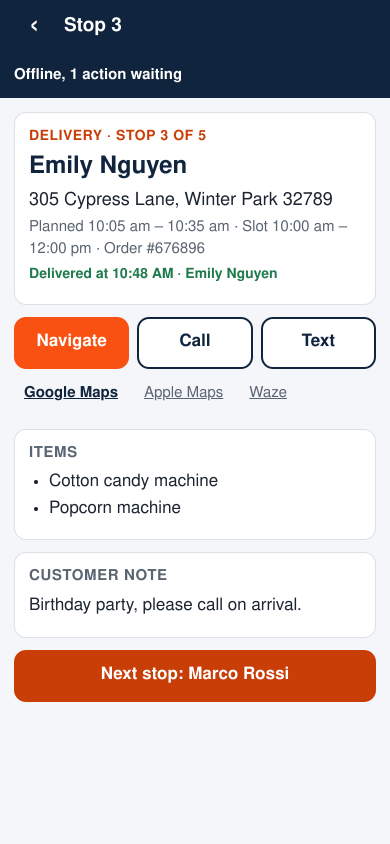
The run is kept on the phone. Taps made without signal wait in a queue (“Offline, 1 action waiting”) and are sent in order as soon as the phone is back online. If you change a route the driver already has, the app notices and shows what changed.
End route #
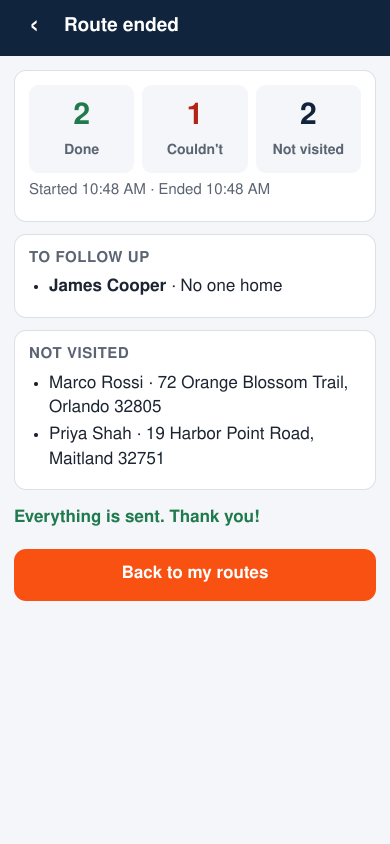
End route closes the run: it shows what was done, what failed and what wasn’t visited, and returns everything collected on the route.
In the office #
On Rentals › Schedule each stop shows the actual time and its state. Open a stop for the reason it failed, who received it and the signature. Signatures are kept in the database and shown only to staff who can see the Schedule and to the driver who took them.
Developers: the hooks sibooking_driver_stop_action and sibooking_driver_route_action fire on every step, and the filter sibooking_driver_moves_stock turns off the automatic send and return. The app’s endpoints are in REST API: delivery, routes and the driver app.


