
Rentals & Bookings Regular sells tours, trips and activities by departure: a boat trip at 10:00 and 14:00 every day, a walking tour every Saturday, a three-day trek once a month. Each departure has its own seats and guests, tickets with a QR code, a manifest for check-in, and the staff and resources it needs.
Nothing changes on a store without tours: the departure settings only show on a product sold by departure, and the Rentals › Departures menu lists only those products.
What you need #
| Item | Requirement |
|---|---|
| WooCommerce | 8.0 or newer |
| Rentals & Bookings | Sales Igniter Rentals & Bookings for WooCommerce Regular 1.0.80 or newer (it includes the Lite base plugin 1.0.17). |
| Optional | Rental Contracts PDF Signing 1.1.5 or newer, so each guest signs the terms (Each guest signs). Custom Fields, Damage Waiver & ID Verification 1.0.11 or newer, for add-ons charged per guest and add-ons with their own stock (Per-guest add-ons). Multi Location Inventory, for staff and resources at several locations. |
Set up a tour #
- Create the product the way you add any rental, with Enable Booking ticked (see Adding rental products).
- In the Rentals & Bookings box, on the General tab, set Rental Type to Fixed Rental Date and Rental Length.
- Under Fixed Rental Date and Length, add a row for each departure time: the Date (the first date and the start time), the Length (for example
90m,2hor3d), an optional Price for the whole departure, how it Repeats (None, Daily, Weekly, Monthly or Yearly) and, for a weekly tour, the Days. A tour that leaves at 10:00 and at 14:00 every day has two rows. - On WooCommerce’s Inventory tab, set the Stock quantity to the seats a departure has: a boat with 12 seats has a stock of 12. One departure can have fewer seats of its own on Rentals › Departures (its Capacity).
- On the Guests tab, choose Each guest takes one place (seats), so every guest takes a seat. Add the guest types and their prices there (see Guest types, group prices and private bookings).
- Fill in the departure settings below the date rows (see the table), then click Update.
Your departures are now listed under Rentals › Departures. A departure becomes a row of its own the first time it is booked or edited; until then it simply follows the product’s date rows.
The departure settings on the product #
These settings show under Fixed Rental Date and Length on a product sold by departure. Most of them can be changed for one departure on Rentals › Departures.
| Setting | What it does |
|---|---|
| Stop online sales | Hours before each departure when online booking closes. After that, a departure with seats left shows Call us to book with your phone number. Staff can still book it from the admin. Empty: the product’s padding, as before. |
| Runs with at least | The guests a departure needs to run. Empty: every departure runs. See Minimum guests and guaranteed departures. |
| Decide by, Cancel automatically at the deadline, Email guests when it is guaranteed | Shown once a minimum is set. |
| Ask for each guest’s name | Optional (the default), Required or Not asked. See Guest names. |
| Pickup points | Where you pick guests up, with the minutes before the departure. See Pickup points. |
| Itinerary | One row per day for a tour of several days. See Itinerary for multi-day tours. |
| Customers can move their booking | On by default: customers can move to another departure in My Account. See Cancelling, changing and moving departures. |
What customers see #
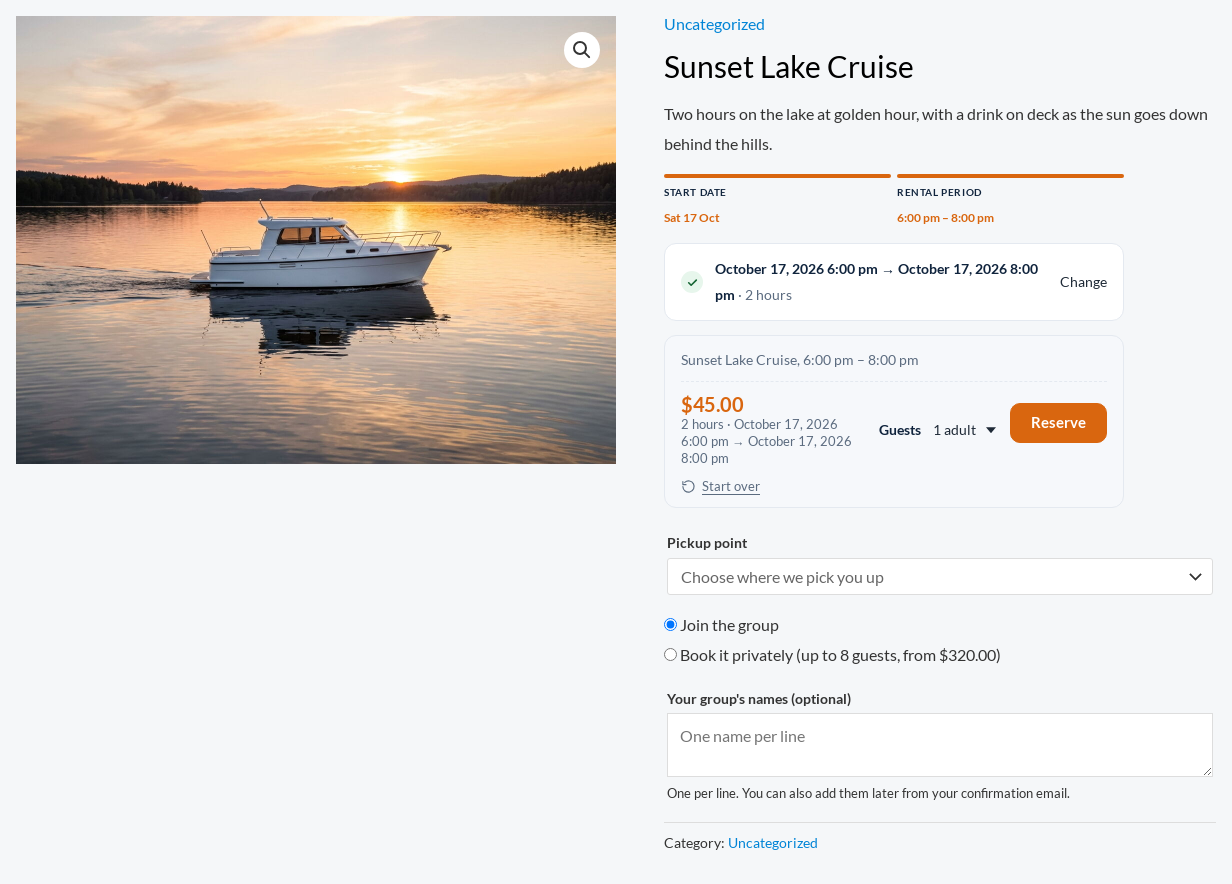
- The calendar lists the coming departures. A departure with a seat limit shows “3 seats left”, and the quantity can’t go above it.
- After Stop online sales, a departure that still has seats shows a Call us to book card that can’t be chosen. The phone number is Shop phone in messages (Rentals › Settings › Text messages), or your WooCommerce store phone when that is empty.
- A departure with a minimum shows “Runs with at least 6 guests. We will confirm by Thu 9:00.” until it has enough guests, then “Guaranteed to run”.
- After the order, each booking has a ticket with a QR code in the order emails and in My Account (see Manifest, check-in and QR tickets).
- The tour’s page tells search engines about each coming departure (schema.org Event markup with the price), so a departure can show in search results as an event.
These are the messages a customer can see when adding a departure to the cart:
| Message | When |
|---|---|
| This departure is full. Please choose another one. | No seats left. |
| Only 2 seats are left on this departure. | More guests than the seats left. |
| Online booking for this departure has closed. Call us to book: +1 555 0100 | Past Stop online sales. |
| This departure is no longer sold online. Please choose another one. | You closed its online sales. |
| This departure is cancelled. Please choose another one. | You cancelled it. |
Where things are #
| Screen | What it is for |
|---|---|
| Rentals › Departures | Every coming departure, with its seats, status, staff and manifest. See The Departures page and each departure. |
| Rentals › Staff & resources | Your guides, drivers, boats and vehicles. See Staff and resources. |
| Rentals › Staff schedule | Who works which departure, by day or week. See Staff schedule and My schedule. |
| My Account › My schedule | Your staff’s own jobs on their phone, with check-in and the ticket scanner. |


