
Rentals › Departures lists the coming departures of every tour. Open one to change its seats, sales and time, see its manifest, or cancel it.
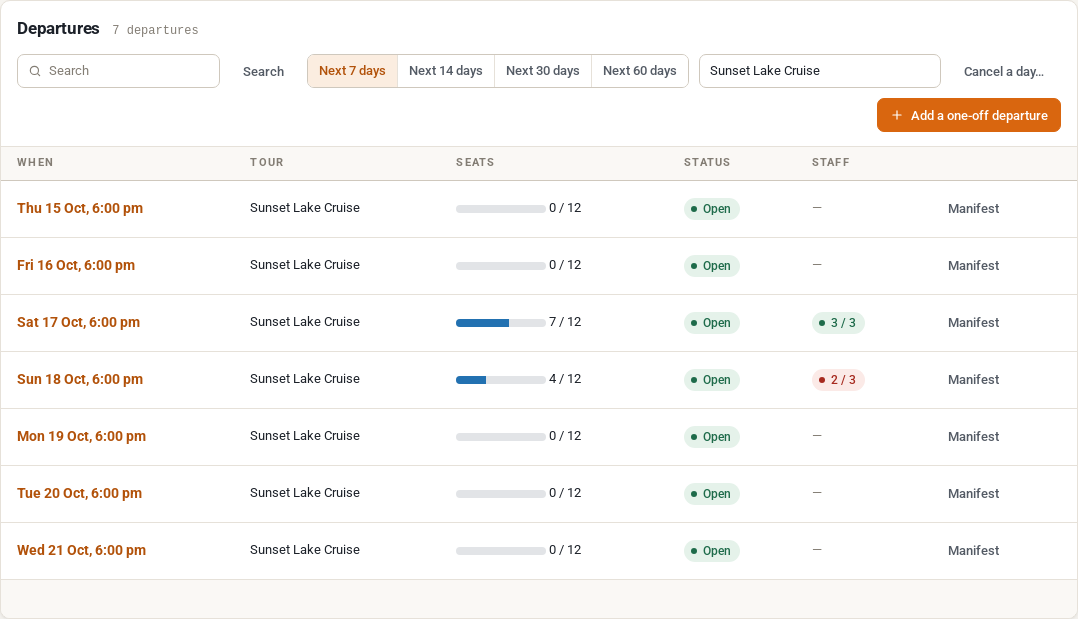
The list #
- Next 7 days, Next 14 days (the default), Next 30 days or Next 60 days: how far ahead the list looks.
- Every tour: show one tour only.
- Cancel a day…: cancel every departure on one date, for example for bad weather. See Cancelling, changing and moving departures.
- Add a one-off departure: an extra departure that is not in the product’s date rows.
Each row shows:
| Column | What it shows |
|---|---|
| When | The start time. “Moved from …” when you changed its time, “One-off” for an extra departure. |
| Tour | The product. |
| Seats | A bar with the seats taken and the seats in all (“8 / 12”), and the guests when they differ from the seats. Without a limit: “8 booked”. |
| Status | Open, Full, Call to book (past Stop online sales with seats left), Sales closed, Running (it has started) or Cancelled. |
| Staff | The staff and resources it has against what it needs (“2 / 3”), green when complete. A dash when the tour needs nobody or nobody is booked yet. |
Click the time or Manifest to open the departure.
One departure #
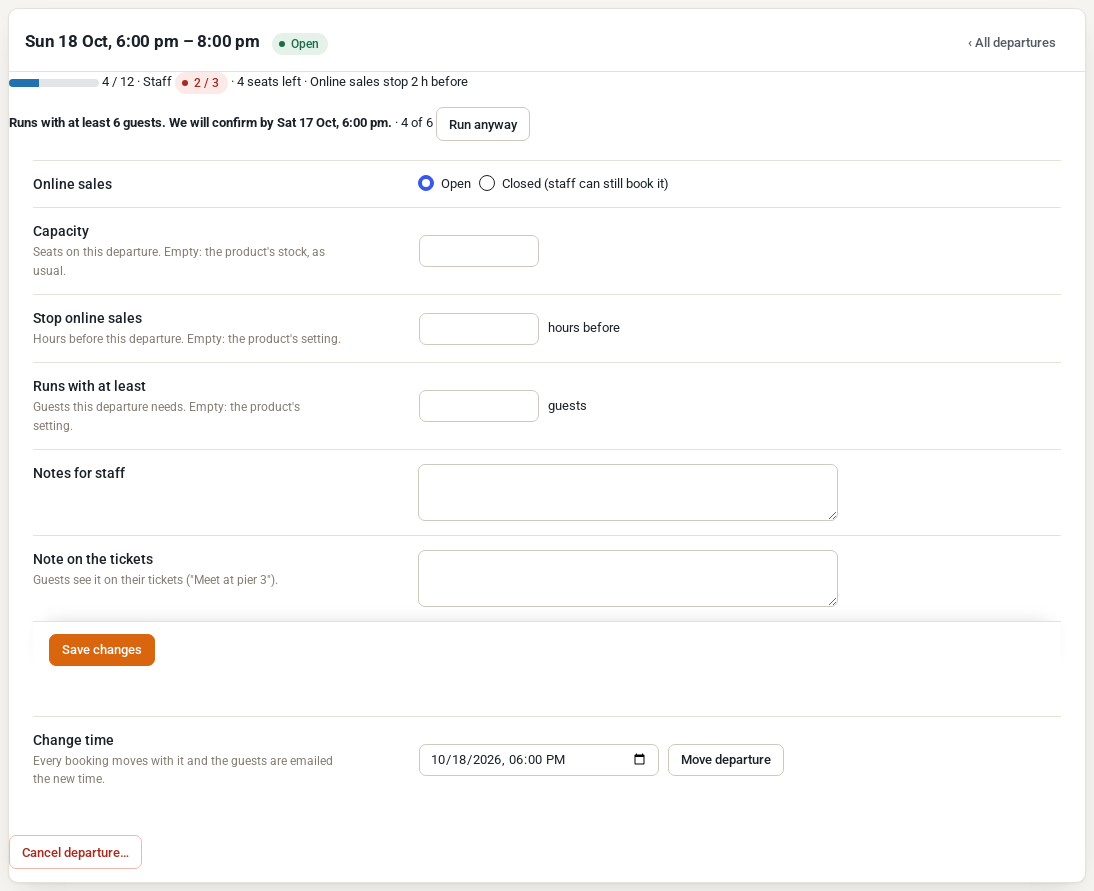
At the top are the departure’s time and status, its seats, its staff, the seats left and when online sales stop. A departure with a minimum shows “Runs with at least 6 guests. We will confirm by …” with the guests booked (“4 of 6”) and a Run anyway button.
| Setting | What it does |
|---|---|
| Online sales | Open, or Closed (staff can still book it): the departure is no longer sold online, and you can still book it from the admin. |
| Capacity | The seats on this departure. Empty: the product’s stock, as usual. |
| Stop online sales | Hours before this departure. Empty: the product’s setting. |
| Runs with at least | The guests this departure needs. Empty: the product’s setting. |
| Notes for staff | Shown on the manifest and to the staff on it. |
| Note on the tickets | Guests see it on their tickets (“Meet at pier 3”). |
Click Save changes.
Below the settings:
- Change time: pick a new start and click Move departure. Every booking moves with it, and the guests get the Departure time changed email. Their tickets stay the same.
- Cancel departure…: opens the cancel screen (see Cancelling, changing and moving departures).
Under these is the Manifest: the guests, their check-in, and Print, CSV and Email to staff (see Manifest, check-in and QR tickets). A tour of several days also shows its Itinerary.
Add a one-off departure #
- On Rentals › Departures, click Add a one-off departure.
- Choose the Tour, when it Starts, and its Length (for example
90m,2hor1d). - Optional: a Capacity (empty: the product’s stock) and a Price (empty: priced like the product).
- Click Add departure.
The departure is sold online like the others and has its own manifest.
Who can use the page #
Administrators and shop managers can do everything. A user given only the sibooking_view_schedule capability sees the departures and manifests but can’t change them. Staff who are assigned to a departure see its manifest and check guests in from My Account › My schedule (see Staff schedule and My schedule).


