
Weather, too few guests, a broken boat: you can cancel one departure or a whole day, change a departure’s time, and let customers move their own booking.
Cancel a departure #
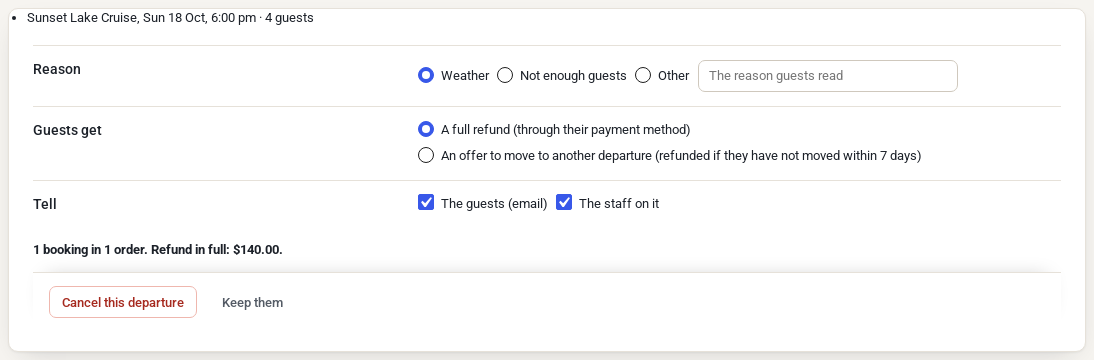
- On Rentals › Departures, open the departure and click Cancel departure…. To cancel every departure on a date, click Cancel a day… on the list instead, choose the date under Every departure on and click Show.
- Check the departures listed and the guests on each.
- Choose the Reason: Weather, Not enough guests or Other, with the reason guests read.
- Choose what Guests get:
- A full refund (through their payment method);
- An offer to move to another departure (refunded if they have not moved within 7 days).
- Under Tell, keep The guests (email) ticked to send them the Departure cancelled email.
- Check the summary (“3 bookings in 2 orders. Refund in full: $450.00.”) and click Cancel this departure.
What happens:
- Refunds go back through the payment method, and the order gets a note. When the payment method can’t refund online, the refund is recorded and the order gets a “Refund by hand” note, so you send the money yourself.
- A part paid with a gift card or store credit is not refunded by the payment method. With PW Gift Cards, the gift card plugin puts that part back on the card itself once the order is fully refunded, and the order note says so. Otherwise the order gets a note to re-issue it to the customer by hand.
- An unpaid order whose rentals are all on the cancelled departure is cancelled. An unpaid order with other rentals gets a note to change its total before you take the payment.
- The offer to move: the email has a Choose a new departure link. The customer sees the coming departures of the same tour with enough seats for their group and clicks Move my booking. Their ticket stays the same. If they haven’t chosen within 7 days, they are refunded in full.
- The departure’s staff job is cancelled, so it leaves the Staff schedule and My schedule.
A cancelled departure can’t be booked anywhere, not even from the admin.
Change a departure’s time #
- Open the departure on Rentals › Departures.
- Under Change time, pick the new start and click Move departure.
Every booking moves with it at the same price, the staff job moves too, and the guests get the Departure time changed email: “Your tickets stay the same. If the new time does not suit you, please contact us.” If a booking can’t move (for example the item is taken at the new time), the page says so and that booking stays where it was; see its order.
Customers move their own booking #
With Customers can move their booking on (the default) on the product:
- The customer opens My Account, the order, and clicks Move to another departure under their ticket.
- They see the other departures of the same tour that are open, have enough seats for their group and cost the same.
- They click Move my booking: “Done: your booking is now for Sat 14:00. Your ticket stays the same.”
The order gets a note (“The customer moved … in My Account”). They can move until online sales stop for their departure; after that they are asked to contact you. To turn it off for a tour, untick Customers can move their booking on the product.


