
Sales Igniter QuickBooks Sync posts your WooCommerce orders, payments and refunds to QuickBooks Online as they happen. Each paid order becomes an invoice and a payment, or a sales receipt if you prefer. Refunds post by themselves. If QuickBooks is down or something isn’t set up yet, nothing is lost: the order waits and tells you what to fix.
It works on any WooCommerce store. With Rentals & Bookings it also knows what a booking’s extra orders are, so a balance, a late fee or a security deposit never posts as a new sale: see rentals, deposits and locations.
It needs WordPress 6.6, WooCommerce 8.0 and PHP 8.1 or newer, and a QuickBooks Online company. QuickBooks Desktop isn’t supported.
The pages after this one cover how orders post, the queue, the order screen and past orders and rentals, deposits and locations.
Your license key #
Open WooCommerce > QuickBooks. Settings open once a license key is activated on this site: paste the key from your account on rentalbookingsoftware.com and activate it. An expired key keeps everything working; only updates pause until you renew.
Connect and set it up #
The set-up runs in six steps. Nothing is sent to QuickBooks until the last one.
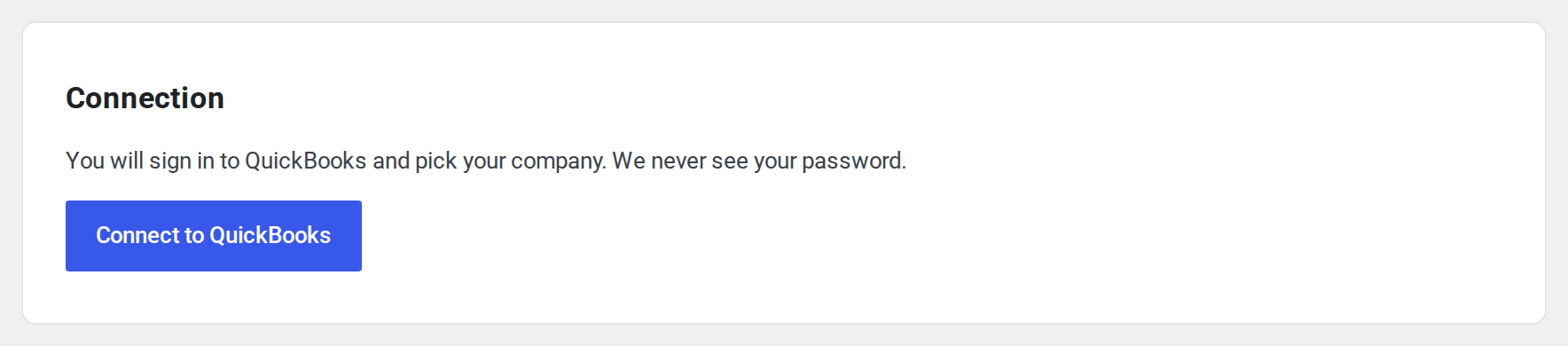
- Connect. Press Connect to QuickBooks, sign in to Intuit and pick your company. We never see your password.
- How orders post. Choose when an order posts and as what. The next page explains each choice.
- Where lines post. Pick the QuickBooks item for product sales, shipping, fees and rounding. Use a service or non-stock item, never a stock item. Create what is missing for me adds service items on an income account for you.
- Taxes. In a US company, QuickBooks takes the tax amount from each order: choose a code only if a rate belongs with a different tax agency. In a company outside the US, choose a tax code for each WooCommerce tax rate and one for lines with no tax.
- Payments. Pick the bank or clearing account each payment method’s money goes to, and one for any other method.
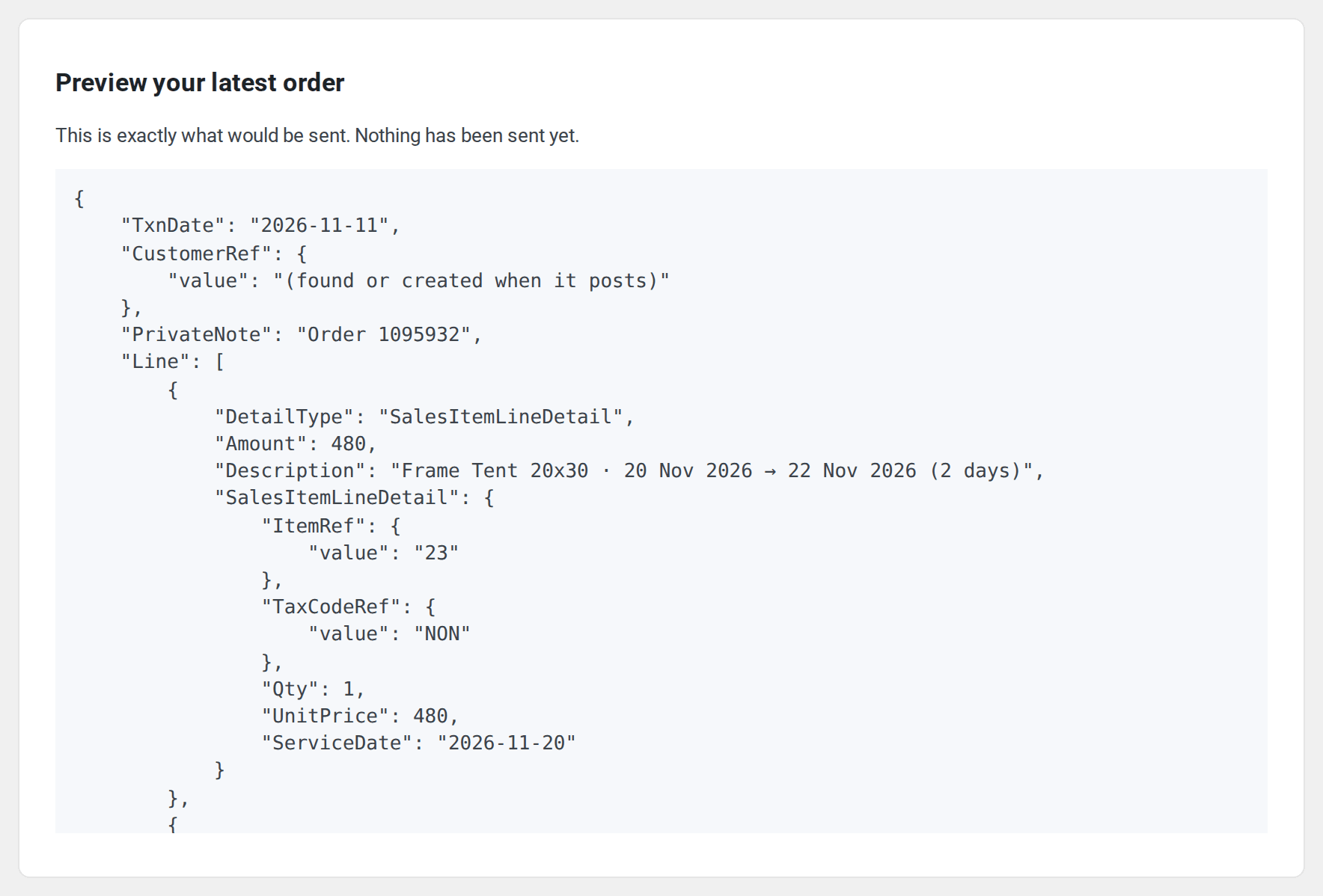
- Preview your latest order. You see exactly what would be sent. Nothing has been sent yet.
Press Start syncing. New orders post from that moment. Orders from before stay out of your books until you import them on the Import tab.
Your own developer app #
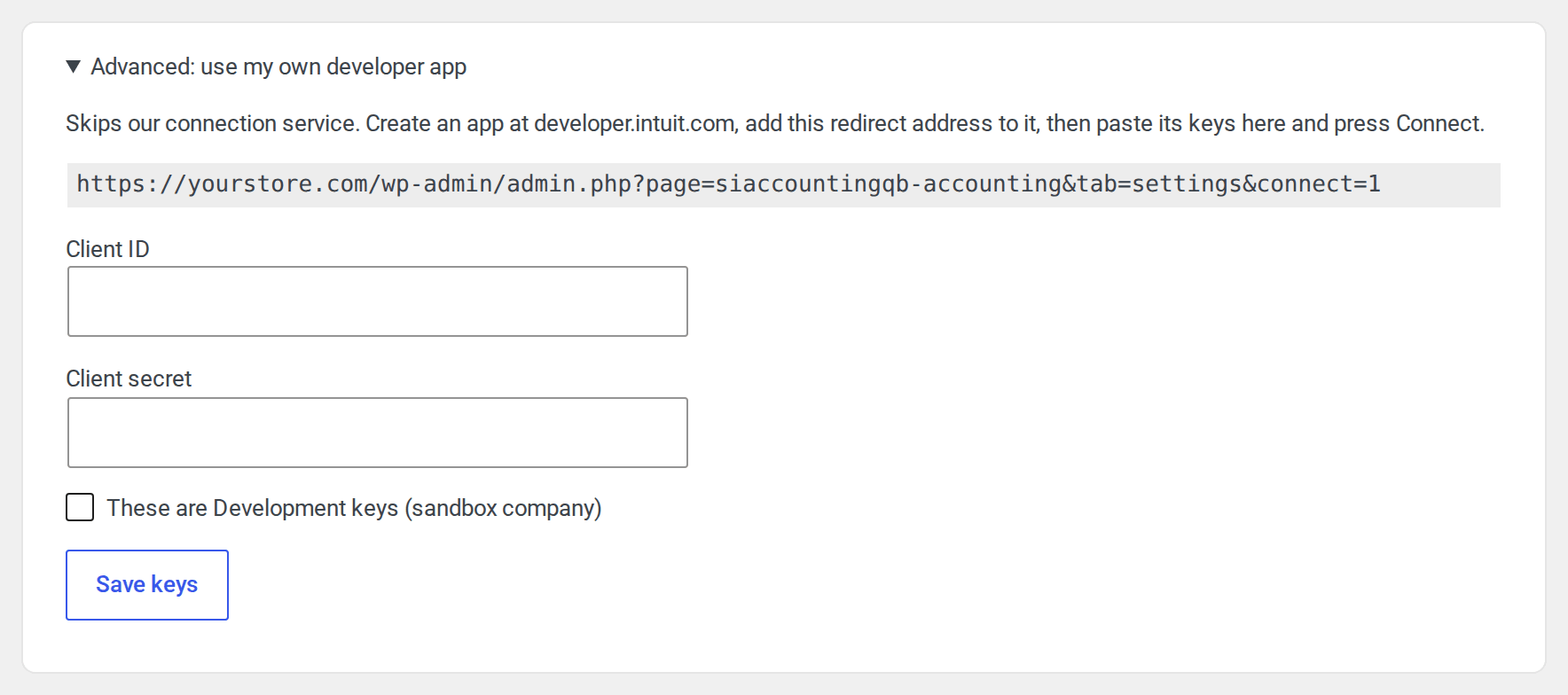
Under Advanced: use my own developer app you can skip our connection service: create an app at developer.intuit.com, add the redirect address the screen shows, paste the app’s client ID and secret, save, then press Connect.
Disconnect #
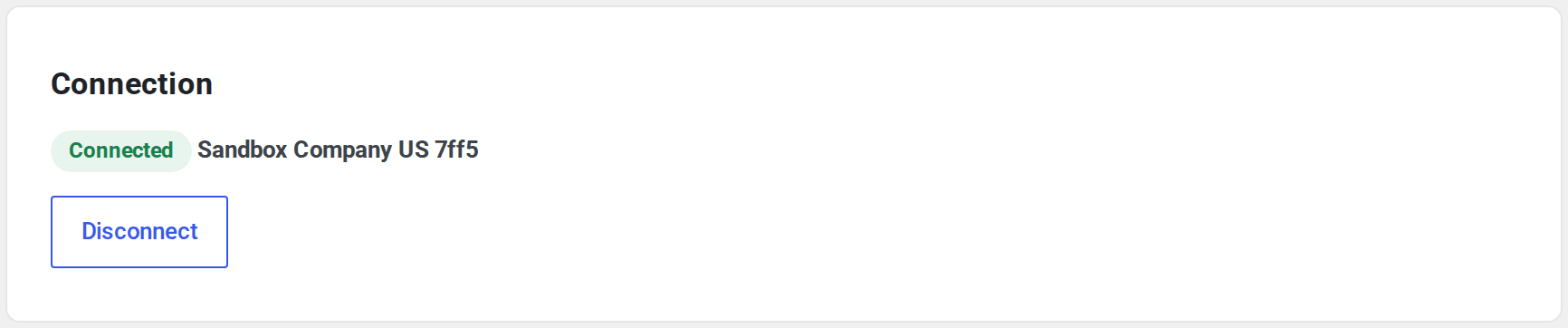
Disconnect on the Settings tab ends the connection. Nothing in your books changes. If the connection is lost on its own, the screen says so and Reconnect brings it back. Nothing waiting is lost.
Both QuickBooks and Xero #
Sales Igniter Xero Sync can run on the same store. Each plugin posts to its own books on its own, so orders go to both. That’s useful while you move from one system to the other, and the screen reminds you it’s happening.


