
This page is for rental shops. It shows how to set rental dates, check what is free, put rentals on a sale, hand items out, take them back, and deal with extensions, swaps, late fees and damage. It needs Sales Igniter Rentals & Bookings to be active. Hand-over and return by serial number, condition checks, late fees, extensions and swaps need the fuller edition of that plugin. The Counter shows a button only when its job is available on your store.
Set the dates first #
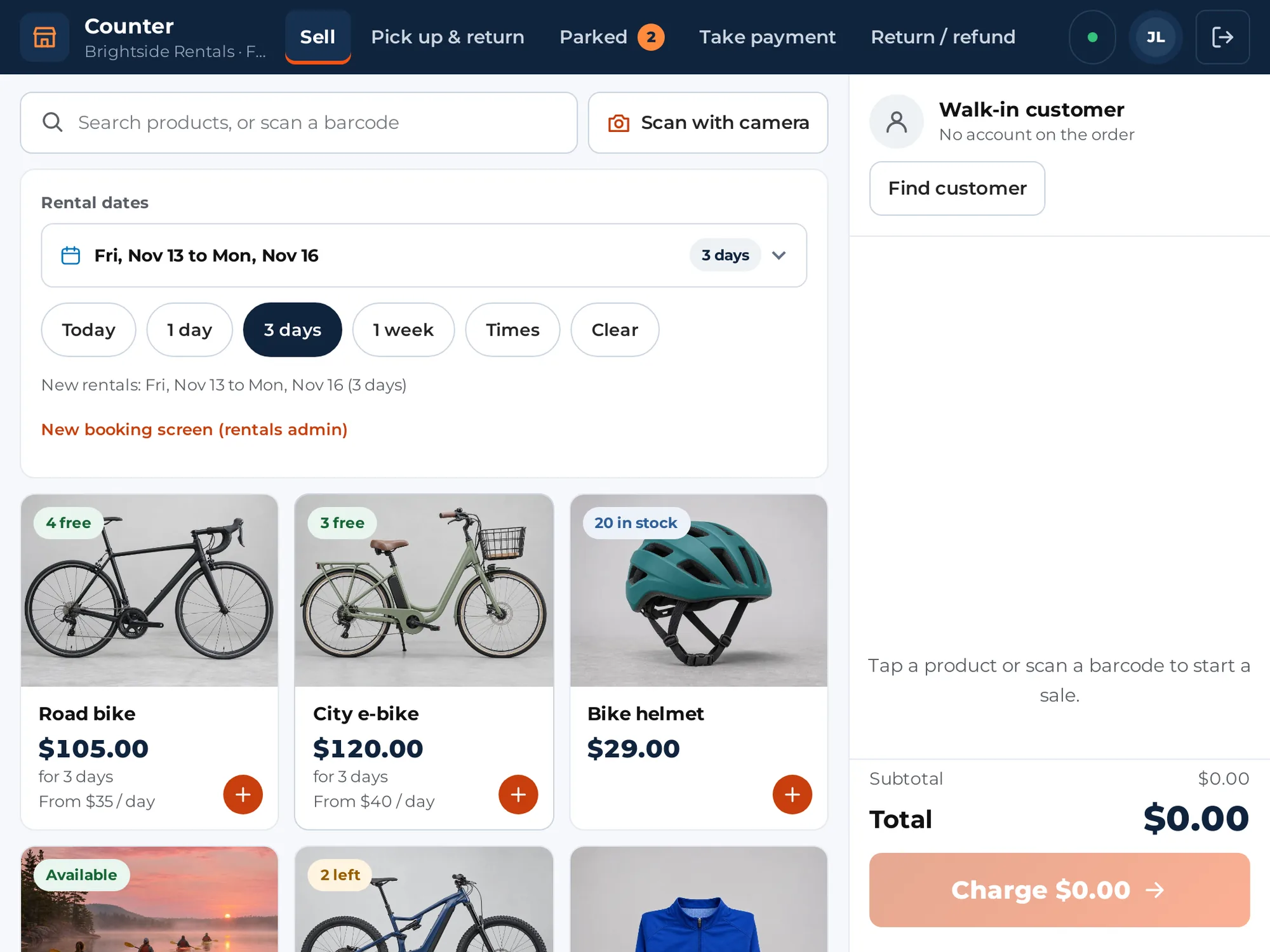
Rentals are priced and checked for a date range, so you pick the dates before you add a rental. The date bar is above the product grid.
- Tap the date box to open the rental calendar. It is the same calendar your customers see on the product page, in your Calendar Styler colours, with your closed days greyed out. Pick the first and the last day, then tap Use these dates.
- To check one product, choose it under Prices and stock for in the calendar. Days that product can’t start or end on are greyed out: booked, closed, or too close to the next booking. If that product’s calendar on your website shows a price or the units left on each day, they show here too. With no product chosen, only past and closed days are greyed.
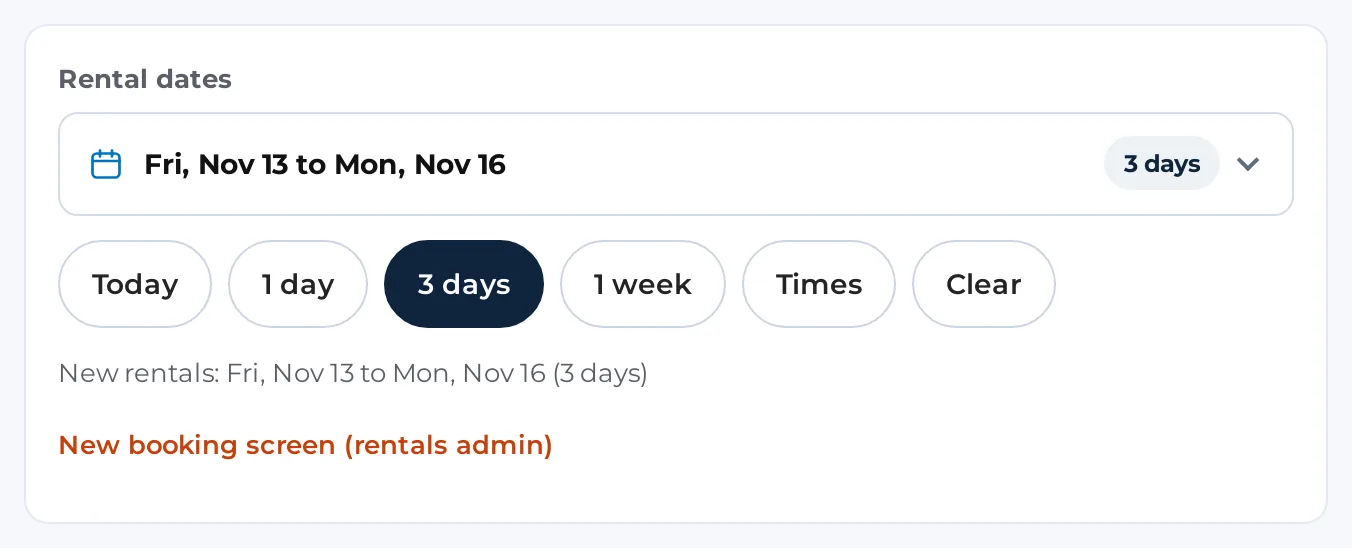
- The chips Today, 1 day, 3 days and 1 week fill the dates for you, starting from today or from the date you already picked.
- Tap Times when the rental has a pick-up time and a return time. Pick-up and Return fields appear. Tap No times to hide them.
- Clear empties the dates.
The line under the bar confirms the choice, for example “New rentals: ” followed by the dates and the number of days. Before you pick dates it says “Pick dates before adding a rental.”
If you tap a rental with no dates set, the date bar is highlighted and you see “Choose the rental dates on the date bar first.” A rental that works with times says “This rental needs a pick-up time and a return time.”
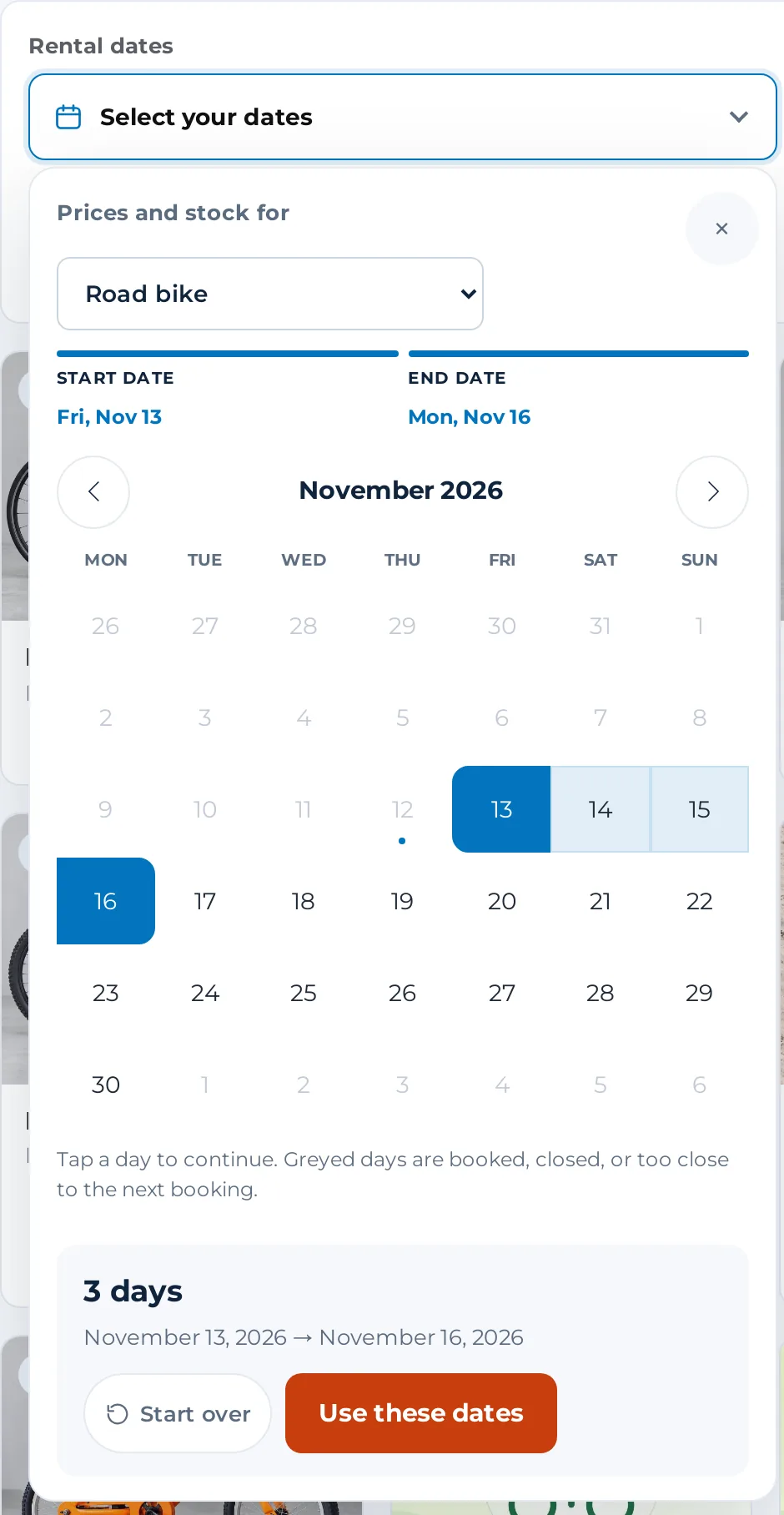
A rental may run through a closed day, but it can’t start or end on one. The same calendar opens when you extend a rental or swap an item, so dates are picked the same way everywhere. If your Rentals & Bookings is too old to have this calendar, the date bar shows the browser’s own date boxes instead.
See what is free #
Once dates are set, each rental card shows the price for those dates (“for these dates”) and a tag: 3 free, Available (when the item has no limit) or None free. The numbers update when you change the dates or add to the sale.
Put a rental on the sale #
- Set the dates.
- Tap the rental card (or scan its code). If it has options, choose them on the sheet and tap Add to sale.
- The rental line shows the dates. The unit is held for this sale the moment it is added. The sale shows “Rental stock held for this sale until” followed by a time. The hold lasts as long as Hold rental stock for on WooCommerce > Counter (30 minutes by default). If someone else takes the item first, you see “Someone else just took this item for those dates.”
- Change the quantity with − and +. If not enough are free you see “Not that many are free for those dates.”
- Tap Charge and take the payment as for any other sale.
Rentals, sold items and bundles can be on the same sale.
When a rental will not go on the sale #
If a rental cannot be added for the dates (for example it is fully booked), a sheet called Book it in the rentals admin may open. It says “This rental could not go on the sale” for the dates. Tap Open New booking to book it with the rentals admin’s New booking screen, with the item and dates filled in. This is the way to make a booking with no sale, or one you overbook on purpose. A link New booking screen (rentals admin) under the date bar opens the same screen for any rental.
Hand over and take back #
Handing an item out is called Hand over, and taking it back is Take back. Both are done from the order. There are three ways in:
- Tap Pick up & return in the header, type the order number (for example 1234 or #1234) or a booking number (for example B-56) in Order or booking number, and tap Find.
- Scan the booking or order code, with a barcode scanner or by typing it in the search box.
- Open the customer’s History and tap Pick up / return on a rental.
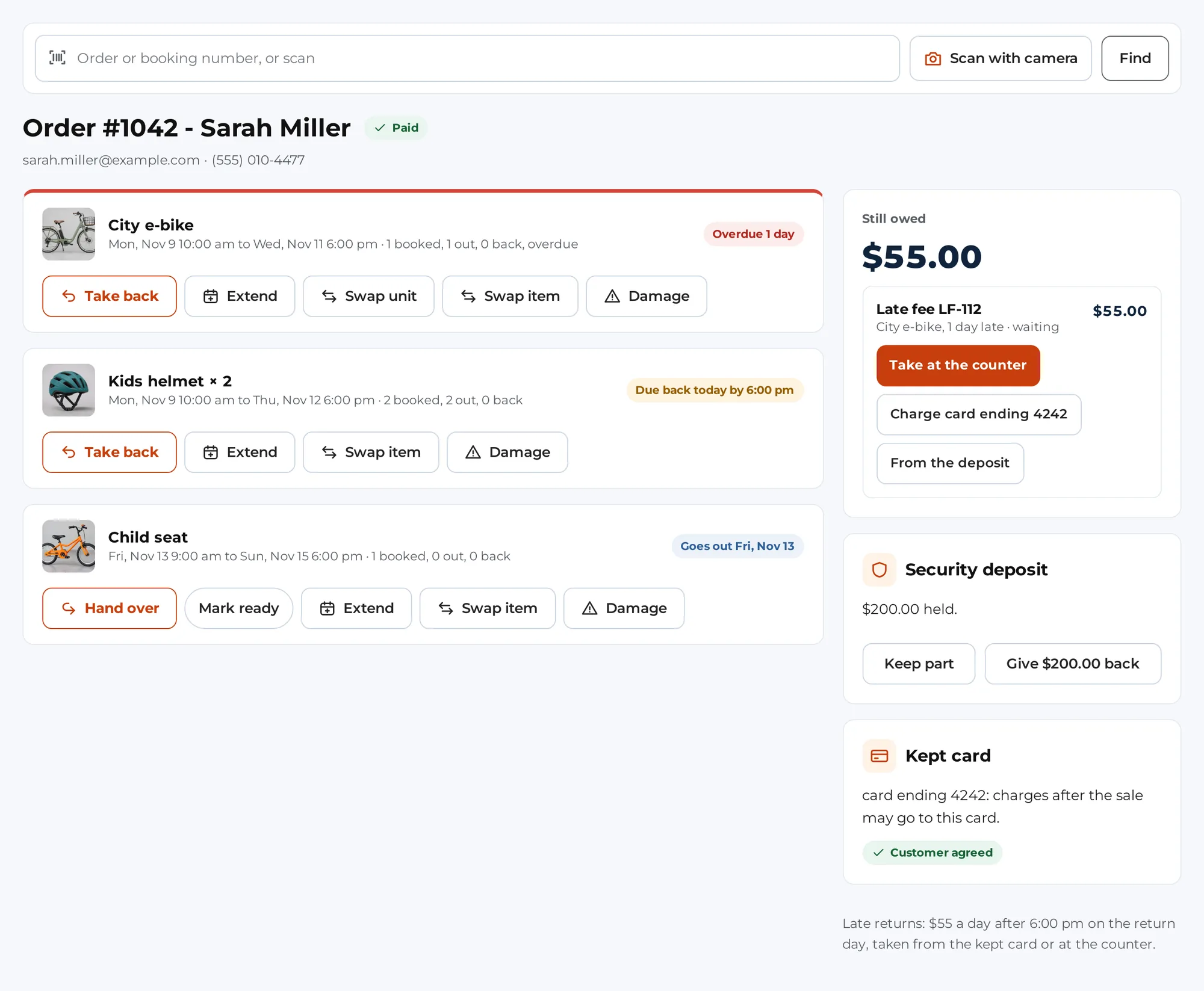
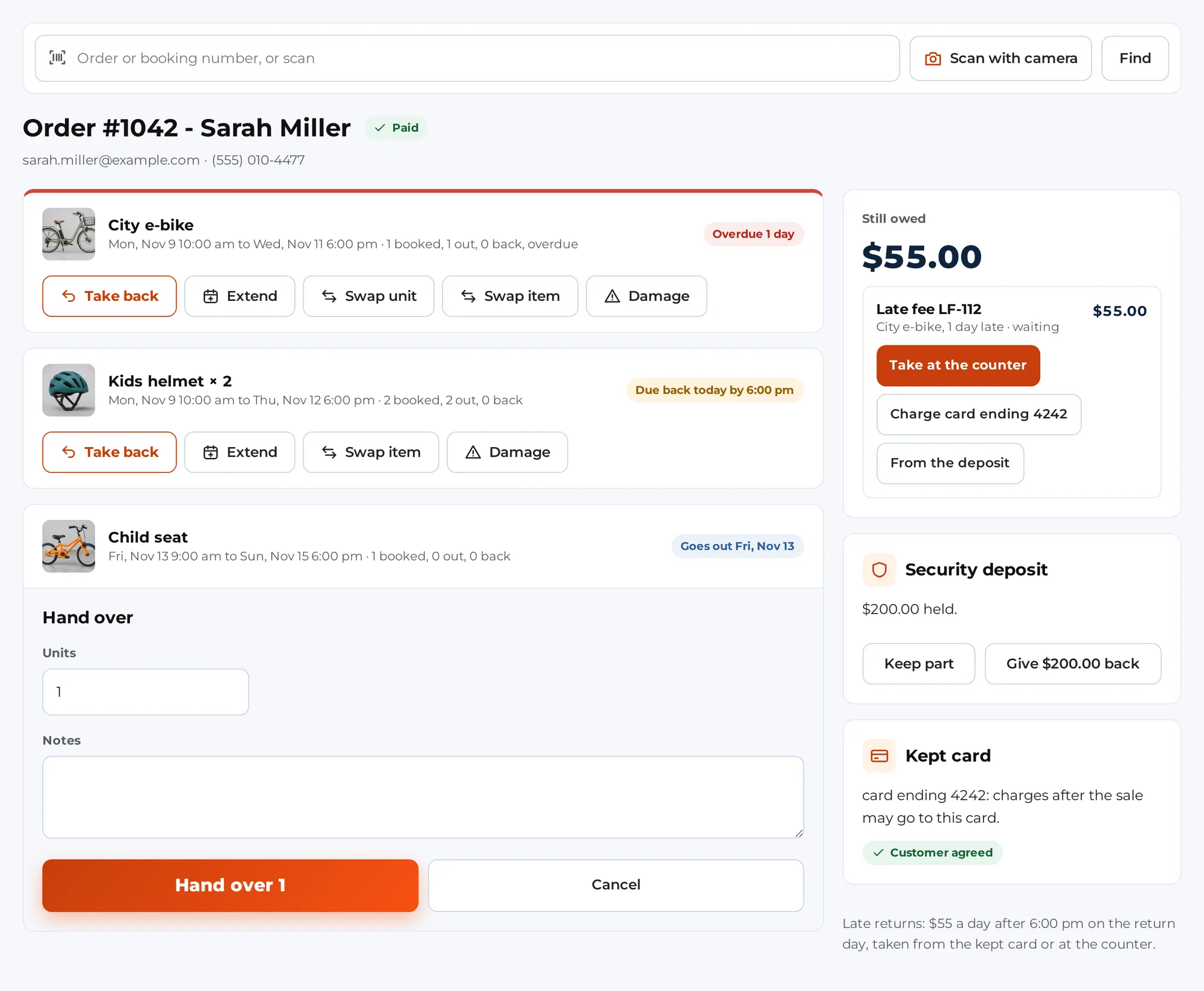
The rentals screen shows the order number and customer, then a row for each rental with its dates and a summary such as “2 booked, 1 out, 0 back”, and “overdue” when it is late. If the order is not paid yet you see “This order is not paid yet” and its status.
Hand over #
- Tap Hand over on the rental’s row.
- For an item tracked by serial number, tap the serials going out (or scan their labels). The text says “Tap the serials, or scan them.” For an item without serials, set Units.
- Add Notes if you want.
- Tap Hand over (with the number of serials). A message says “Handed over.”
Take back #
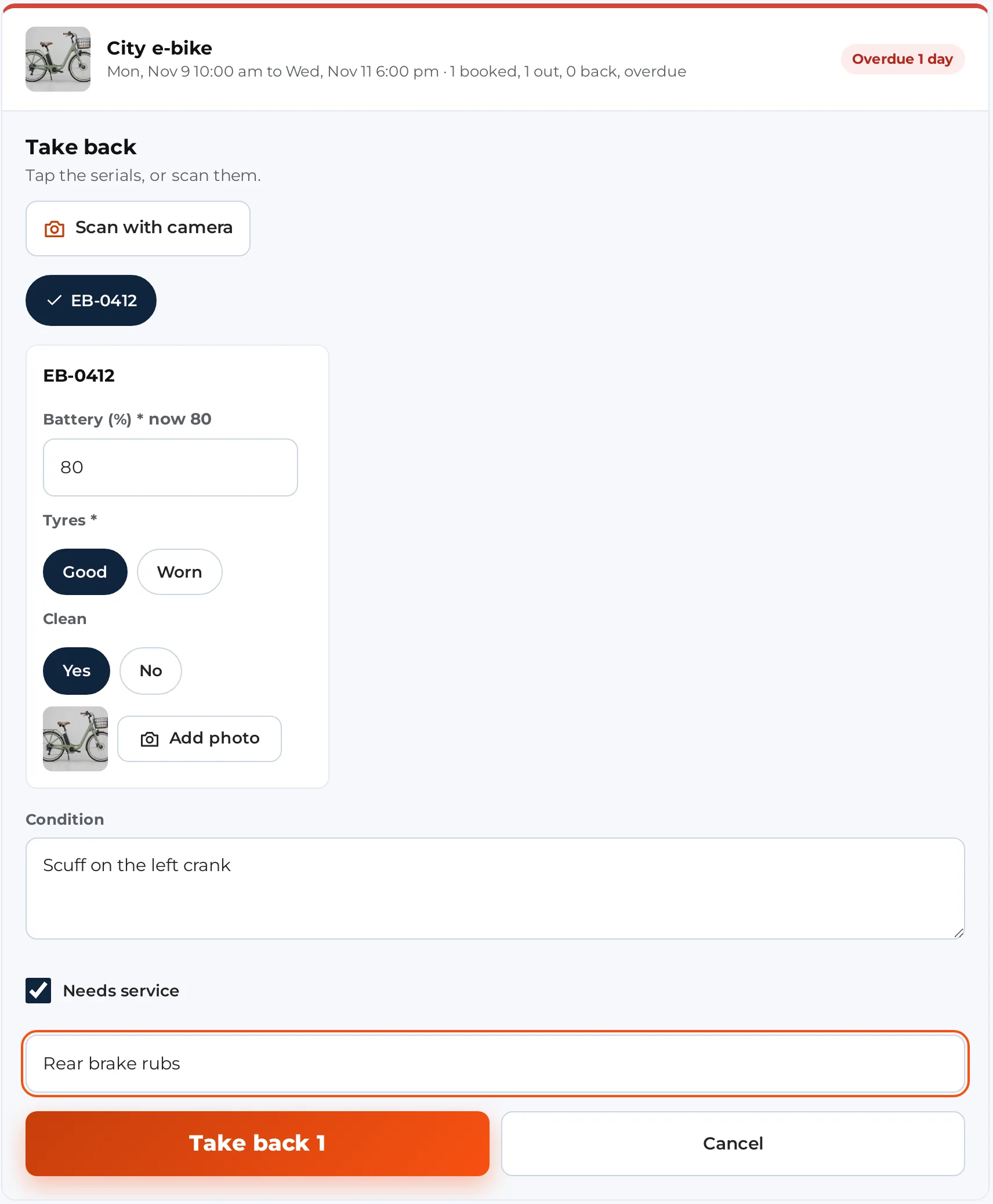
- Tap Take back on the rental’s row.
- Tap the serials coming back, or set Units.
- For each serial, fill in what the store asks for: meter readings, a choice, a yes or no, a note. A star marks required fields. Tap Add photo to take a condition photo with the device camera. The photo is made smaller before it is sent.
- If the unit has a problem, tick Needs service and say “What is wrong?” in the box.
- Describe the Condition in the text box.
- Tap Take back. A message says “Taken back.”
If the return makes a late fee, a message shows the amount and its state, for example “Late fee” followed by the amount. The store’s late-fee policy shows under the list.
If the connection drops #
A hand-over or a return made with no connection is saved on the device. The Counter says so, and sends it when the connection is back. A banner reads “scans are saved on this device and will be sent when the connection is back” with a Send now link. If the server refuses a saved scan, the banner says which and offers Try again or Dismiss. Selling needs a connection, because availability and prices come live from the server.
Get pick-ups ready, and the board #
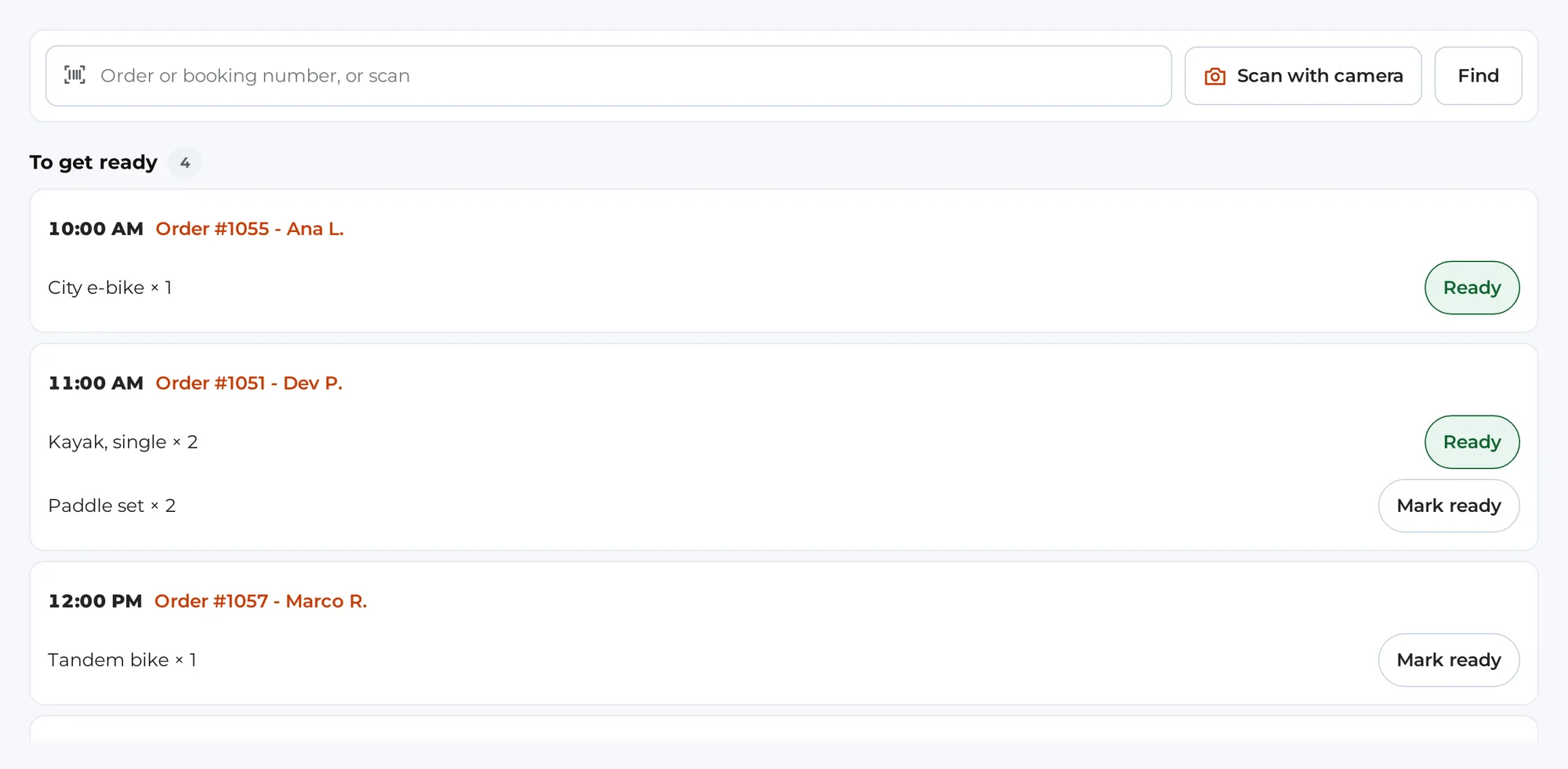
With Rentals & Bookings Regular, Pick up & return opens on a To get ready list: the pick-ups of today and tomorrow morning at this register’s location. Pack the items the evening before, tap Mark ready, and the morning shift sees what is done. The mark goes away by itself when the items are handed over. A booking with nothing left to hand over can’t be marked.
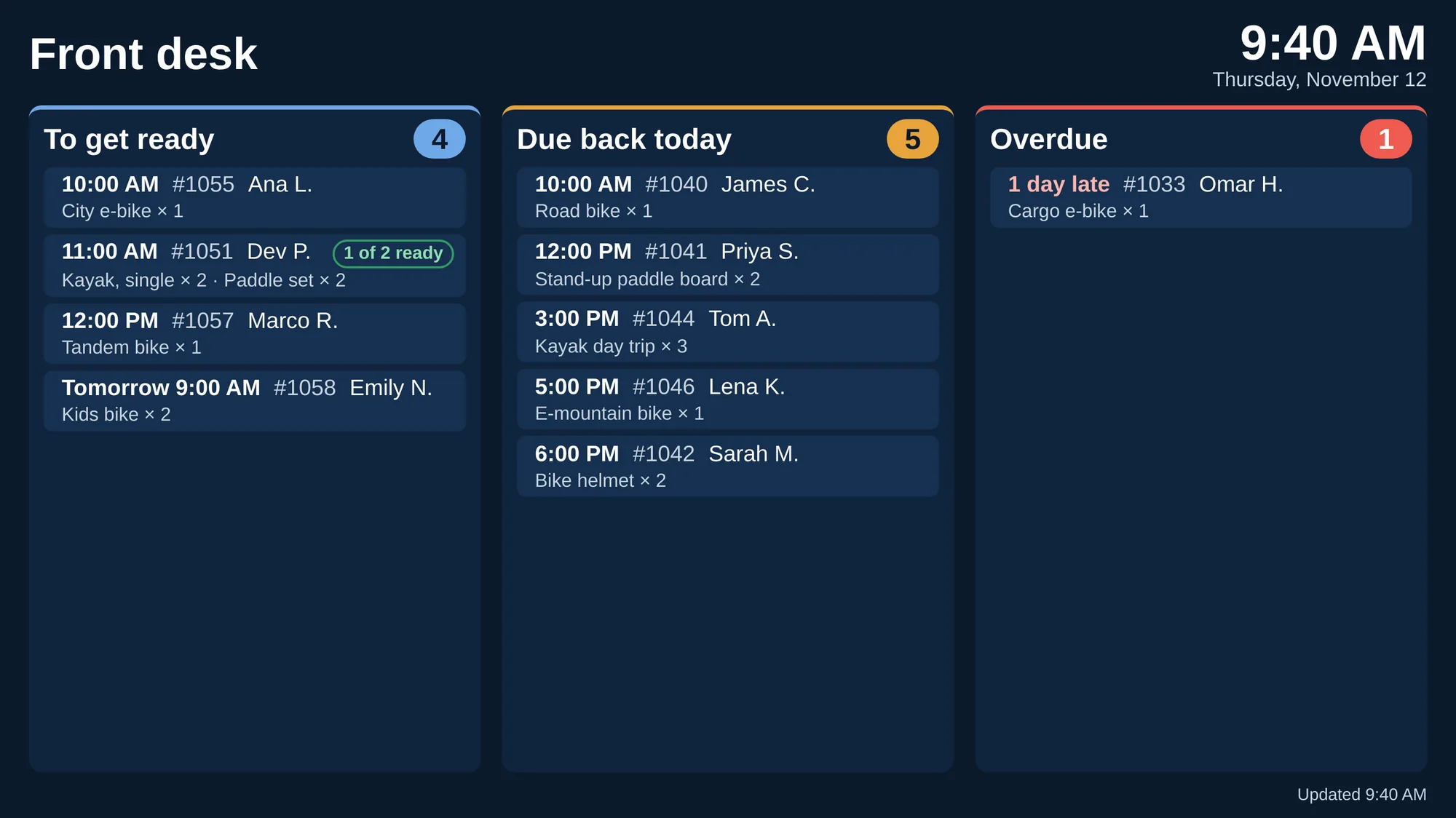
A board screen shows the same lists across the room, on a TV, a tablet or a spare computer in the back room or on the wall. It has three columns: To get ready (with the ready marks), Due back today and Overdue, each with the time, the order number, the item, and the customer’s first name and last initial. It never shows a phone number, an email or an address, because customers can often see it.
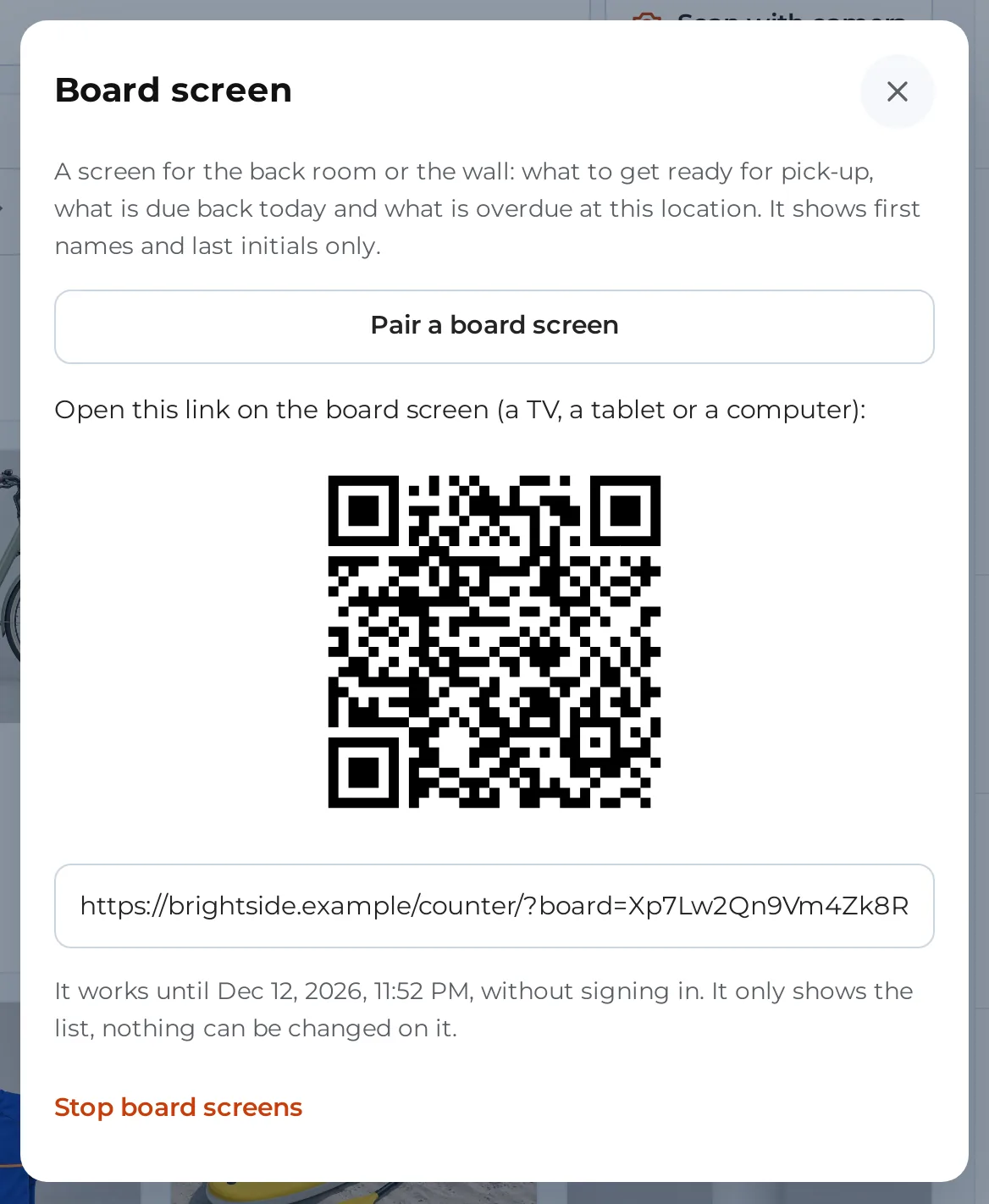
- On the Counter, open the Shift sheet and tap Board screen (shop managers and staff who manage the Counter).
- Tap Pair a board screen. Open the link it shows on the board device, or scan its QR code.
- The board needs no sign-in, can’t change anything and refreshes every 30 seconds. The link works for 30 days.
If the board can’t reach the store it says so, keeps the last list on screen and keeps trying. Stop board screens on the same sheet ends every board of the location; they show that the link has ended until they are paired again. WooCommerce > Counter lists the paired boards, who paired each one and until when, with an End button each.
Still owed #
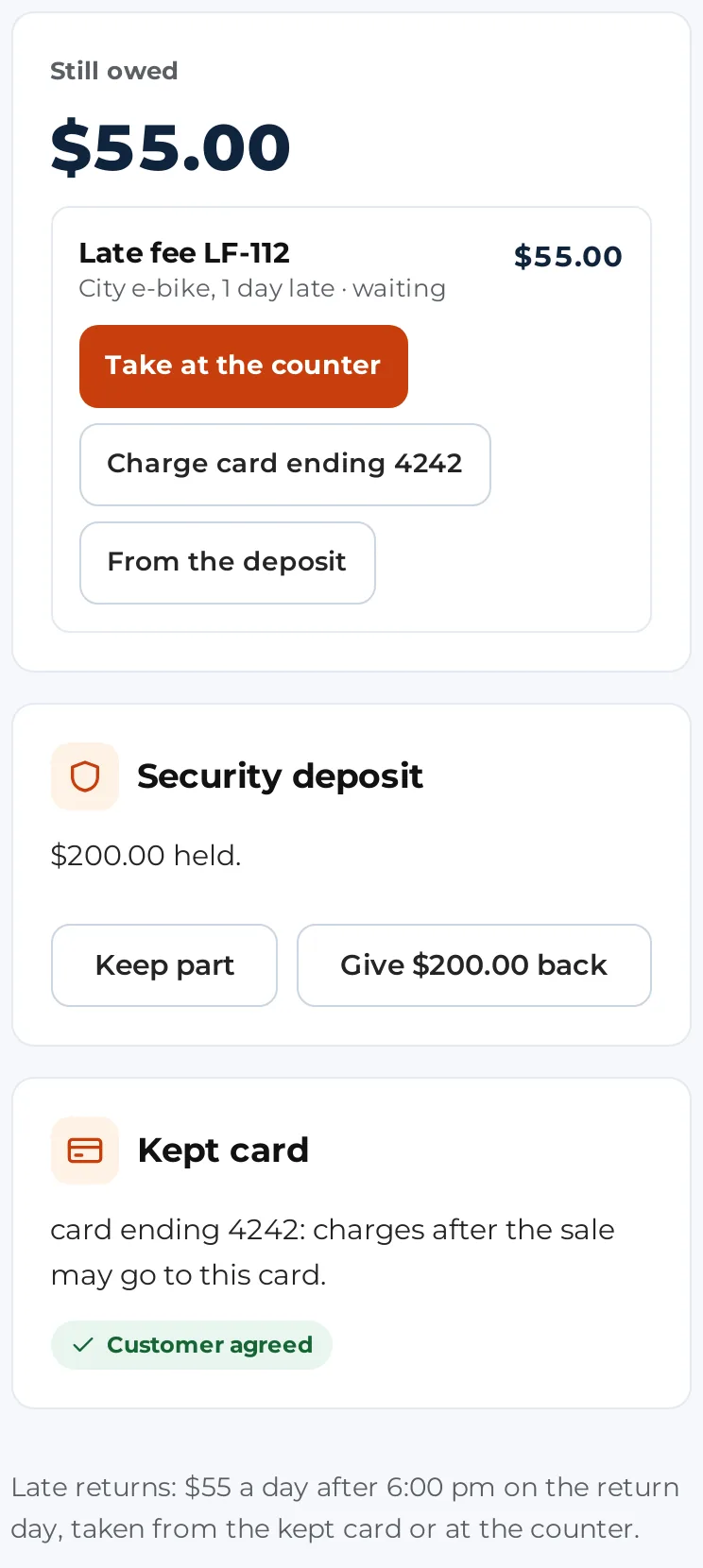
On the rentals screen, a panel shows Still owed: with the amount, or Nothing owed. It lists:
- the balance of a booking deposit, an extension, a swap difference or a damage charge, each with Take payment,
- late fees, each with Take at the counter, a button to charge the kept card (named after the card), or From the deposit,
- the security deposit, see below,
- the kept card, see below.
Tap Take payment to open the Counter’s payment screen for that order. See Registers and payment routes.
Extend a rental #
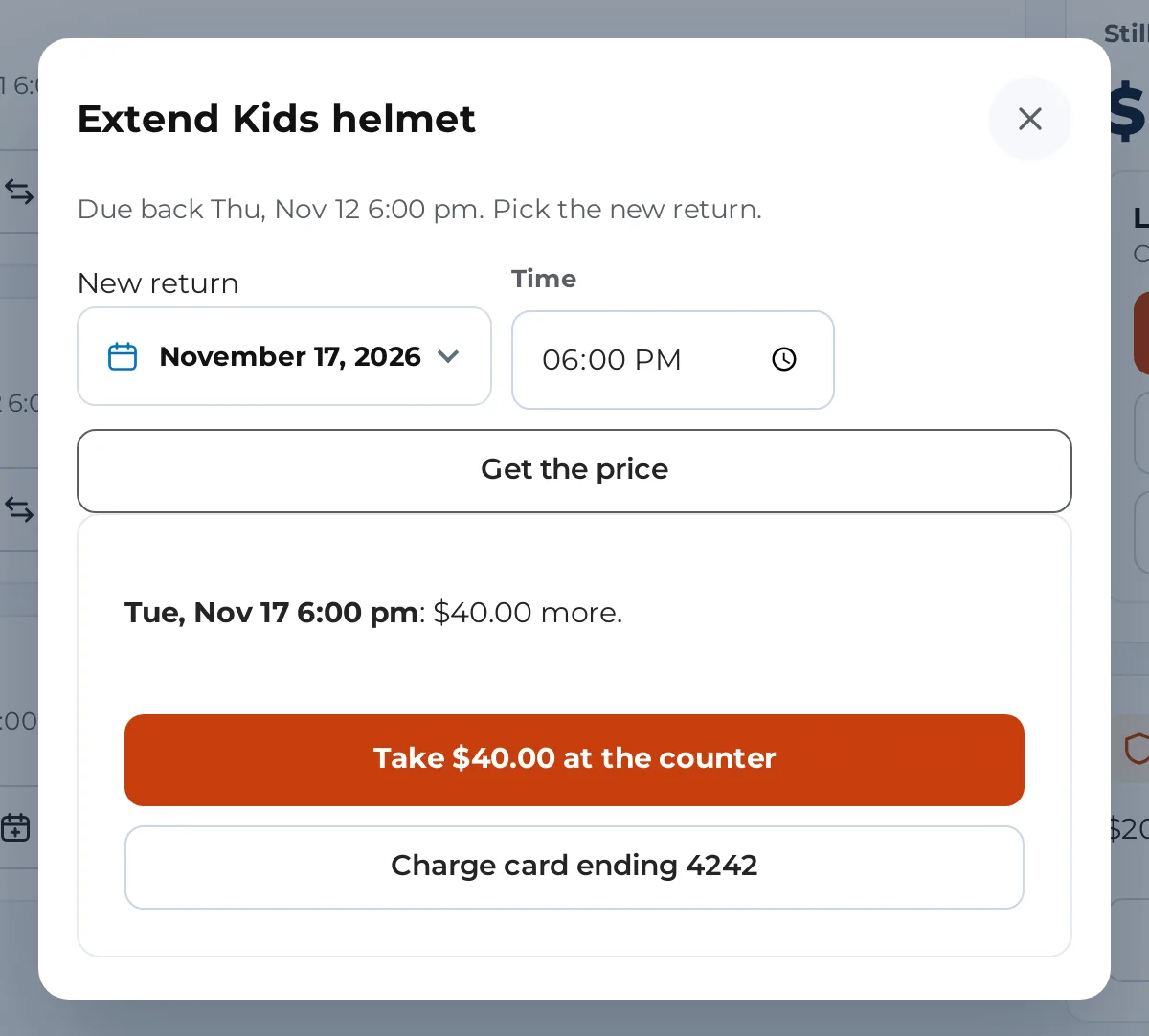
- On the rental’s row, tap Extend.
- The sheet says when it is due back. Pick the New return date (and Time, for rentals with times) and tap Get the price.
- The sheet shows the new end and either the extra amount or “no extra charge”.
- Tap Take followed by the amount, at the counter, to pay now. If the customer has a card kept on file, you can also tap Charge followed by the card. With no extra charge the button says Extend.
You do not need the “Customers may extend” setting for this: staff can extend any rental that is not back yet.
Swap a unit or an item #
- Swap unit exchanges one serial for another of the same item, for example when a unit turns out to be faulty. Tap the unit coming back under Coming back, the unit going out under Going out instead, say Why, and tap Swap. This button shows for items tracked by serial that are out.
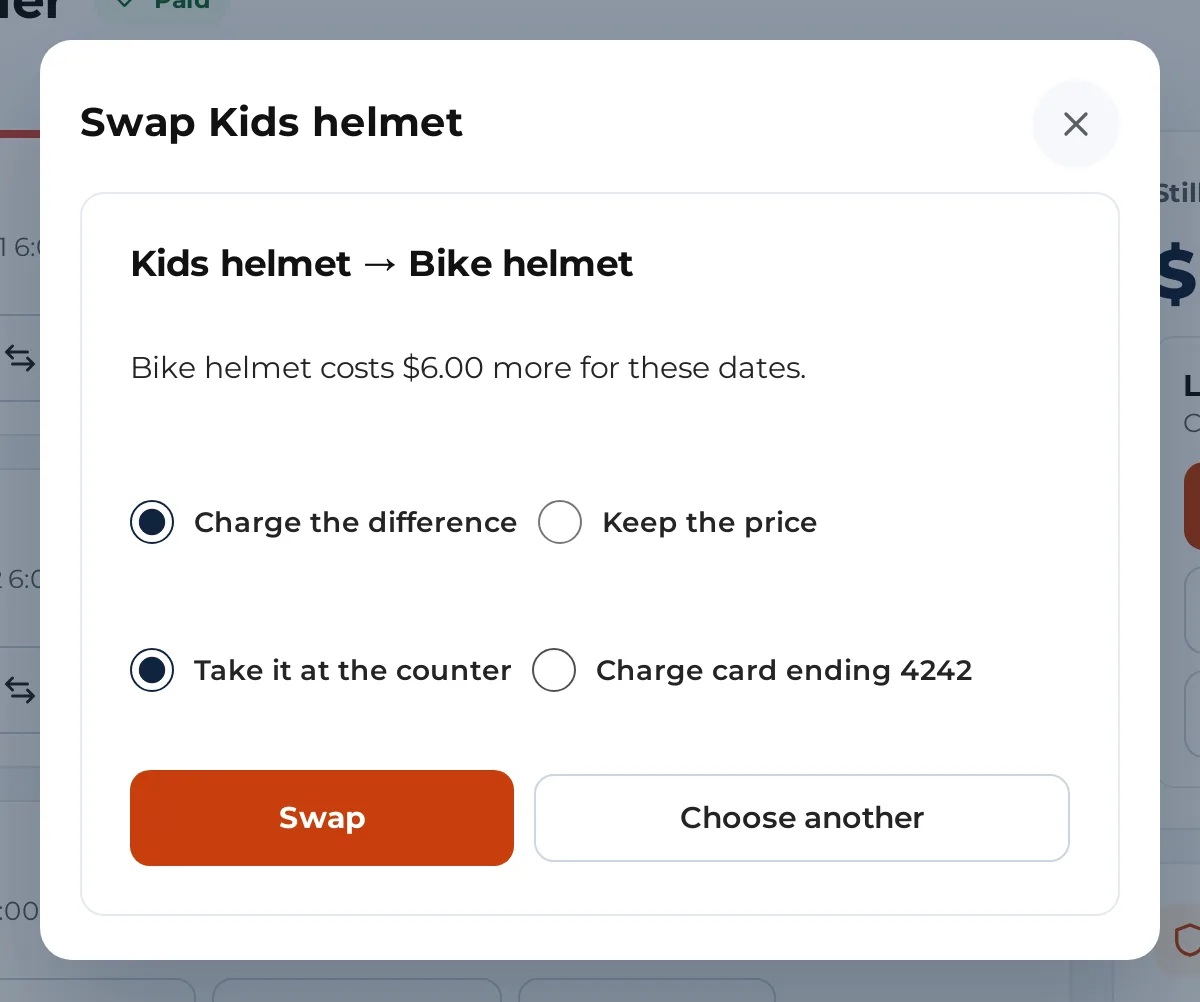
- Swap item changes the rented product itself. Search by Product name or SKU, tap Choose, and read the warnings. If there are not enough free for the dates you see “Not enough free for these dates.” and, where you are allowed to override, a Swap anyway tick. If units are already out, take them back first or tick the box to mark them returned.
When the new item costs more or less for those dates, choose what happens to the difference: Keep the price, Use the new price, Charge the difference or Give the difference back. A charge can be taken Take it at the counter or by charging the kept card. A refund can go as Cash from the drawer, To the original payment or Given back another way. Giving money back needs the refund permission.
Damage #
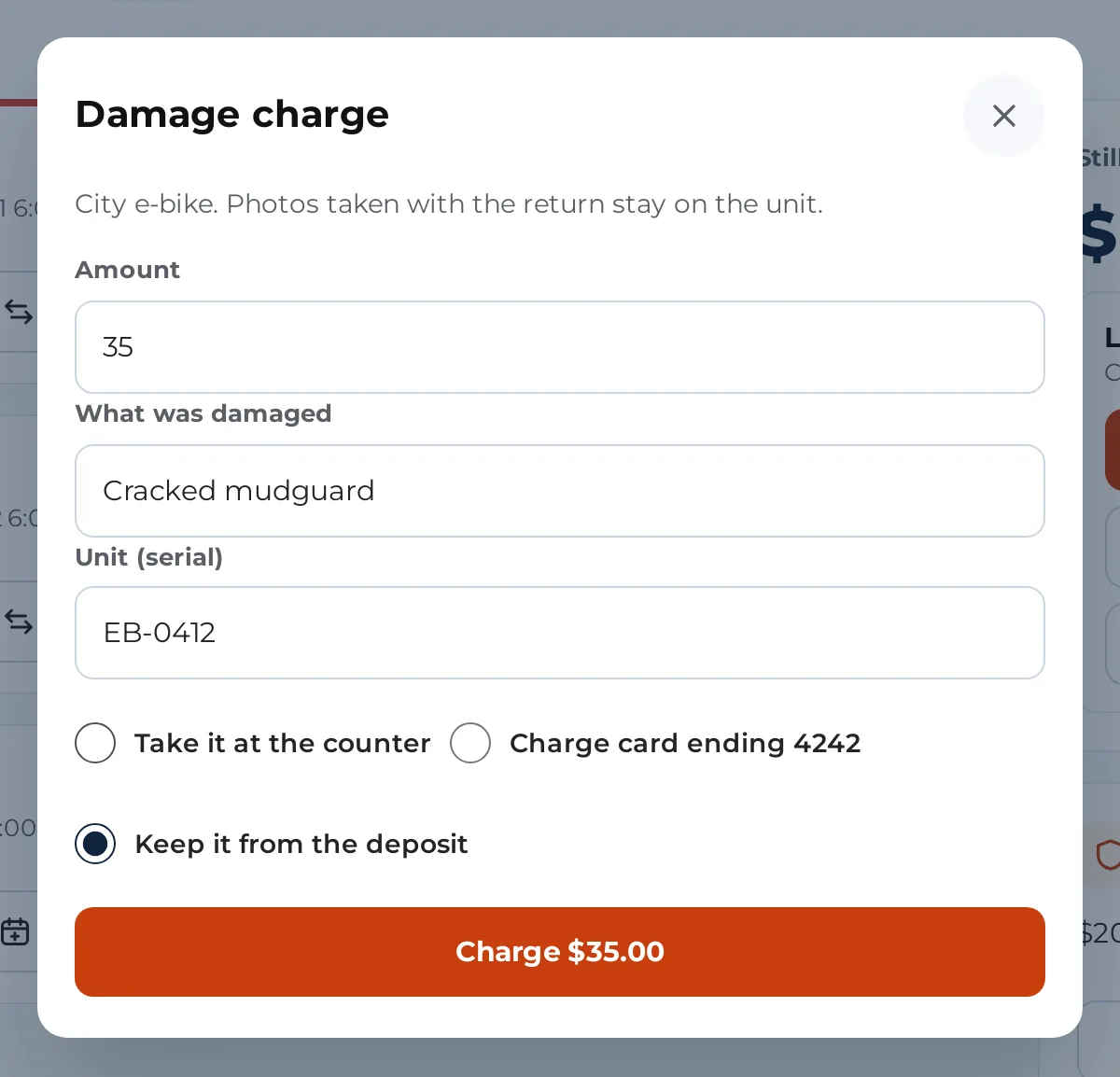
Tap Damage on a rental’s row. Type the Amount, What was damaged, and the Unit (serial) for serial items. Choose how to take it:
- Take it at the counter: opens the payment screen for a damage charge order.
- Charge the kept card: charges the card kept on file, if the customer agreed to that.
- Keep it from the deposit: keeps the amount from the security deposit.
Tap Charge with the amount to finish. A damage charge is its own order, linked to the rental. Photos taken with the return stay on the unit.
With Maintenance & Inspections on your store, every damage charge the Counter takes is also recorded there, with the unit, and the Counter says “Recorded in Maintenance as” followed by its number. While that damage is open in Maintenance, the security deposit refund waits. Maintenance never charges, emails or keeps the deposit for it on its own: the money side stays on the Counter.
The security deposit #
When the order holds a security deposit, the Security deposit box says how much is held, kept and given back.
- Keep part: type the Amount to keep (up to what is held) and Why, then tap Keep.
- Give followed by the amount back: choose To the original payment, Cash from the drawer or Given back another way, then tap Give back. This needs the refund permission.
The kept card #
If a card was kept on the reader, the Kept card box names it and says charges after the sale may go to it. If the consent was not recorded at the sale, the box shows the consent text and a button The customer agrees. A card is only kept when the sale was paid in one go on the card reader. A sale paid in several parts has no card to keep.


