
The Counter has five permissions. Staff get the ones their jobs need, and nothing else. This page lists them, who has them, what a manager can do that staff cannot, and how staff switch with a PIN on a shared tablet.
The five permissions #
| Permission | What it allows |
|---|---|
| Use the counter (sipos_use) | Open the Counter, sell, take payments, park and resume sales, hand over and take back rentals, extend and swap rentals, look up customers, open and close their own shift. |
| Refund (sipos_refund) | Returns and refunds, exchanges, giving a security deposit back, giving back the difference when swapping an item. Without it the Return / refund button is hidden. |
| Change prices (sipos_override_price) | Change the price of a line and give a discount on the sale. A reason is required every time. |
| Drawer (sipos_drawer) | Paid in, paid out, cash drops and Open drawer on the Shift sheet, the Day report, and the CSV download. |
| Manage (sipos_manage) | The WooCommerce > Counter page: settings and registers. Close any shift, see the parked sales of every register, give more back in cash or on the terminal than was paid that way, see reports. |
Who has them #
- Counter staff is a role the plugin adds. It has the permission to use the Counter and nothing more. Staff in this role cannot refund, change prices, use the drawer for paid in and paid out, see the day report or open the settings.
- Shop managers and administrators have every Counter permission automatically. This is worked out on the fly. Nothing is written into their roles, so removing the plugin leaves no trace on them.
- Other roles, such as a rental staff role or the location roles of Multi Location Inventory, can be given “sipos_use” and any of the other permissions with a role editor plugin. WordPress does not have a screen for this on its own.
To give someone the Counter staff role, go to Users, open the person and set Role to Counter staff. A person who has the role but not the extra permission can still sell: they only miss the parts above.
A typical shop:
| Person | Role or permissions |
|---|---|
| Cashier | Counter staff |
| Senior cashier | Counter staff, plus refund and change prices |
| Floor manager | Counter staff, plus refund, change prices and drawer |
| Owner | Shop manager or administrator |
What staff see when they cannot do something #
- No account permission at all: “Your account cannot use the counter. Ask a manager for the Counter staff role.”
- A refund: “Your account cannot give refunds. Ask a manager.”
- A price change or discount: “Changing prices and giving discounts needs a manager. Ask someone who may change prices to make the change.”
- A register at a location the staff member does not work at: “This register is at a location you do not work at.”
Manager overrides #
Some limits can be lifted by a manager:
- Cash and terminal refunds. A refund can go back in cash up to the amount that was paid in cash, and on the terminal up to the amount paid on the terminal. A manager can give more. The refund plan marks it with “(manager)”.
- Any shift. A shift can be closed by the person who opened it, or by a manager.
- Parked sales. Staff see the parked sales of their own register. Managers can switch to Every register.
- Rental limits. Where Sales Igniter Rentals & Bookings lets a person overbook or swap anyway, the Counter offers the tick (for example Swap anyway) only to people who are allowed.
Every price change, refund, cash move and payment is saved with the name of the person and the register. Order notes show who did what.
Switching staff with a PIN #
On a tablet that several people share, staff can switch with a PIN instead of typing a password each time.
Turn it on #
Go to WooCommerce > Counter and tick Staff can switch to a colleague with the colleague’s PIN under Shared tablets. It is off by default.
Set a PIN #
Each person sets their own PIN, either way:
- On their profile in WordPress, in the Counter section, Counter PIN. Tick Remove the PIN to take it away.
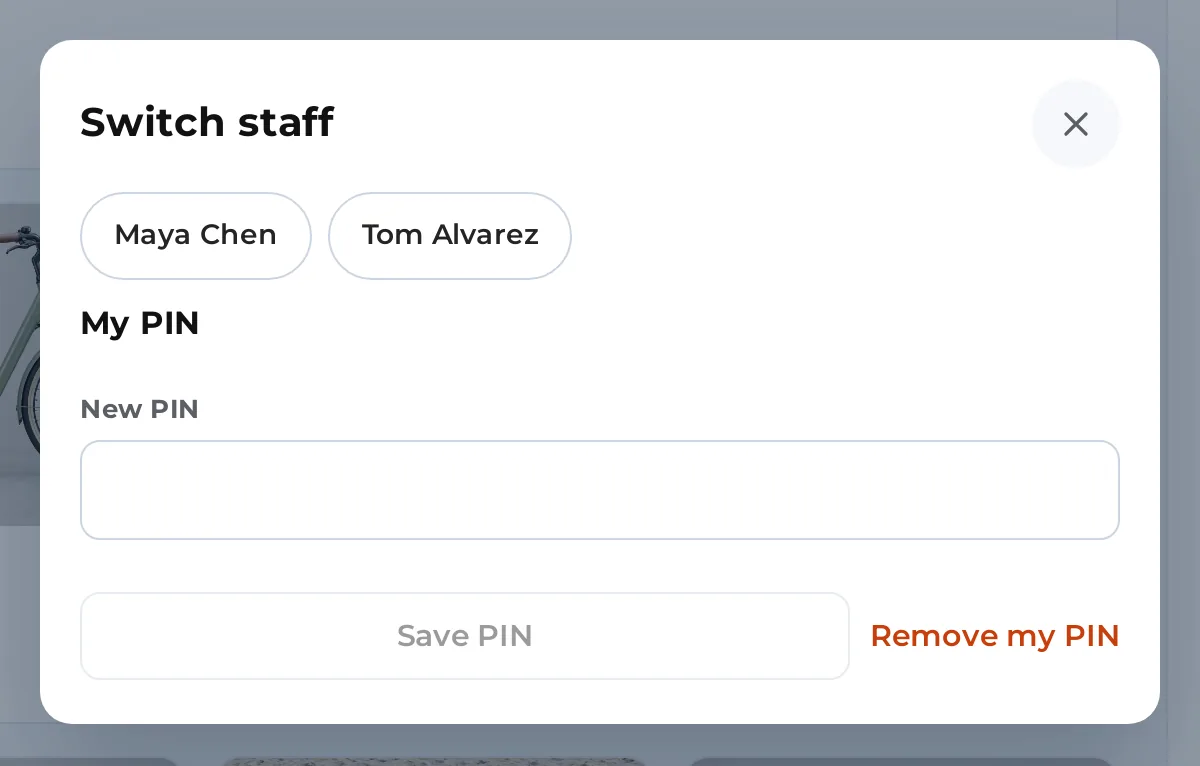
- On the Counter, tap their name in the header, then in My PIN type the PIN in Set a PIN (4 to 8 digits) and tap Save PIN. Remove my PIN takes it away. They need to be signed in with a password to do this.
A PIN is 4 to 8 digits. The Counter refuses a PIN that is easy to guess, such as the same digit repeated or a run like 1234.
Switch #
- Tap the name in the header. The Switch staff sheet opens.
- Tap the colleague’s name, type their PIN in PIN, and tap Switch.
- The screen reloads and the Counter is signed in as the colleague.
If a sale is on the screen, the Counter warns that it stays with the person it belongs to: “The sale on screen stays with” followed by the name. Park the sale first if the colleague should not see it.
Limits, because a PIN is short #
- A PIN signs in to the Counter only, never to wp-admin. The sheet says “Signed in with a PIN: the counter only.” Sign out and use the password to do anything else.
- Administrators cannot have a PIN. Only staff who can use the Counter can.
- After too many wrong PINs the device, or that person’s PIN, is locked for 15 minutes. The message says “Too many wrong PINs on this device. Try again in 15 minutes, or sign in with a password.”
Removing the plugin #
Deleting the plugin keeps the Counter’s data (registers, shifts, the payments ledger, drawer records) unless you ask for it to go. On WooCommerce > Counter, under Removing the plugin, type DELETE COUNTER DATA and tick “I understand the Counter’s records cannot be brought back”. The Counter staff role goes with the data. Orders always stay in WooCommerce.


