
Every hosted store comes with email on your own domain: up to 10 mailboxes, with webmail. You manage them in the email and DNS panel, which you open from My store.
Open the email and DNS panel #
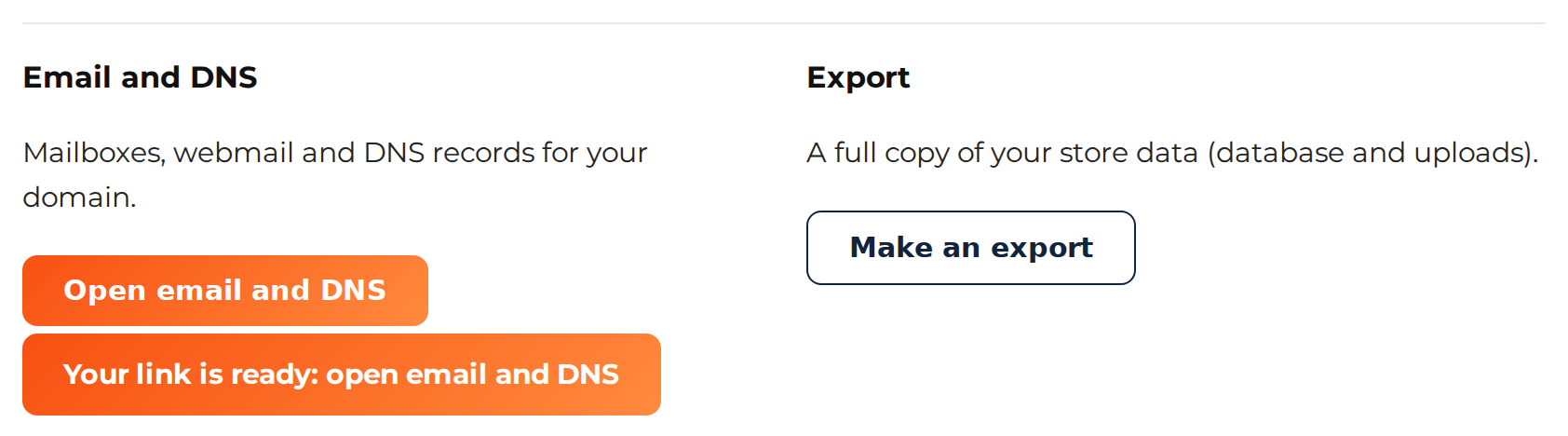
On My Account > My store, press Open email and DNS. After a few seconds a new button appears: Your link is ready: open email and DNS. Click it, and the panel opens in a new tab with you already signed in. The link works once, so press Open email and DNS again the next time.
The panel shows only email and DNS; we look after files, backups and the rest of the server. The button appears once your store is Live and on a paid plan. A free trial has no panel.
Before you make mailboxes #
Mailboxes need your own domain, so add it first: see Use your own domain. If your domain had no email before, My store gave you two mail records (an A record named mail and an MX record) to set at your registrar. Mail for your domain arrives in your mailboxes with us once those records are set.
Your domain may already have email somewhere else: Google Workspace, Microsoft 365 or your registrar’s own mail. Then My store says Your email stays with your current provider. Keep using that provider for your mailboxes. A mailbox made in our panel would get no mail for that domain.
Mailboxes #
- Make up to 10 mailboxes per store, for example
[email protected]or[email protected]. - Read your mail in the panel’s webmail. You can also add the mailbox to Outlook, Apple Mail or your phone, using the server settings the panel shows.
- Mailboxes count toward your store’s 10 GB of storage. My store shows how much is used.
- If you lose a mailbox password, set a new one in the panel.
Emails your store sends #
Your store sends its emails, such as order confirmations, booking reminders and password resets, through our mail server. Each one is signed for your domain with SPF, DKIM and DMARC. The TXT records listed on My store are for this. Set all of them, or your store’s emails are more likely to land in spam.
- Your store can send up to 100 emails an hour per domain.
- Set the sender in your store admin: under WooCommerce > Settings > Emails, set the “From” address to an address on your domain, such as
[email protected].
DNS #
Your domain’s DNS stays with the registrar where you bought the domain. Make DNS changes there, for example a record to verify your site with Google. The panel’s DNS section holds the records our server keeps for your domain. Changes you make there have no effect while your domain’s DNS is at your registrar.
Limits (the same on every plan) #
| Mailboxes | 10 per store |
| Domains | 3 per store: your main domain and 2 more |
| Storage | 10 GB for files, database and mailboxes together |
| Emails your store sends | 100 an hour per domain |
For everything else about your store, see Getting started with your hosted store.


