
Shoppers collect products in a quote basket, which is separate from the WooCommerce cart, and send them to you as one request. This page covers what shoppers see and the settings behind it.
Where the Add to quote button appears #
| Place | Setting (WooCommerce › Settings › Quotes › General) |
|---|---|
| Product pages, next to Add to Cart | Product pages: “Show Add to quote on product pages” |
| Shop and category lists | Product lists: “Show Add to quote in shop and category lists” |
| The cart page | Quote the cart: Show “Request a quote for this cart” on the cart page |
All three are on by default. The button text is Button label (“Add to quote”). Where a hide-price rule replaces Add to Cart, the button shows the replacement label instead (“Request a quote” by default), even if Product pages is off.
In lists, a simple product is added without leaving the page. Variable, grouped, bundle and composite products, and rentals, open the product page so the shopper can choose options first.
After adding an item chooses between staying on the page (the default) and going to the quote basket.
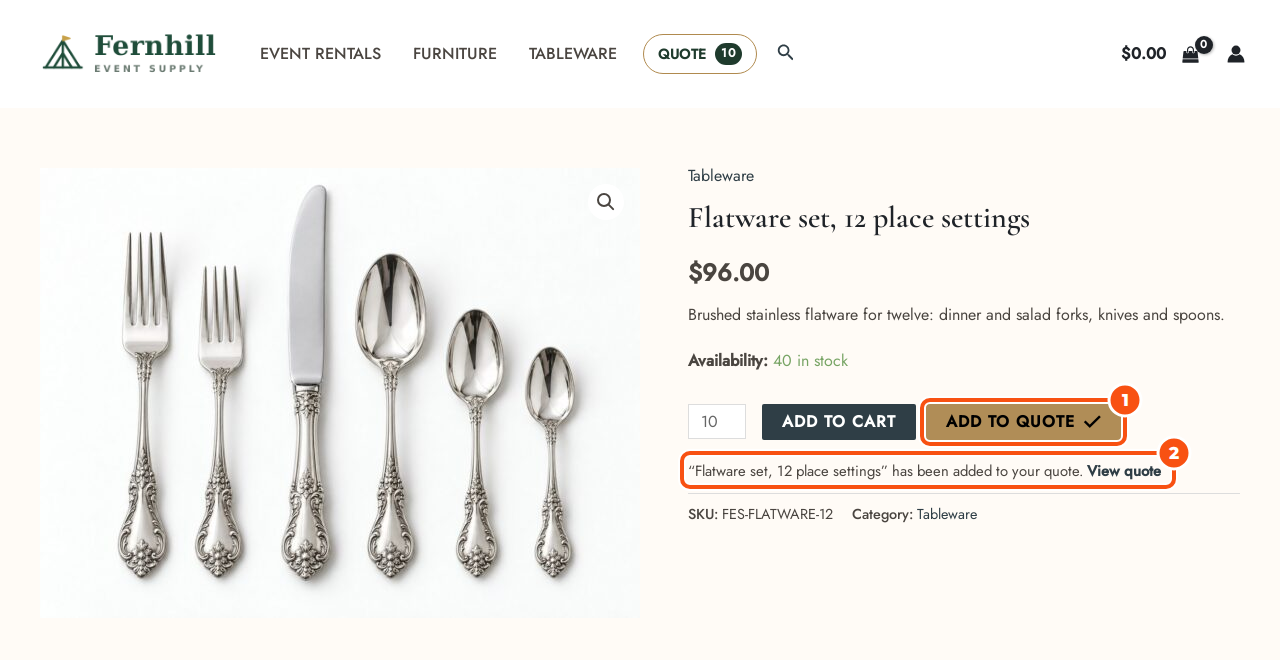
To place a button yourself, use the Add to Quote Button block or [sirfq_quote_button id="123" label="Ask for a price"]. Both id and label are optional; without id the shortcode only works on a product page or in a product list.
Request a quote for this cart #
On the cart page shoppers see Request a quote for this cart: under Proceed to checkout on the classic cart, or below the Cart block on block themes. It shows when at least one item in the cart can be quoted.
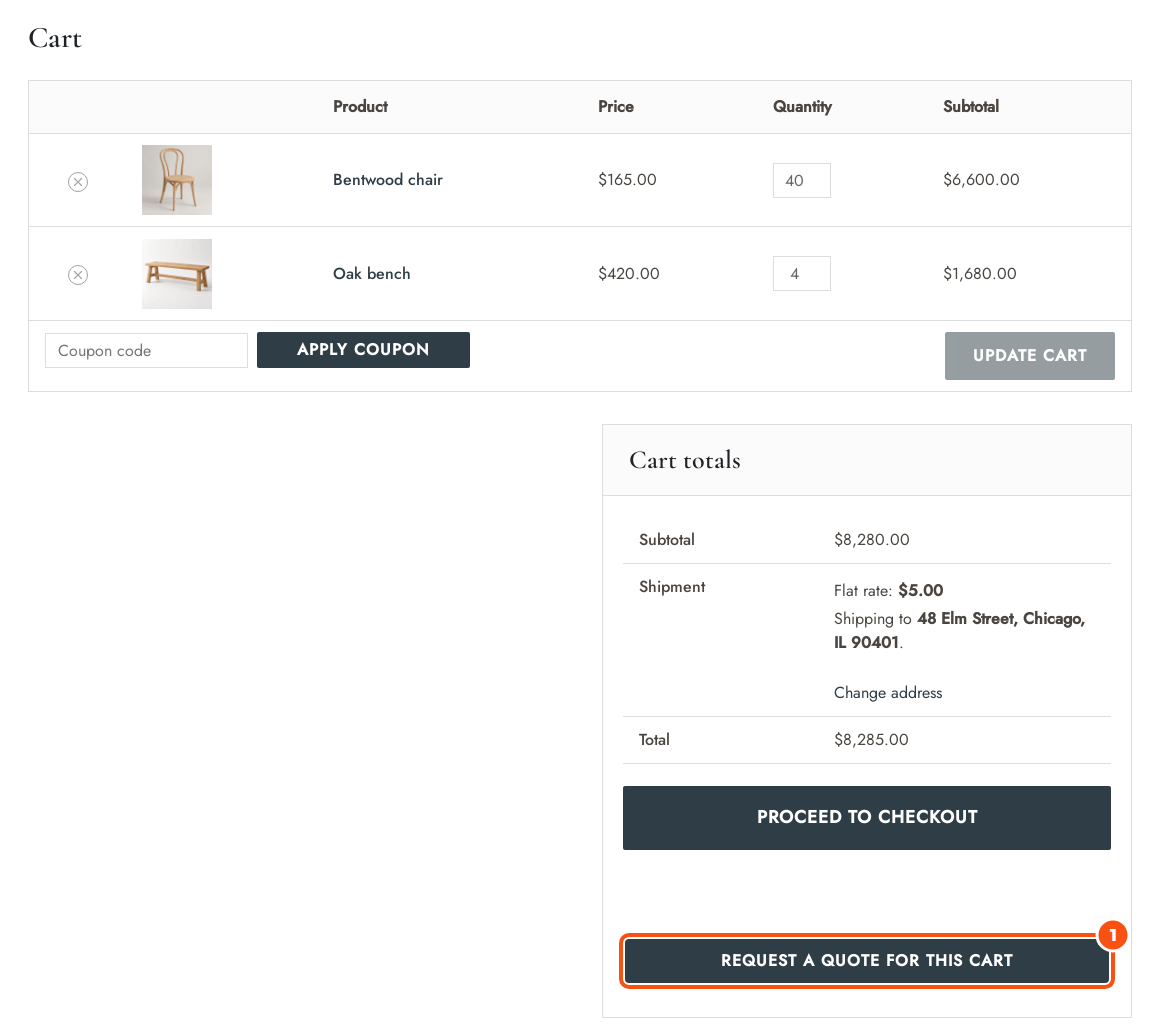
The button copies every item that can be quoted into the quote basket, with its options. Items that cannot be quoted stay in the cart and the shopper is told which ones. Items that already belong to an accepted quote are skipped.
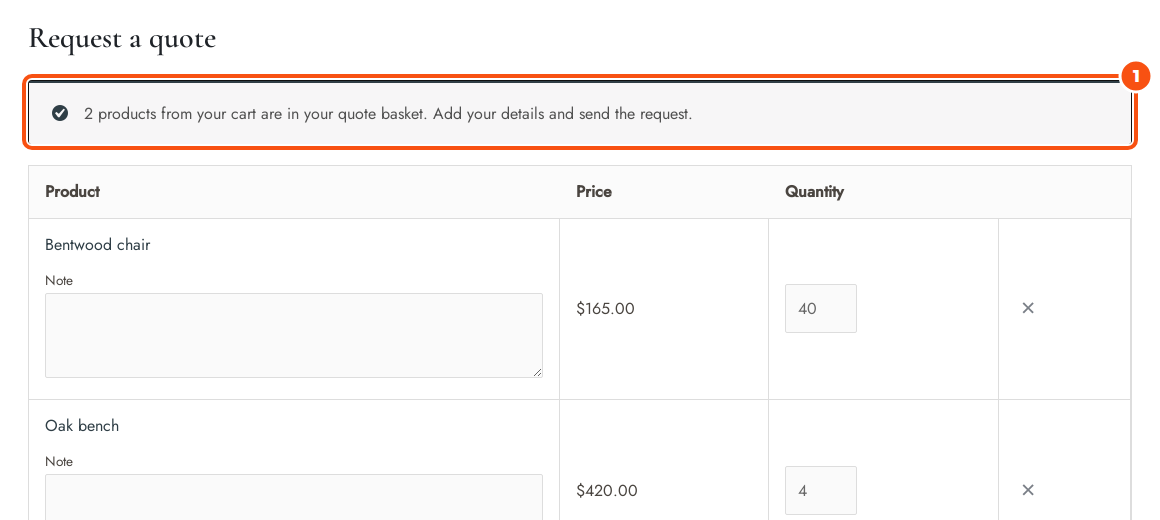
The cart keeps its items by default. Tick Move from the cart (“Take the products out of the cart when the cart is quoted”) to take the copied items out of the cart.
The quote basket #
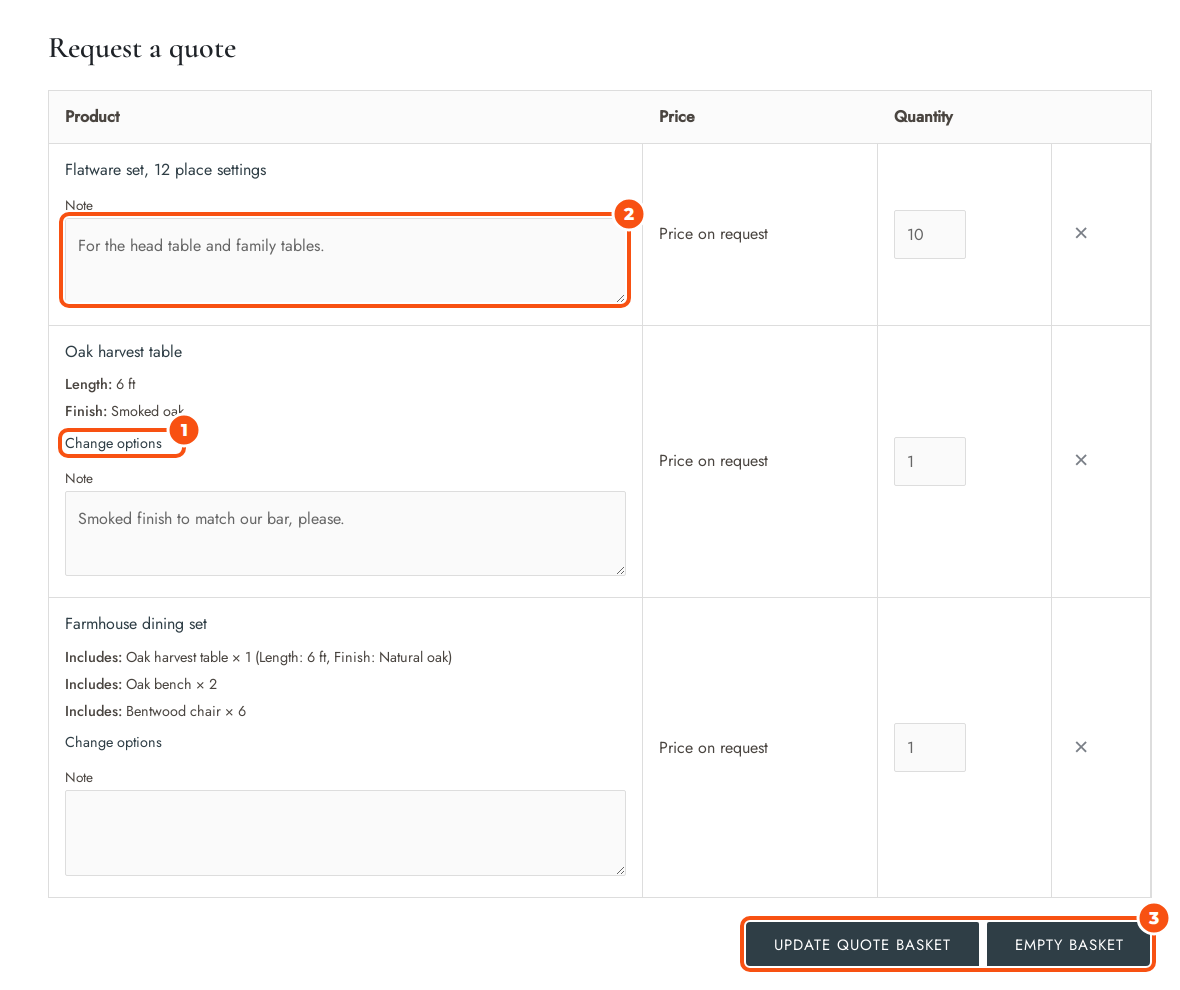
The plugin creates a page called Request a quote. It lists Product, Price, Quantity (and Your price when Suggested prices is on) and a × to remove an item, with Update quote basket and Empty basket underneath. An empty basket says “Your quote basket is empty.”
- Suggested prices (“Let customers suggest a price for each item: in the quote basket, when they edit a request and, as a target price, when they ask for changes”) adds the Your price column. It is off by default.
- Item notes (“Let customers add a note to each item”) adds a Note box to every item.
Both are on by default.
When any item in the basket has a hidden price, the basket shows the hidden-price text for every item, so the other prices and the total can’t give it away. Your offer shows all prices.
Mini Quote Basket #
The mini basket links to the quote basket and shows how many items it holds. The count updates without a page reload when a shopper adds an item. It comes in two looks:
- Text: “Quote” with the count. This is the default.
- Icon: a quote sheet icon with a count badge, the size of a header cart icon. The badge takes your theme’s accent colour and is hidden while the basket is empty. Screen readers hear “Quote basket, 2 items”.
Ways to show it:
- The Mini Quote Basket block. In the block settings, Show as picks Text or Icon.
- The shortcode:
[sirfq_mini_quote]for the text,[sirfq_mini_quote style="icon"]for the icon. - Mini basket in a menu (WooCommerce › Settings › Quotes › General) adds the text look as the last item of the menu in the chosen location.
- Quote icon in the header (same section) puts the icon right before your theme’s cart icon. Choose Next to the cart icon. It is Off by default, so updating the plugin never changes your header.

Where Quote icon in the header places the icon:
| Theme | Placement |
|---|---|
| Block themes (Twenty Twenty-Five and others) | Before the Mini-Cart block in the header template part, the same size as the cart icon. Open the header in the Site Editor to move it or remove it; once you save the header, it keeps your version. Turning the setting off hides the icon it placed, also in a header you saved; turning it on again brings that icon back. A Mini Quote Basket block you added to the header yourself always shows. |
| Astra | Before the cart in the desktop header and the mobile header, in the colour and size of Astra’s cart icon. |
| Storefront | Before the header cart, and before the cart in the bar at the bottom of phone screens. |
| Other classic themes | Nothing is added automatically. Use Mini basket in a menu, the block or the shortcode. |
The icon is not added twice. It stays out while Mini basket in a menu is set, when a block theme’s header already holds a Mini Quote Basket block or the shortcode, and when an Astra header HTML element or header widget already shows the mini basket.
Changing an item’s options #
Items with options, such as a variation, a bundle or a composite, have a Change options link in the basket. Rentals have Change dates or options.
- The shopper clicks the link. The product page opens with the item’s options already chosen.
- A notice says the shopper is changing the item in their quote request, with a Back to your quote link.
- The shopper changes the options and clicks Update quote request, and is taken back to the basket.
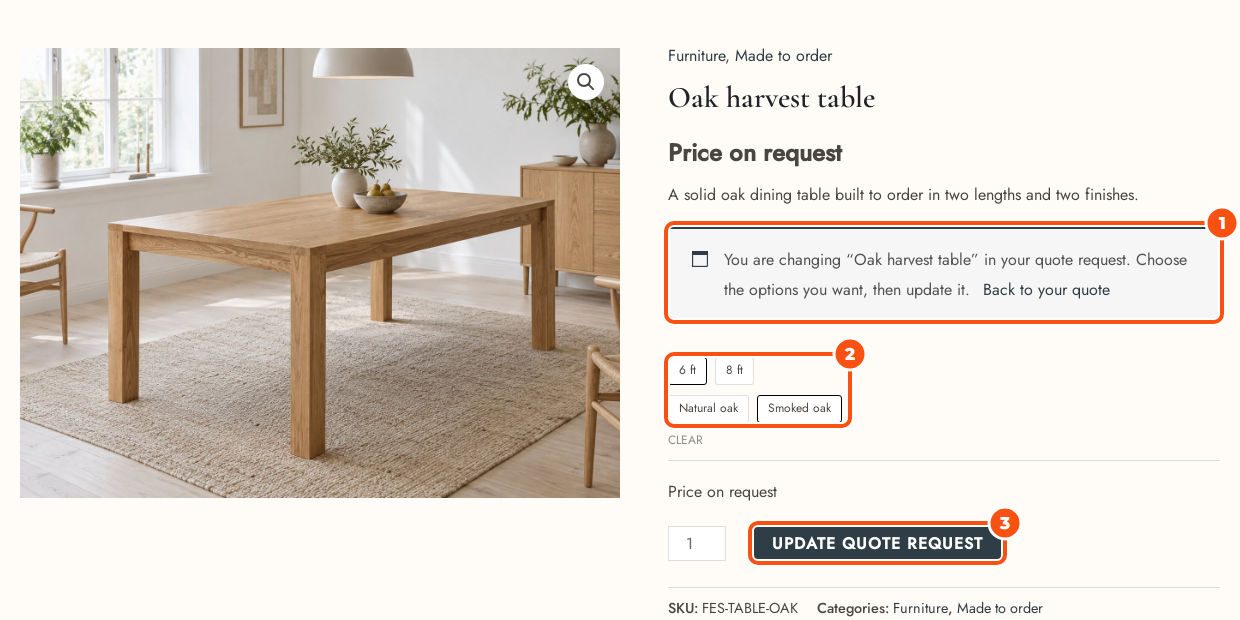
The changed item keeps the shopper’s note, suggested price and place in the list. If the new options match another item, the two are merged. Plain products have no link: shoppers change the quantity in the basket.
The request form #
Below the basket the shopper fills in Your details and clicks Send quote request. Name and Email are always required, and there is always a Message box. A hidden honeypot field runs on every form to stop simple spam bots. Logged-in customers find their name, email, phone, company and addresses filled in.
Set up the form in WooCommerce › Settings › Quotes › Request form.
| Setting | Choices (default) |
|---|---|
| Address | Do not ask (default), Delivery address, Delivery and billing address |
| Phone, Company | Hidden, Optional (default), Required |
| Custom fields | A list you build (see below) |
| Attachments | Off by default |
| Privacy consent | Off by default |
| CAPTCHA | Off (default), Google reCAPTCHA v3, Cloudflare Turnstile |
| Minimums | None by default |
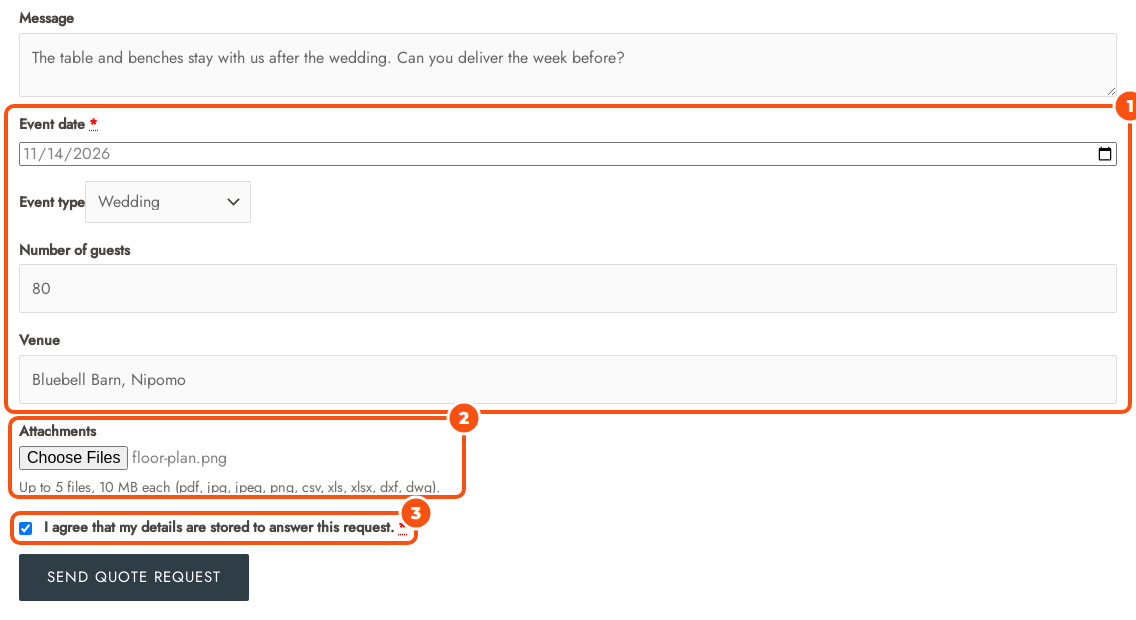
Custom fields #
Click Add field. For each field set a Label, a Type (Text, Paragraph, Drop-down, Checkboxes (several choices), Date, Checkbox, Email, Number), the Choices for drop-downs and checkboxes (one per line), a placeholder and help text, and the options Required and Show on the quotes list. Use the arrows to change the order. The small key under a label stays the same when you rename the field.
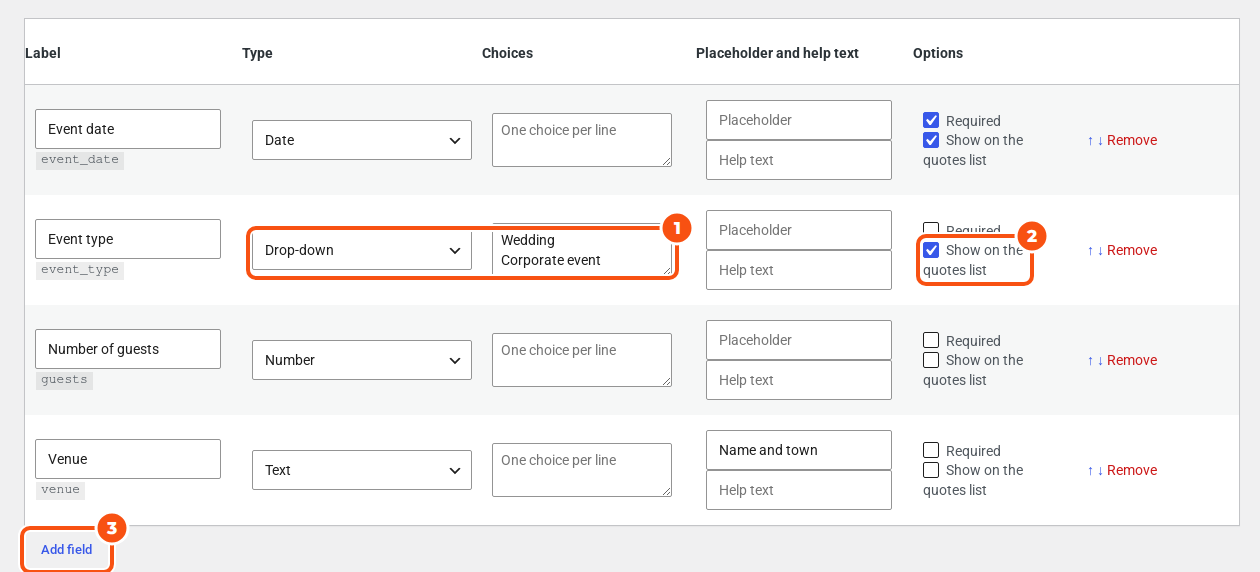
Answers are saved with the request and shown to staff, on the quote page and in the emails. Fields marked Show on the quotes list become columns in WooCommerce › Quotes; Drop-down and Checkbox fields shown there also become filters. A field without a label, or a drop-down without choices, is dropped when you save.
Attachments #
Tick Attachments (“Let customers attach files to a request”). Then set:
- Allowed file types: comma-separated extensions. The default is pdf, jpg, jpeg, png, csv, xls, xlsx, dxf, dwg.
- Files per request: 1 to 20, default 5.
- Largest file (MB): 1 to 100, default 10, and never more than your server allows.
Files are stored in a private folder, checked by extension and by content, and only open for staff or for the customer through their quote link.
Consent and CAPTCHA #
- Privacy consent adds a checkbox the shopper must tick. The Consent text can contain links, and
[privacy_policy]becomes a link to your privacy policy page. The answer is saved with the request. - CAPTCHA adds Google reCAPTCHA v3 or Cloudflare Turnstile. Enter the CAPTCHA site key and CAPTCHA secret key. For reCAPTCHA, requests scoring below the reCAPTCHA score threshold (0.5 by default) are refused. If Google or Cloudflare cannot be reached, the request is refused.
Custom fields, attachments, consent and CAPTCHA also appear in the quick quote form (see Hiding prices and replacing Add to Cart).
Minimums #
Click Add minimum and fill in Who (empty: everyone), a Minimum value and a Minimum quantity. The Who list includes Guests (not logged in). A request must reach the minimums of every row that matches the shopper. The value is catalog price times quantity; items without a price count as 0.
Guests and accounts #
- Guests (“Let visitors who are not logged in request quotes”) is on by default. Untick it and shoppers see a “Log in to request a quote” button.
- A guest who types the email address of an existing account is asked to log in.
- Guest accounts (General, off by default) creates a customer account for a guest’s request when none exists for that email. WooCommerce emails a link to set a password. The guest is not logged in.
- A guest’s basket joins their account when they log in. A basket that is never sent is deleted 30 days after it was last changed.
Good to know #
- For rentals, the basket shows the dates under each item. See Rental quotes: dates, availability and stock holds.
- Bundles, composites and grouped products: see Product types: variations, grouped, bundles and composites.
- What happens after the request is sent: The quote editor and offers.


