
This page describes what your customers see after they send a request, and what each button does. It is handy for answering support questions.
How customers reach their quote #
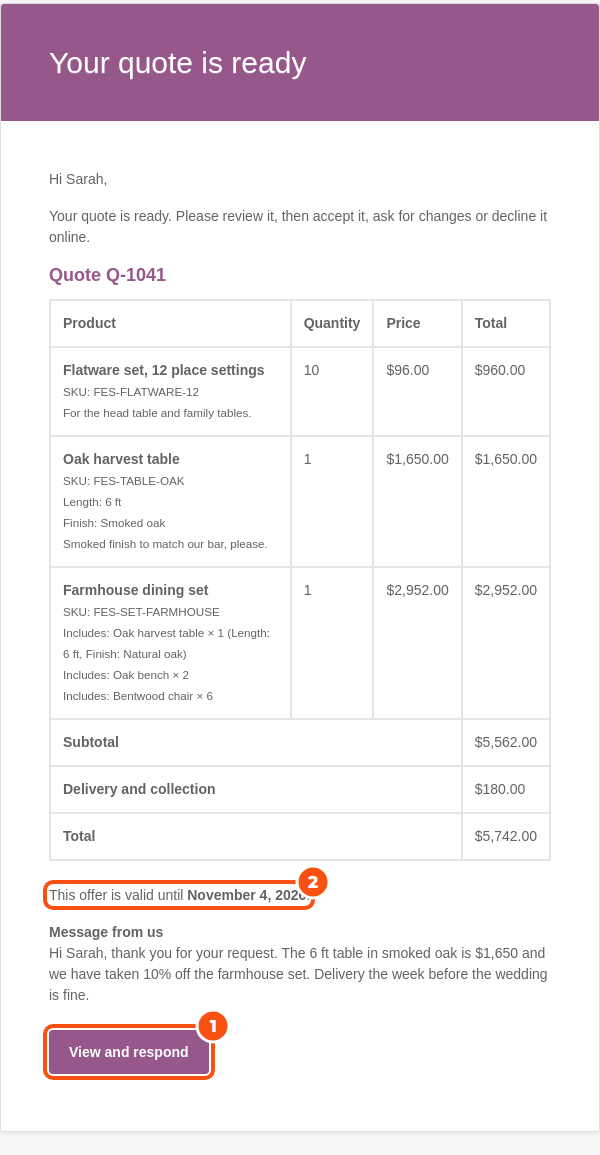
- The link in the email. Emails about a quote carry a link to the quote page (all except the cancelled and closed emails). It works for guests without an account and stays valid for 30 days; each new email carries a fresh link. Opening the link never accepts or pays anything: only the buttons on the page do.
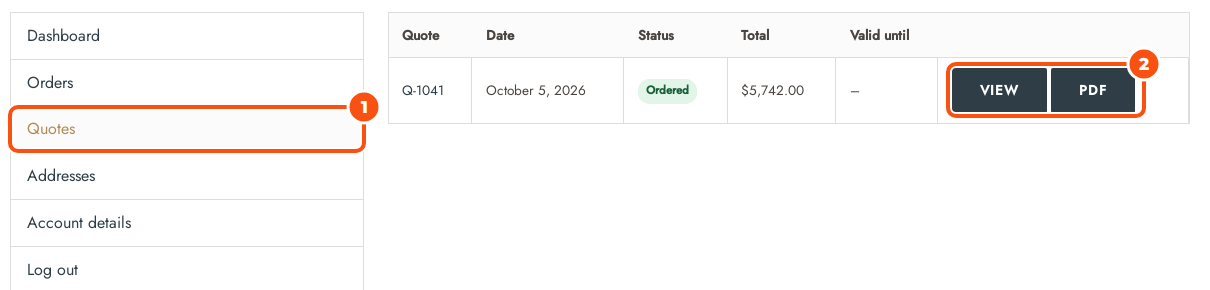
- My Account › Quotes. Logged-in customers see their quotes with Quote, Date, Status, Total and Valid until, a View button, and a PDF button once an offer has been sent. A quote you start yourself (a Draft) is not shown there, does not open from any link and sends no email until you send it.
- Without a valid link or login the page says “To see your quote, open the link in your most recent email about it.” Logged-out visitors also get a Log in link.
- Save this quote to my account. A customer who asked for a quote as a guest can log in to an account with the same email address, open the quote from the email link and click Save this quote to my account.
What the customer sees as the status #
| Customer sees | Meaning |
|---|---|
| Requested | The request is with you; no offer yet. |
| Quote ready | You sent an offer. |
| Changes requested | The customer asked for changes to your offer. |
| Accepted, awaiting payment | The customer accepted and has until the payment deadline to pay. |
| Accepted | In quote-only mode: the customer accepted, and you arrange the order with them. |
| Ordered | The order was placed. The page links to it. |
| Expired | The offer, or the payment deadline, passed. |
| Declined | The customer said no. |
| Closed by the shop | You rejected the request. |
| Cancelled | The customer withdrew the request, or you cancelled it. |
The quote page #
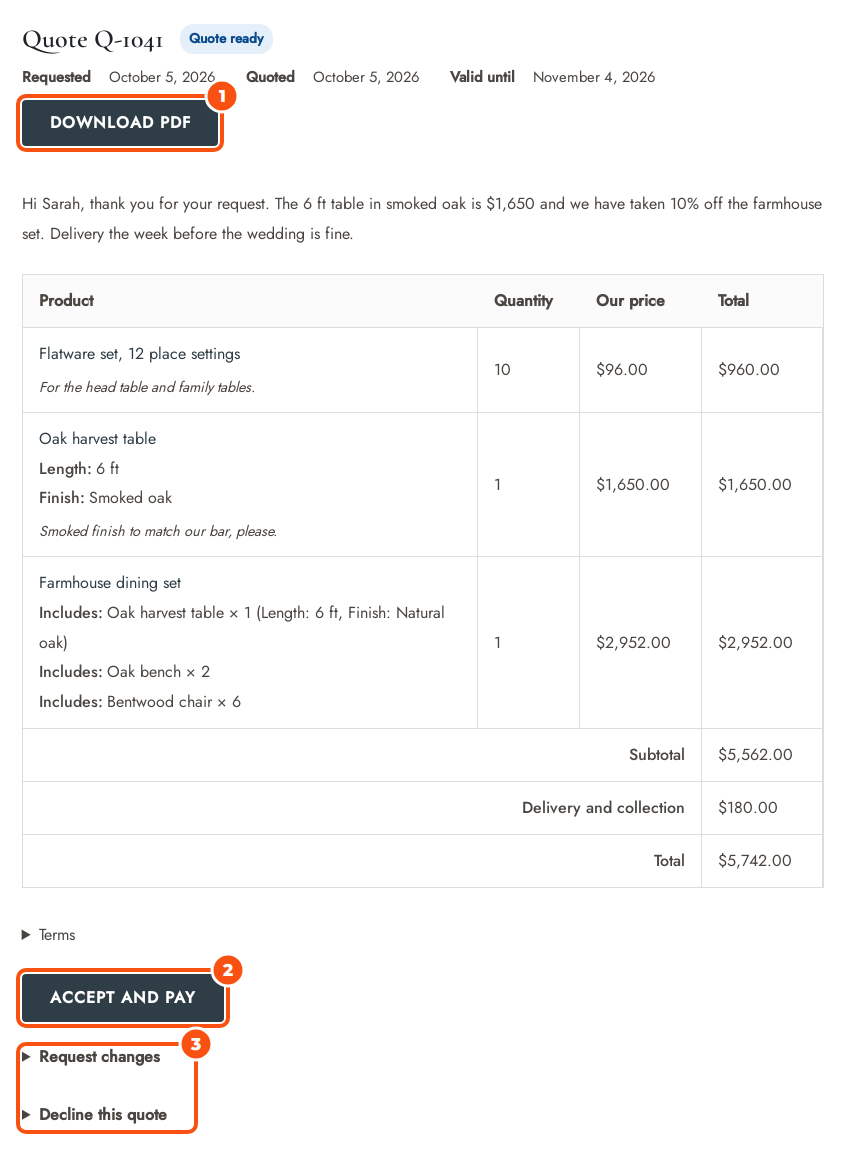
The page shows the quote number and status, the dates (Requested, Quoted, Valid until while the offer is open, Pay by after accepting), your message, the items, the totals, your Terms, the customer’s own request details and a Messages box.
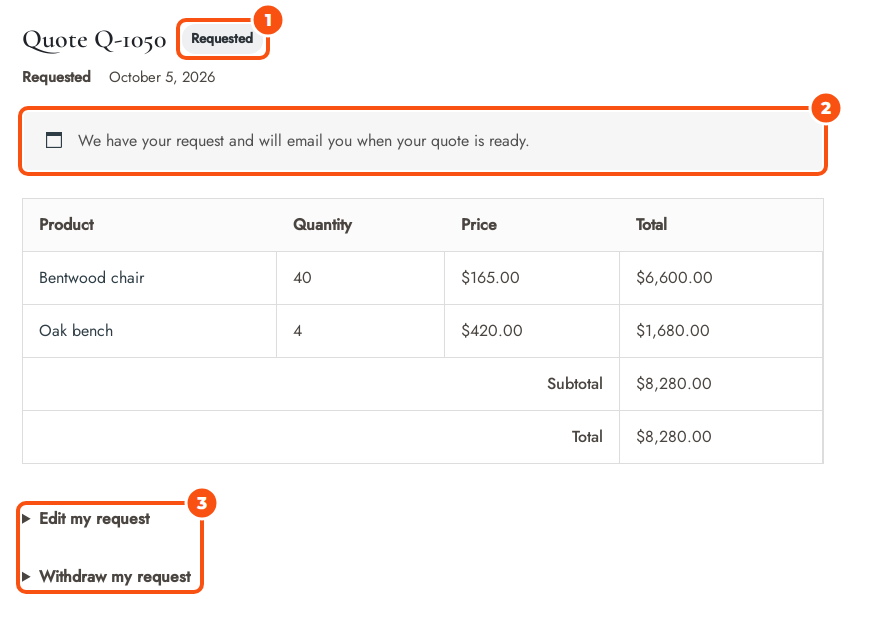
Before an offer, the page says “We have your request and will email you when your quote is ready.” The price column is headed Price, and prices hidden from this customer stay hidden. Once you send an offer the price column is headed Our price. When the customer suggested prices, a You asked column shows them beside yours.
What a customer can do #
While the request waits for you #
- Edit my request. Change quantities, remove items, and change the suggested prices and item notes (when the form asks for them), then click Save my changes. This works only while the quote is a new request that nobody has opened in the quote editor yet. Each edit is saved as a new version and staff get an email. After that, the customer sends a message instead.
- Withdraw my request. An optional reason, then Withdraw. The quote is cancelled.
When an offer is ready #
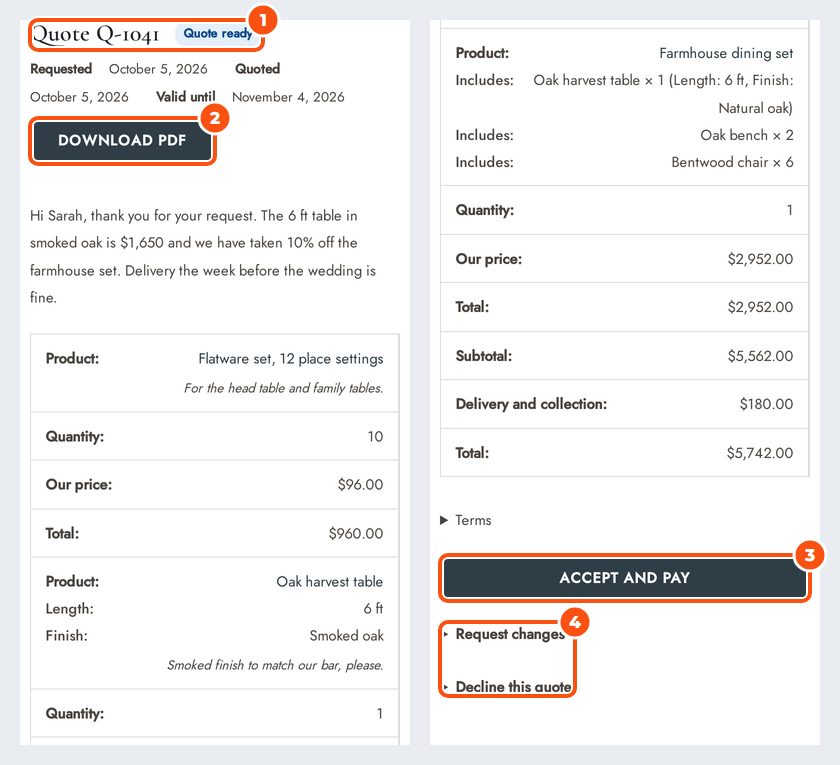
- Accept and pay. Accepts the offer and starts payment (see From accepted quote to order). Accepting is refused if the offer has expired (“This offer has expired. Please ask us for a new one.”) or a newer offer was sent. In quote-only mode the button is Accept quote: the customer accepts without paying and the page says “You accepted this quote. We will contact you to arrange the order.”
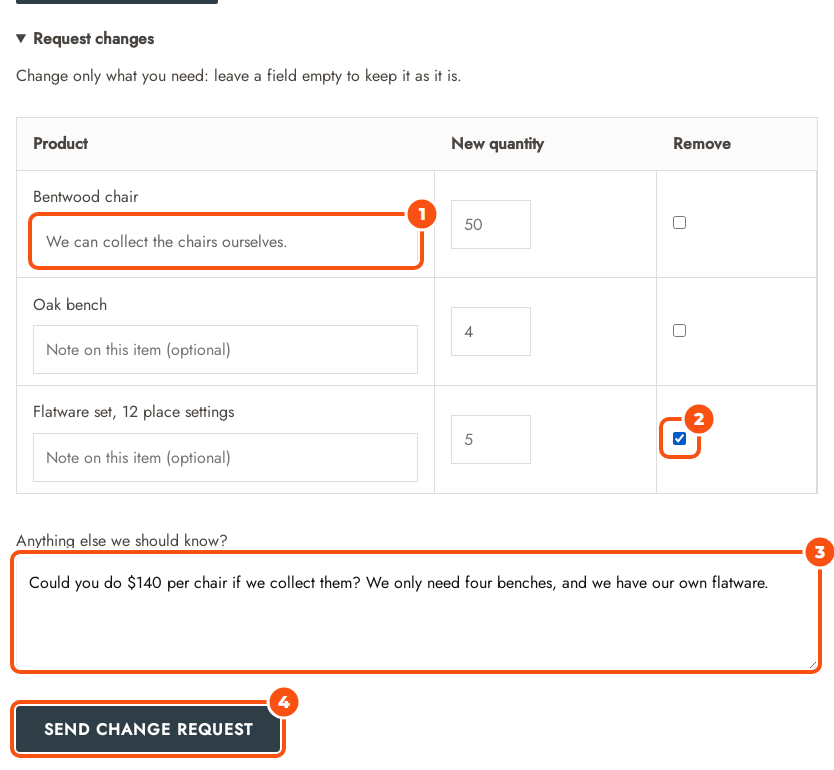
- Request changes. A form with one row per item: tick Remove, enter a New quantity or (when Suggested prices is on) Your target price (each), and add a Note on this item (optional). There is also Anything else we should know?. Fields left empty keep the item as it is. The customer clicks Send change request, the quote becomes Changes requested and your staff get an email. The customer can’t accept until you send a new offer.
- Decline this quote. An optional reason, then Decline.
- Withdraw my request is also there while the quote is Changes requested.
After accepting #
Pay now takes the customer back to payment until the payment deadline.
At any time while the quote is open #
Write a message and Send message in the Messages box. The box is gone once the quote is ordered, expired, declined, rejected or cancelled.
What changed #
Under the items the customer sees What changed since your request on your first offer, and What changed since our last offer on later ones. Each item is marked Added, Removed or Changed. Prices are compared only between two offers, because the request may hold prices hidden from this customer.

Your side of the same comparison is Compare with v… in the editor’s Versions box.
The PDF #
With PDF quotes on (WooCommerce › Settings › Quotes › PDF, on by default), the customer can download a PDF once an offer is sent. It has your logo or store name, the quote number and dates, “Prepared for” and “Deliver to”, the items with their details, prices where they may be shown, your message, your terms and your footer text. It has no payment link and no quote link, because PDFs get forwarded and printed.
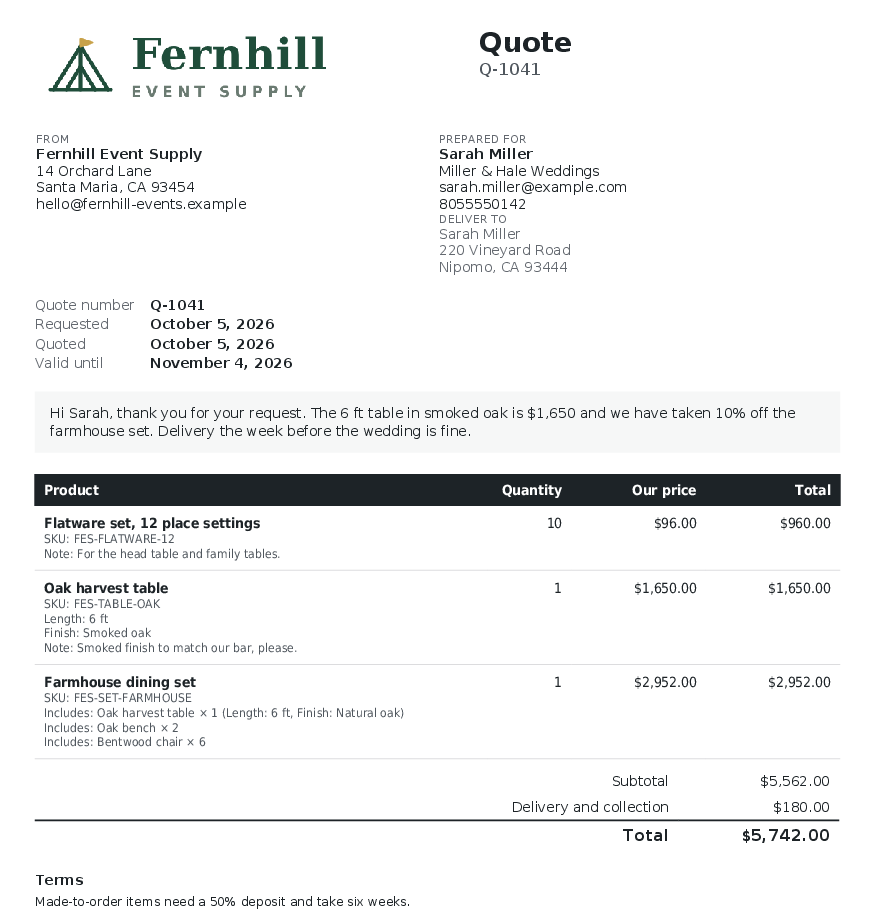
With Email attachment on (the default), the PDF is attached to the “Quote ready” and reminder emails. Staff can download the PDF of any quote they can open; it is always the customer’s copy. The page size is Letter for stores in the US and Canada and A4 elsewhere.
On a phone #
Helping a customer who is stuck #
- “I can’t open my quote.” Ask them to open the link in their most recent email about it, or to log in to the account that placed the request. Links last 30 days; any new email carries a fresh one.
- “Accept does nothing.” Check the status: an expired offer can’t be accepted. Reopen it in the editor and send a new offer.
- “My prices disappeared.” Prices hidden from the customer show once you send the offer.
- “I need to change my request.” Until someone opens it in the editor they can use Edit my request. After that, ask them to use Request changes on your offer, or to send a message.


