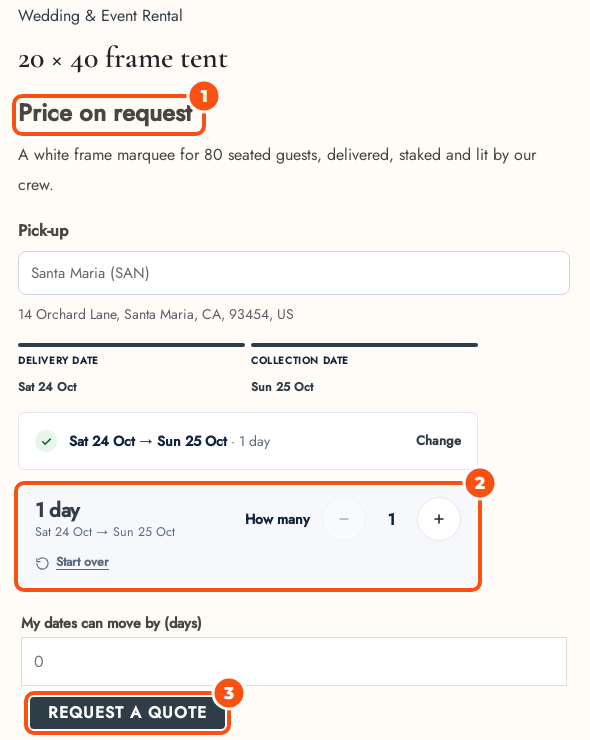
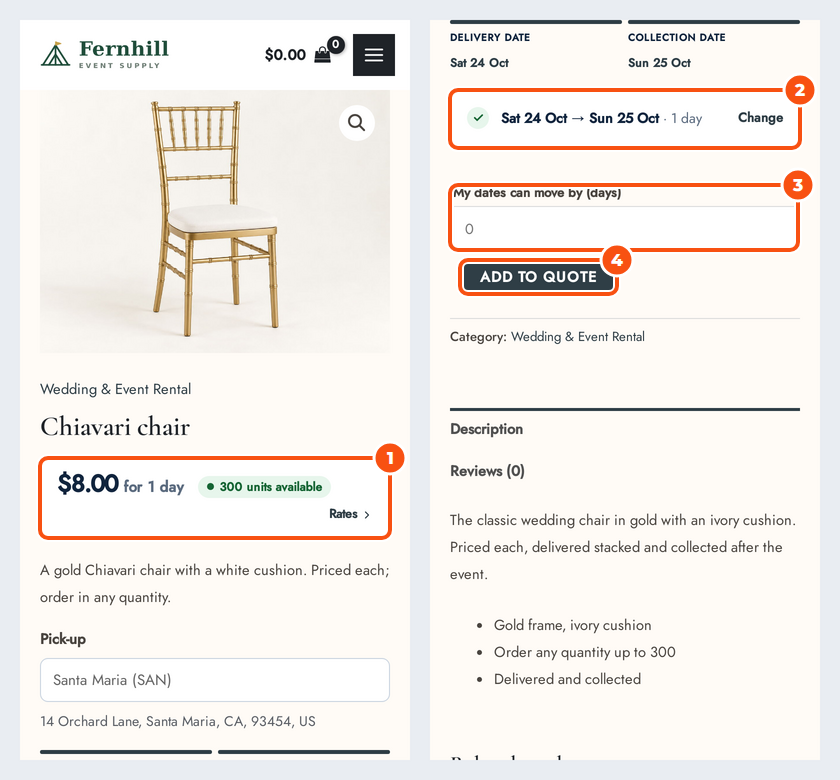
If you rent products with Sales Igniter Rentals & Bookings, quotes carry the rental dates, check availability and can hold stock while the customer decides. Everything on this page needs Rentals & Bookings, which itself needs Secure Custom Fields. Request a Quote & Hide Price on its own needs only WooCommerce.
Rental quotes need Sales Igniter Rentals & Bookings 1.0.13 or later. With an older version, rental quotes stay off: a notice on the Plugins screen, the Quotes screens and the Quotes settings says so, and the Rentals settings section explains it instead of showing its settings. Rental products then keep their usual booking and Add to Cart (no quote button), and everything else in Request a Quote works as usual. Update Rentals & Bookings and rental quotes turn on.
Dates on a quote #
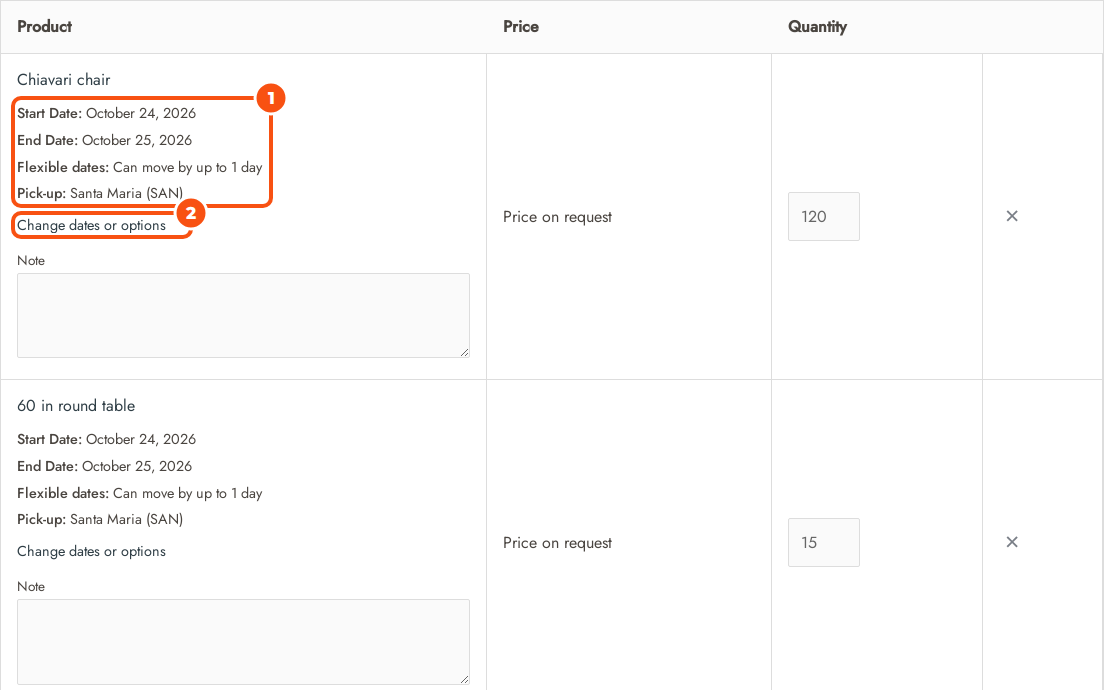
The shopper picks the dates (and guests and pickup location, if you use them) on the product page and clicks Add to quote. The basket, the quote and the emails show them as rows under the product. The catalog price comes from your rental pricing for those dates, so a quote starts from what a booking would cost.
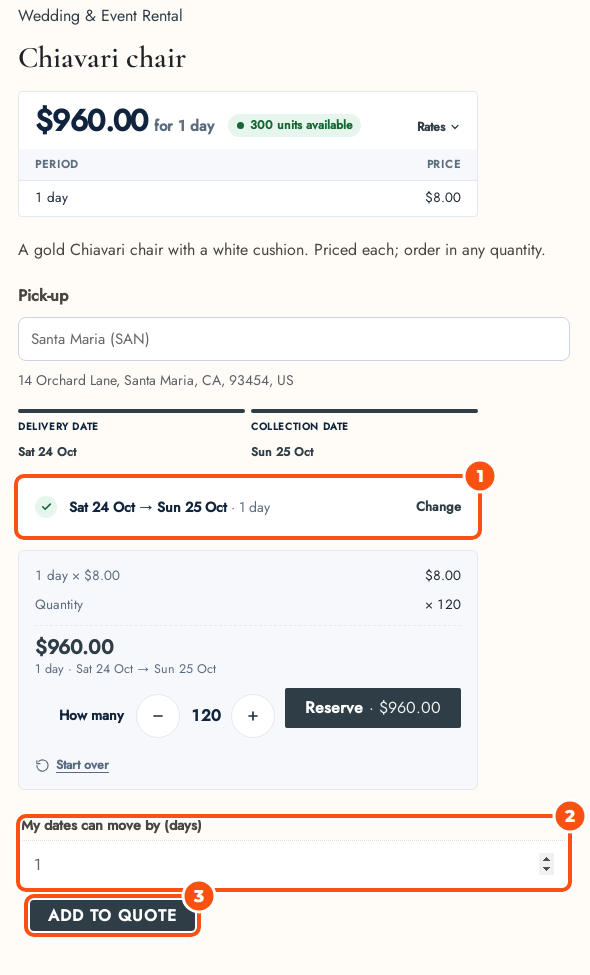
- A shopper who adds a rental without dates is told “Please choose the rental dates.” Staff who add a rental in the editor without dates get an item flagged “Choose the rental dates.” and without a price.
- In shop lists a rental always opens its product page, because it needs dates.
- Change dates or options in the basket opens the product page on the item’s dates and options.
- At checkout the dates and pickup location of quoted items can’t be changed: they follow the quote.
Availability #
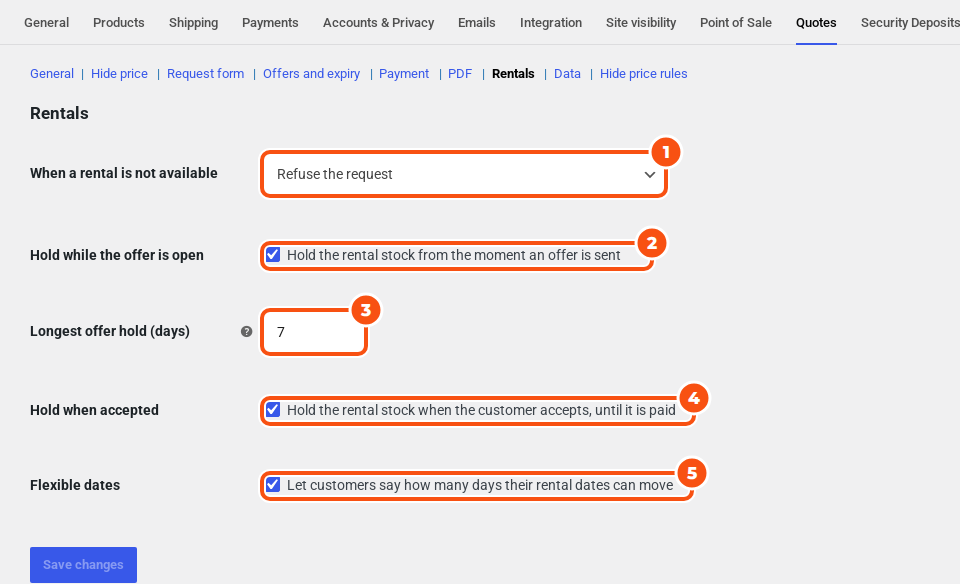
Choose what happens when a rental is not available in WooCommerce › Settings › Quotes › Rentals › When a rental is not available:
- Refuse the request (the default): the shopper is told the item is not available.
- Accept it and flag the item: the item is added and flagged, and the request can still be sent. The basket says “Not available for these dates. You can still ask; we will suggest what we can do.”
Messages are specific, for example “1 of 2 available for these dates.” or “None available for these dates.” Your rental date rules, such as minimum length and closed days, apply too.
Availability is checked when an item is added (by the shopper or by staff), when the request is sent or edited, and when you change the dates in the quote’s Rental panel. When the customer accepts, and at checkout, only stock and a start date that has already passed are checked, because the offer is the agreement. A quote’s own holds never count against it.
If something is no longer available when the customer accepts, the accept is refused with a message asking the customer to contact you to change the dates, and staff get the “Accept failed (staff)” email.
Stock holds #
A hold reserves the stock in Rentals & Bookings, so nobody else can book it.
| Setting | Default | What it does |
|---|---|---|
| Hold when accepted | On | Holds each rental item from Accept until the payment deadline |
| Hold while the offer is open | Off | Holds from the moment you send the offer |
| Longest offer hold (days) | 7 | An offer hold ends after this many days (1 to 7), and never after the offer’s expiry. It doesn’t shorten the hold after Accept. |
- When an offer hold ends before the offer does, the dates are no longer reserved; Accept checks them again.
- Sending again renews the offer hold. A send is never refused because the hold failed: the timeline shows “Hold failed”.
- Holds are released when the customer declines, you reject or cancel, the quote expires, or the customer asks for changes. A job every 15 minutes also releases holds that are past their “Held until” time.
- When the order is placed, its own bookings take over. On the payment-link path the hold moves to the order when the order is created.
- If an order fails or is cancelled while the quote is still Accepted, the stock is held again until the payment deadline.
- With Hold when accepted off, Accept still checks stock and refuses if it is gone.
To hold or release stock on one quote by hand, use Hold stock and Release hold in the quote’s Rental panel: see Rental quotes: staff tools, deposits and bookings.
Flexible dates #
Flexible dates is off by default. Turn it on in WooCommerce › Settings › Quotes › Rentals. With it on, rental product pages show My dates can move by (days), 0 to 30. The editor, the quote page and the emails then show “Flexible dates: Can move by up to N days”. It is information for you: nothing moves by itself. It is ignored for items bought rather than rented. Turn the setting off to hide the field and the rows.
Hidden prices on rental pages #
When a hide-price rule covers a rental product, its price card, the price in the booking bar and the calendar prices are hidden too, and Request a quote replaces the booking button. The shopper still picks dates and a quantity.