
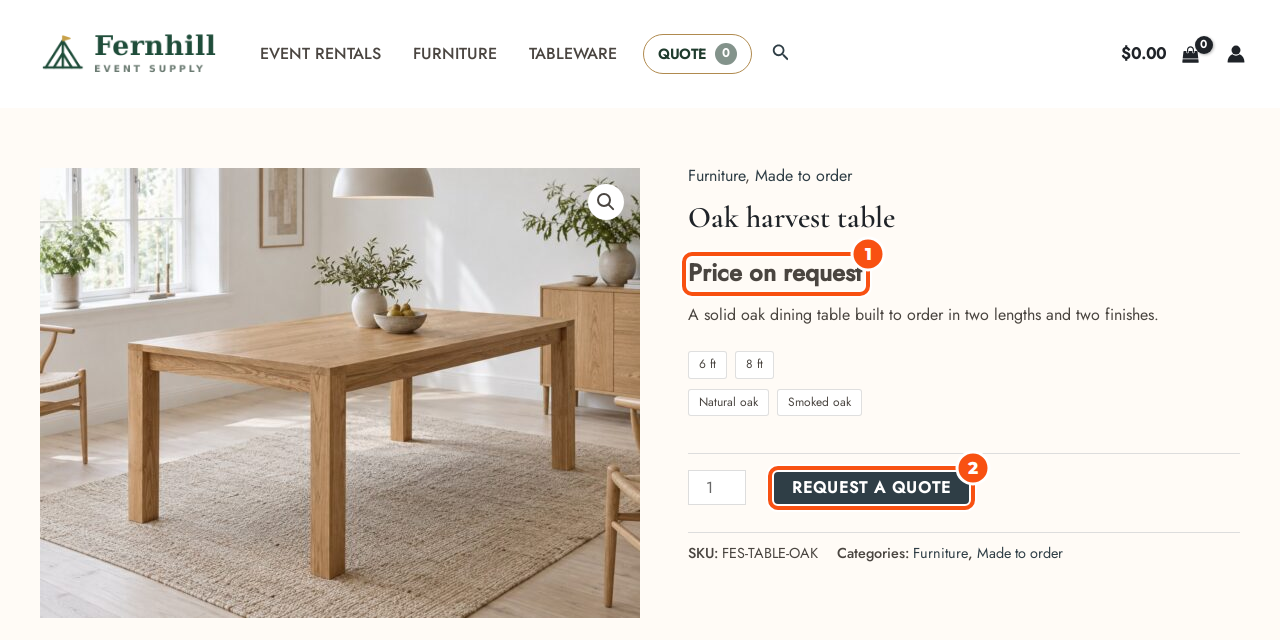
You decide who sees prices and Add to Cart with a list of rules, and you can override the rules on any single product. Hiding happens on the server, not only with CSS: a hidden price does not show up on the product page, in shop lists, in blocks, in the Store API, in variation data or in structured data, and the product cannot be added to the cart.
How the decision is made #
For each product and each visitor the plugin works down this list and stops at the first match:
- Quotes switched off (General › Quotes): nothing is hidden and nothing can be quoted.
- Always show prices to (Hide price section): the people listed there always see prices and Add to Cart.
- The product’s own Quote tab: these settings win over every rule for that product.
- Rules, by priority: the rule with the lowest priority number that matches the product and the visitor wins. Rules with the same priority combine, and the most restrictive setting is used.
- Otherwise everything is shown.
A hidden price never sits next to a working Add to Cart, because the cart would show the price. If a rule hides the price, Add to Cart is replaced by the quote button even when the rule says Leave as it is or Show.
Hide price rules #
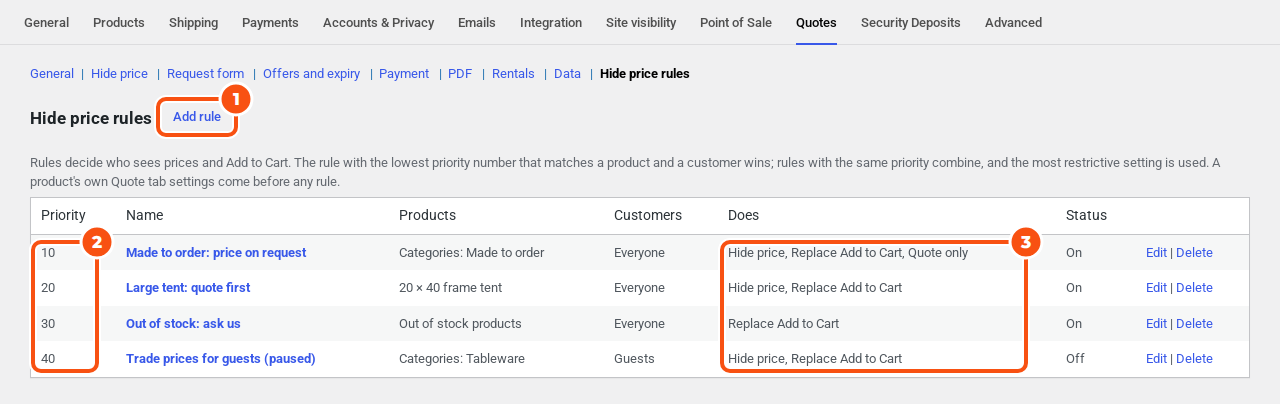
Go to WooCommerce › Settings › Quotes › Hide price rules and click Add rule. The list shows each rule’s Priority, Name, Products, Customers, what it Does and its Status (On or Off).
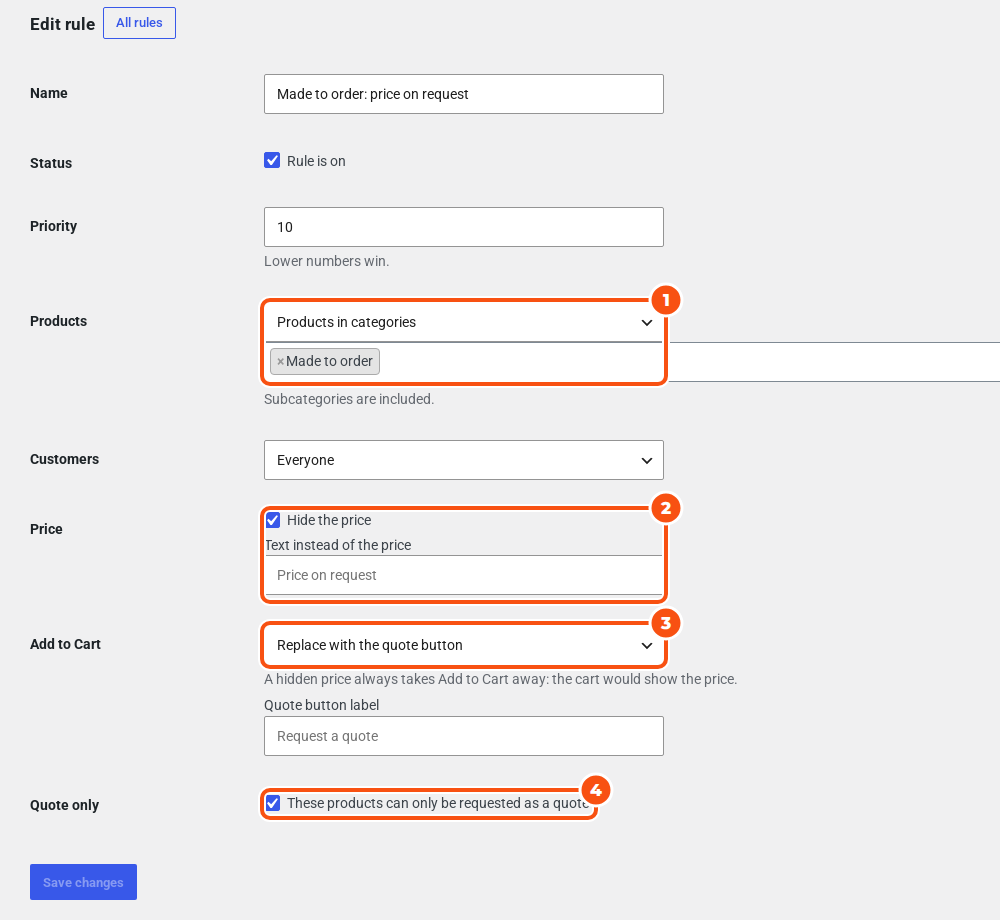
| Field | Choices |
|---|---|
| Name | For your own reference, for example “Trade prices for guests” |
| Status | Rule is on. Untick it to switch a rule off without deleting it. |
| Priority | A number, 10 for a new rule. Lower numbers win. |
| Products | All products, Chosen products, Products in categories (subcategories are included), Products with tags, Out of stock products |
| Customers | Everyone, Guests (not logged in), Logged-in customers, Customers with roles, Chosen customers |
| Price | Hide the price, with an optional Text instead of the price |
| Add to Cart | Leave as it is, Replace with the quote button, Remove, Show, with an optional Quote button label |
| Quote only | These products can only be requested as a quote |
With no rules, every price and Add to Cart button is shown. A rule with nothing ticked shows everything, so a “show” rule with a lower priority number works as an exception to a later rule that hides.
Example: prices for logged-in customers only #
- Add a rule named “Guests see no prices”.
- Products: All products. Customers: Guests (not logged in).
- Tick Hide the price and set Add to Cart to Replace with the quote button.
- Click Save changes.
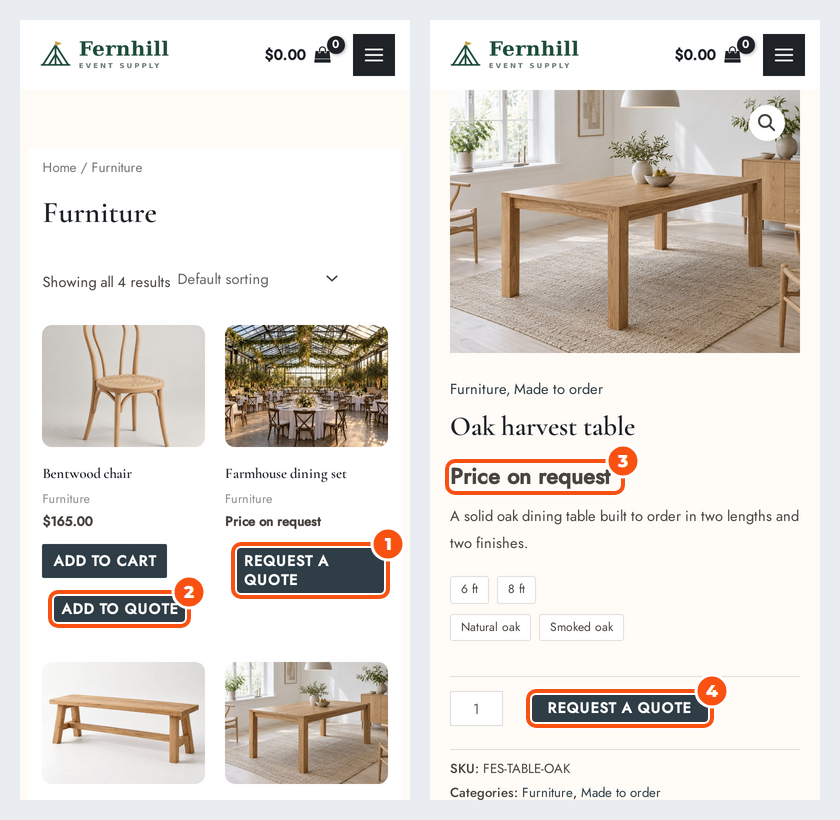
Guests see “Price on request” and a quote button. Logged-in customers see the shop as normal.
The text and the button #
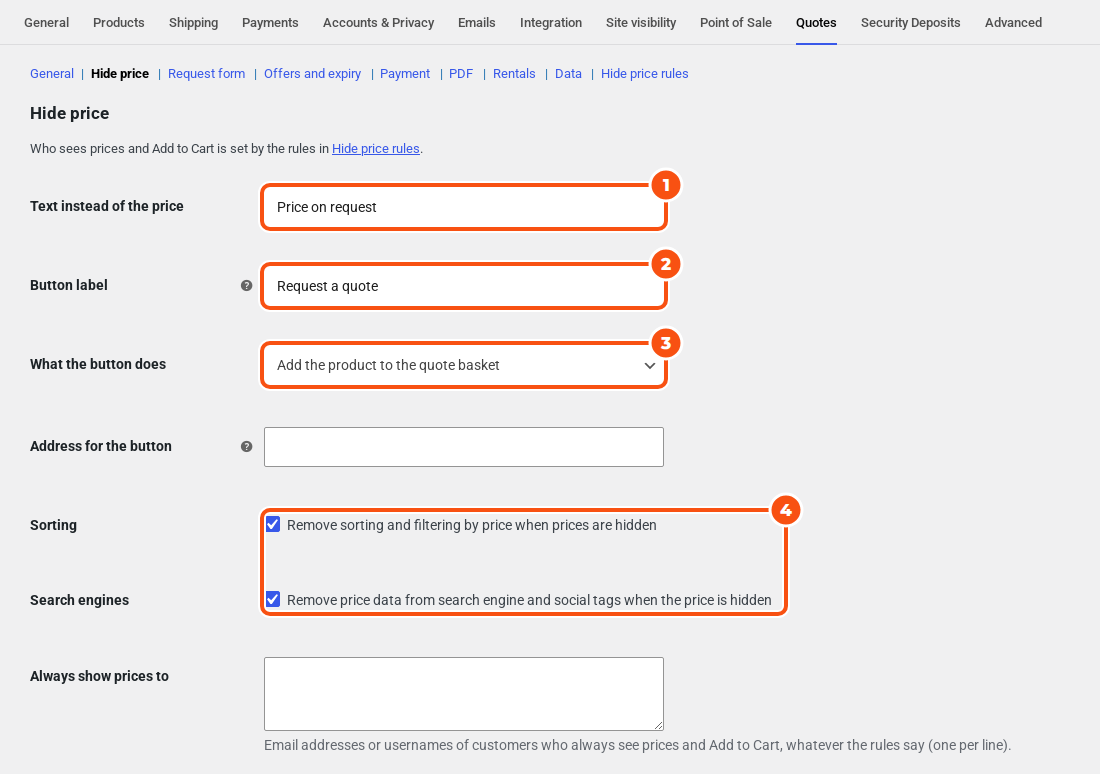
Go to WooCommerce › Settings › Quotes › Hide price.
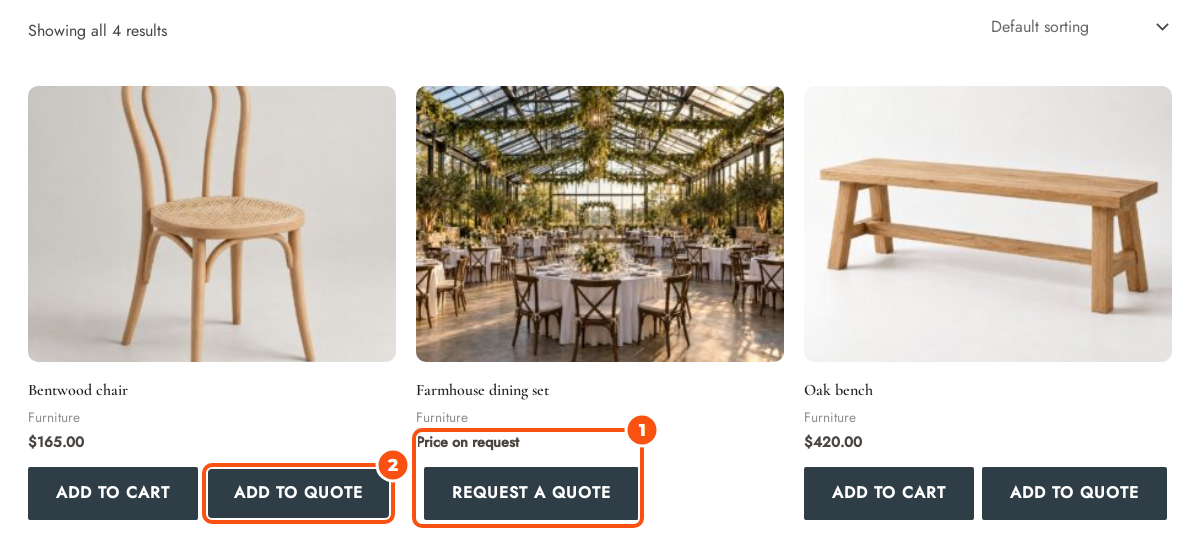
- Text instead of the price: “Price on request” by default. A rule can set its own text.
- Button label: “Request a quote” by default. It is shown instead of Add to Cart where the rules replace it.
- What the button does:
- Add the product to the quote basket (the default).
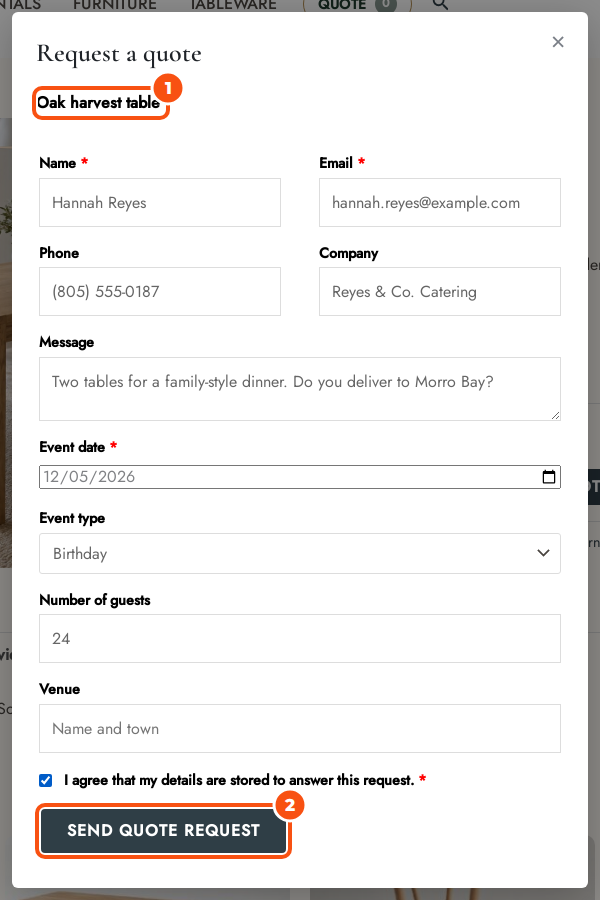
- Open a quick quote form for the product: a small form for this one product. It sends a request of its own and never touches the shopper’s quote basket. Without JavaScript the button adds to the basket instead.
- Go to the address below: in shop and category lists the button becomes a link to the Address for the button, for example your contact page. On the product page Add to Cart is still replaced by the normal Add to quote button.
A product’s own settings #
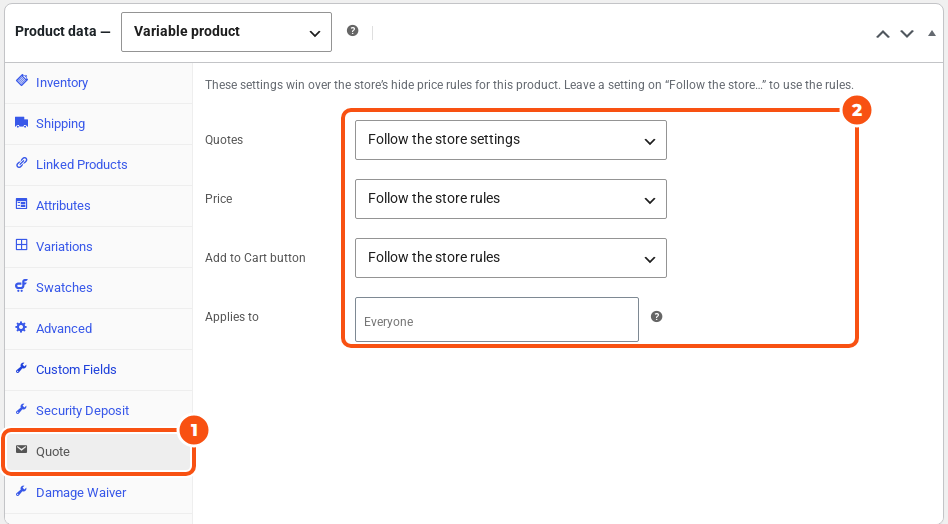
Open a product and click the Quote tab in Product data. These settings win over the store’s hide price rules for this product. Each one starts on “Follow the store…”, which uses the rules.
- Quotes: Follow the store settings, Can be quoted, Cannot be quoted, Quote only (cannot be bought directly).
- Price: Follow the store rules, Always show the price, Hide the price.
- Add to Cart button: Follow the store rules, Show Add to Cart, Hide Add to Cart, Replace Add to Cart with the quote button.
- Applies to: the price and button settings apply only to the groups you choose here. Leave it empty for everyone.
Two similar names mean different things. Quote only on a rule or a product means the item cannot be bought directly. Quote-only mode in General is about payment: customers cannot pay online and you take the order yourself (see From accepted quote to order).
Always show prices to #
Always show prices to (Hide price section) takes email addresses or usernames, one per line. Those customers always see prices and Add to Cart, whatever the rules say. Use it for trusted trade accounts. Entries that match no account are dropped when you save. Staff always see prices in the admin.
Price sorting and filters #
Sorting (“Remove sorting and filtering by price when prices are hidden”) is on by default. A price filter would give hidden prices away by which products it shows, so one setting removes the price sort option, the price filter widget and block, the price range in the address and the Store API’s price sort and range. It applies on shop pages where a hiding rule covers every product, and on the category or tag pages that a hiding rule covers.
Search engines #
WooCommerce’s own structured data never shows a hidden price. Search engines (“Remove price data from search engine and social tags when the price is hidden”, on by default) also removes the price from the tags and schema written by Yoast SEO (with Yoast WooCommerce SEO) and Rank Math.
Good to know #
- Express payment buttons (Stripe, WooPayments, PayPal Payments, Braintree PayPal and Venmo) are switched off on product pages where Add to Cart is removed or replaced.
- No price, still quotable. A product or variation without a price can still be quoted: Add to Cart is replaced by the quote button.
- Items already in a cart that a new rule now hides are taken out of the cart with a message.
- Grouped products: the price range is hidden when any child shown in the group hides its price.
- Bundles and composites with a hidden price also hide their items’ prices and running totals on their page.
- Custom CSS in the Hide price section styles the quote buttons and basket. Don’t use it to hide prices: prices are already removed on the server.
- Rental products have prices of their own on the page: see Rental quotes: dates, availability and stock holds.
- Check your work in a private browser window, logged out.


