
You can sell one membership with two plans, such as Monthly and Yearly. Each plan has its own price and billing period, so you can give the yearly plan a lower price. Both plans give the same member benefits, such as member rates on your rentals. Memberships on variable products need Subscriptions & Memberships 1.1.1 or later.
Why a variable product #
A membership is not a rental, so every billing period is charged at the product’s own price. If a simple membership product has two billing lengths (1m and 1y), the customer pays the same price for a year as for a month. Use a variable product instead: each variation is one plan, with its own price and its own billing period.
Rental subscriptions are different. Their price is the rental price for the billing length, so several billing lengths on one rental work (see Setting up subscriptions).
Set up the product #
- Go to Products > Add New and set Product data to Variable product.
- In the Subscriptions & Memberships box, tick Enable Subscriptions? on the Subscription tab. On the Membership tab, tick Enable Membership? and choose the membership type (see Setting up memberships). Then save the product (Save Draft is fine), so each variation shows its plan fields.
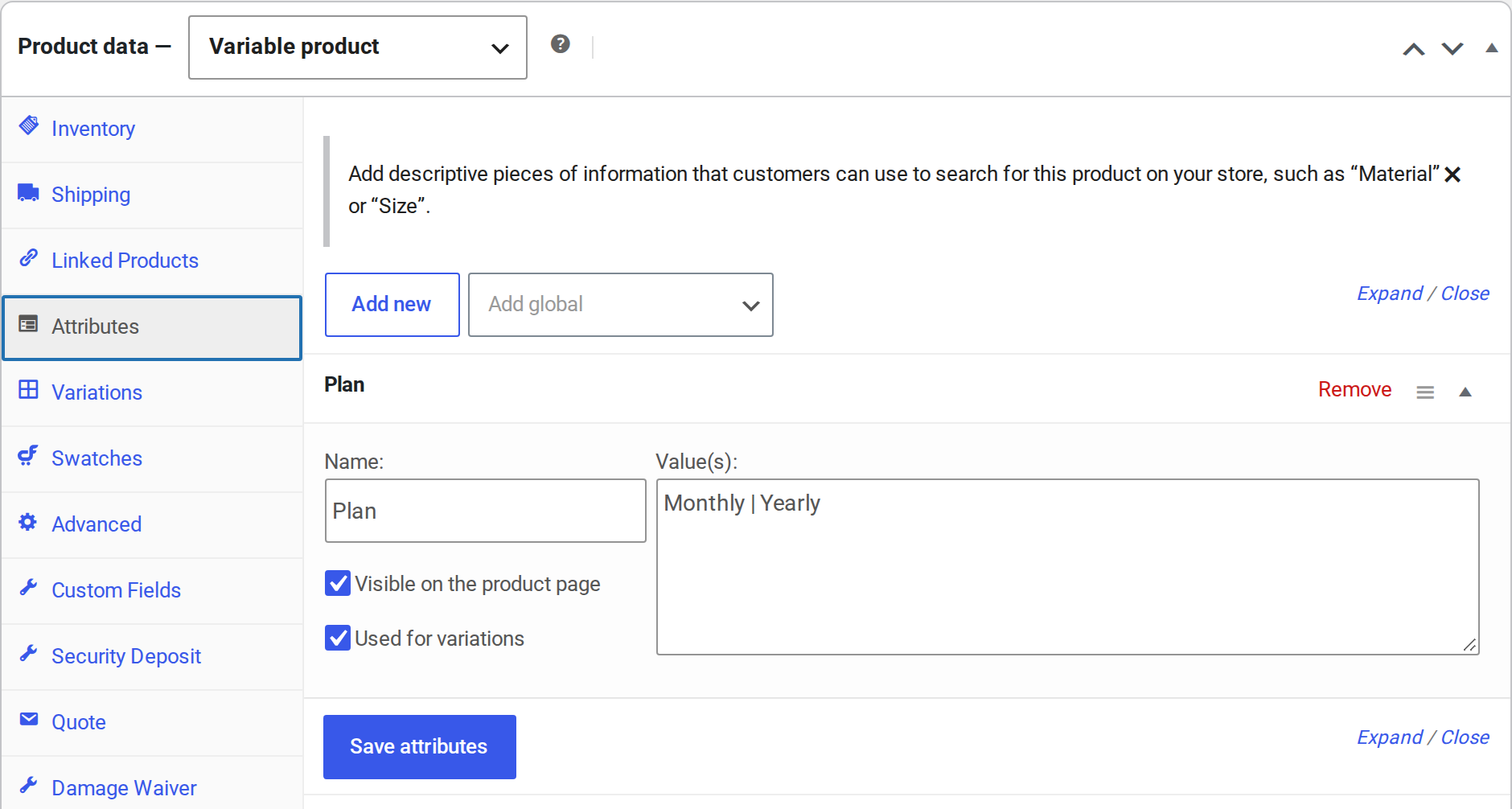
- On the Attributes tab, add a custom attribute named Plan with the values
Monthly | Yearly. Tick Used for variations and click Save attributes.
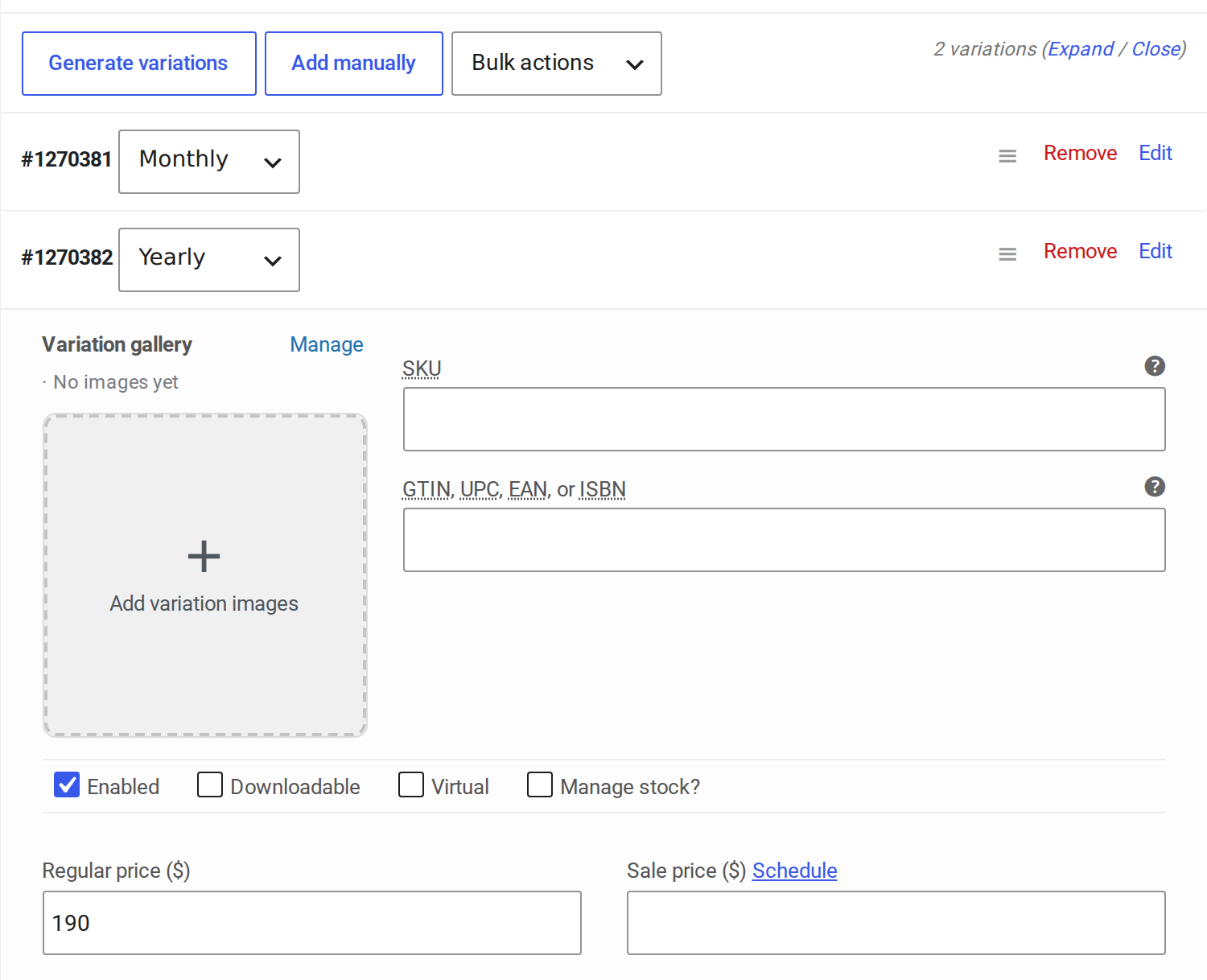
- On the Variations tab, click Generate variations. You get one variation for each plan.
- Open each variation and enter its Regular price, for example $19 for Monthly and $190 for Yearly.
- In the same variation, under Membership plan, set Billing every: 1 Month for Monthly and 1 Year for Yearly. Click Save changes, then publish the product.
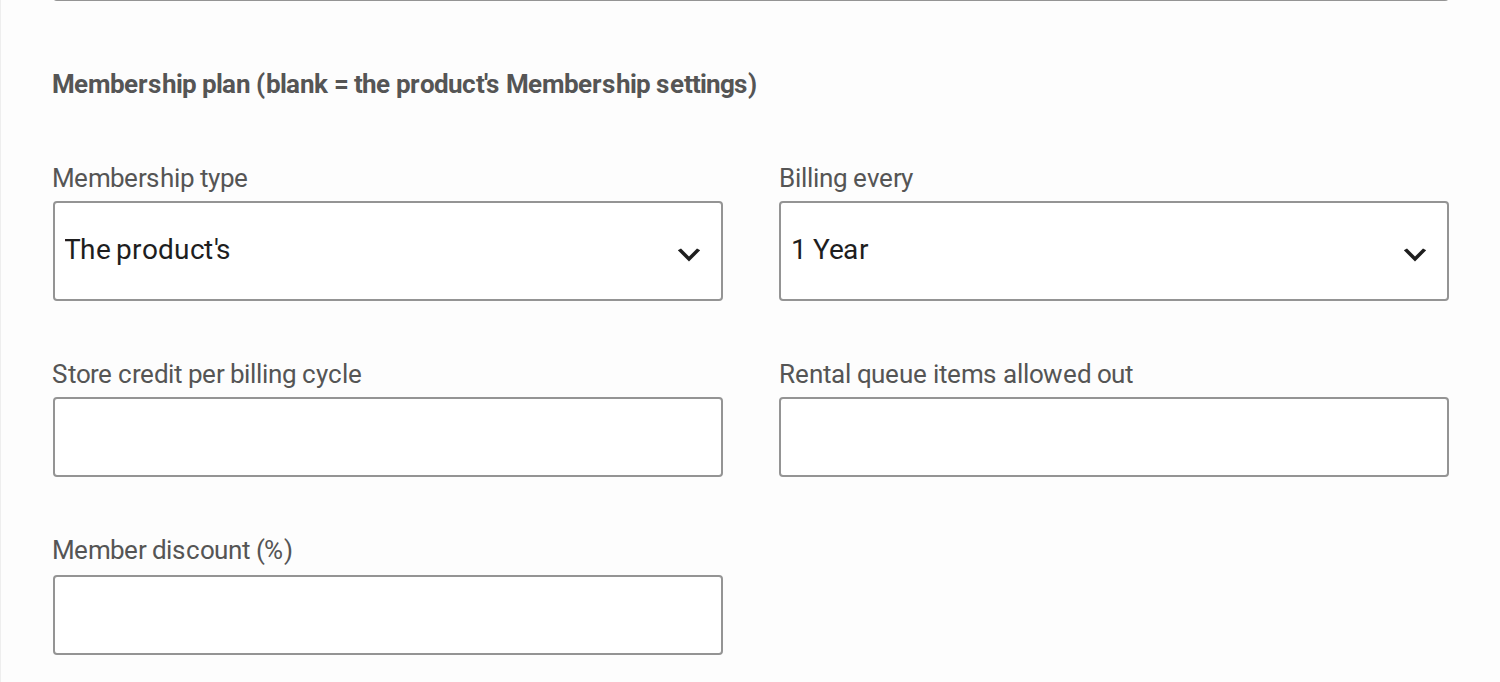
Leave the other Membership plan fields blank to use the product’s Membership tab. A plan can also have its own membership type, store credit, rental queue slots or member discount. Store credit is given once per billing cycle, so a Yearly plan gets its credit once a year.
What the customer sees #
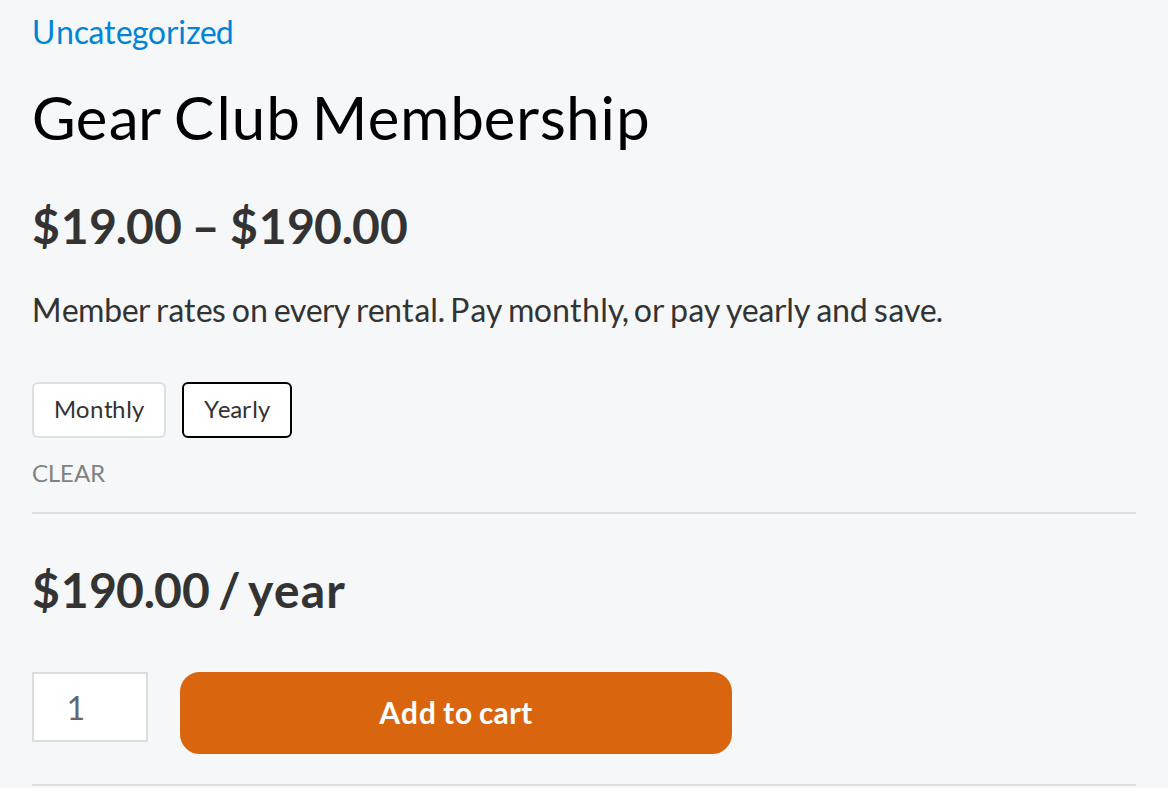
The product page shows a choice for each plan. When the customer picks one, the price shows with its billing period, for example $190.00 / year. Each plan then renews on its own billing period.
Member rates on both plans #
- Member rates apply while a customer holds any active membership, so Monthly and Yearly members get the same rates. You set them on each rental, on the Member price tab of its Subscriptions & Memberships box.
- If you use a Member discount (%) instead, set it on the product’s Membership tab. A plan’s own Member discount (%) replaces it for that plan. A rental with member rates never takes the discount as well.
Customers need an account #
- Renewals charge the payment method saved to the customer’s account. A guest checkout has no account, so a renewal has nothing to charge.
- Member rates go to a signed-in member. A membership bought as a guest is not linked to an account, so its rates never apply.
- My Account is where members see their plan, their next payment and their payment method.
To make sure every member has an account, untick Enable guest checkout in WooCommerce > Settings > Accounts & Privacy. This applies to your whole store.
Moving a member to the other plan #
From My Account, members can only change to a plan with the same billing period, so they can’t switch between Monthly and Yearly themselves. You can change a member’s billing period: open the subscription’s parent order, and in the Change plan box under Billing length, enter the new length (for example 1y) and the new amount, then click Schedule. The change applies at the next renewal.


