
Give a discount by itself when a cart qualifies, for example 10% off when someone rents 3 or more items, or 15% off rentals of a week or longer. You set it up on an ordinary WooCommerce coupon. Shoppers don’t type a code: the discount shows in the cart and at checkout as soon as the cart qualifies, and goes away when it no longer does.
Automatic rental discounts came in Rentals & Bookings Regular 1.0.95 and are in the higher packages too.
Set up an automatic discount #
- Go to Marketing › Coupons and add a coupon, or open one you have.
- Give it a code. Shoppers see the discount’s name, not the code; the code shows on the order in wp-admin.
- On the General tab, pick the discount type and the amount: Percentage discount, Fixed cart discount or Fixed product discount.
- Open the Rental conditions tab, tick Apply automatically and fill in one condition or both (see below).
- Click Publish.
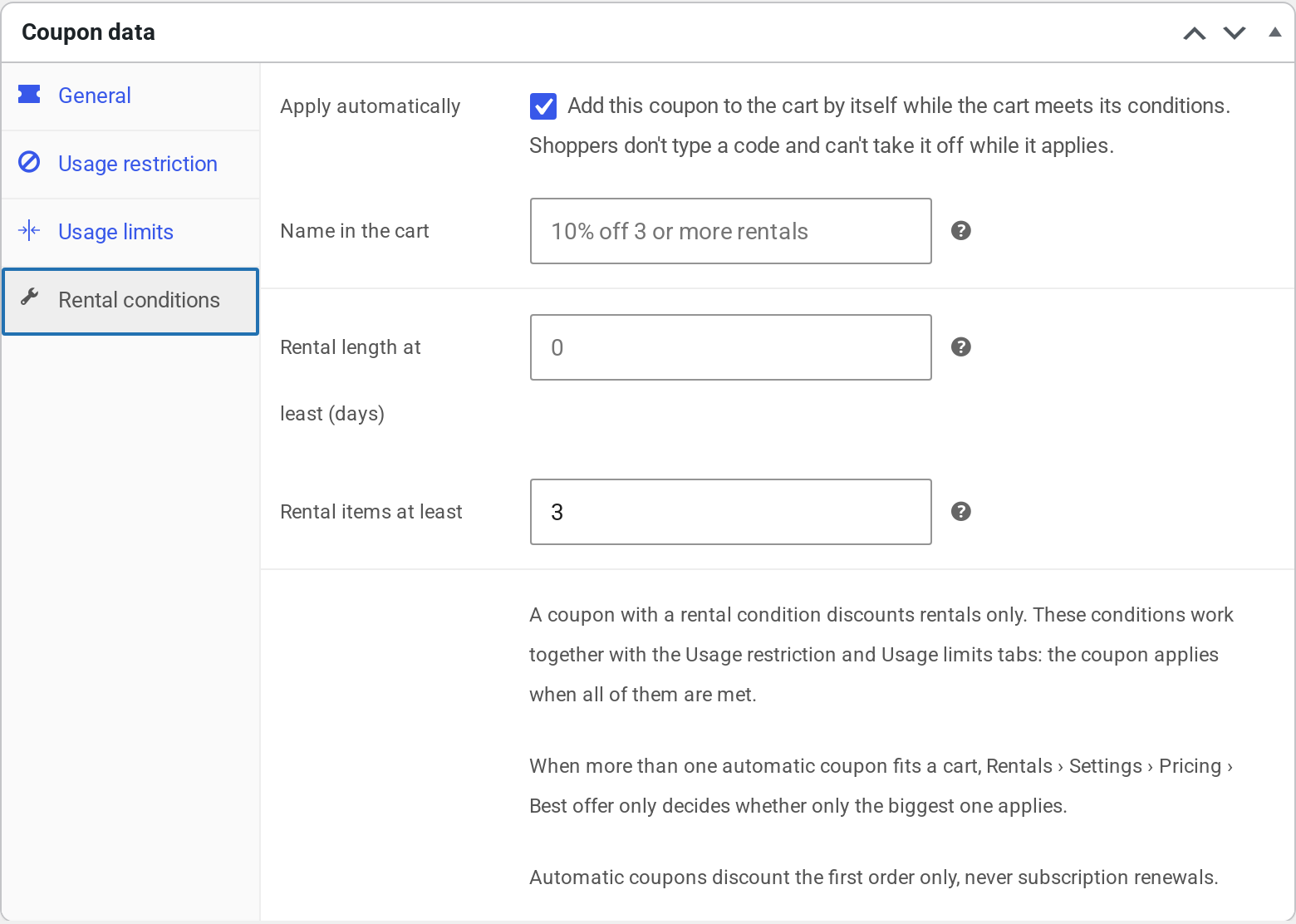
Name in the cart is what the cart and checkout show. Leave it empty and the name is made from the coupon, for example “10% off 3 or more rentals” or “15% off rentals of 7 days or longer”. You can change these words on the Text screen too.
Coupons must be turned on in WooCommerce › Settings › General (“Enable the use of coupon codes”). If they are off, the Rental conditions tab says so and no automatic discount is applied.
The two conditions #
- Rental length at least: in days, or in nights if your store books by the night. Only rentals at least that long get the discount. With 7 days and a cart that holds a 3-day rental and a 7-day rental, only the 7-day rental is discounted.
- Rental items at least: how many rentals the cart needs, counting quantities. Two of one product and one of another make 3. A bundle counts as one item, whatever is in it. Products bought rather than rented don’t count.
- Both: only rentals of that length count. “2 or more rentals of 7 days or longer” needs two rentals of at least 7 days, and the discount goes to those rentals.
A coupon with a rental condition discounts rentals only. A fixed cart discount is shared out over the rentals it applies to.
The conditions work together with WooCommerce’s own Usage restriction and Usage limits tabs: minimum spend, products and categories, allowed emails, usage limits and the expiry date. The discount applies only when all of them are met. For example, add your “Party tents” category under Usage restriction to give 10% off 3 or more tents.
What shoppers see #
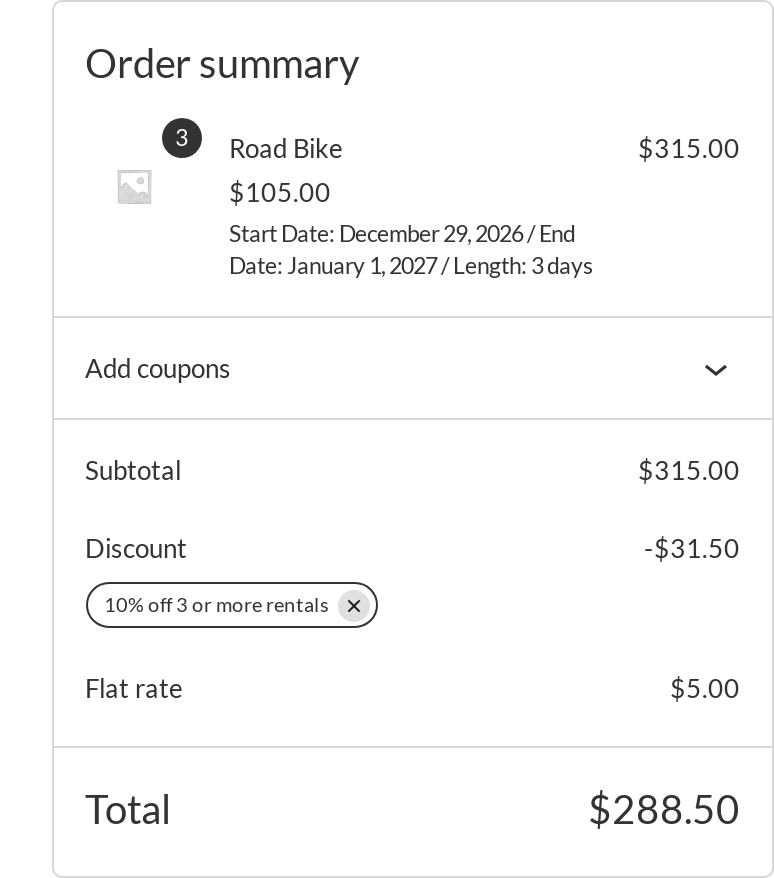
- Cart and checkout: the discount’s name and amount, in the classic and the block cart and checkout. The discount stays while the cart qualifies. The classic cart shows no Remove link; in the block cart and checkout the discount keeps its ×, and clicking it says “This discount is applied automatically while your cart qualifies.” When the cart stops qualifying (a rental taken out, a shorter rental), the discount goes away without an error message, and it comes back when the cart qualifies again.
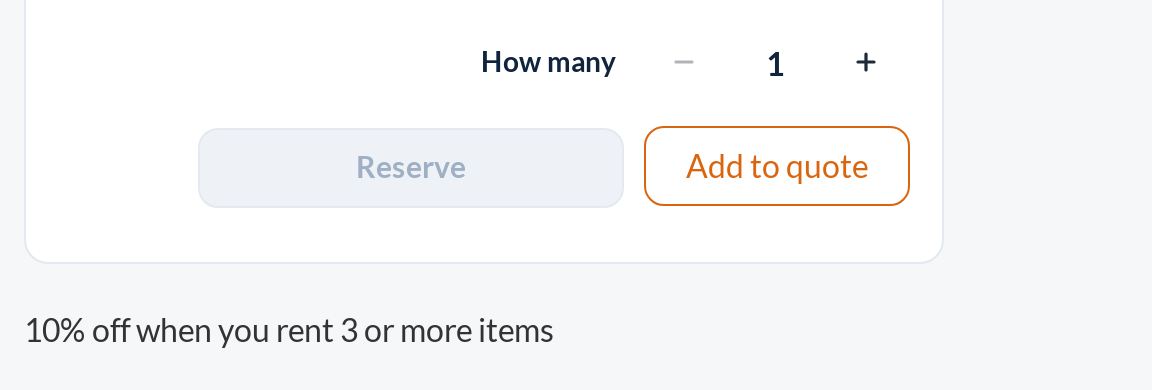
- Product page: under the booking bar of a rental that can get the discount, a line such as “10% off when you rent 3 or more items”. At most two lines show. Coupons limited to some emails, used up or expired don’t show.
- The order: an ordinary coupon line, as with a code the customer typed. Refunds work as usual.
Best offer only #
Go to Rentals › Settings › Pricing. Best offer only is on by default: when more than one automatic coupon fits a cart, only the one that takes the most off applies. A percentage coupon and a fixed one are compared by the amount each takes off this cart.

A booking-length pricing rule counts as an offer too, so a long rental doesn’t get both discounts in full. Say a 7-day rental gets 7% off from a booking-length rule and you have a 10% automatic coupon for rentals of 7 days or longer:
- With Best offer only on, the shopper gets 10% in all, not 17%. The coupon line shows the 3% that tops up the 7%: on a $70 rental the price is $65.10 after the rule, the coupon takes $2.10 off, and the rental costs $63.
- If the rule gives more than the coupon (7% from the rule, a 5% coupon), the coupon isn’t applied.
- With Best offer only off, every automatic coupon that fits applies and they add up, as WooCommerce adds coupons up. The 10% coupon then comes off the price after the rule: $65.10 less $6.51.
Coupon codes that shoppers type #
Coupon codes work as usual next to an automatic discount, and Best offer only doesn’t change them. A code marked Individual use only replaces the automatic discount, as WooCommerce does with any other coupon.
To keep codes and automatic discounts apart, turn on Don’t combine coupon codes with automatic offers under Rentals › Settings › Pricing (off by default). A shopper who types a code while an automatic discount is in the cart then sees “Coupon codes can’t be combined with the automatic discount in your cart.”, and a cart that already holds a typed code gets no automatic discount.
Orders in wp-admin and subscriptions #
- An order you create or edit in wp-admin gets no automatic discount by itself. You can apply the coupon’s code there, and its rental conditions still have to be met.
- With Subscriptions, an automatic coupon discounts the first order only, never the renewals.
Stop an automatic discount #
Untick Apply automatically to keep the coupon as an ordinary code, or move the coupon to the trash. Carts drop it the next time they update. Orders placed with it keep their coupon line.


